Overview
This article explains how to add and edit the Terms and Conditions shown to residents when they create a request. Terms and Conditions are set up per request type in the CX module, and once saved, they display automatically to residents on the app or web portal.
Before You Start
You'll need access to the property group for which you want to set up Terms and Conditions.
Add Terms and Conditions to a Request Type
- Select the property group where you want to add Terms and Conditions.
- Go to Requests Terms & Conditions.
- From the Select Request dropdown, choose the request type you want to add Terms and Conditions for.
- Select Add.
- Enter the Terms and Conditions text in the text box provided.
- Review the text to confirm it's accurate and complete.
- Select Submit once you're satisfied.
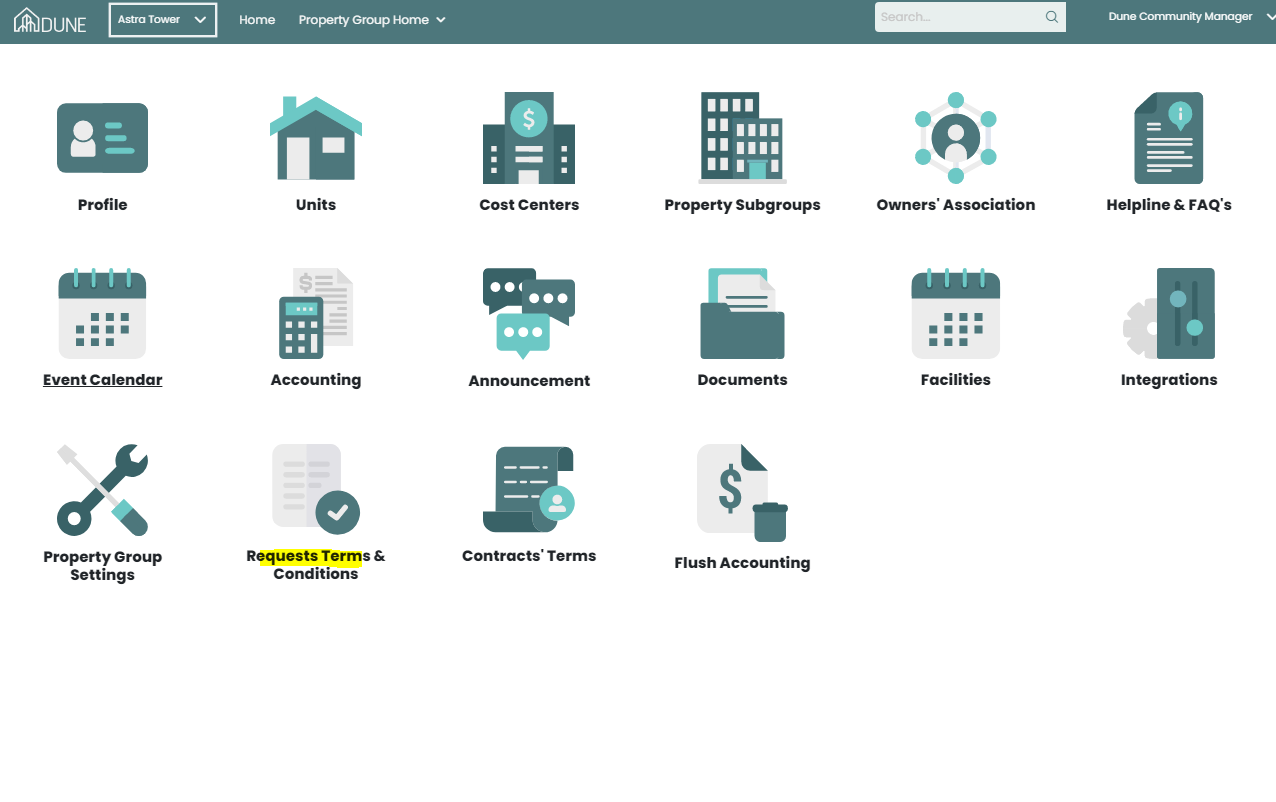
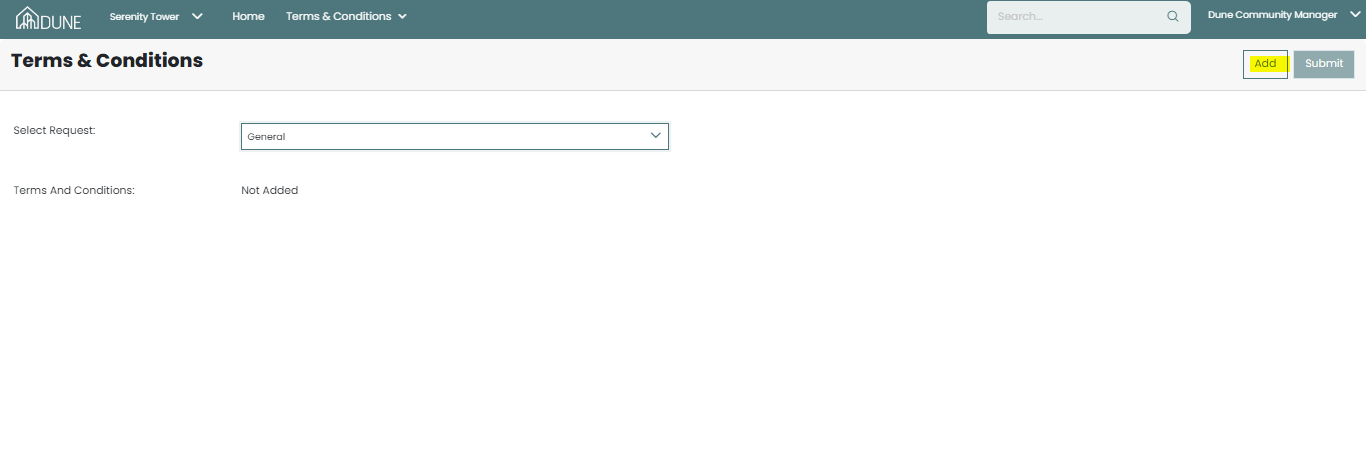
[SCREENSHOT: Requests Terms & Conditions screen showing the Select Request dropdown, Add button, and text box]
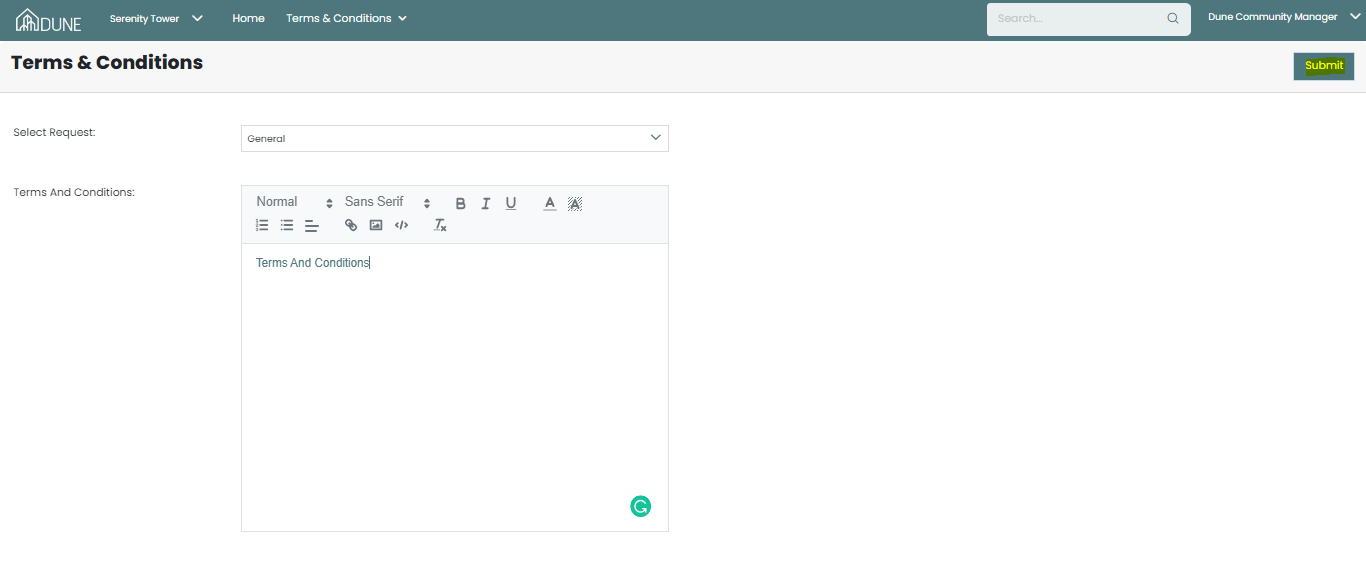
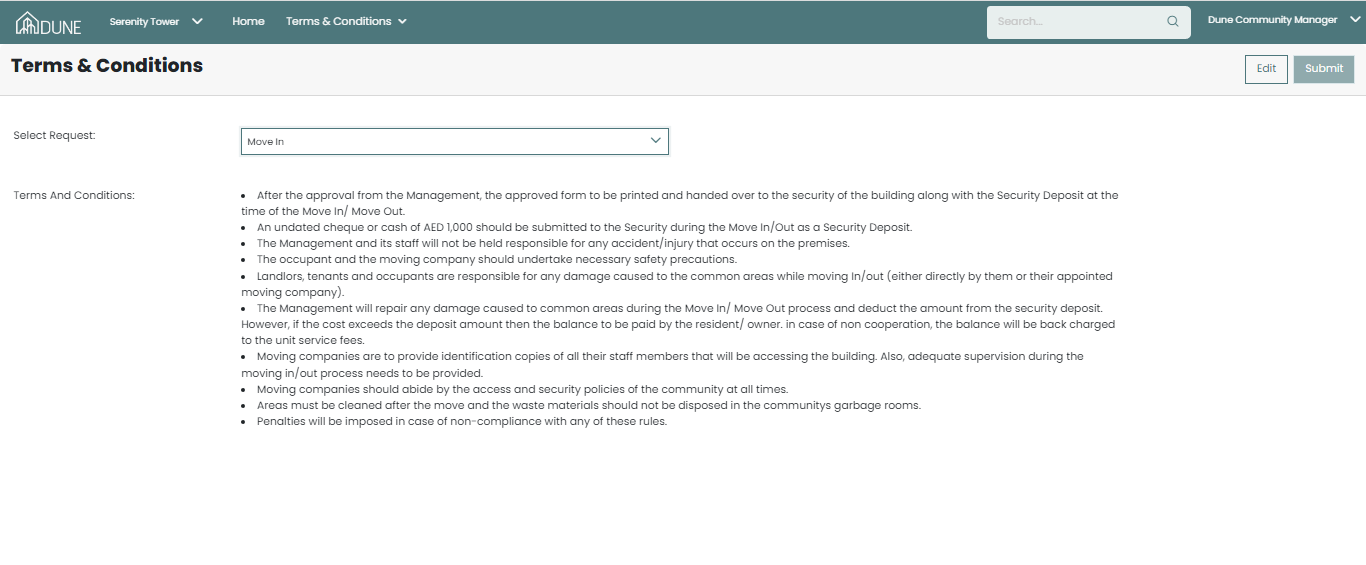
Once submitted, the Terms and Conditions are saved and will display automatically to residents when they choose to create this type of request on their app or web portal.
Edit Existing Terms and Conditions
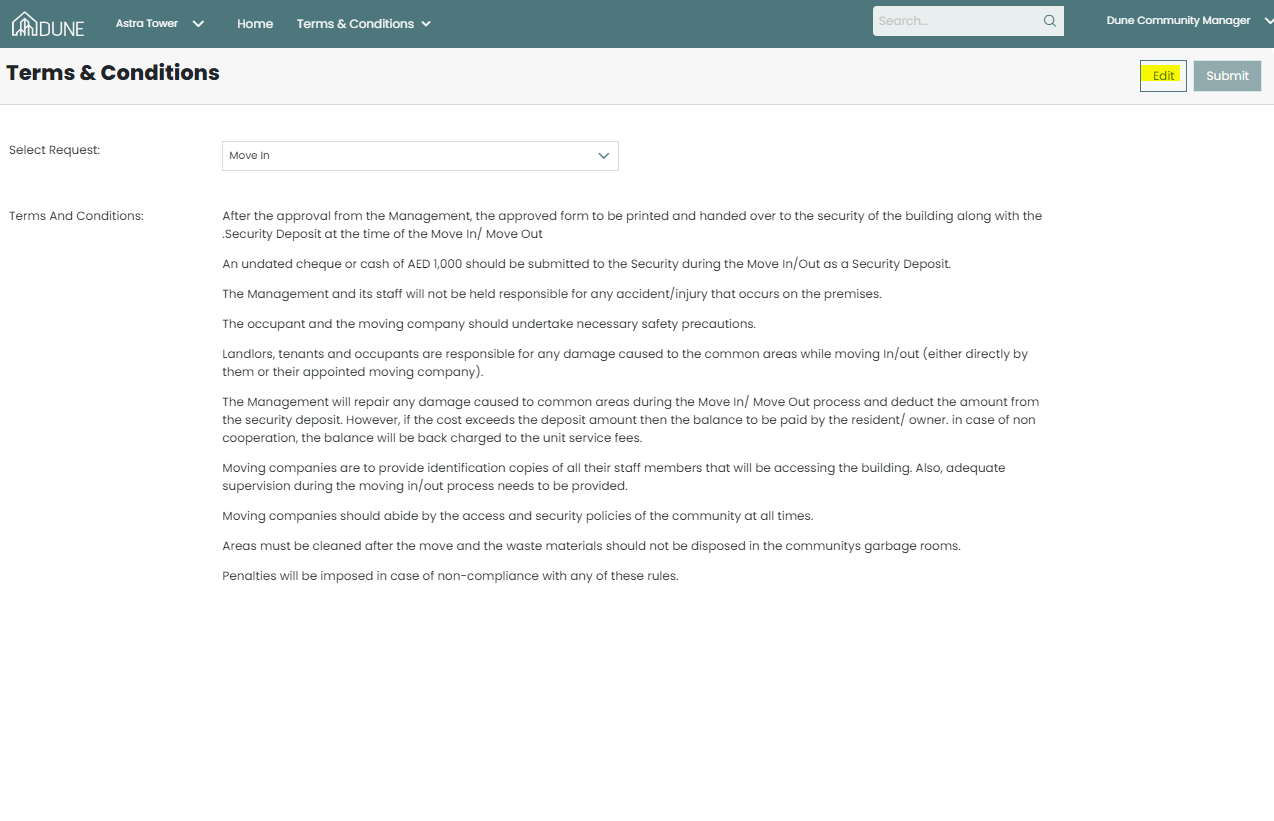
- Go to Requests Terms & Conditions.
- From the Select Request dropdown, choose the request type whose terms you want to update.
- Select Edit.
- Update the text as needed.
- Select Submit to save your changes.
Common Questions
Can each request type have different Terms and Conditions? Yes. Each request type has its own customised Terms and Conditions.
Was this article helpful?
That’s Great!
Thank you for your feedback
Sorry! We couldn't be helpful
Thank you for your feedback
Feedback sent
We appreciate your effort and will try to fix the article