Overview
This article explains how to edit your Pending or Rejected requests directly from the mobile app. Editing a request allows you to update information or re-upload documents without creating a new request.
Access Your Requests
Open the mobile app.
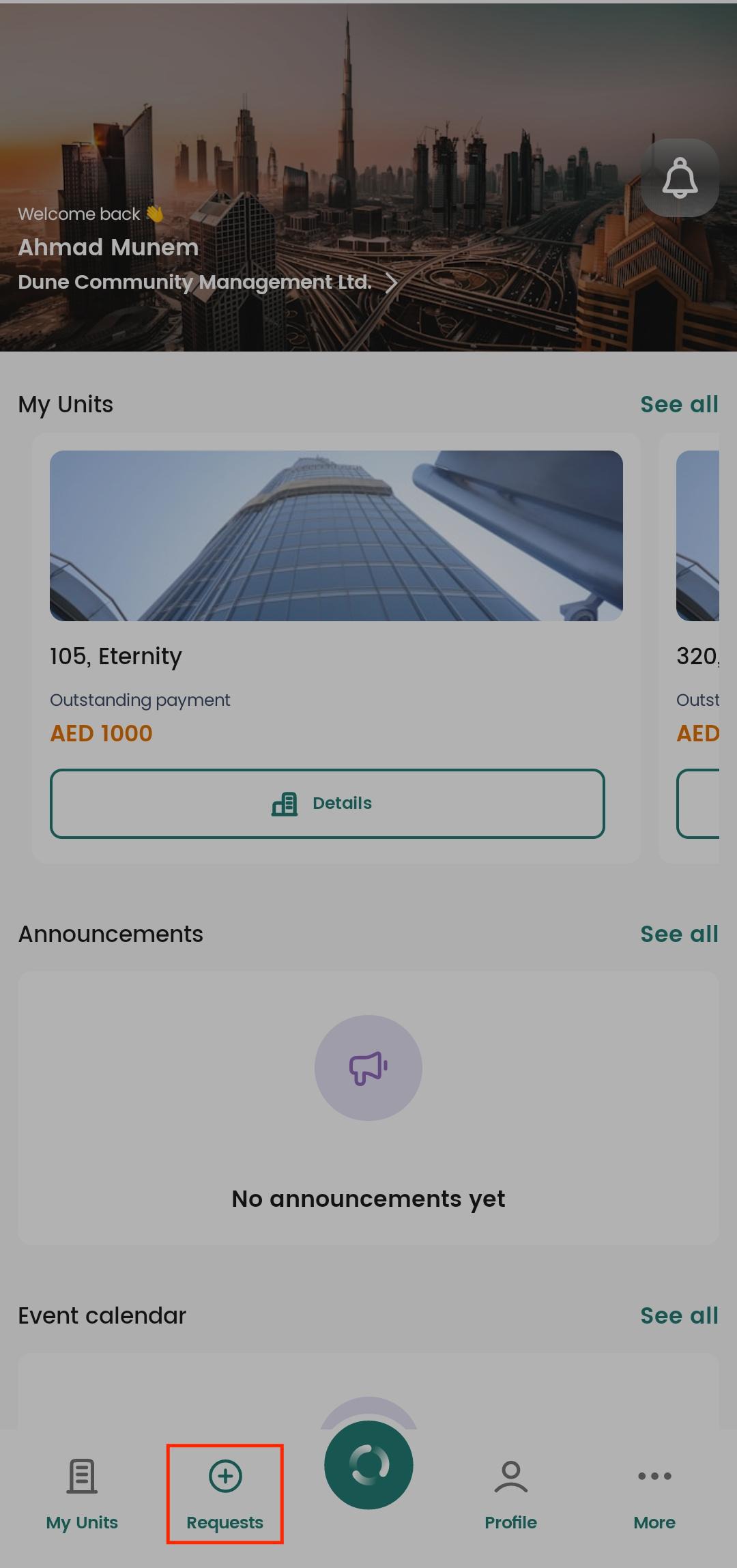
From the home page, on to the bottom and tap on Requests.
Open the Request You Want to Edit
Edit a Recent Request
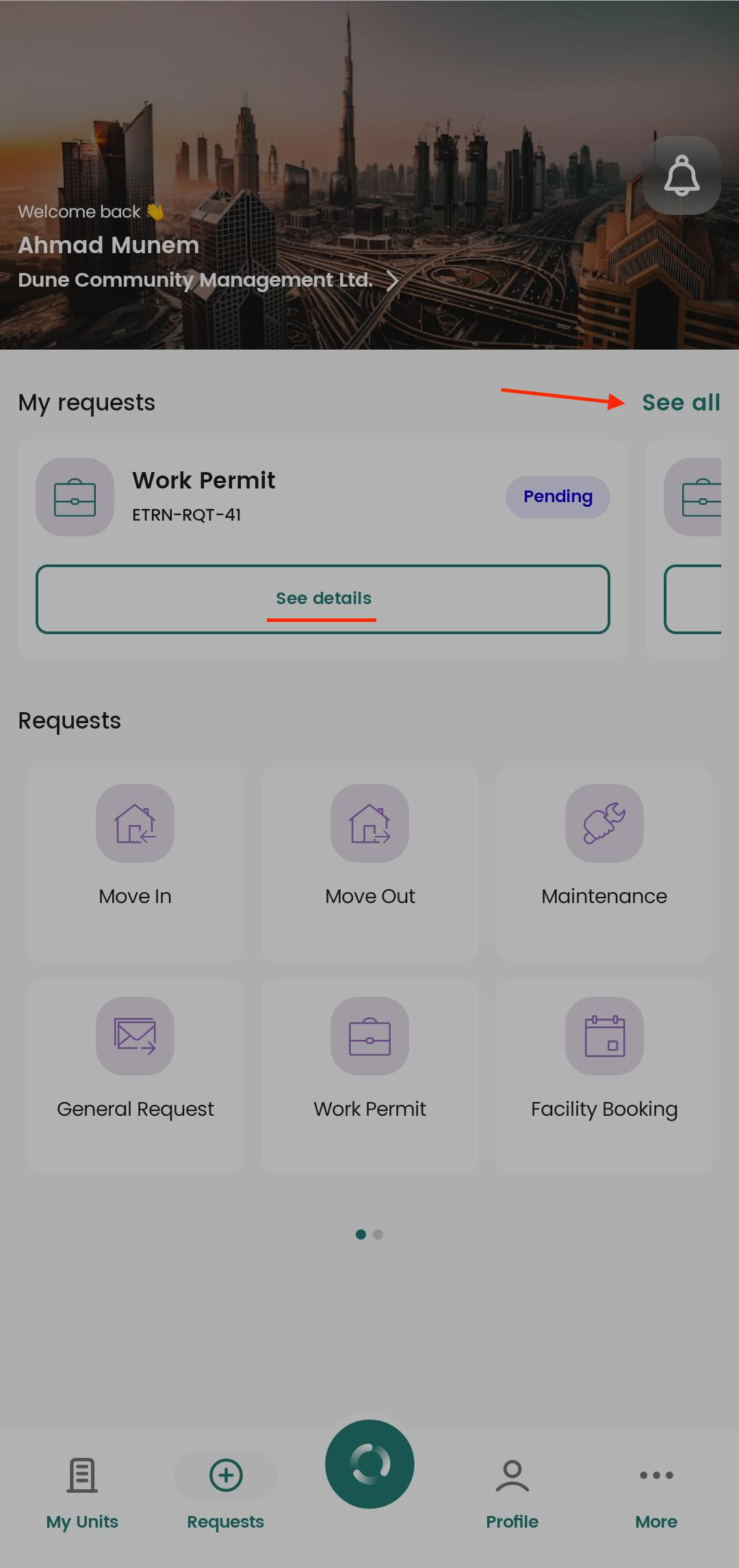
Tap see details on the most recent request displayed on the request page.
Or Edit an Older pending/rejected Request
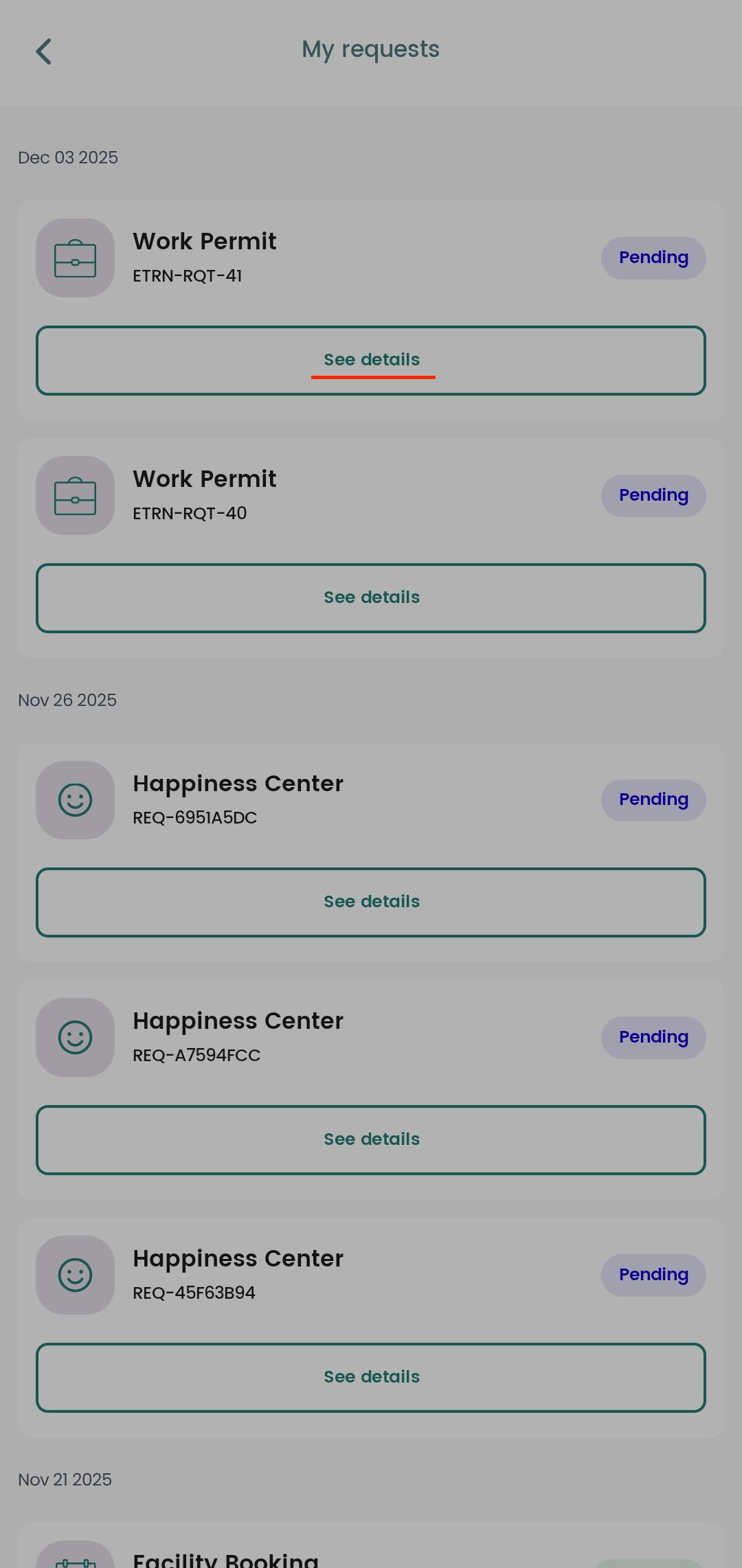
Tap See all to view the full list of requests you have submitted.
Select the request you want to edit by tapping See details.
Edit the Request
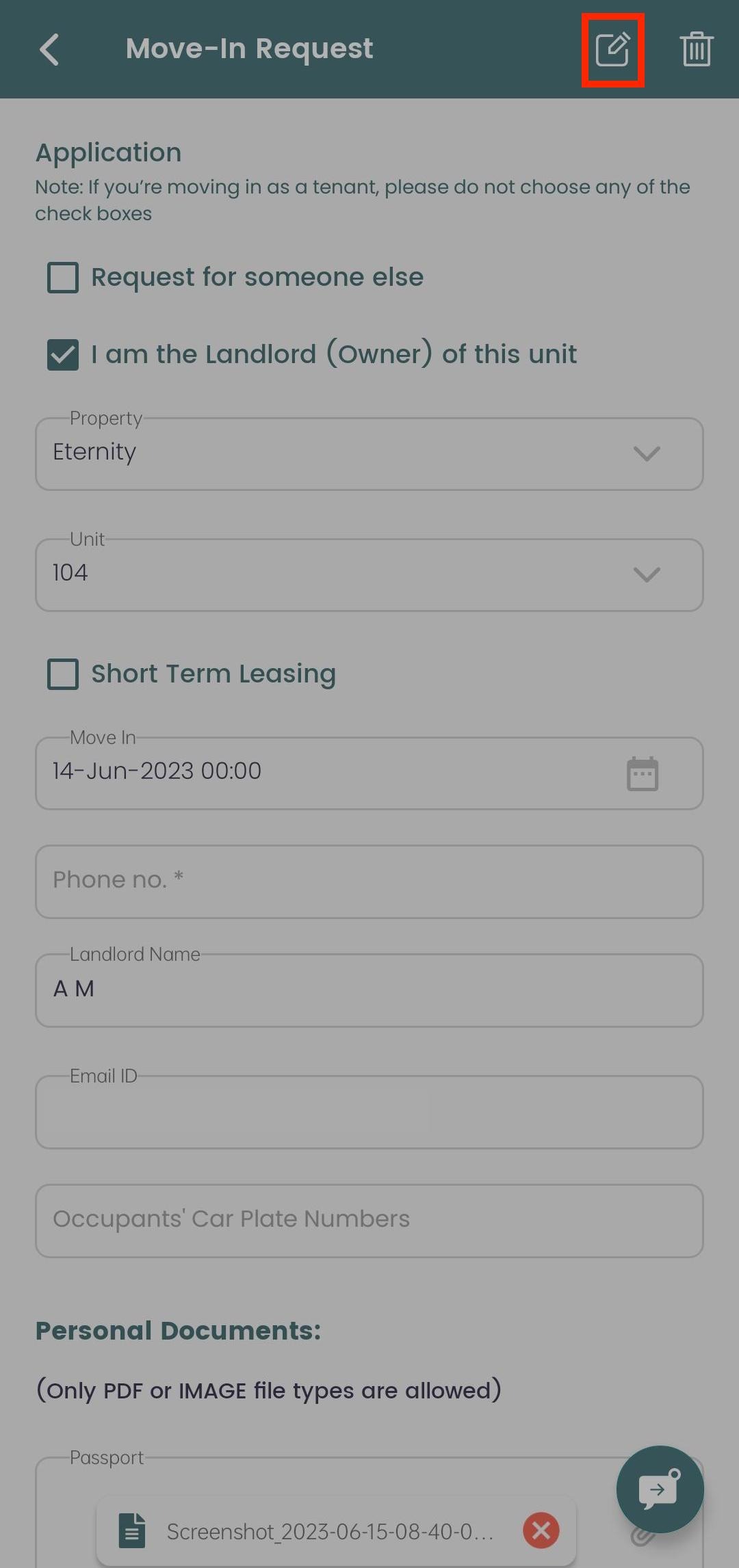
Once the request is opened, tap on the Edit icon (as shown in the screenshot).
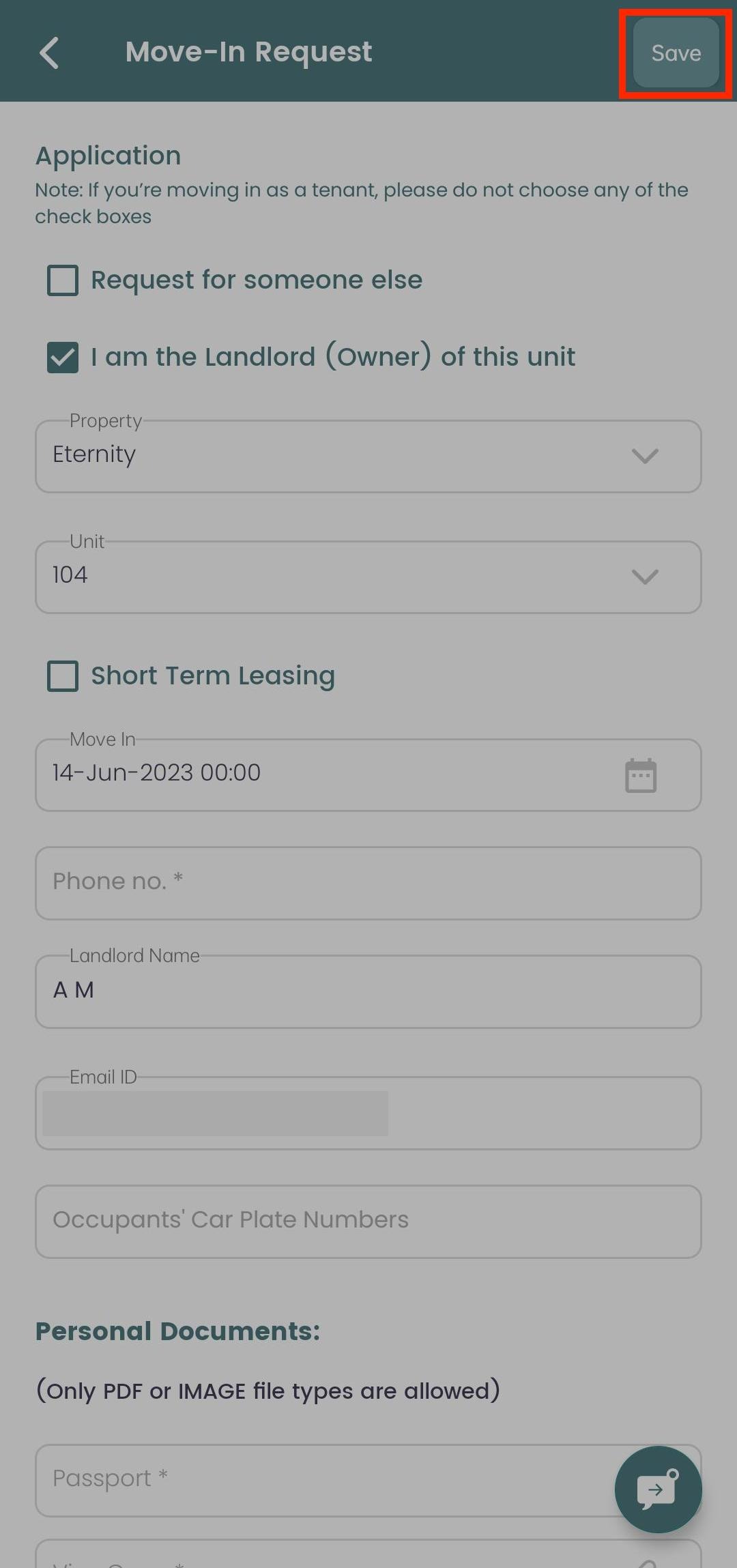
The request will open in edit mode.
Update the required information and/or upload new or corrected documents.
Tap Save to apply your changes.
Important Notes
You can edit requests with the status Pending or Rejected.
Approved requests cannot be edited.
- Always review your updates carefully before saving to avoid further delays.
- If you have questions or need clarification, you can use the chat option within the request to communicate directly with your Community Manager.
Was this article helpful?
That’s Great!
Thank you for your feedback
Sorry! We couldn't be helpful
Thank you for your feedback
Feedback sent
We appreciate your effort and will try to fix the article