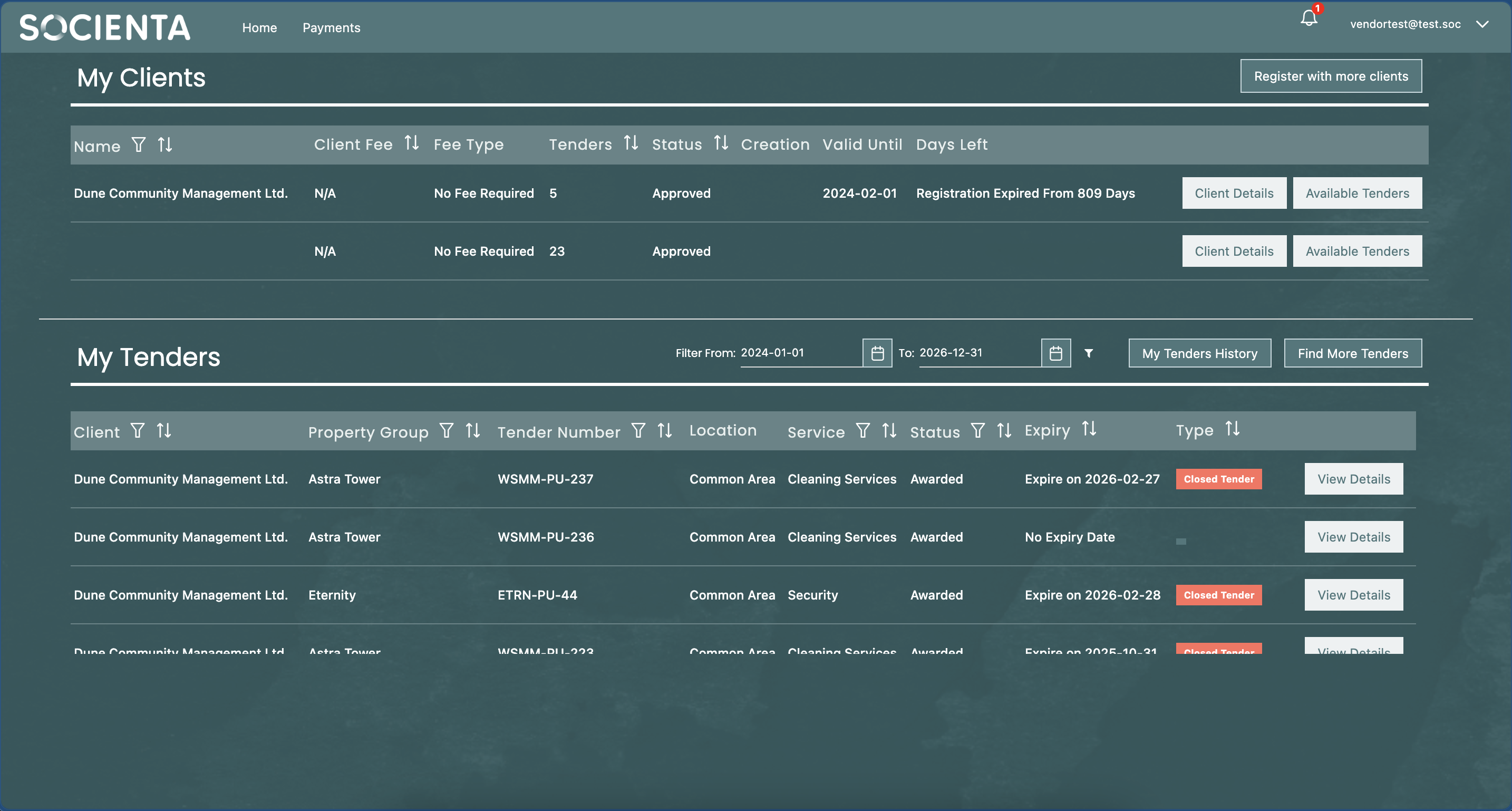
Q: Where can I add my invoice?
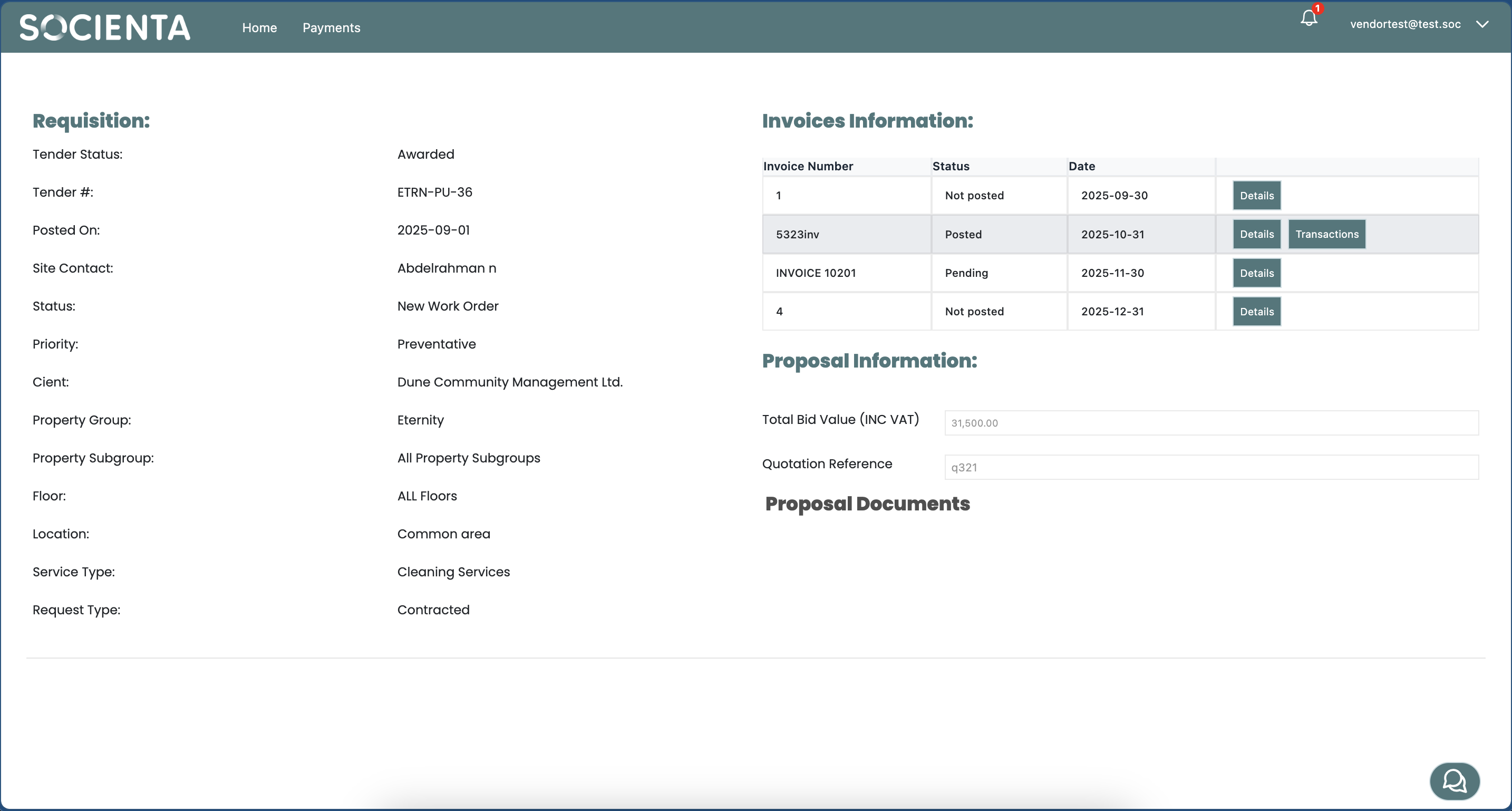
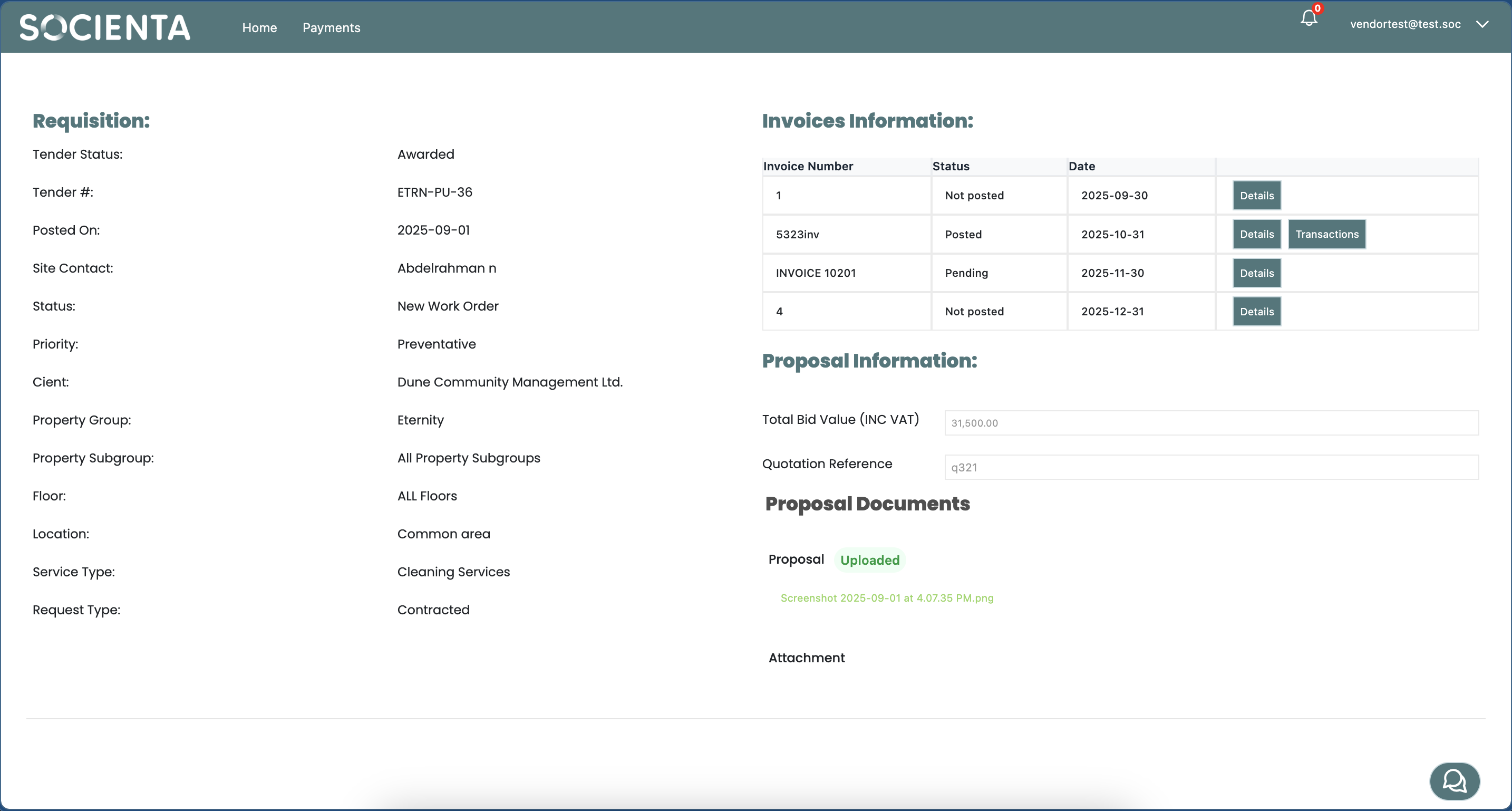
A: Once a tender has been awarded to you, open it from the My Tenders section on your Home page and click View Details. On the tender details page, locate the Invoices Information table on the right-hand side. Each scheduled invoice row has a Details button — click it to open the Invoice Details dialog, where invoice documents are added.
Q: What are the steps to add an invoice?
A:
1. From Home → My Tenders, click View Details on the awarded tender.
2. In the Invoices Information table, click Details next to the invoice you wish to submit.
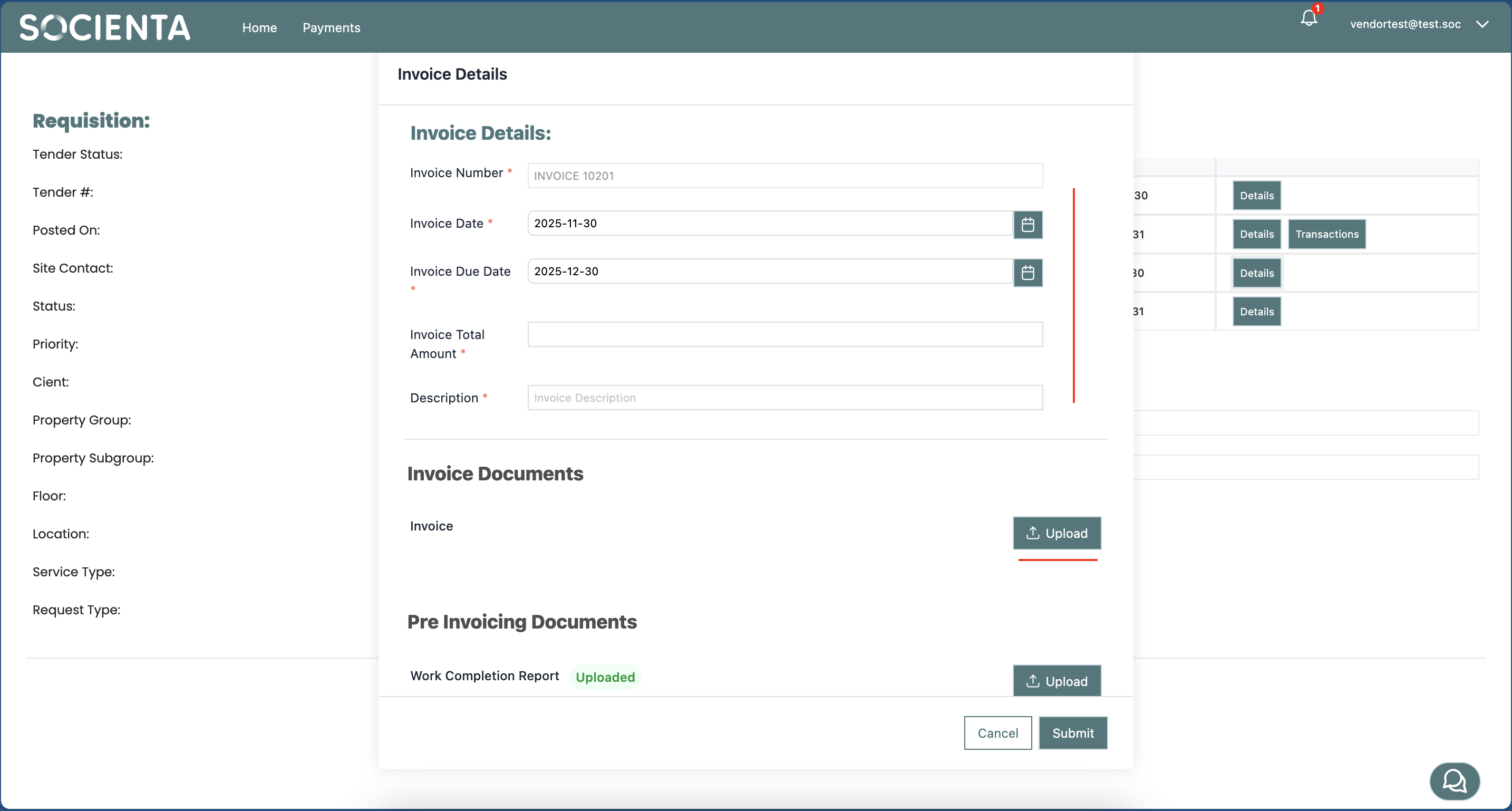
3. In the Invoice Details dialog, under Pre Invoicing Documents, click Upload next to Work Completion Report and select your file. Repeat for PPM Service Report if applicable, and same for Other Attachments if applicable.
Note: It is recommended to also upload a receipt image as proof of payment along with your pre-invoicing documents.
4. Click Submit to send the pre-invoicing documents to the client for review.
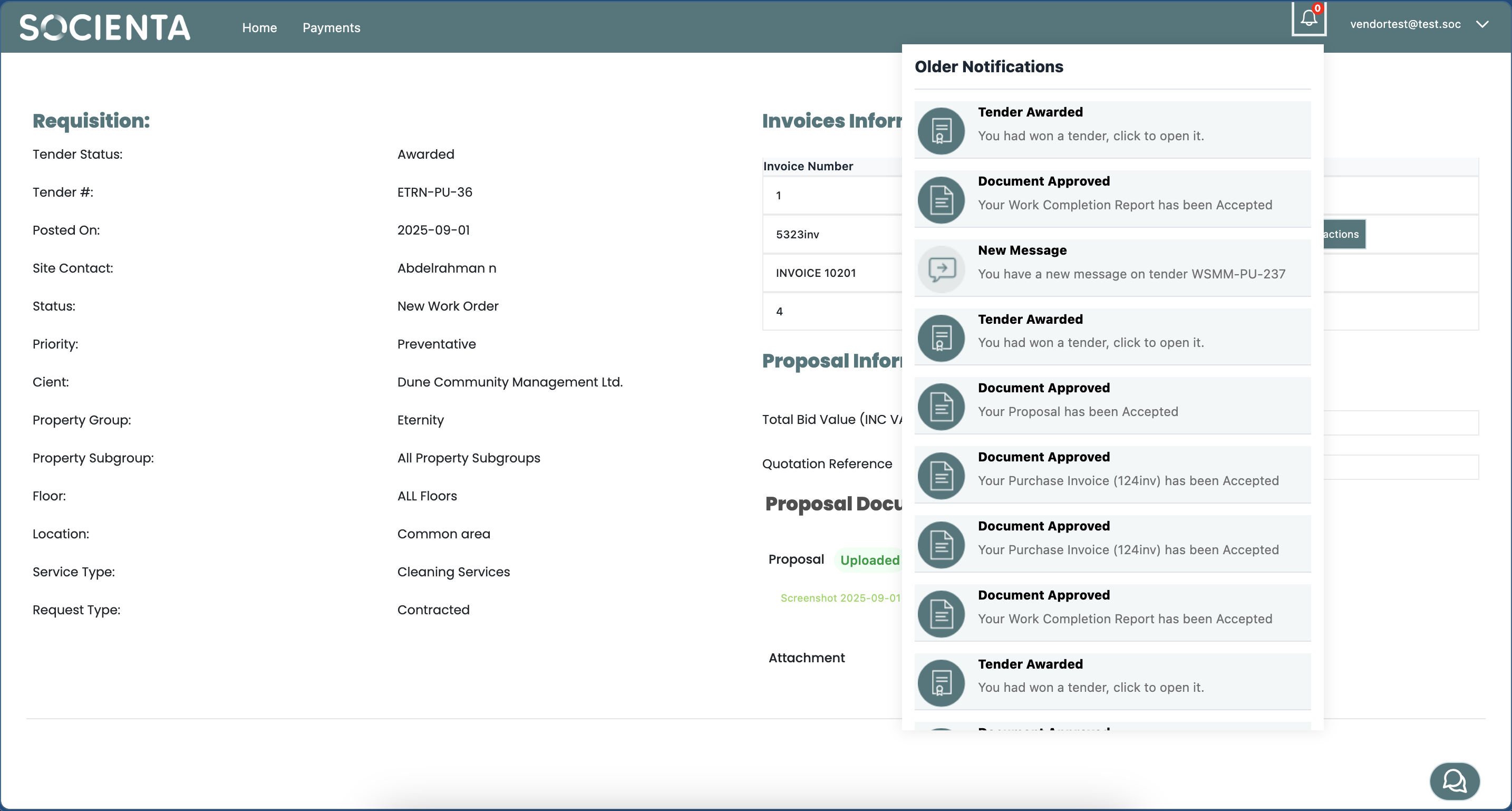
5. Wait for the client to review the Work Completion Report. You will be notified (system notification + email) once action is taken.
6. After approval, reopen the invoice via Details. Under Invoice Documents, click Upload next to Invoice and attach your actual invoice file. Make sure to fill in all required Invoice Details fields, which must match exactly the information on your actual invoice: Invoice Number, Invoice Date, Invoice Due Date, Invoice Total Amount, and Description.
7. Click Submit to send the invoice for review.
Q: What do the invoice statuses mean?
A:
- Not posted — The invoice row has not yet been submitted (billing period may not be open, or pre-invoicing documents are still pending).
- Pending — The invoice has been submitted and is awaiting client review.
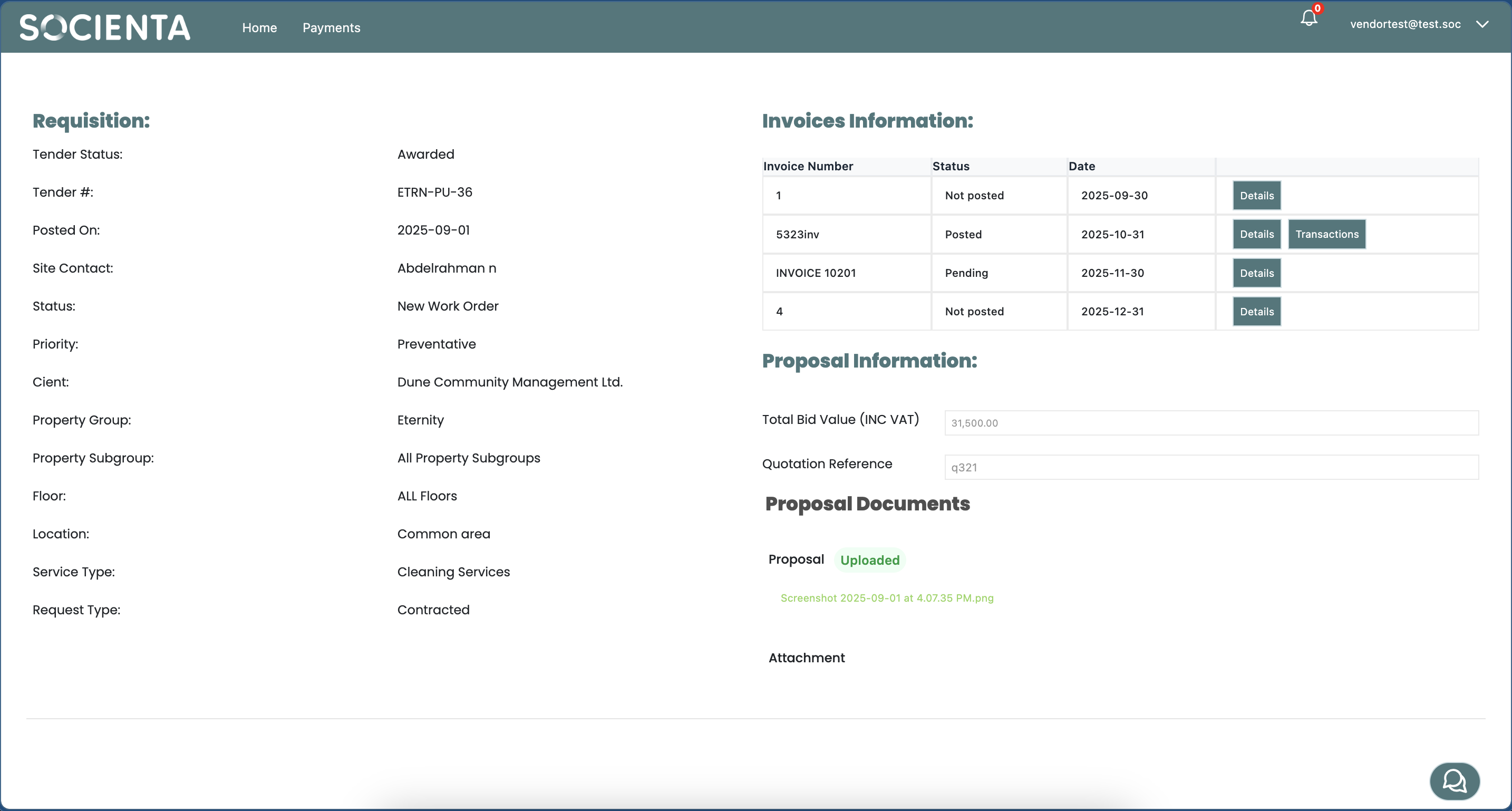
- Once the client reviews and acts, you can track the payment process in the Invoices Information table and download the transaction by clicking the Print button.
Q: What happens after I submit my invoice?
A: The client will review and take action, and you will receive notifications (both in-system and by email). When the payment is processed, the status updates in the Invoices Information table and the scope of work is marked as done. You can click Print to download the transaction record.
Q: What should I do if one of my documents gets rejected?
A: If any of your documents (pre-invoicing documents or invoice) are rejected, you can see the rejection reason directly in the Invoice Details dialog. Review the reason provided by the client, then re-upload the corrected document using the Upload button next to the relevant field and resubmit.
Was this article helpful?
That’s Great!
Thank you for your feedback
Sorry! We couldn't be helpful
Thank you for your feedback
Feedback sent
We appreciate your effort and will try to fix the article