Overview:
The Announcements feature in Socienta allows you to communicate important messages to residents, landlords, or custom recipients. You can send announcements via email, show them on the web portal, and track delivery status.
Access Announcements
- From the Home Page, click Announcements
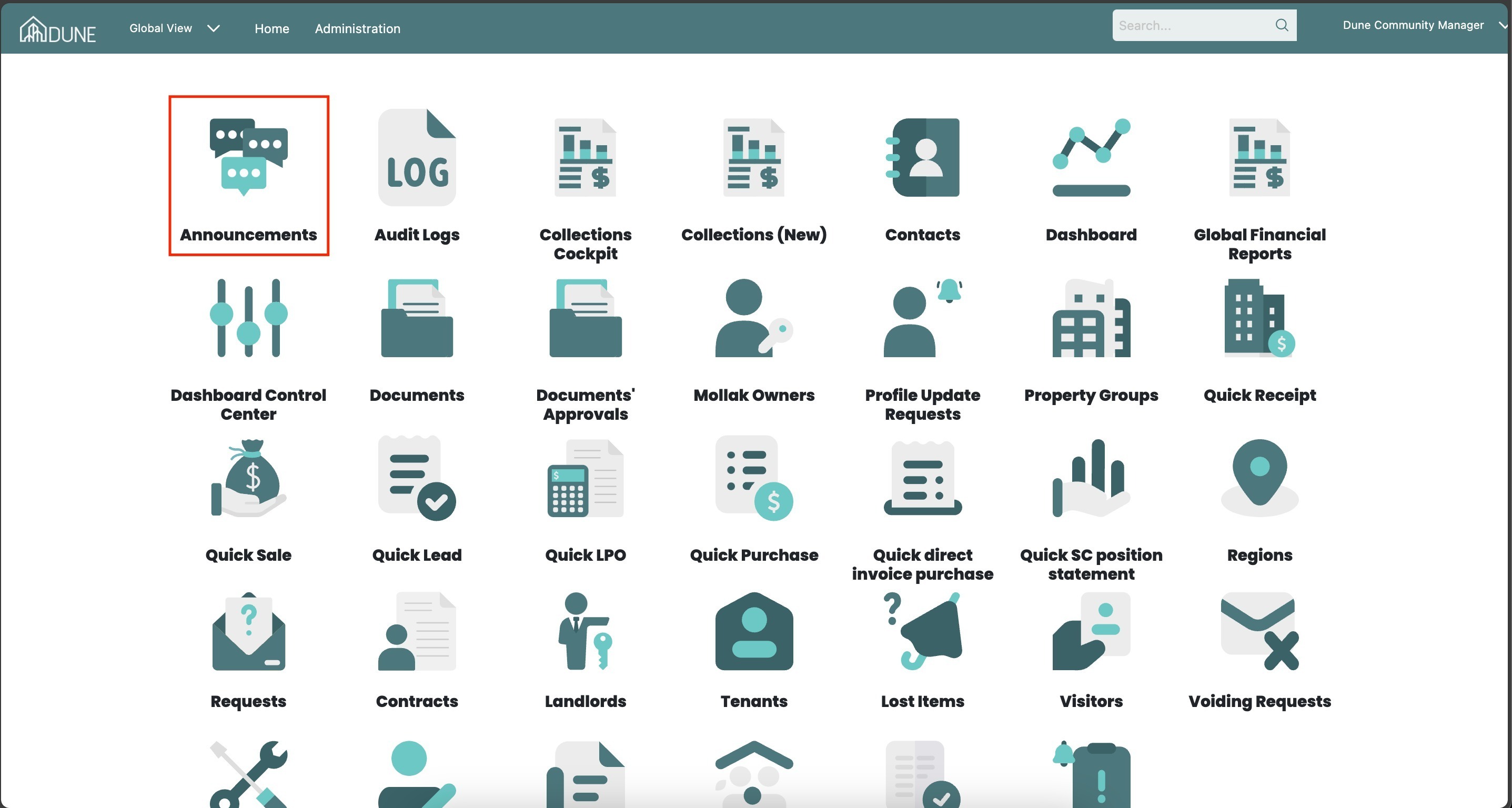
- From the Home Page, click Announcements
You can now create new announcements and prepare your signature.
- Prepare a Signature:
Click the Signature tab, create your signature, and click Save. This will make it ready to use whenever you send an announcement.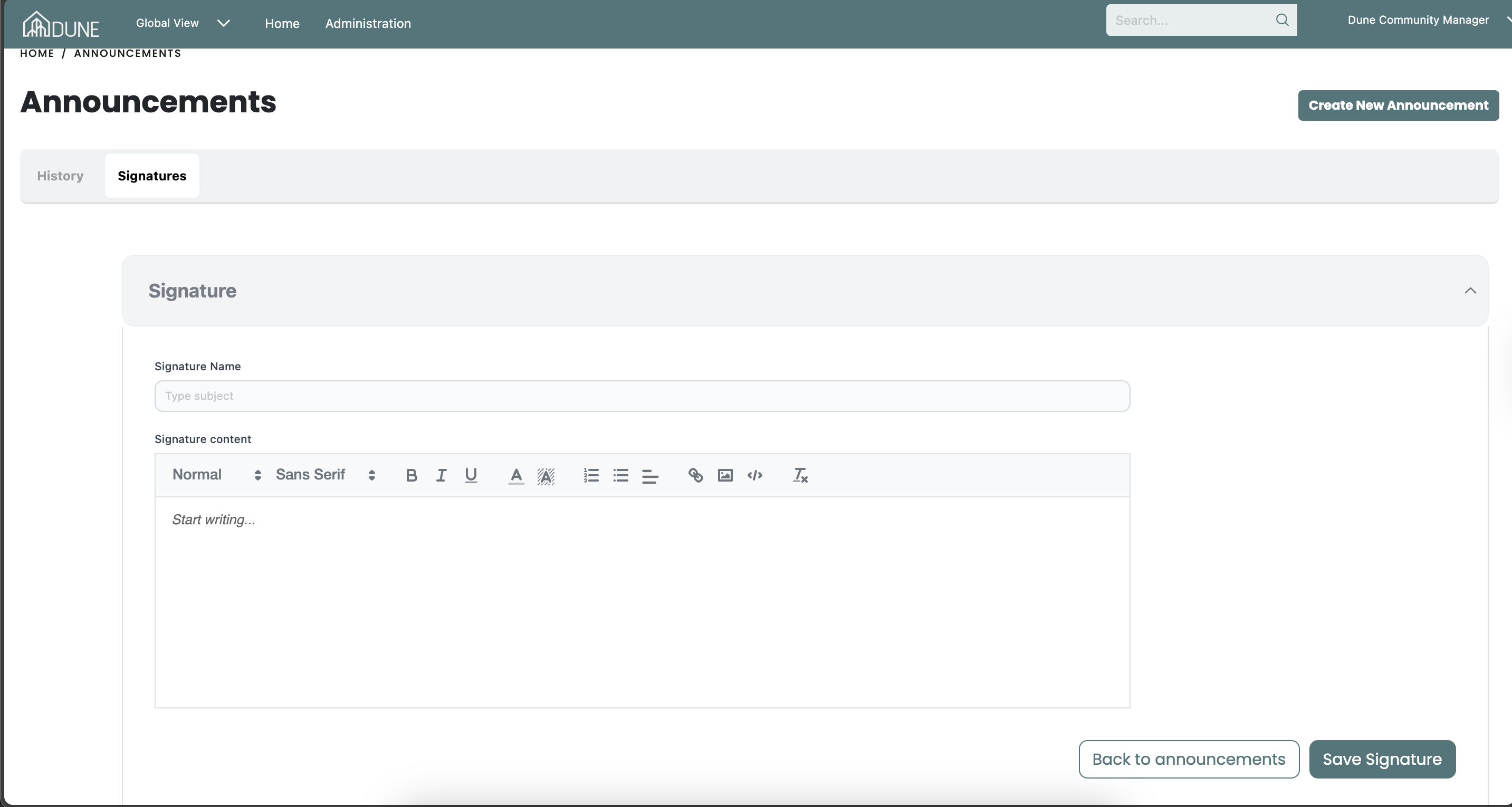
Prepare the Announcement
Click on Create New Announcement.
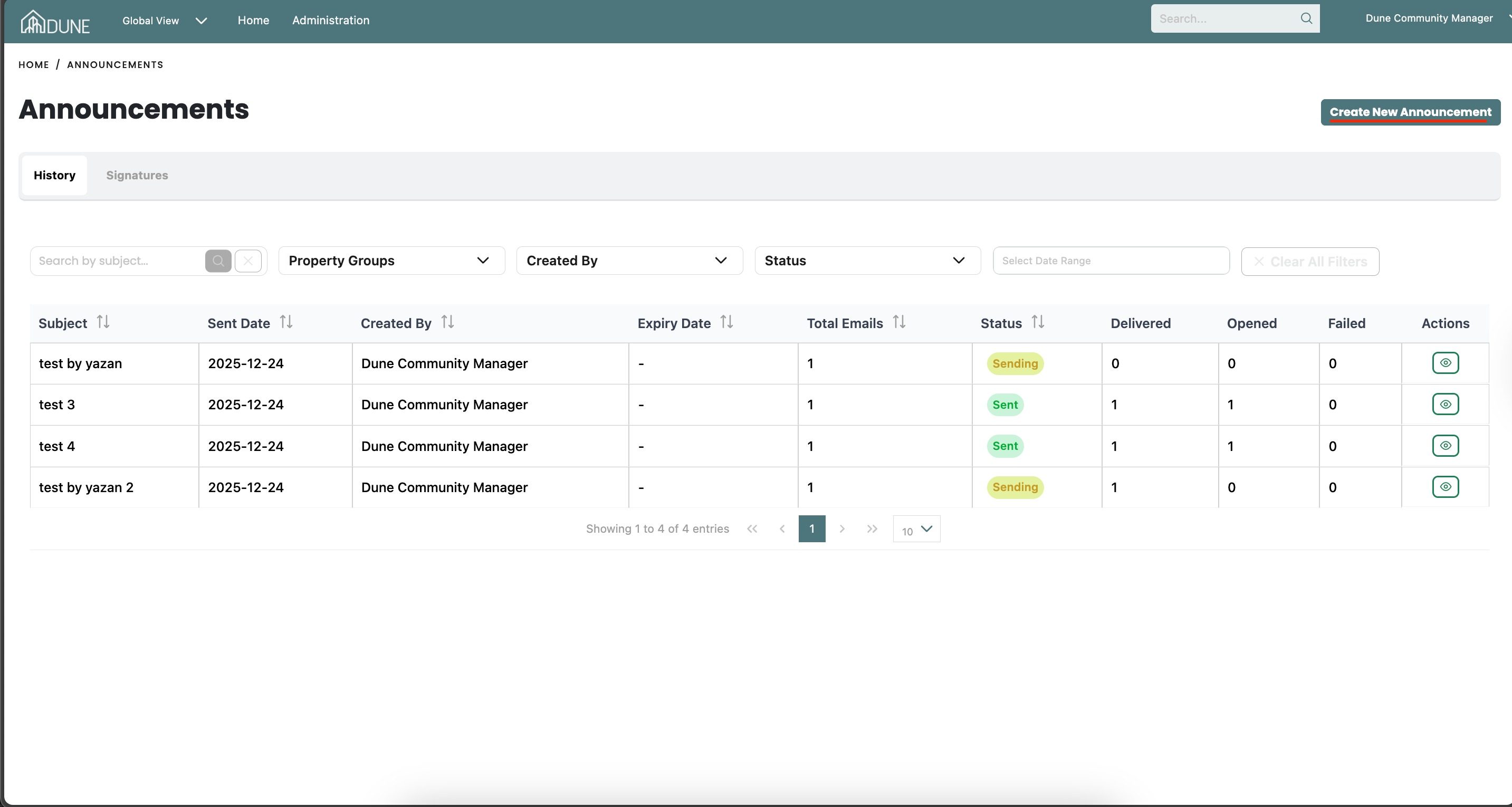
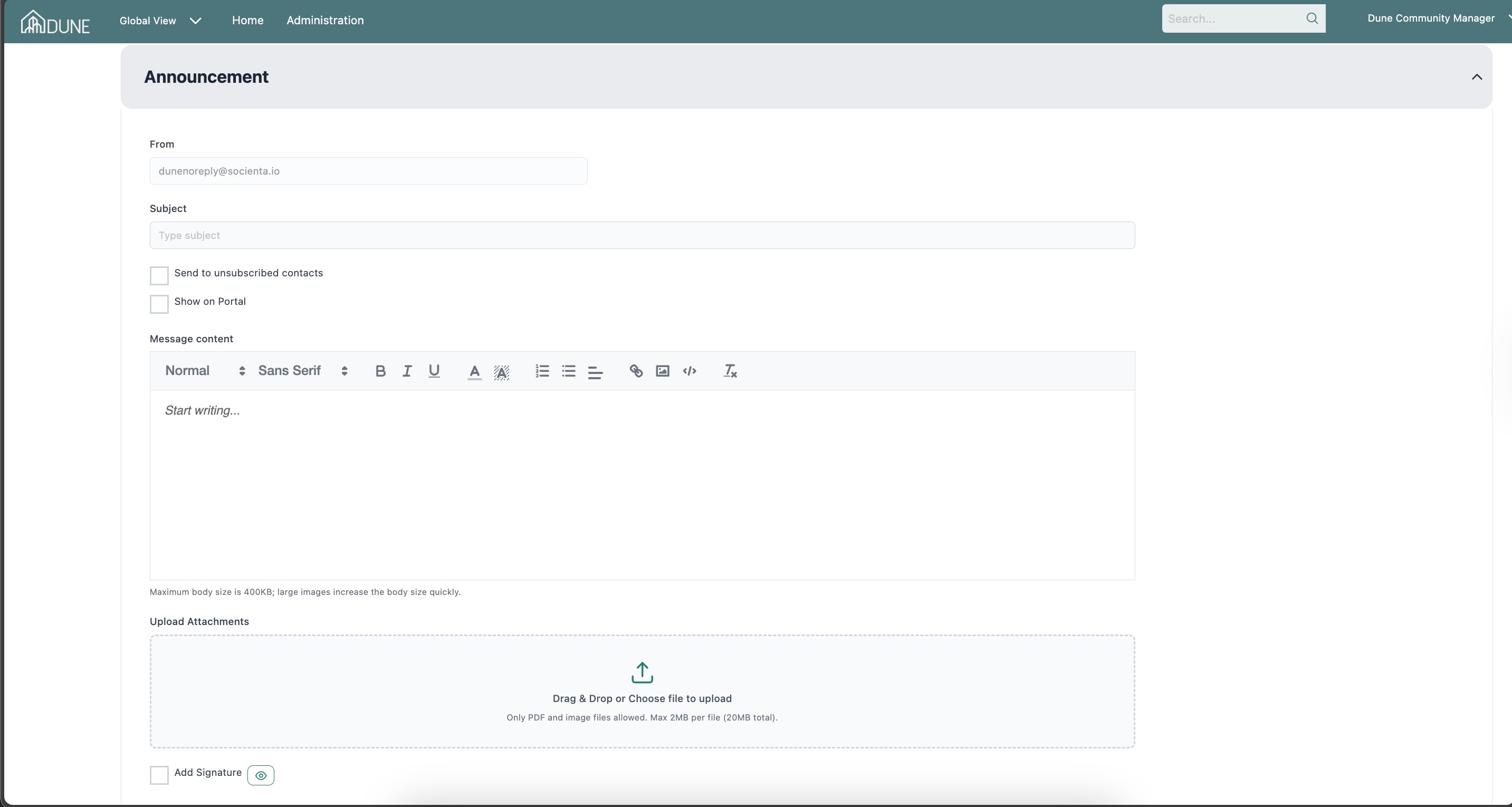
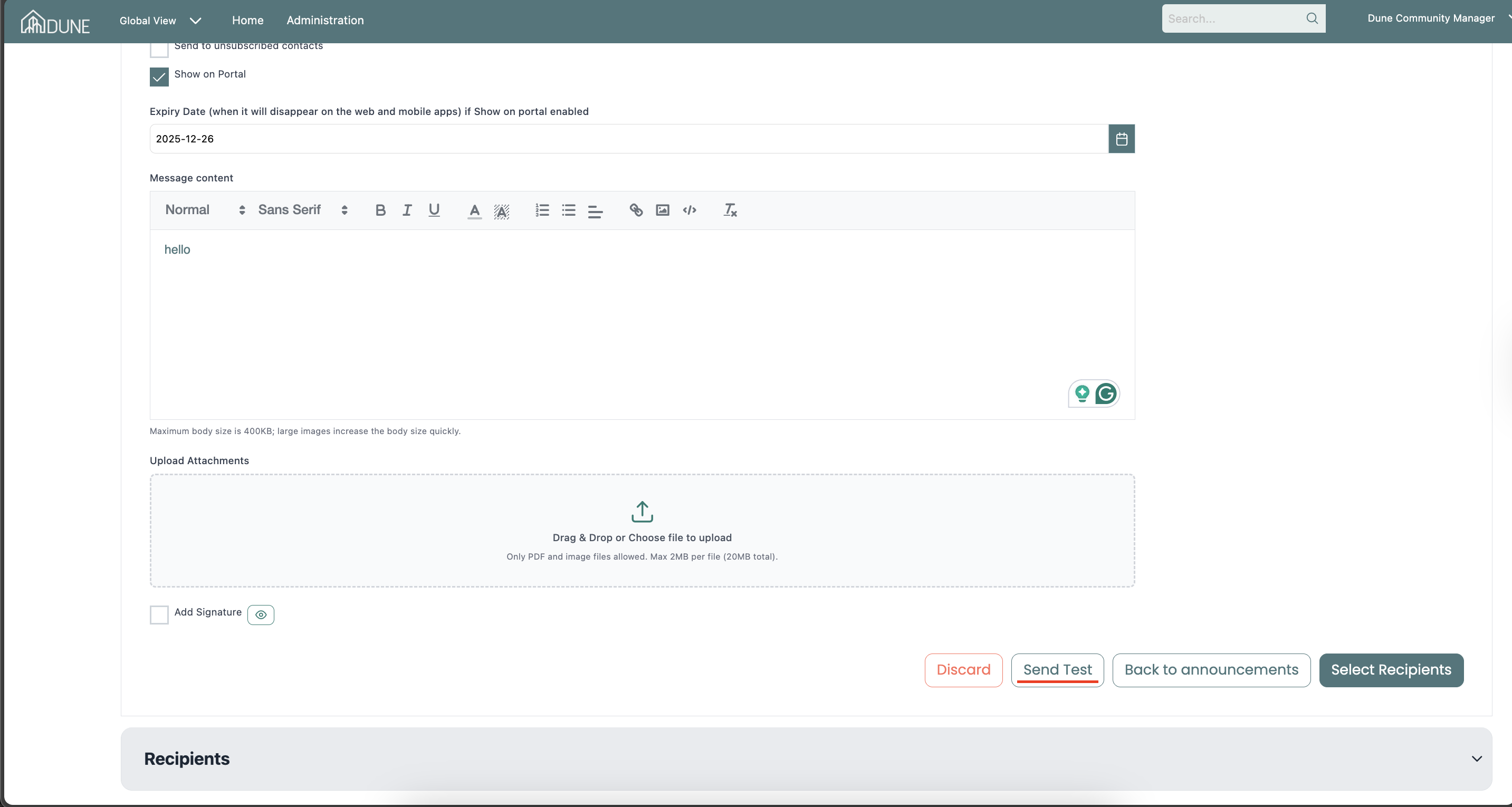
Add a subject, message content, and optional attachments (images/docs up to 2 MB each, 20 MB total).
Choose whether to send to unsubscribed contacts and/or show on portal with an expiry date:
Send to unsubscribed contacts:
When enabled, the announcement will also be sent to contacts who have unsubscribed from announcement emails.
This option should be used for important or urgent announcements.
You may leave this option unchecked if not required.
Show on Portal:
Enable this option to display the announcement on the resident web portal.
Once enabled, you can set an expiry date after which the announcement will no longer be visible.
- Signature
Enable the signature option using the checkbox.
Click the eye icon to preview the signature.
You can adjust the signature if needed before sending the announcement.
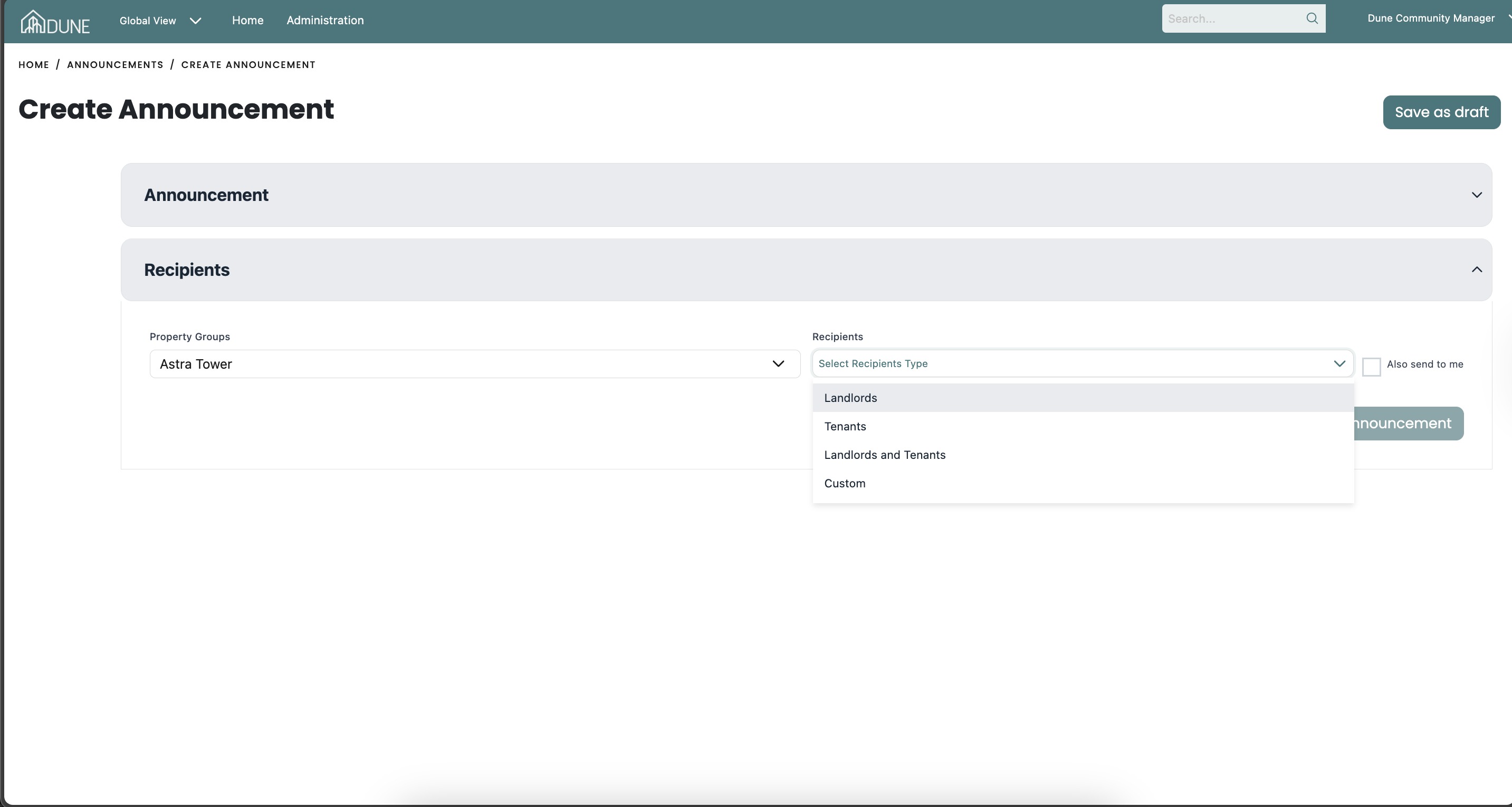
- Select Recipients
Once the announcement content is completed, the Recipients section will be enabled.
Select the Property Group(s) you want to send the announcement to.
Choose the recipient type:
Landlords
Tenants
Landlords & Tenants
Custom
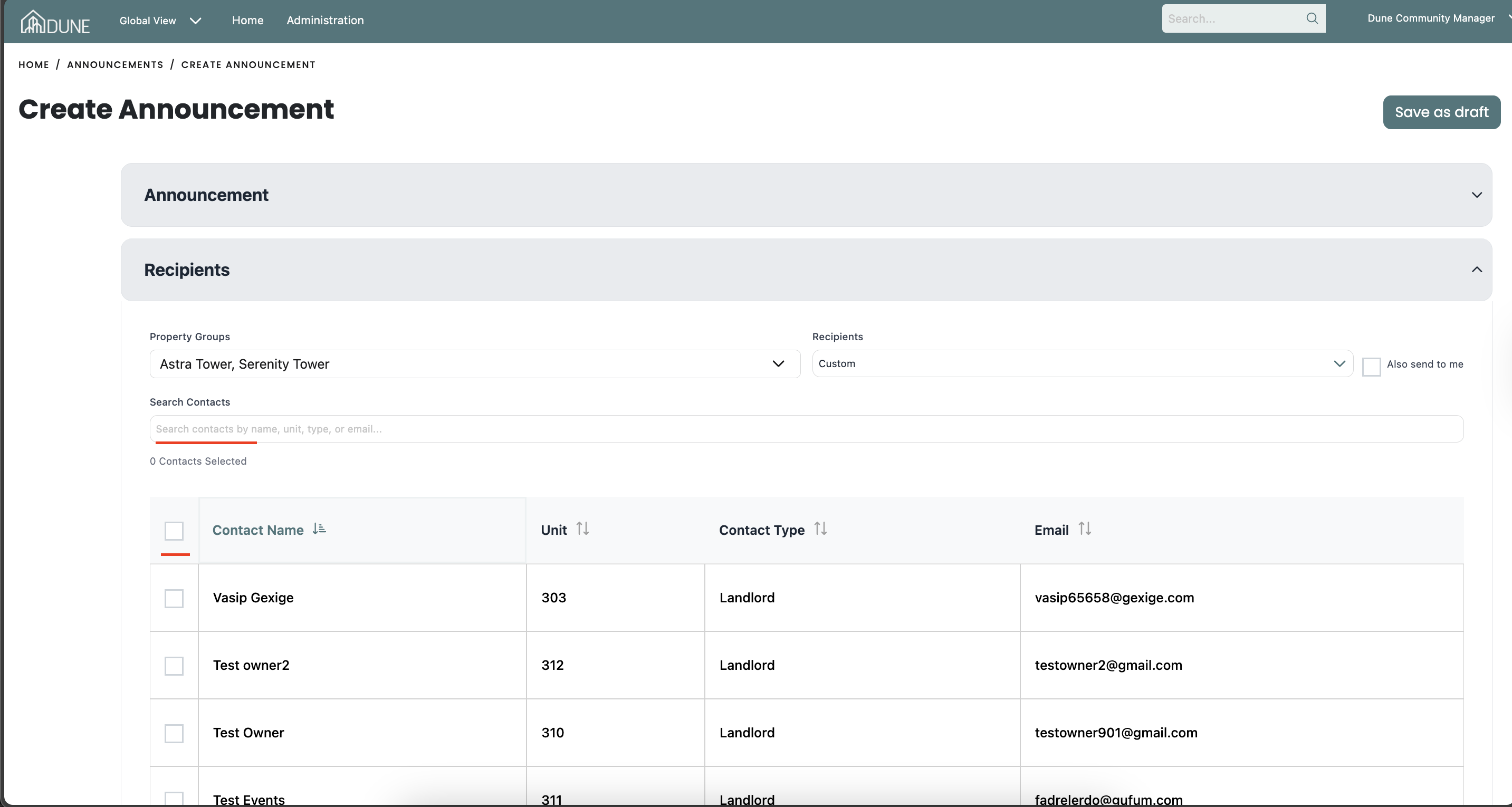
Custom Recipients
If you select Custom:
You can manually choose specific recipients by checking the box in the first column of the recipients table.
Use the search option to find specific email addresses quickly.
- Send or Save the Announcement
You have the following options:
Send: Sends the announcement immediately to the selected recipients.
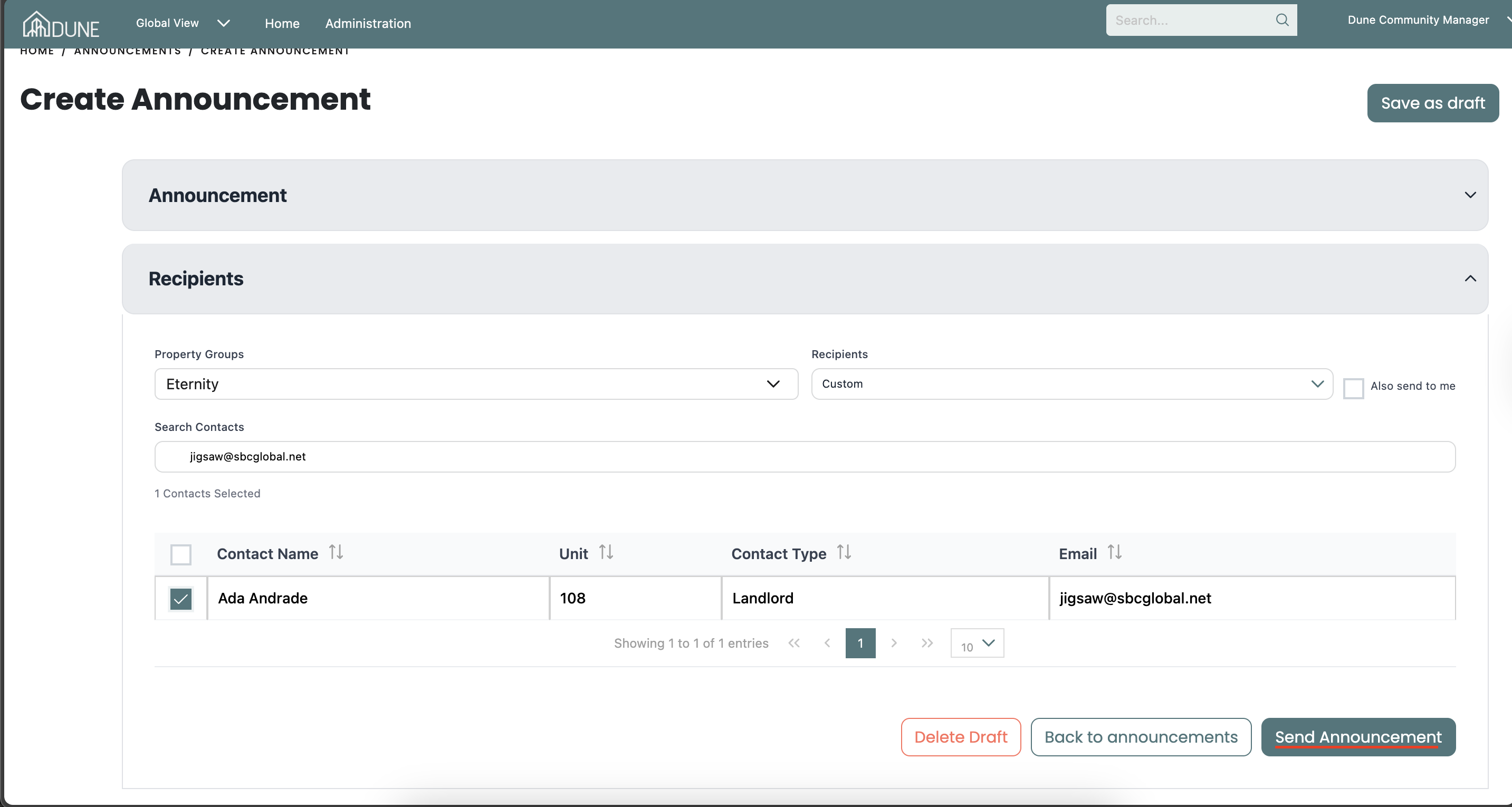
Save Draft: Saves the announcement so you can complete or send it later.
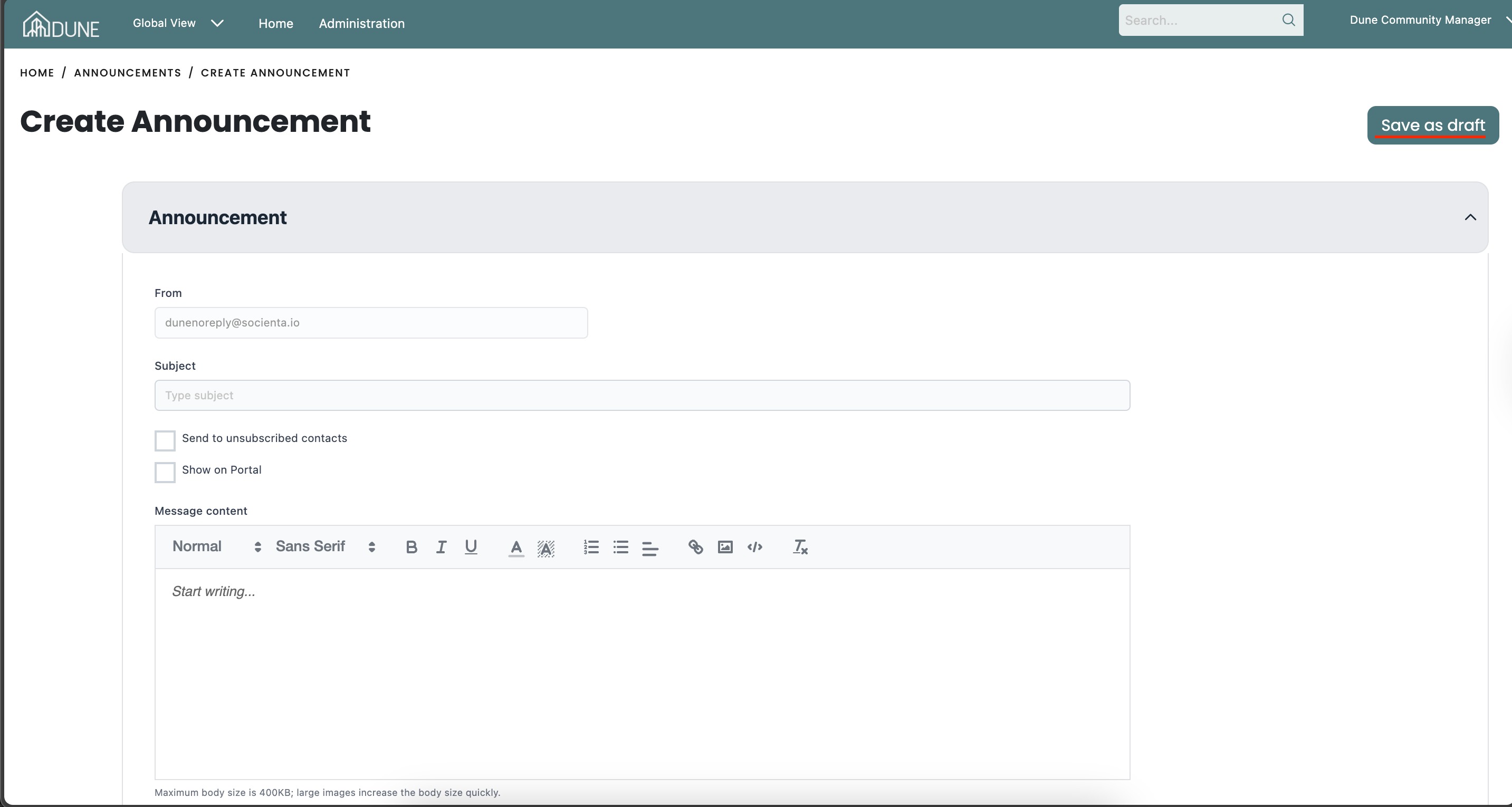
Test: Sends a test announcement to your own email address (the email you are logged in with) to review formatting and content before sending it to residents.
Track Announcement Status
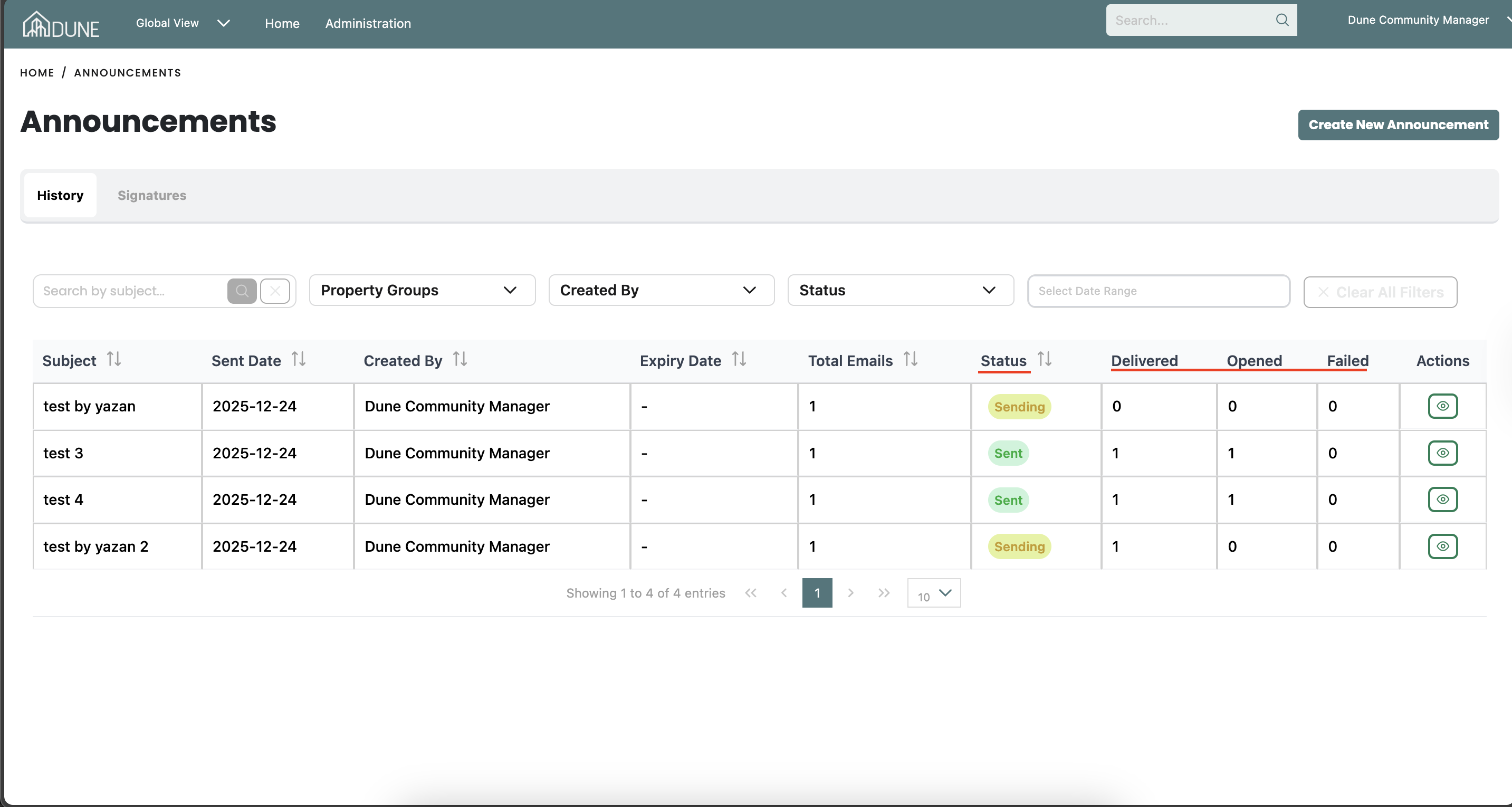
After sending the announcement, you can monitor its progress from the announcement table:
Status: Indicates whether the announcement is in the process of sending or has already been sent.
Delivered: The announcement was successfully delivered, along with the number of recipients who received it.
Opened: Shows how many recipients have opened the announcement.
Failed: Indicates any delivery errors and the number of recipients for whom delivery failed. You can check the failed reason by going to the Recipients drop-down in the announcement and hovering over the failed status to see the reason for failure for specific emails.
Important Notes:
- If you are using SMTP:
The Opened status is not available.
You can only see if the announcement is Sent, Pending, or Failed as numbers.
- If you are using Mailgun:
All statuses above (Status, Delivered, Opened, Failed) are available and valid.
- If you are using SMTP:
Tips & Best Practices
- Send a test announcement before sending to all recipients to verify content and formatting.
Save Draft if you want to prepare the announcement in advance and send it later.
Show on Portal for announcements that residents can see it on the web app.
Send to unsubscribed contacts only for critical or urgent communications.
You can also send the announcement to yourself by checkmark, also send to me to receive it in your email for verification after sending to all recipients
Was this article helpful?
That’s Great!
Thank you for your feedback
Sorry! We couldn't be helpful
Thank you for your feedback
Feedback sent
We appreciate your effort and will try to fix the article