To create an event, go to the global view and select the property group where the event should be created. You can select the property group from the homepage or use the drop-down menu at the top.
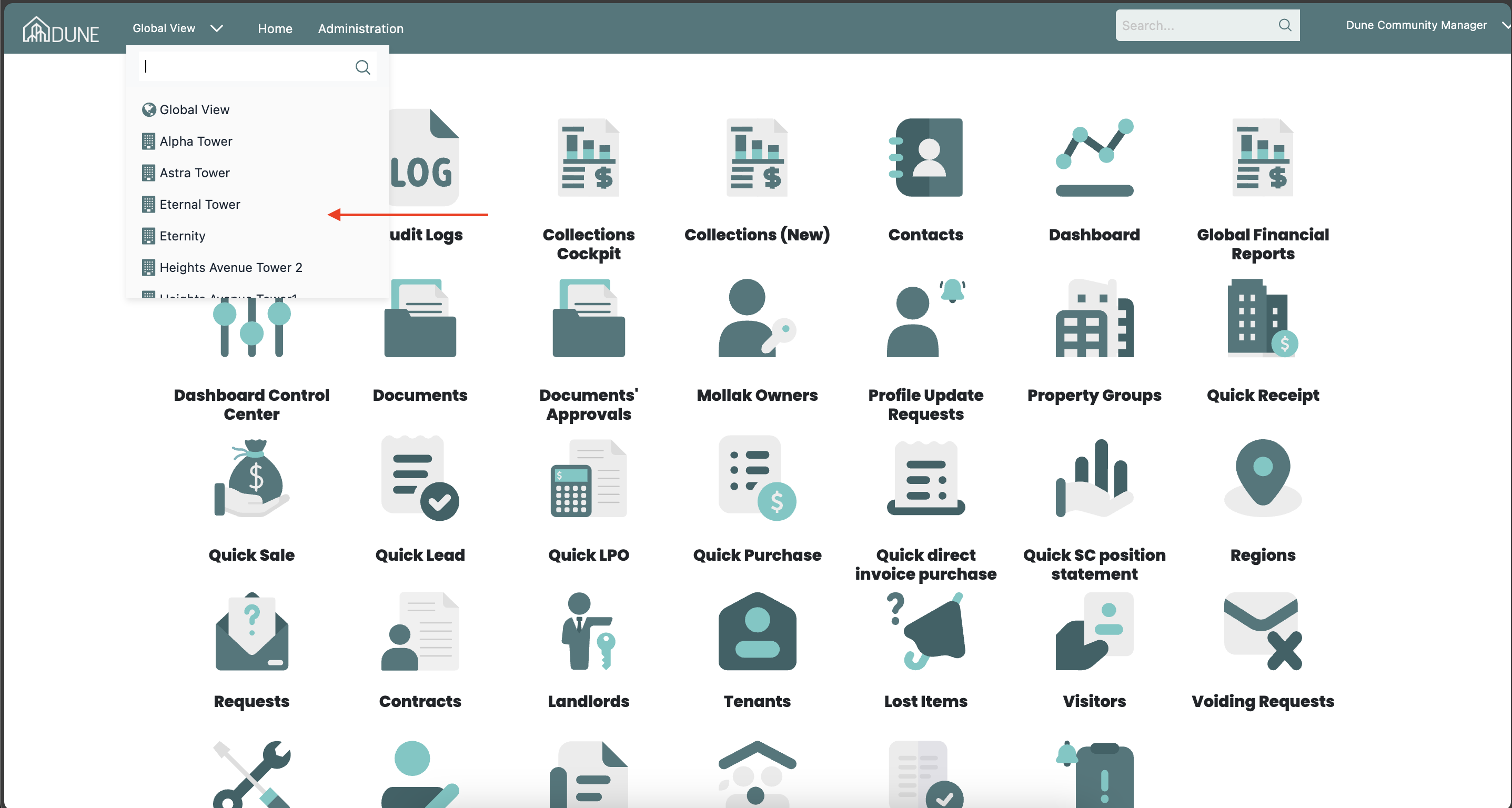
Accessing the Event Calendar:
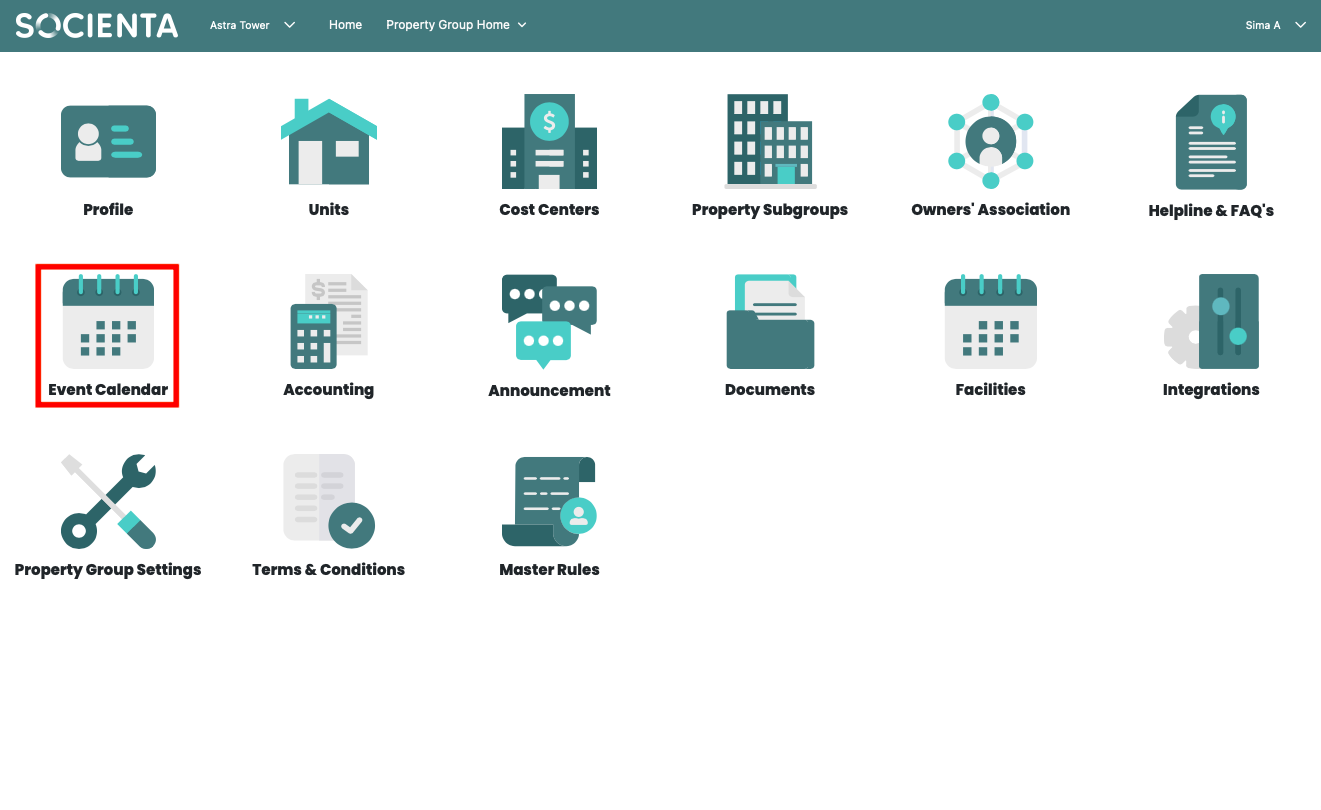
Click on Event Calendar after selecting the property group.
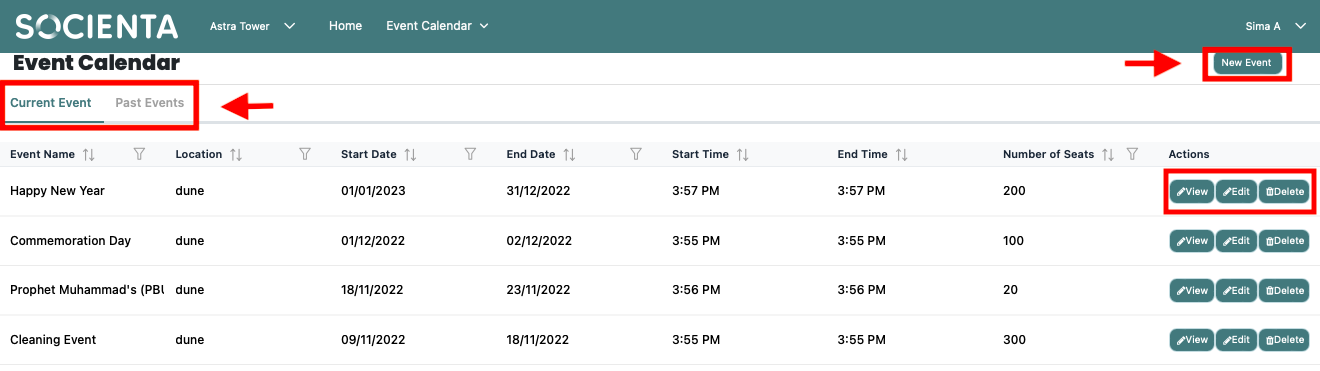
From the Event Calendar page, you can:
View both past and upcoming events
Add a new event
Edit or delete existing events via the action buttons
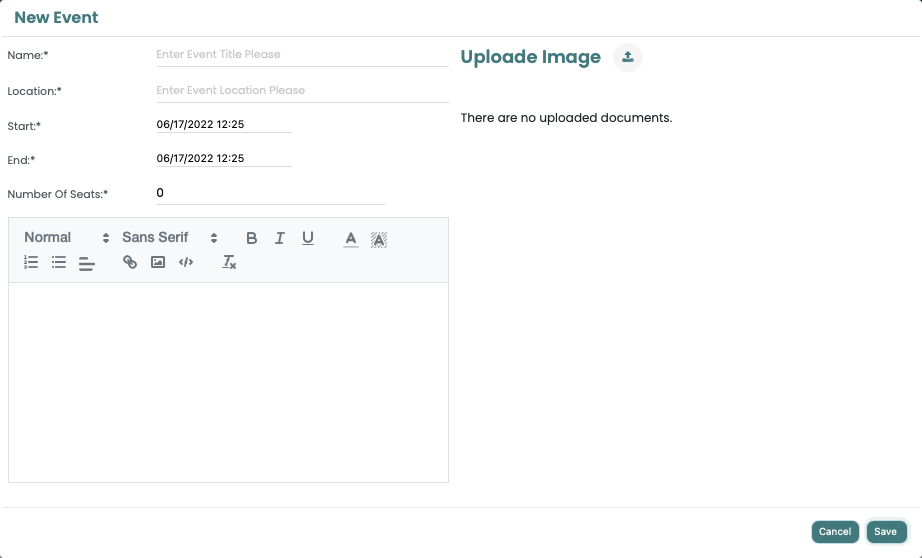
Creating a New Event:
Click on New Event to open the event creation form in a new tab.
Fill out the following details:
Start and end dates of the event
Total number of available seats
Upload event-related images
Once completed, click Save to publish the event.
Reviewing Event Details:
After the event is created, you can:
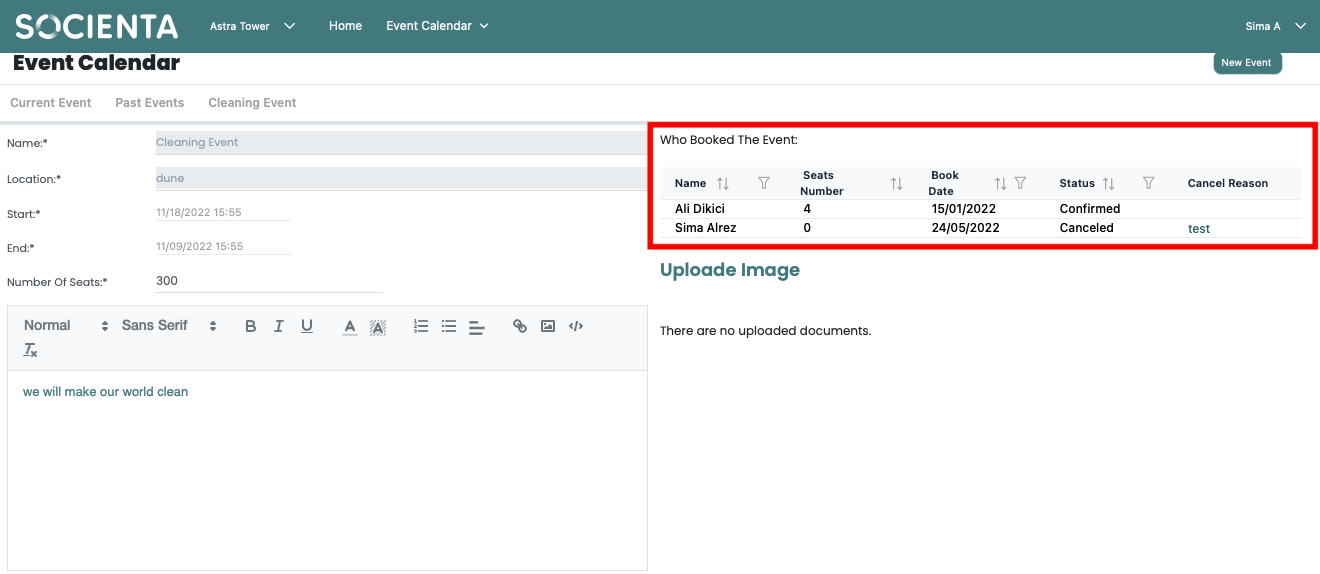
Use the View button to access the event details
Track who has booked or cancelled their tickets
This allows you to manage event participation efficiently.
Important Notes:
Ensure that the event’s seat count and date/time are set correctly before posting.
Events can be edited or deleted later if needed.
Was this article helpful?
That’s Great!
Thank you for your feedback
Sorry! We couldn't be helpful
Thank you for your feedback
Feedback sent
We appreciate your effort and will try to fix the article