Overview
This article explains how to create and configure Facilities in the system so residents can book them easily. Follow the steps below to set up facilities correctly, define availability, and apply booking rules.
Navigate to Facilities:
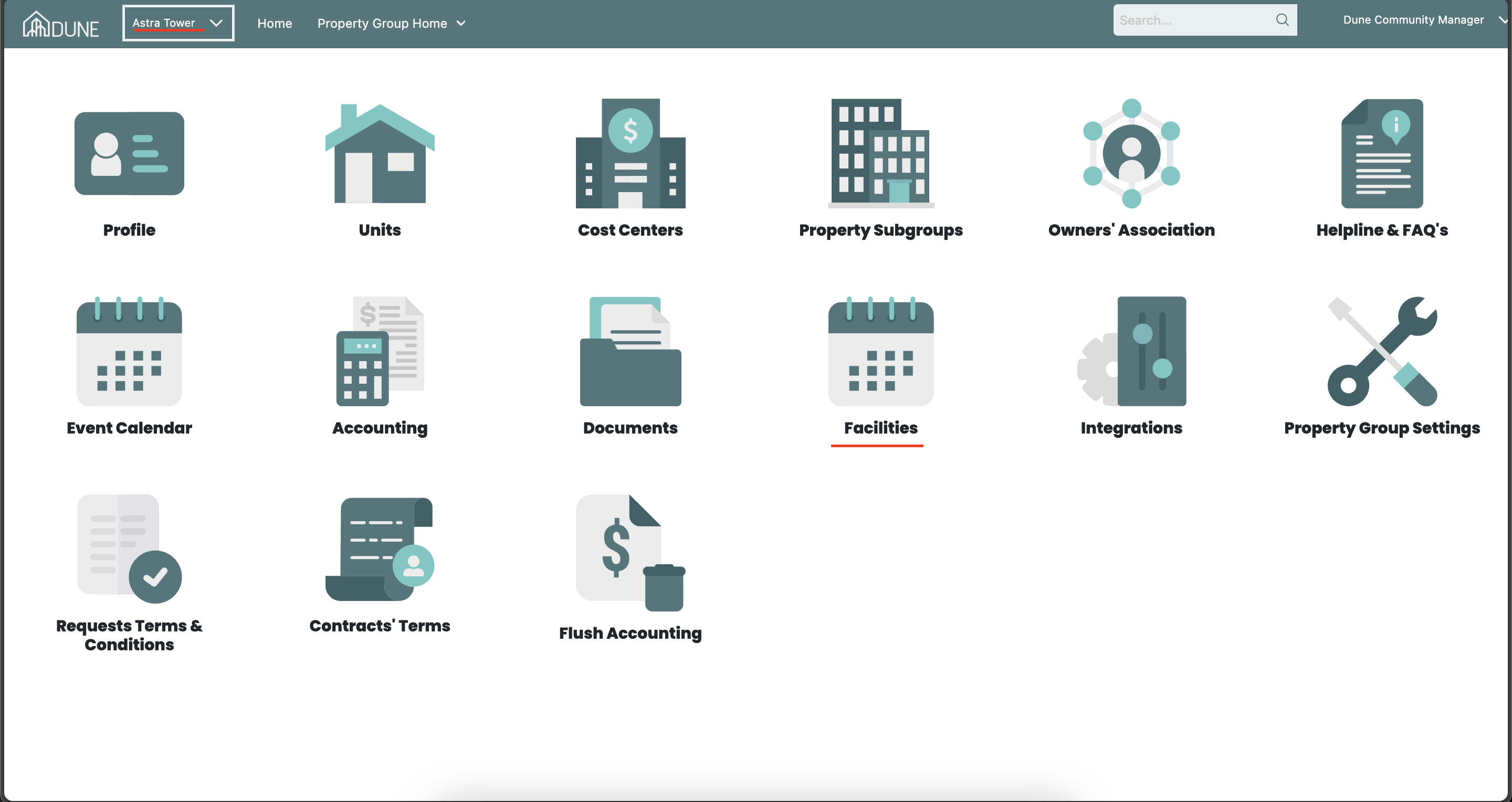
From the homepage, select the required Property Group from the drop-down list.
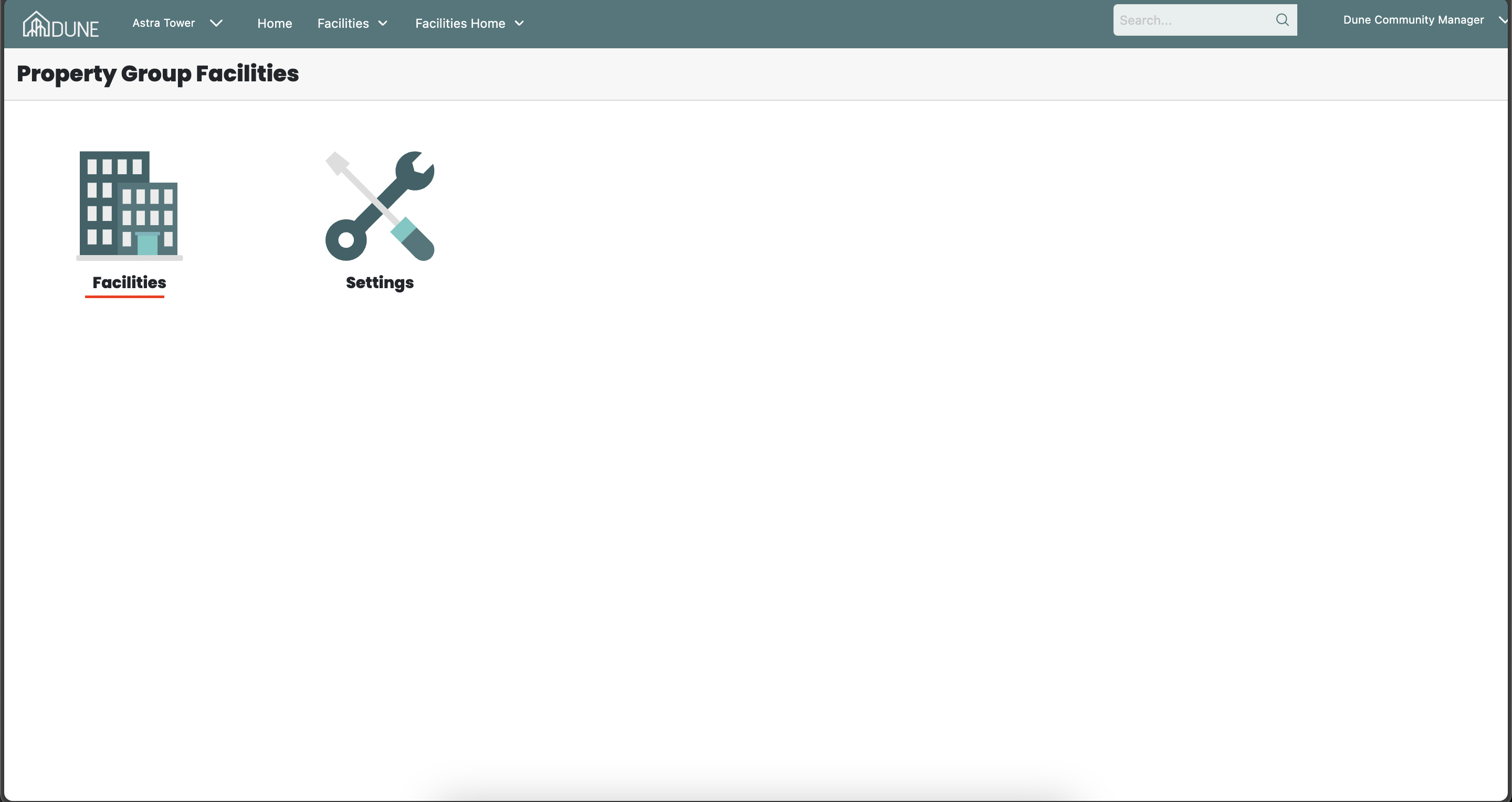
Go to Facilities.
Click on Facilities again to open the facilities list.
View and Create a New Facility
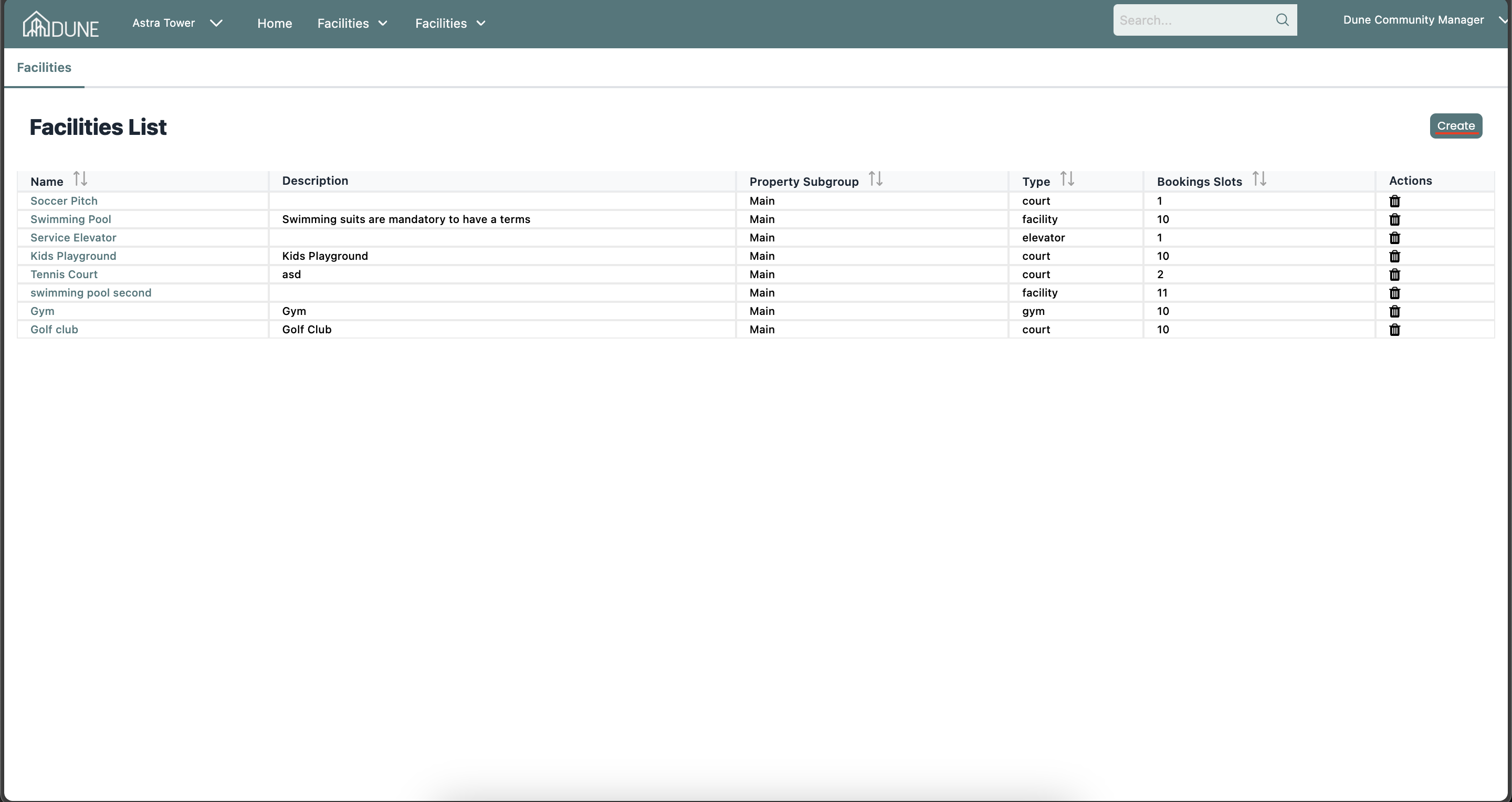
You will see a list of all existing facilities.
To create a new facility, click the Create button.
Enter Facility Information:
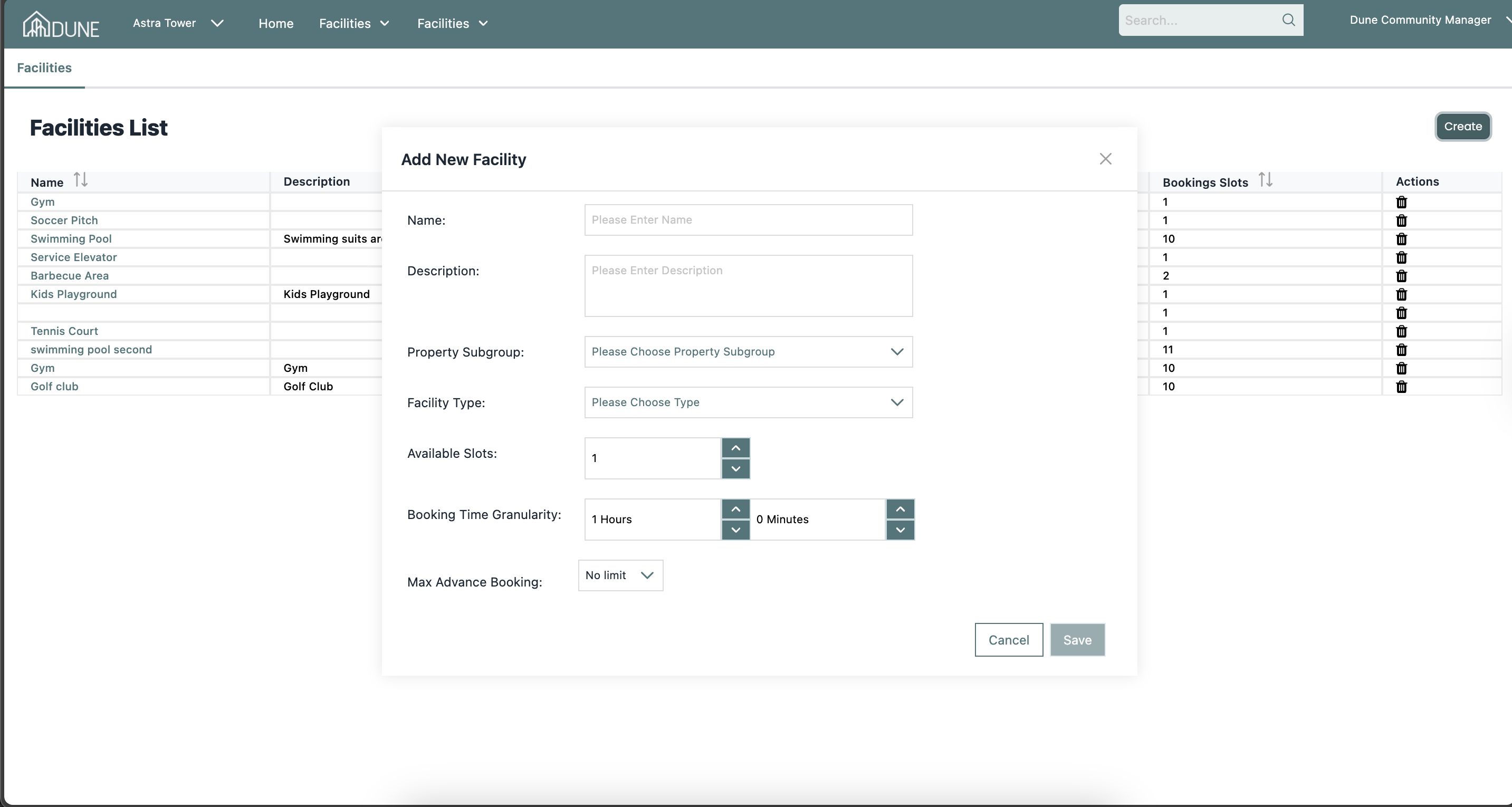
A pop-up window will appear. Fill in the required details for the facility, including:
Name – The facility name (e.g., Gym, BBQ Area, Clubhouse).
Description – Optional details or usage notes.
Property Subgroup – Assign the facility to the correct building.
Facility Type – Select the appropriate type from the list.
Available Slots – Number of slots that can be booked at the same time.
Booking Time Granularity – Defines the duration of each booking session (e.g., 30 minutes, 1 hour).
Max Advance Booking – Controls how many days in advance residents can book the facility (from 1 to 30 days).
Customize Facility Hours
After creating the facility, locate it in the facilities list.
Click on the facility name to open its settings.
Customize the available hours per day based on when the facility can be used.
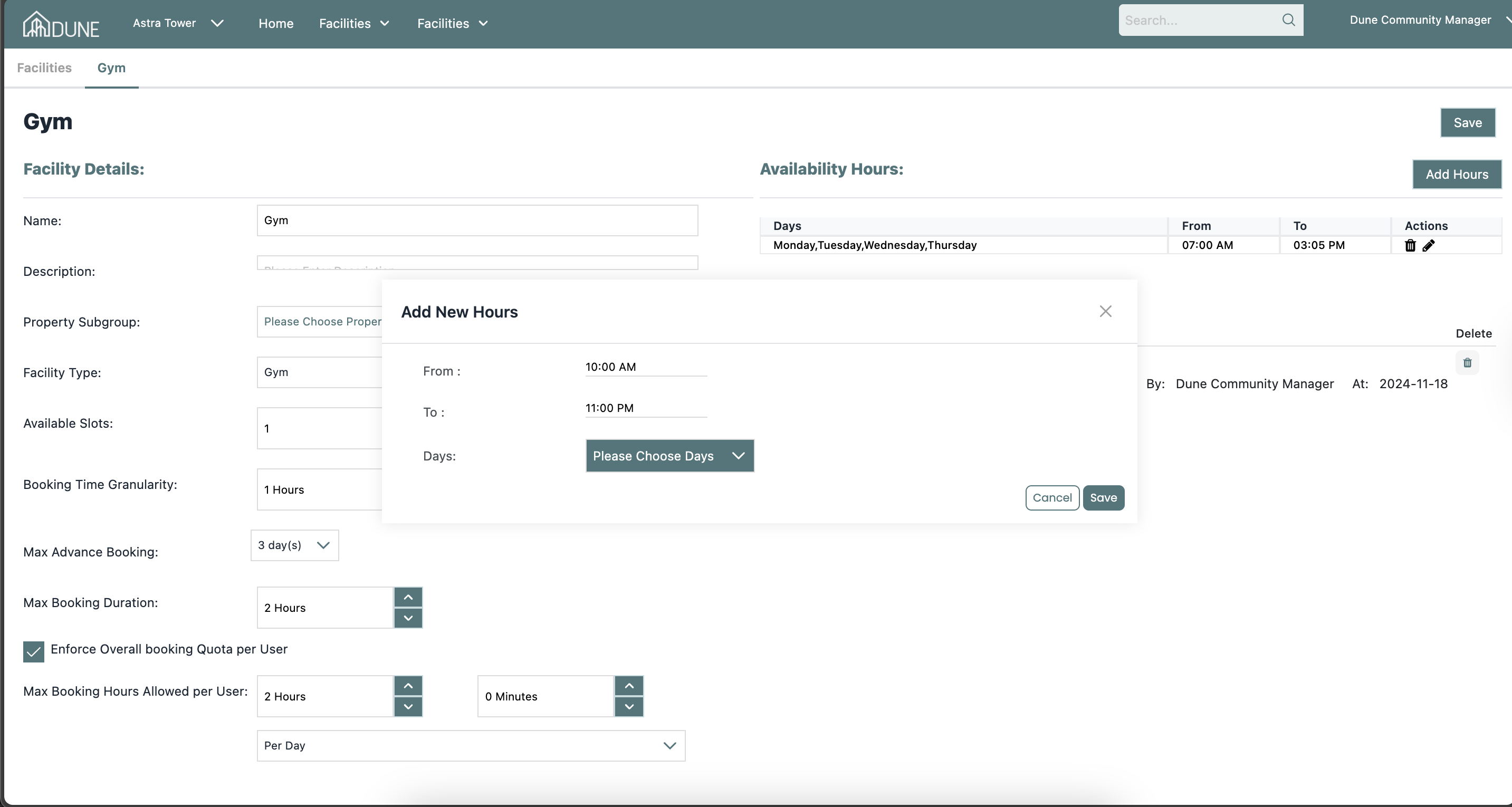
Add Rules for Residents
Add any rules or guidelines that residents must follow when booking the facility (e.g., usage limits, cleanliness rules).
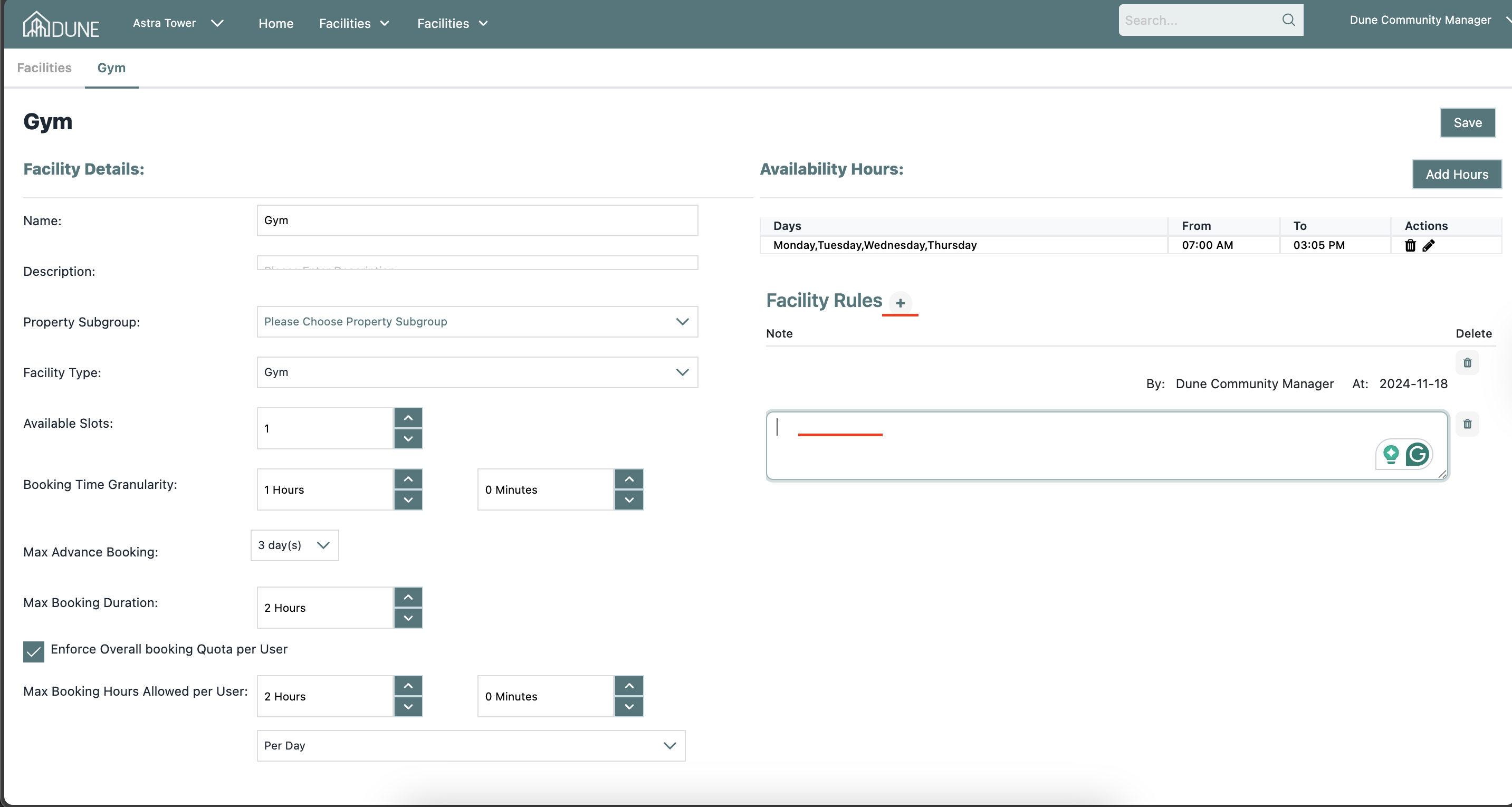
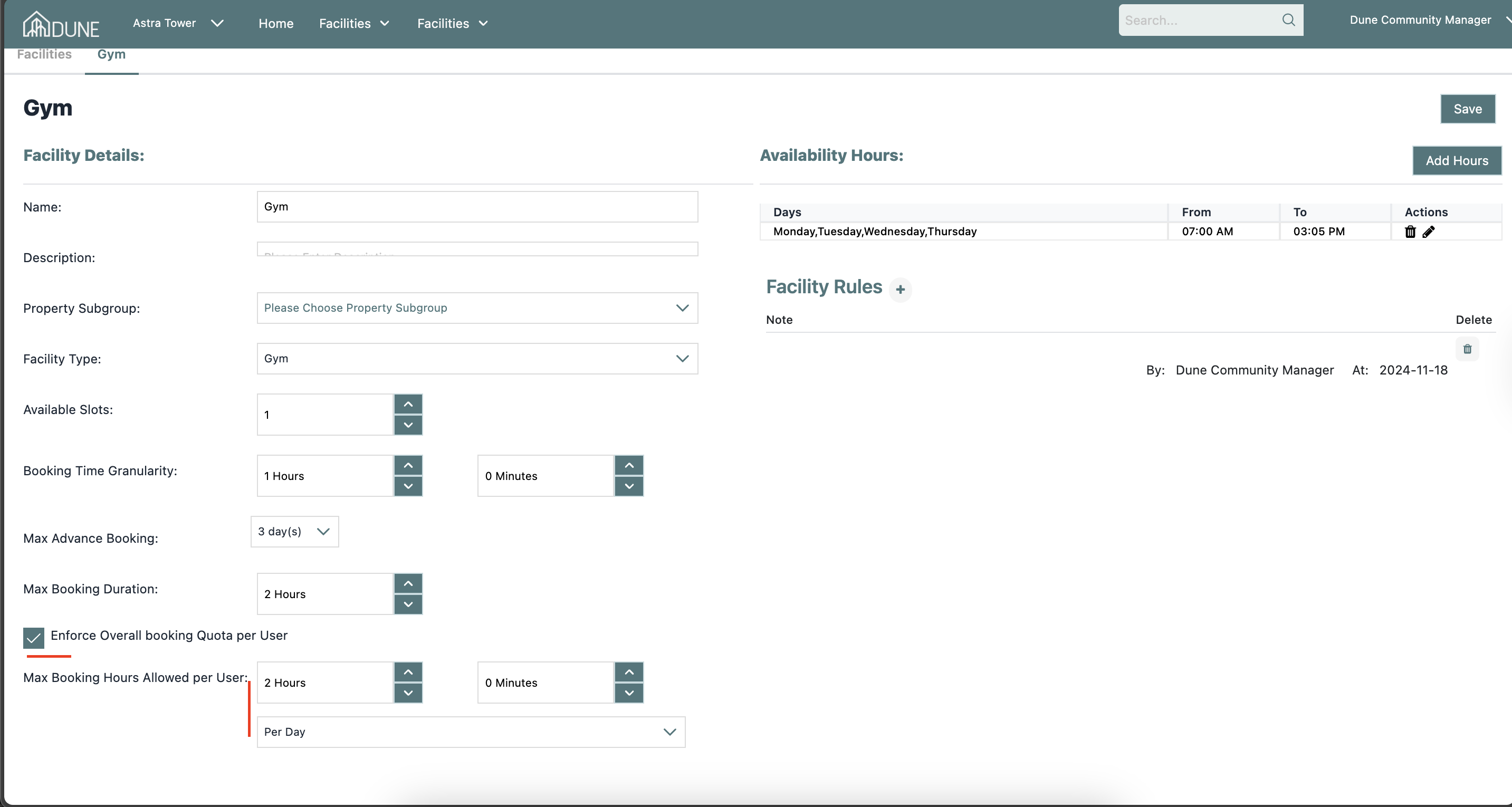
Set Maximum Booking Hours per User (Optional)
To limit overbooking, enable Enforce Overall Booking Quota per User.
This allows you to define the maximum number of booking hours allowed per resident.
Property Groups with Access to This Facility
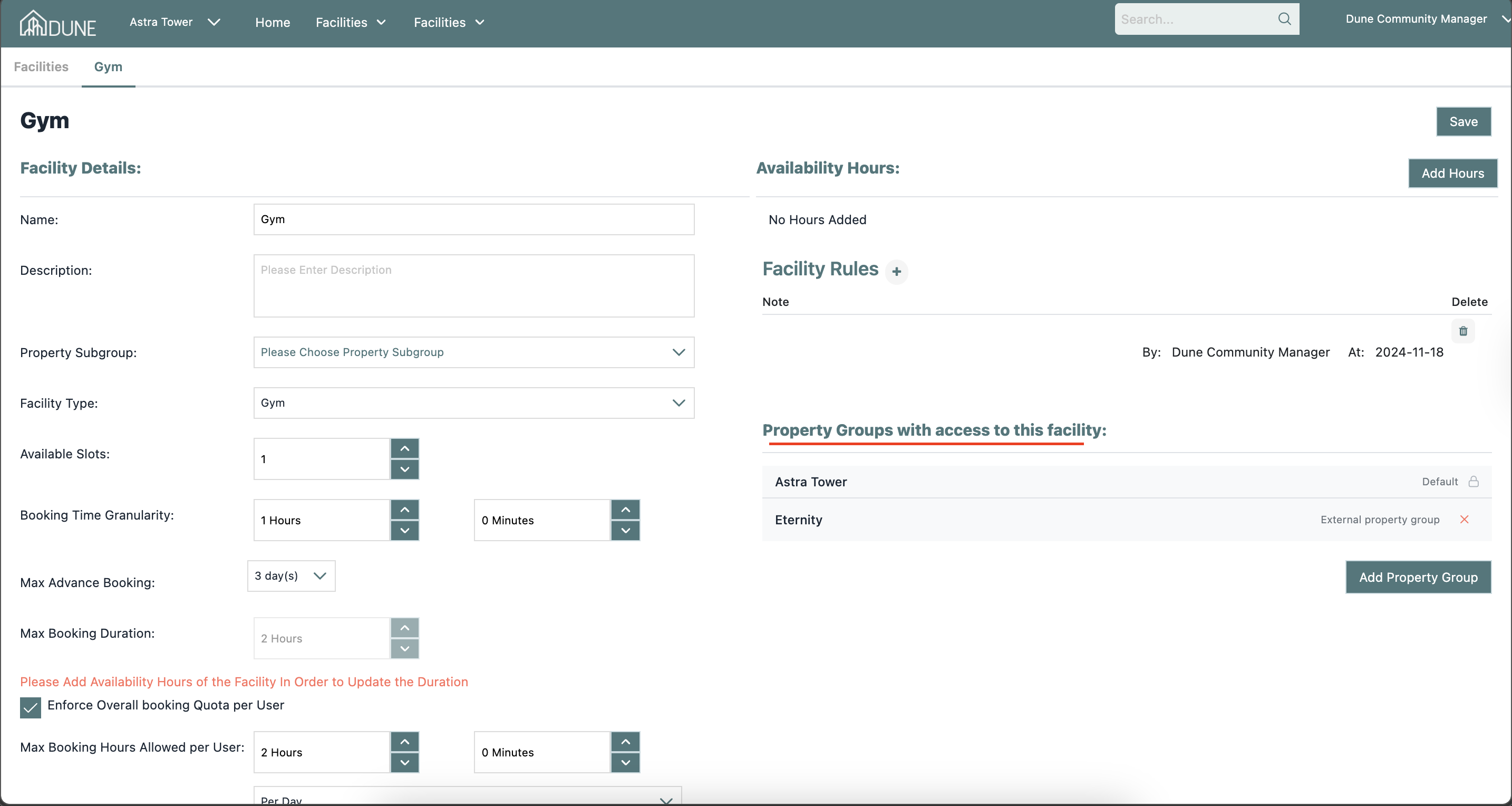
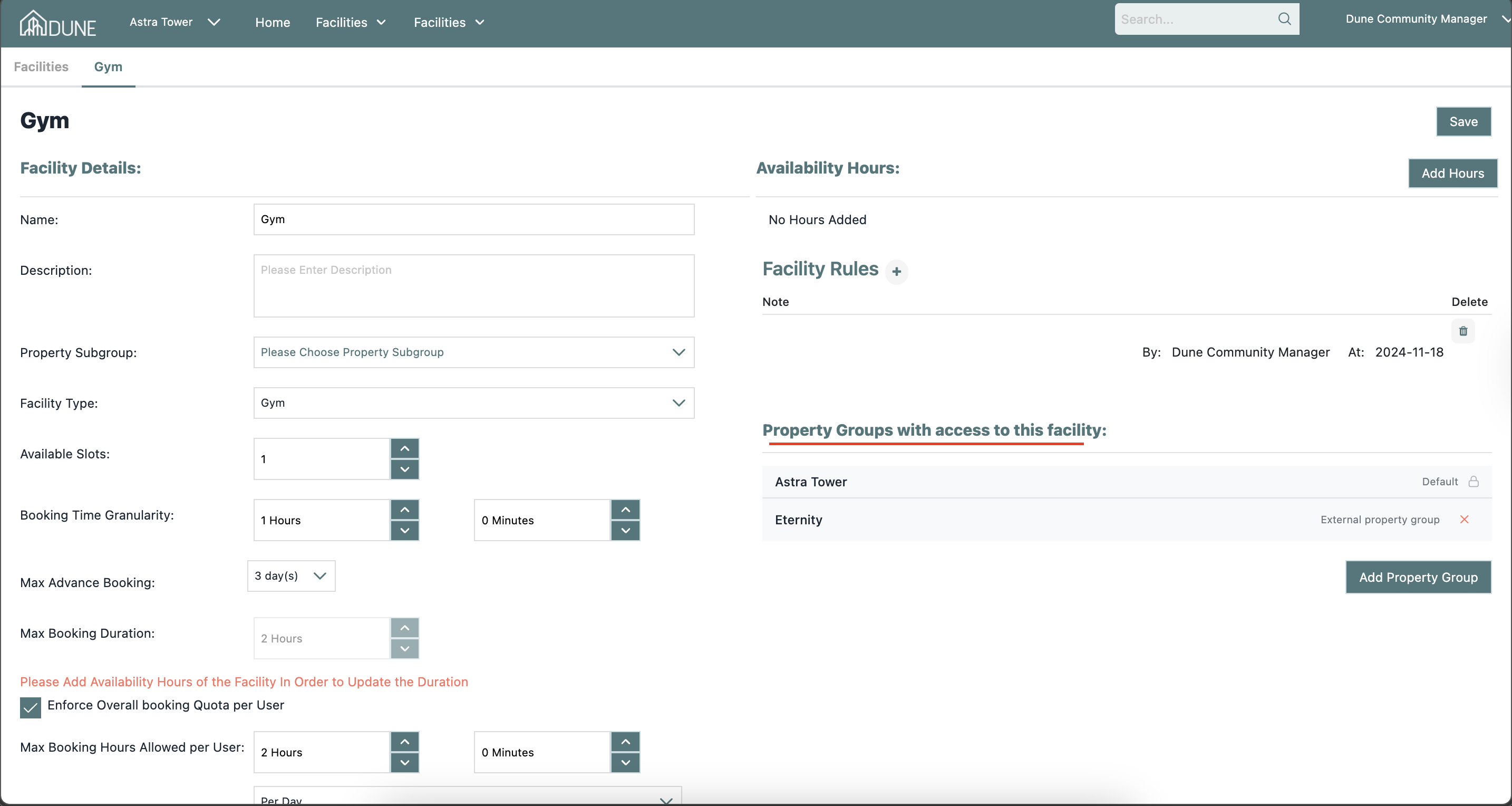
After creating a facility, you can control which property groups have access to book it. By default, the facility is accessible to the property group it was created under (shown as "Default"). To extend access to additional property groups:
- On the facility's page, locate the Property Groups with access to this facility section.
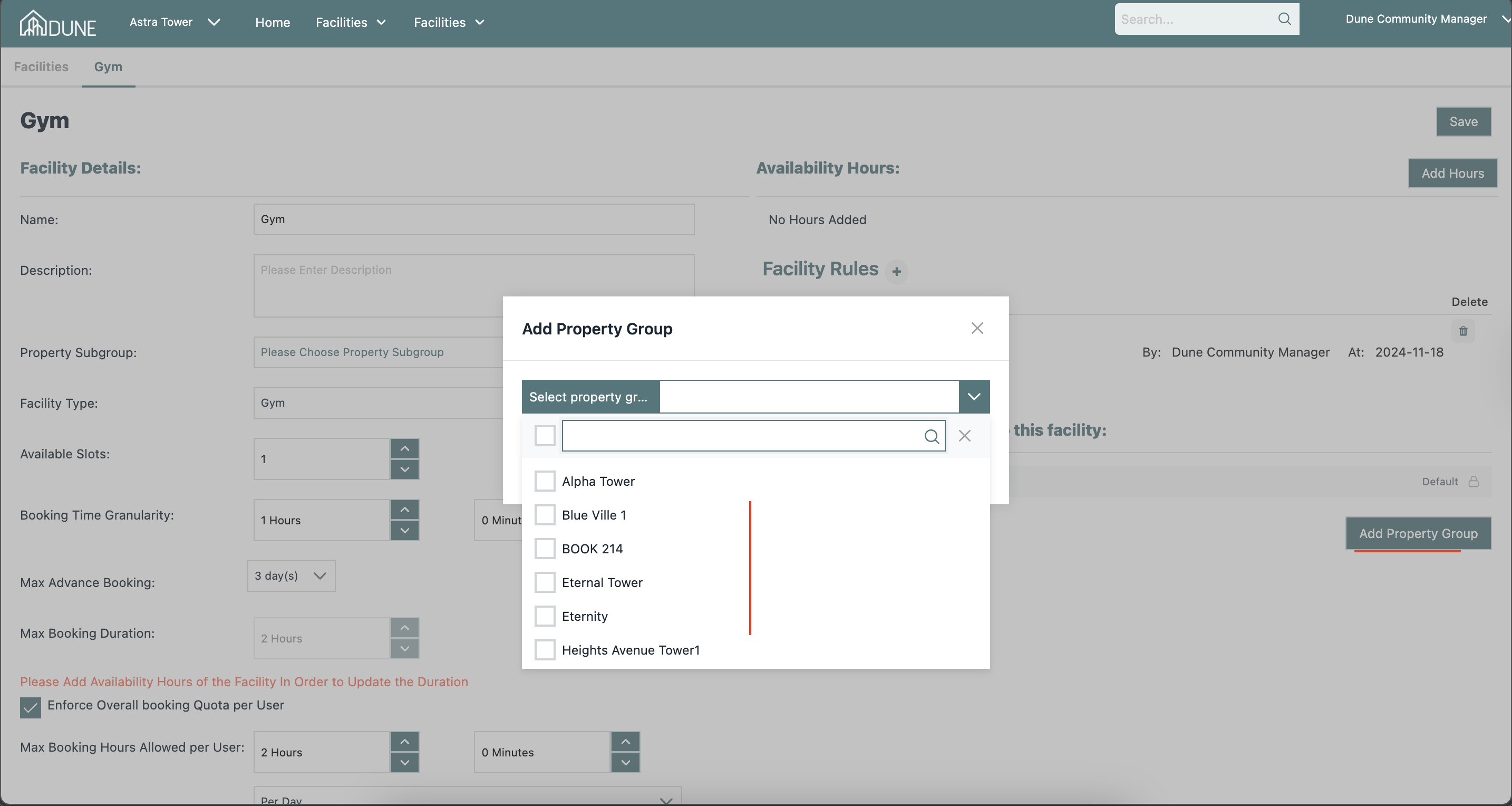
- Click the Add Property Group button.
- In the pop-up window, click the Select property group dropdown to view the list of available property groups.
- Use the search bar to quickly find a group, or scroll through the list and tick the checkbox next to each property group you want to grant access to (multiple groups can be selected at once).
- Click Add Property Group to confirm. The selected groups will now appear in the access list.
Save Your Changes
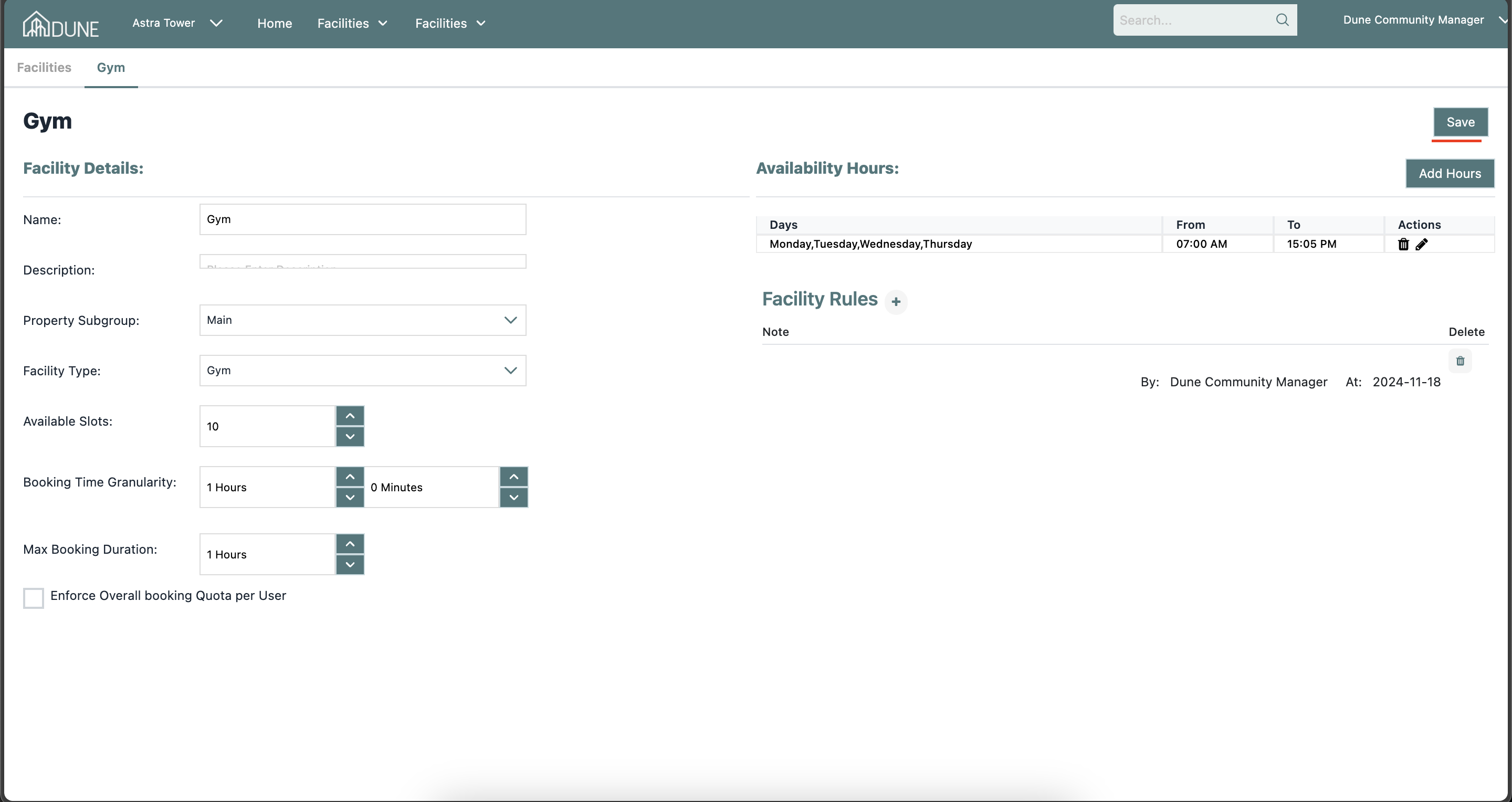
Always click Save to apply and activate your facility settings.
Tips & Best Practices:
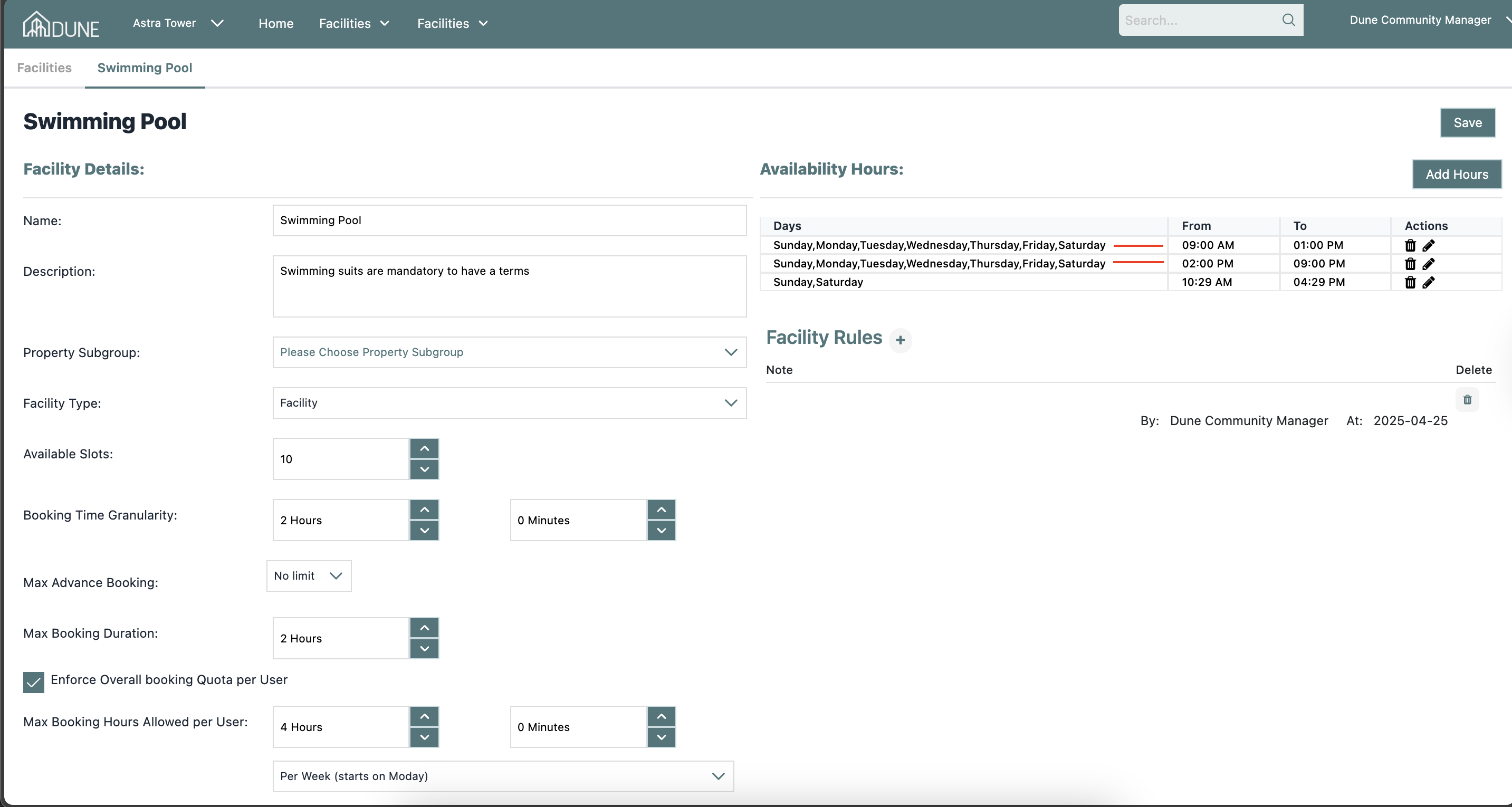
- You can customize the available hours for residents. For example, if the facility is unavailable during certain hours, you can adjust the hours table to reflect the availability of the facility for those days and times.
The Property Groups with Access to This Facility option is useful when a single shared facility (e.g., a Clubhouse or Gym) serves residents from multiple buildings or property groups within the same community.
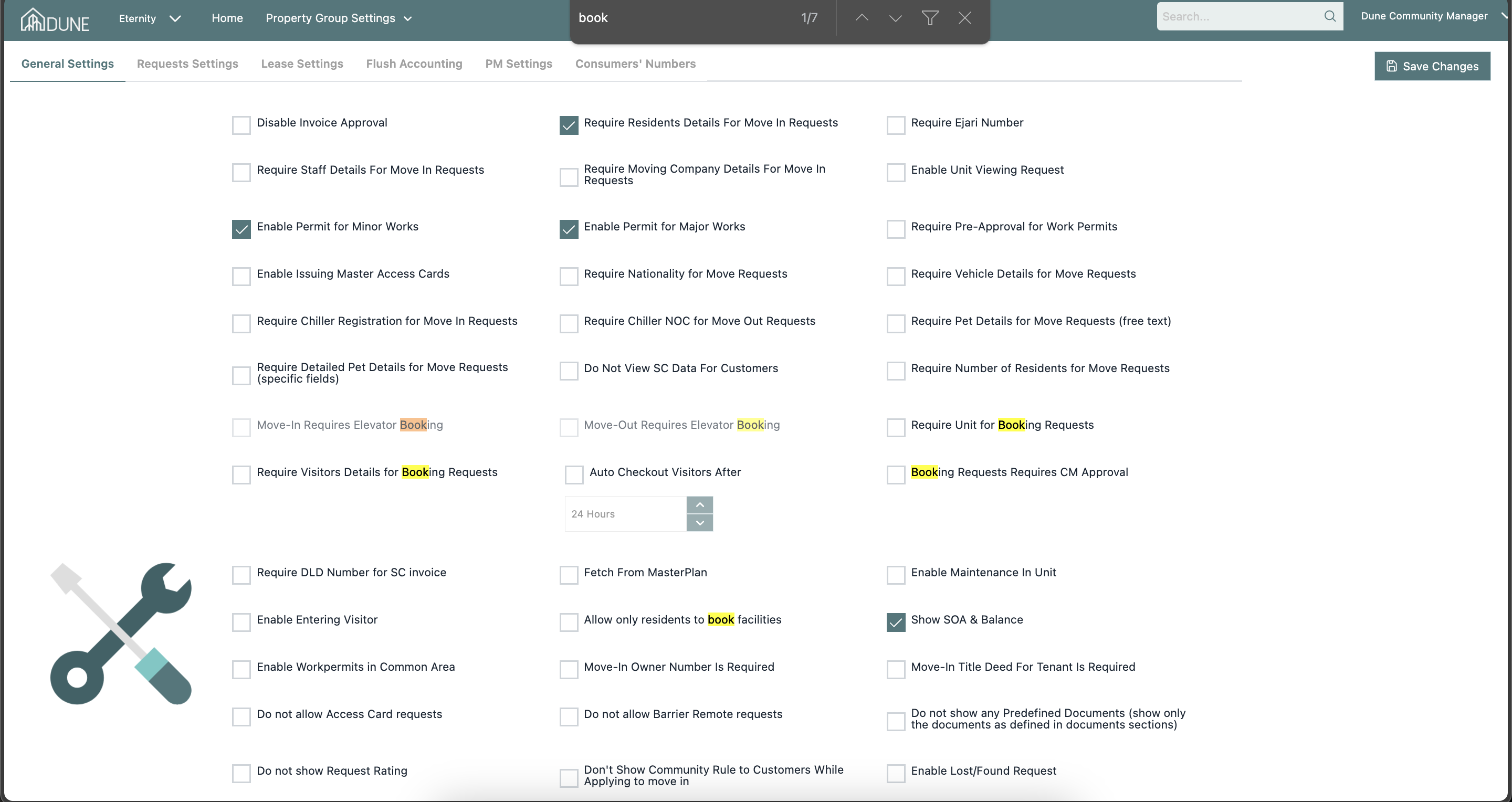
- Additional facility settings—such as requiring residents to select a unit or enabling approval from a Community Manager—can be configured from Property Group Settings.
- To quickly find booking-related settings, use your browser search (Ctrl + F or Command + F) and search for keywords like "book".
Was this article helpful?
That’s Great!
Thank you for your feedback
Sorry! We couldn't be helpful
Thank you for your feedback
Feedback sent
We appreciate your effort and will try to fix the article