Prerequisite:
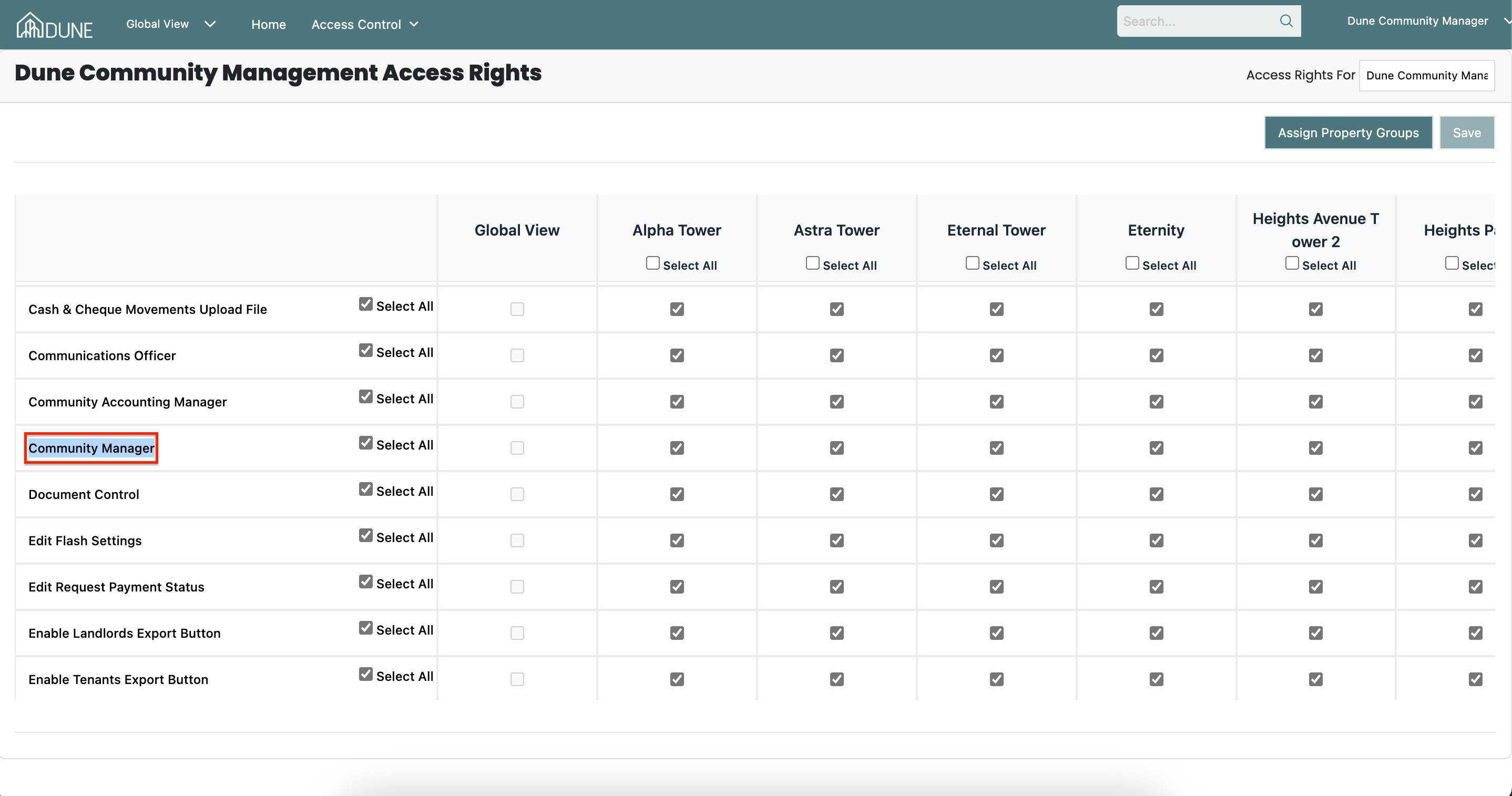
Before accessing Mollak Management Reports, please ensure that:
You have Community Manager access rights.
If you do not have this access, kindly contact your Client Admin user to grant the required permissions.
Feature Overview:
The Mollak Management Reports feature allows Community Managers to generate, preview, and submit required management reports directly to Mollak from the system. Reports can be generated per property group and tracked to confirm successful submission.
Access Mollak Management Reports
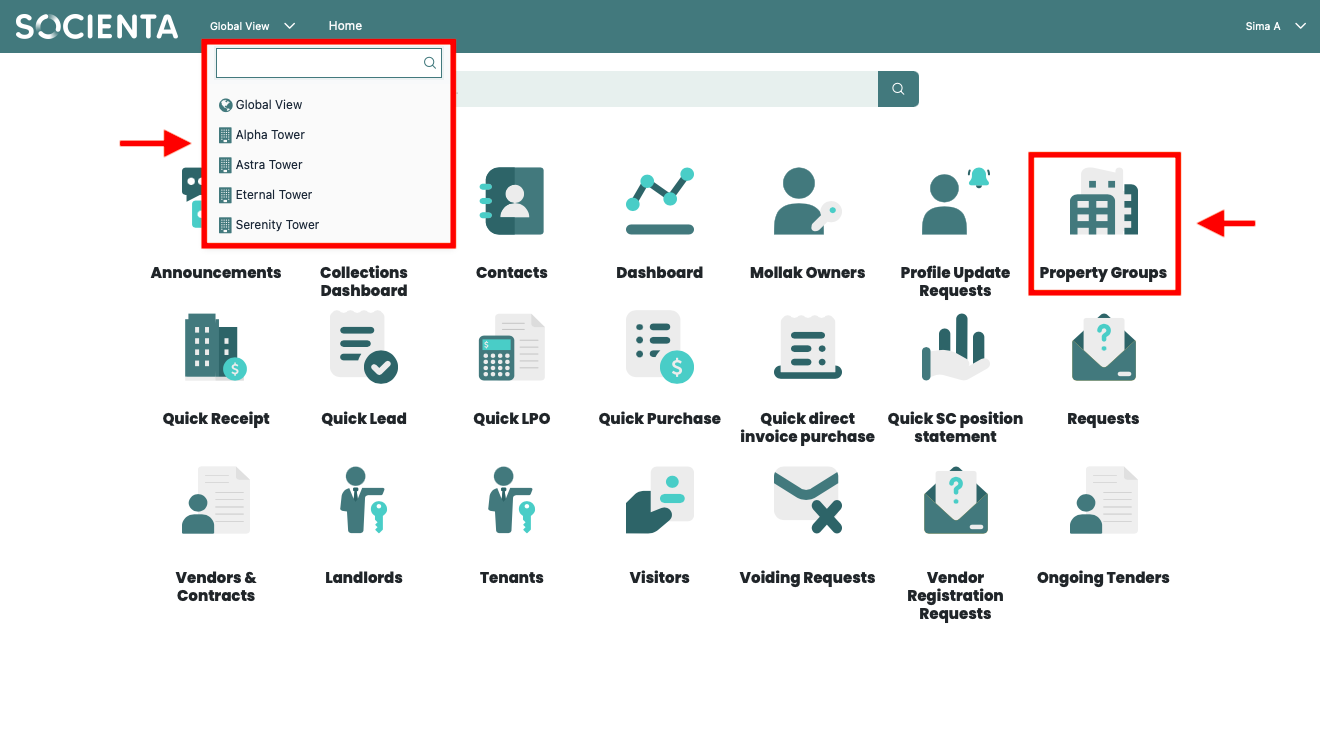
From the main page, select the Property Group for which you want to generate Mollak management reports.
The property group can be selected either from the main dashboard or via the drop-down menu.
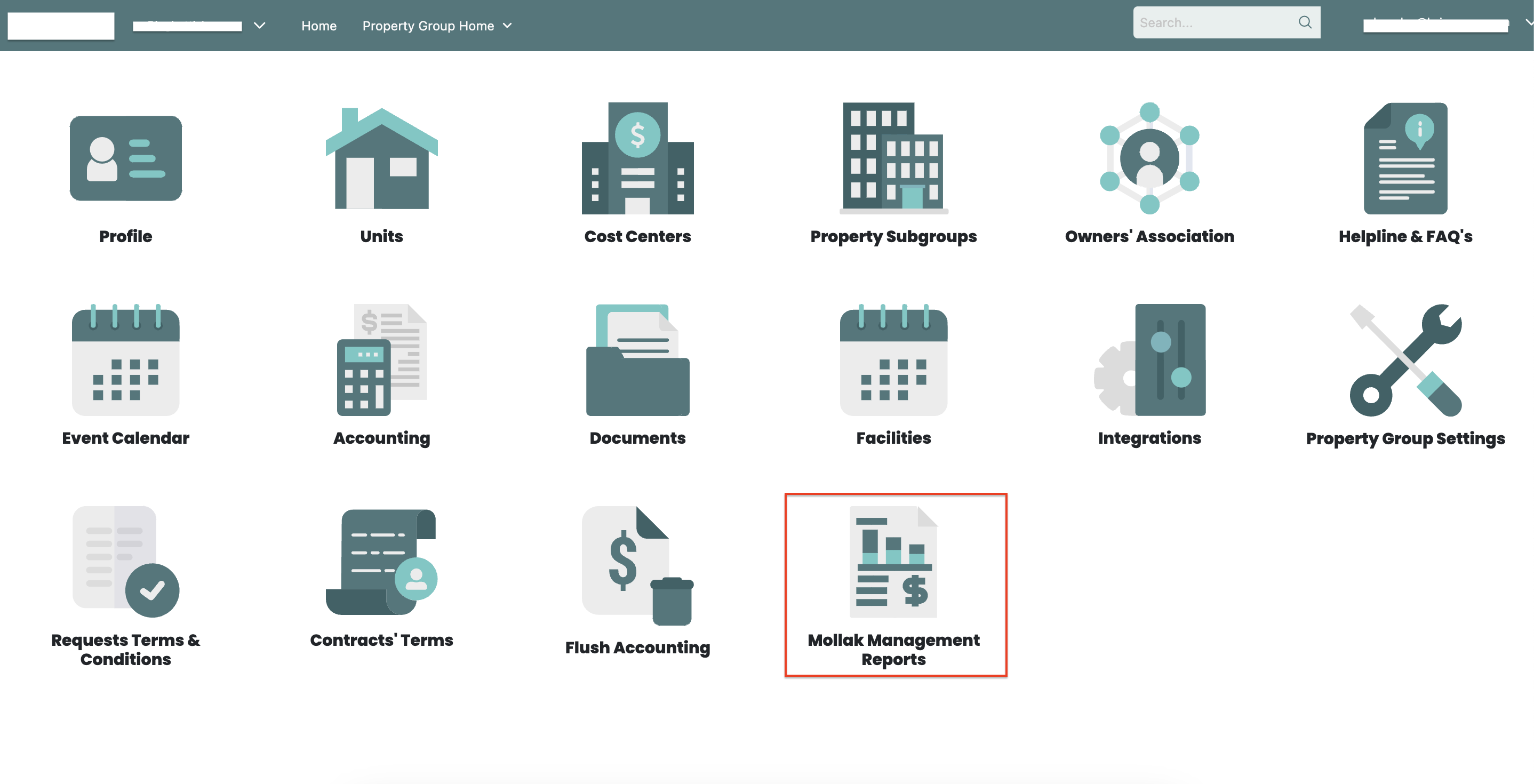
After selecting the property group, click on Mollak Management Reports.
Create a New Report
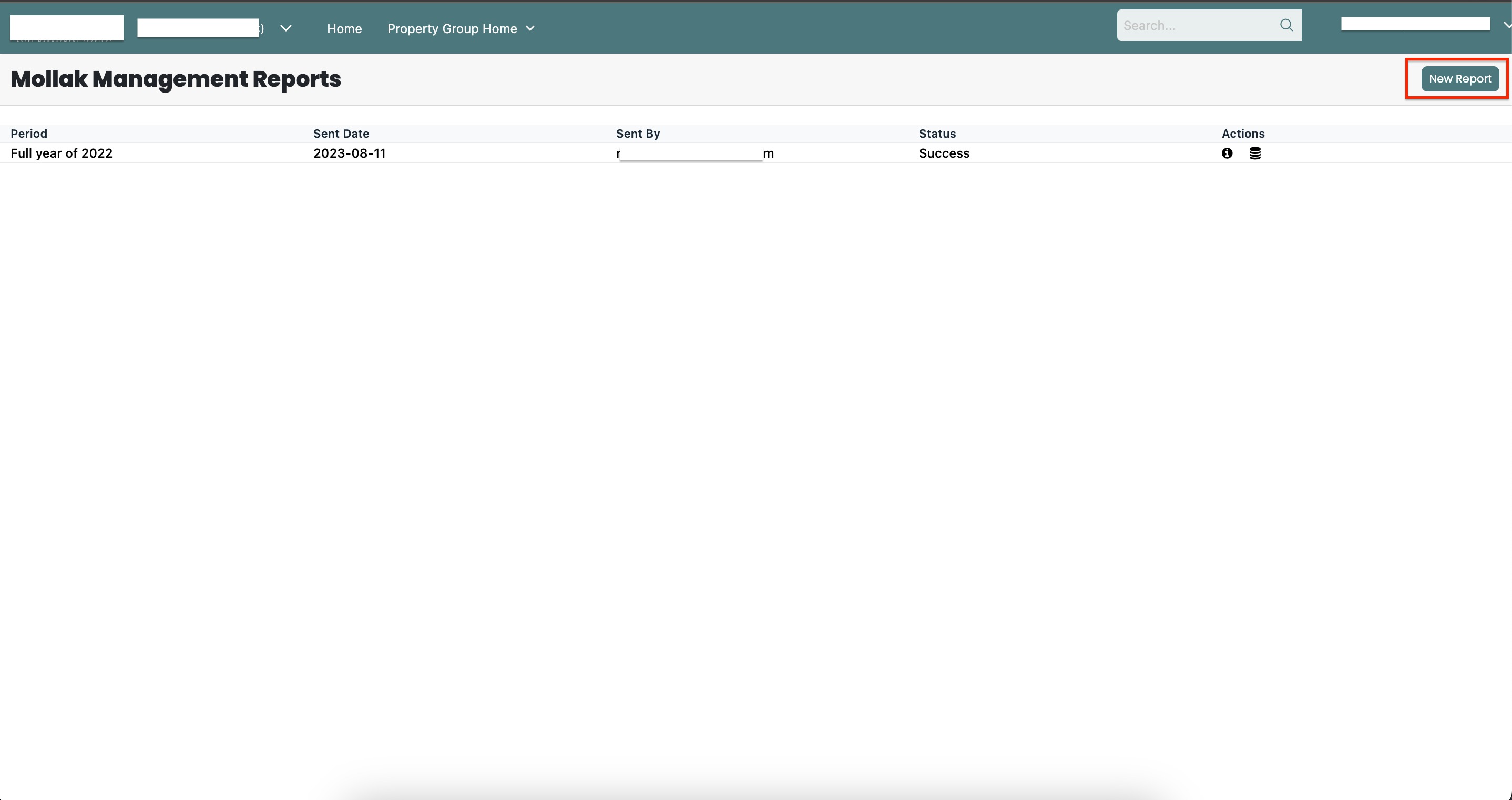
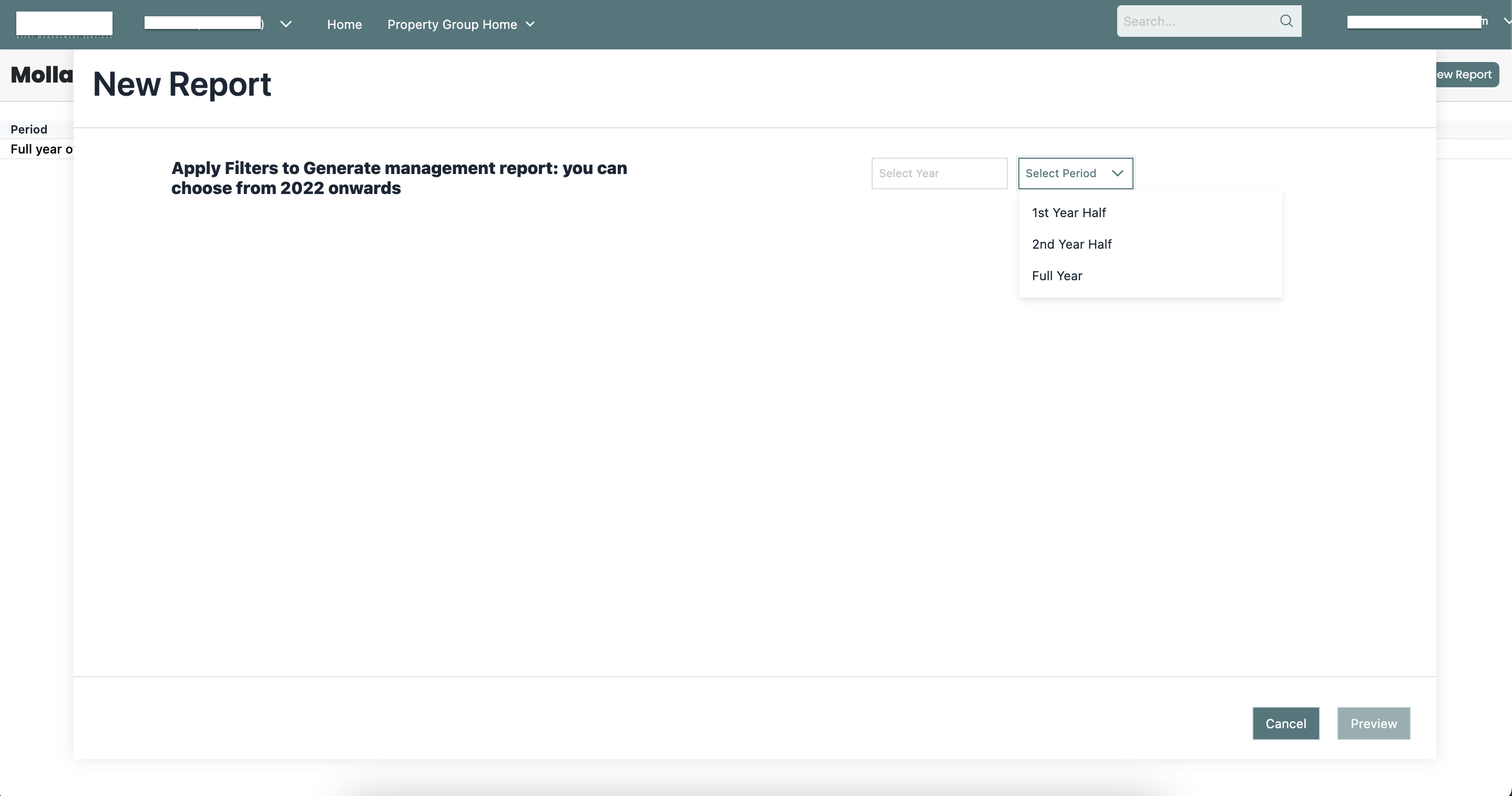
Click on the New Report button.
Select the required Year.
Choose the relevant Reporting Period.
Click Preview to generate the report.
Review and Submit Reports
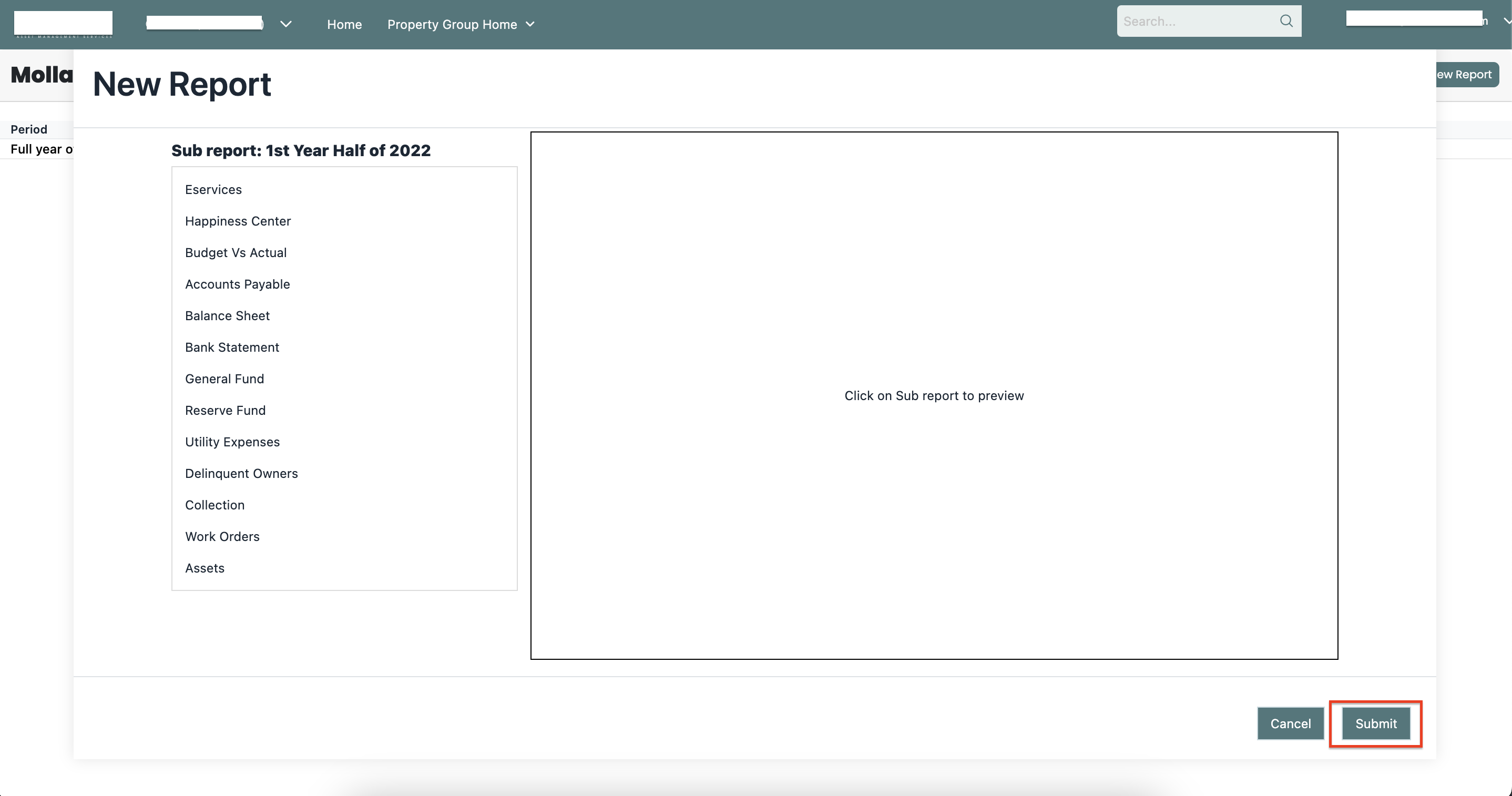
A new report dialog will open, displaying all the generated reports.
Review the listed reports carefully.
If everything is correct, click Submit to send the reports to Mollak.
Once submitted, the reports will be sent successfully and recorded in the system.
View Submitted Reports
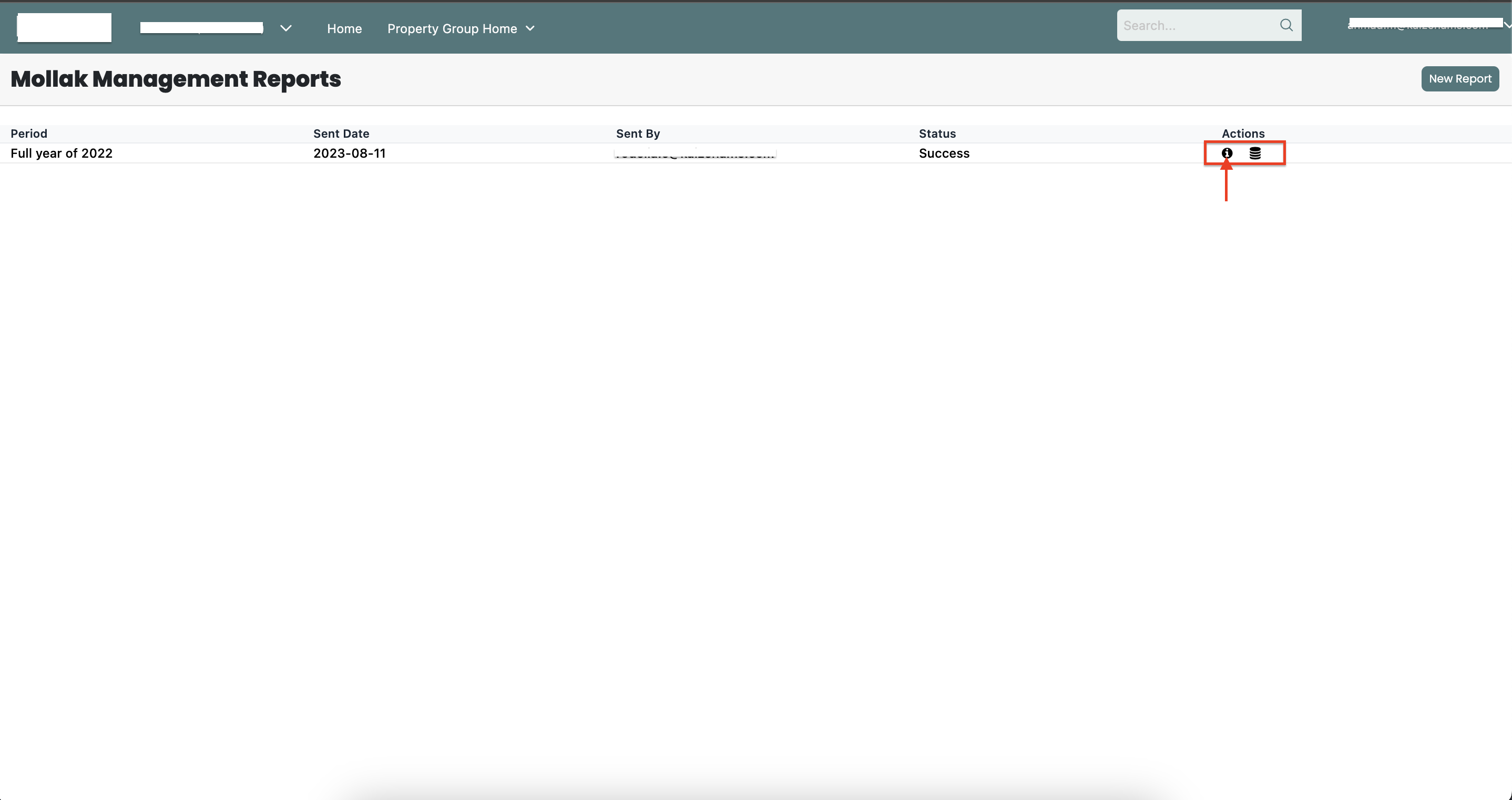
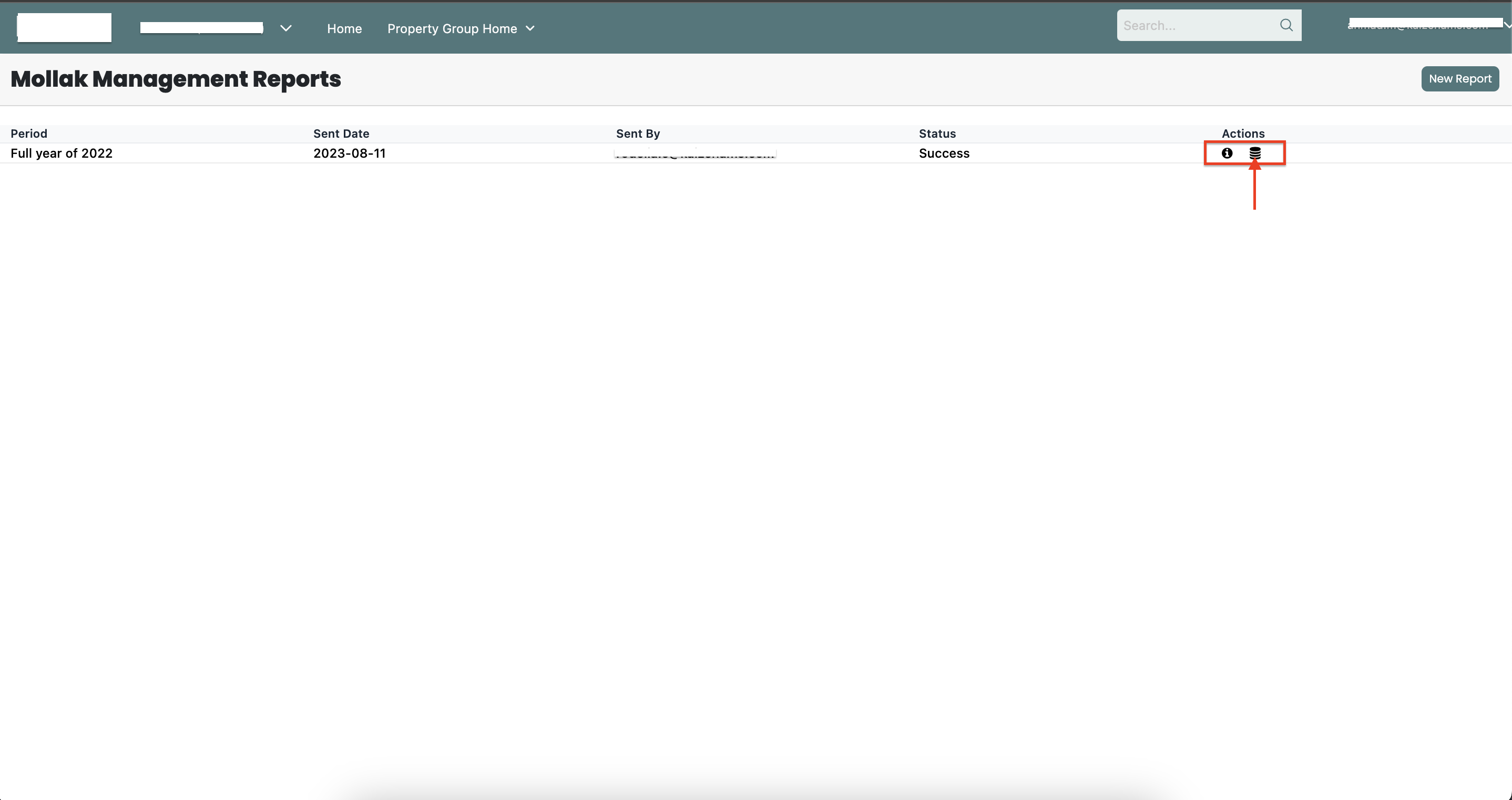
All submitted reports will appear in the reports list.
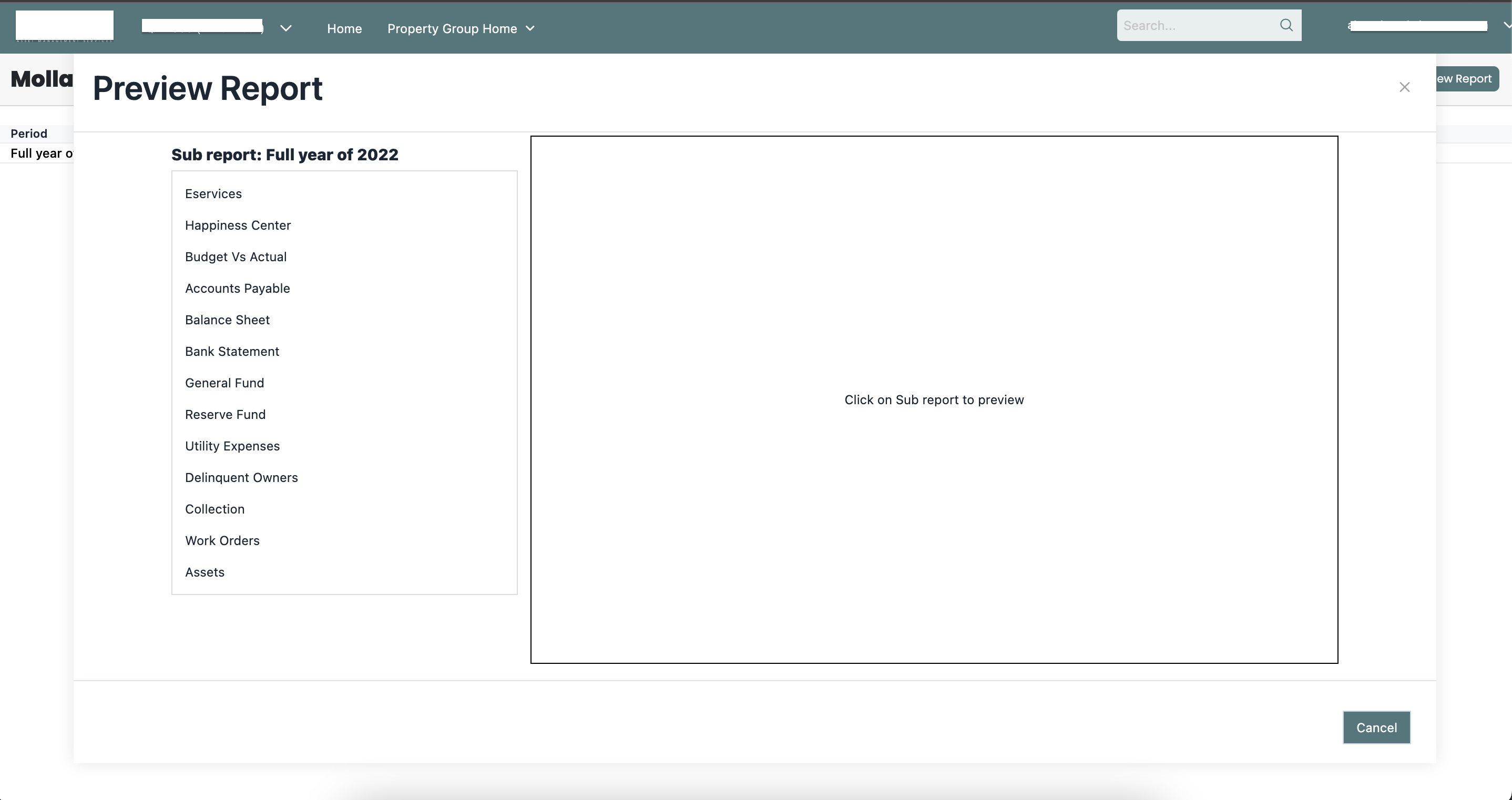
To review a report:
Click on the Action button next to the report.
Select Preview to view the report details.
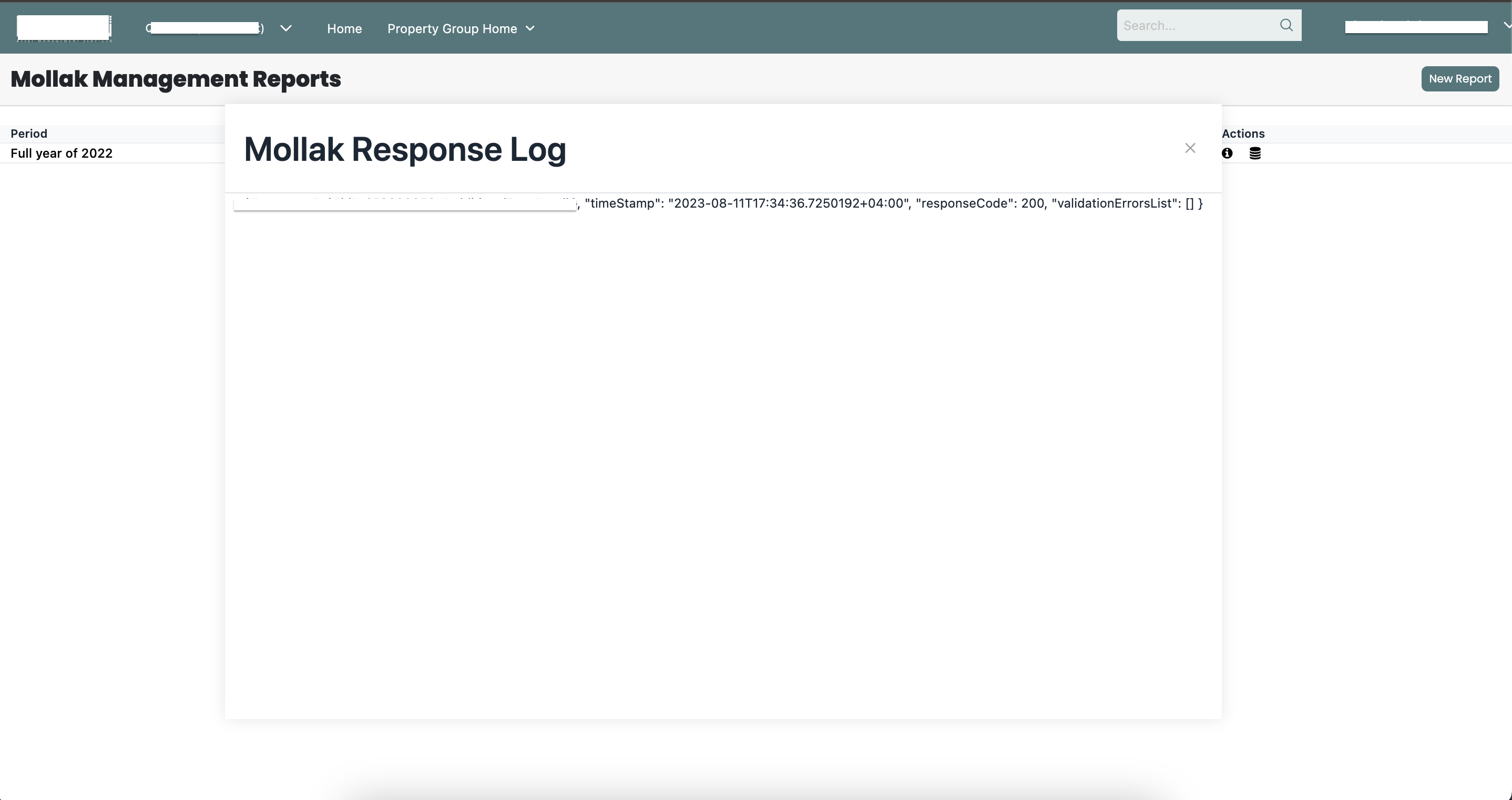
Check Submission Logs
You can review the submission log to confirm whether the report was sent successfully.
If the status indicates a failure or did not pass successfully:
Please contact the IT team by submitting a support ticket through Freshdesk and provide the report details and log information for further investigation: https://socienta.freshdesk.com/
Was this article helpful?
That’s Great!
Thank you for your feedback
Sorry! We couldn't be helpful
Thank you for your feedback
Feedback sent
We appreciate your effort and will try to fix the article