The Refetch option allows you to map between Socienta and Mollak in order to allocate the correct budget line.
This ensures that when raising an LPO/PO, the associated budget line will display the accurate amount linked to the correct budget code.
1. Access the Budget Section
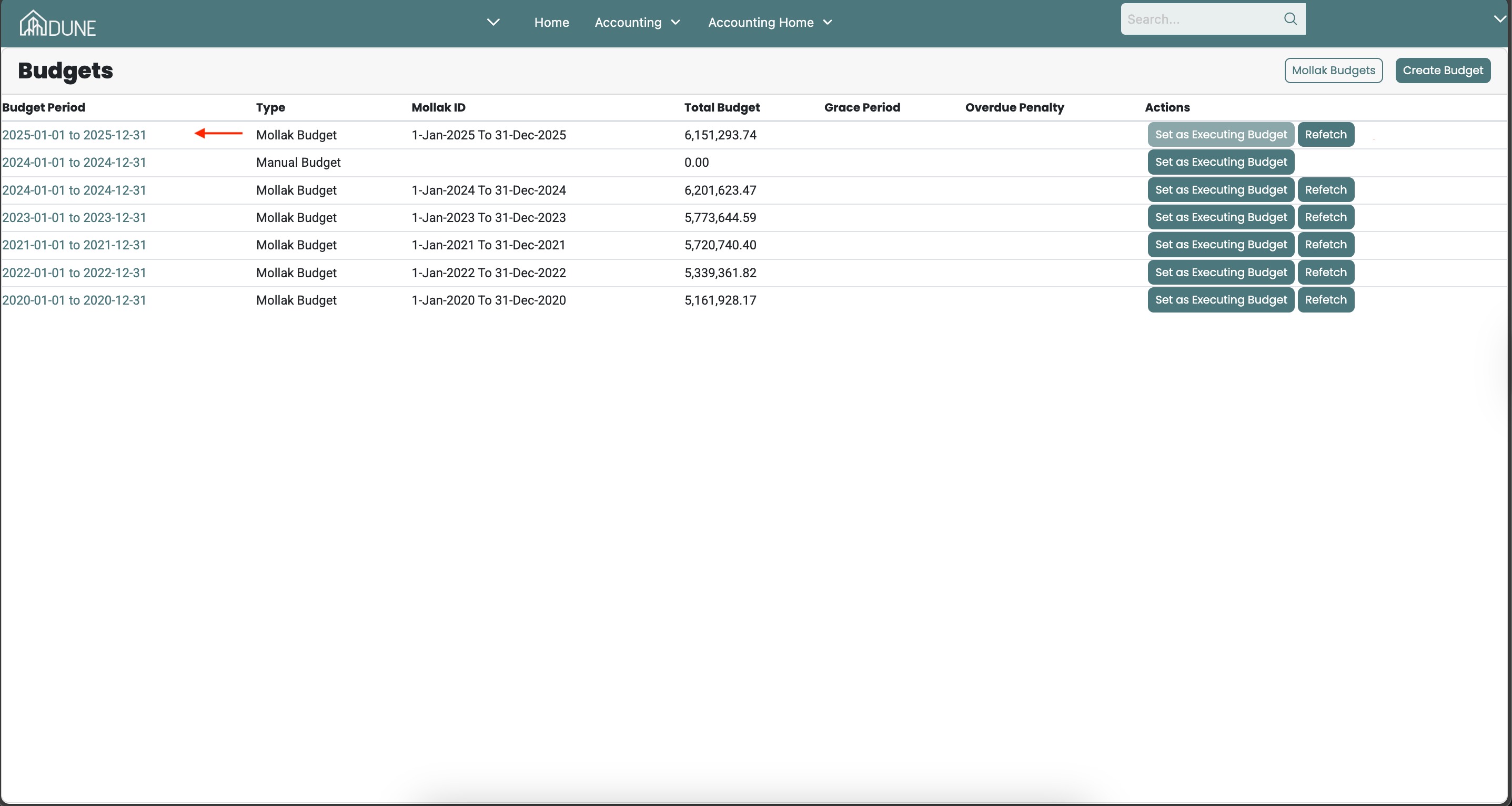
Go to Property Group > Accounting > Budget.
2. Choose One of the Two Scenarios
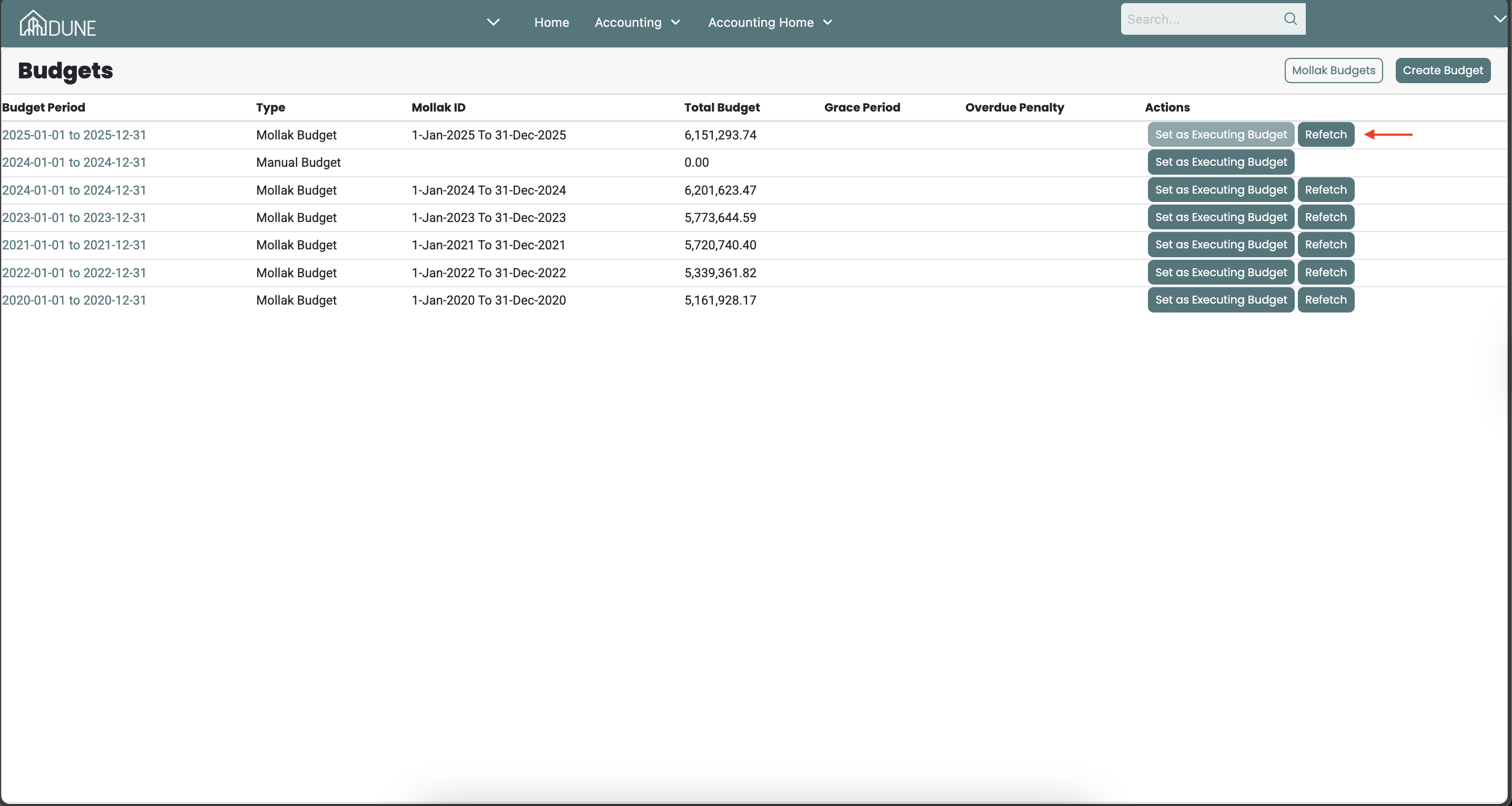
If the budget already exists:
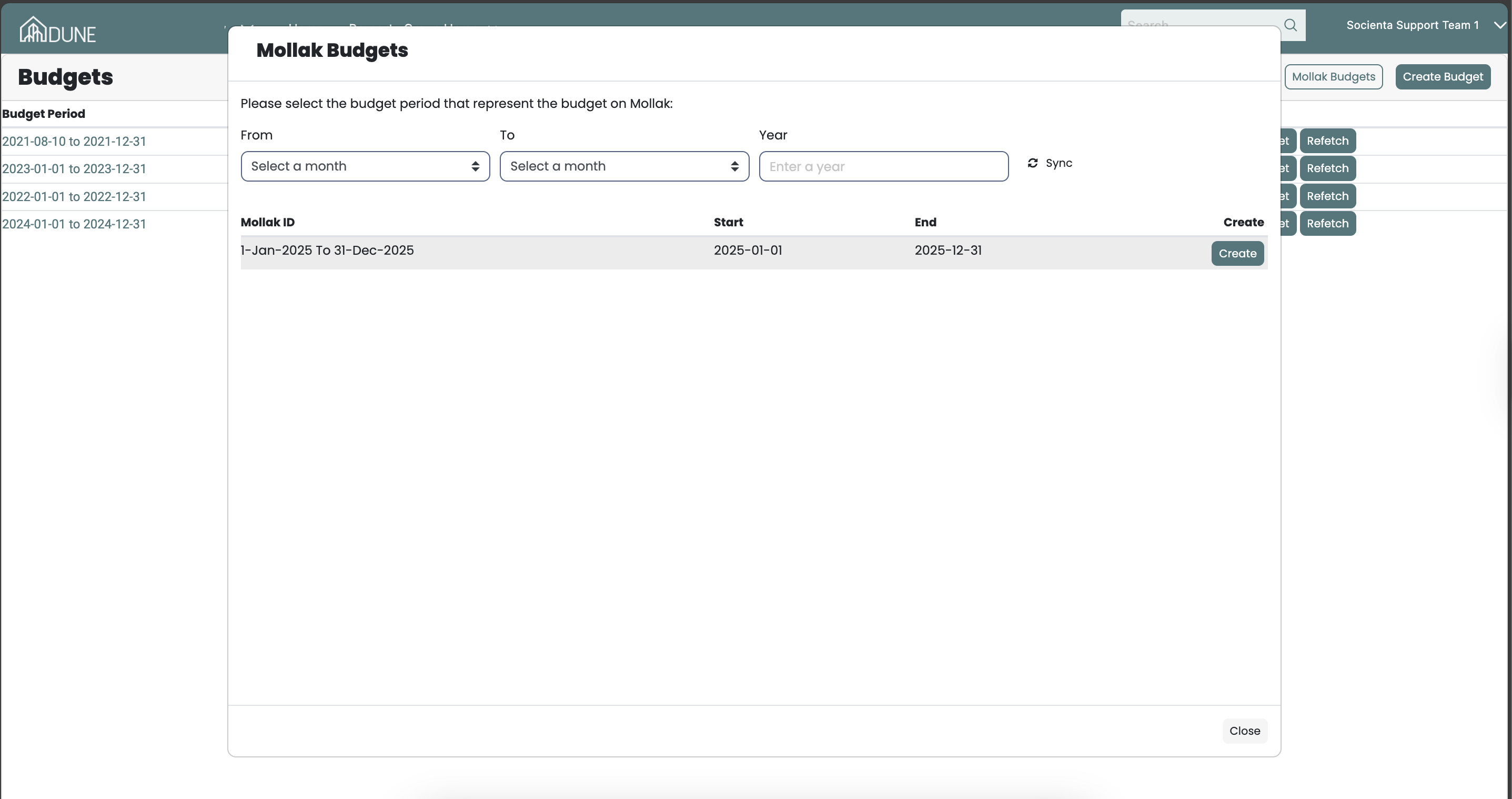
Click “Refetch” to open a pop-up window.
Then click “Create” to begin mapping the budget lines.
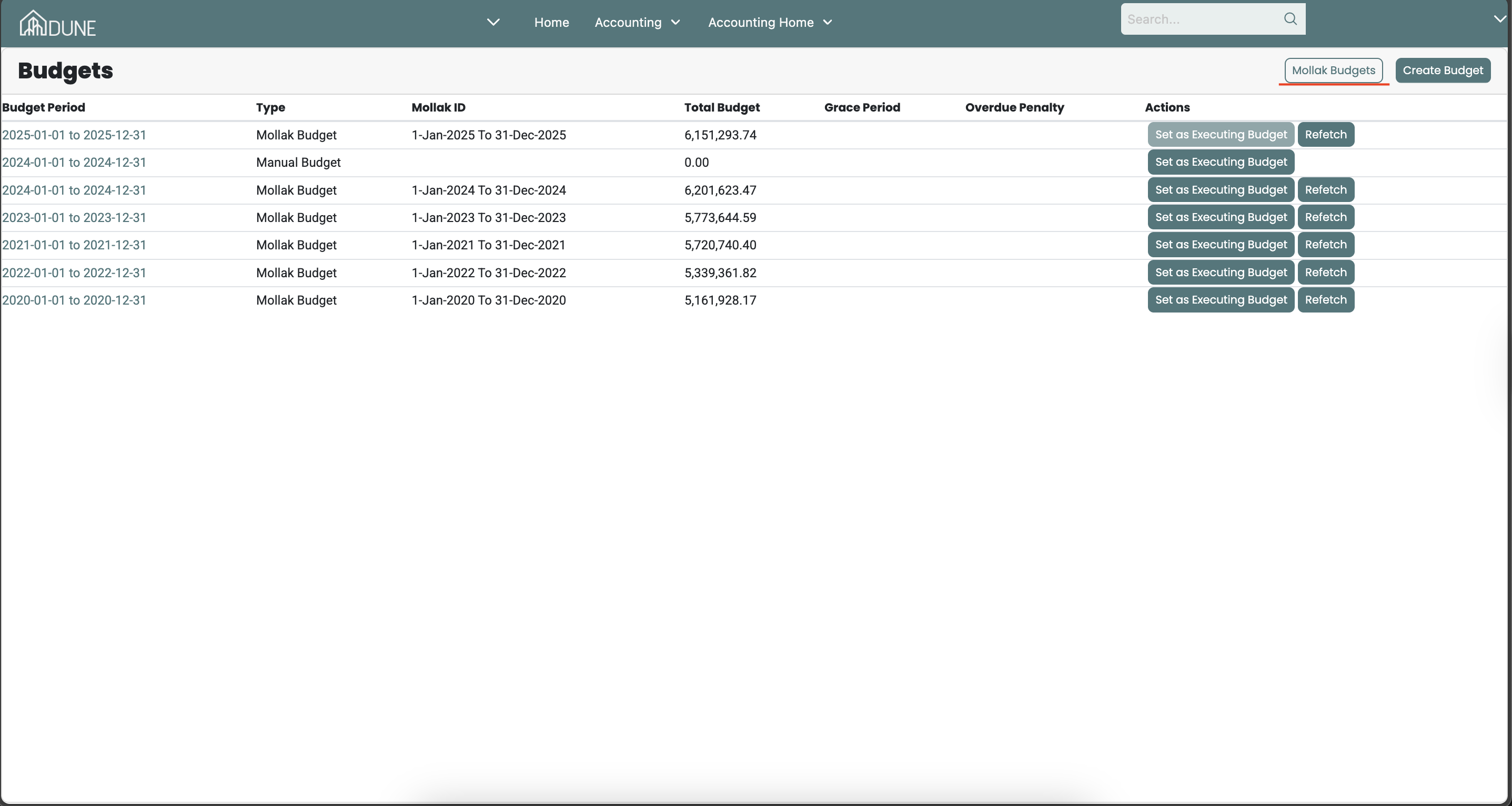
If the budget does not exist yet:
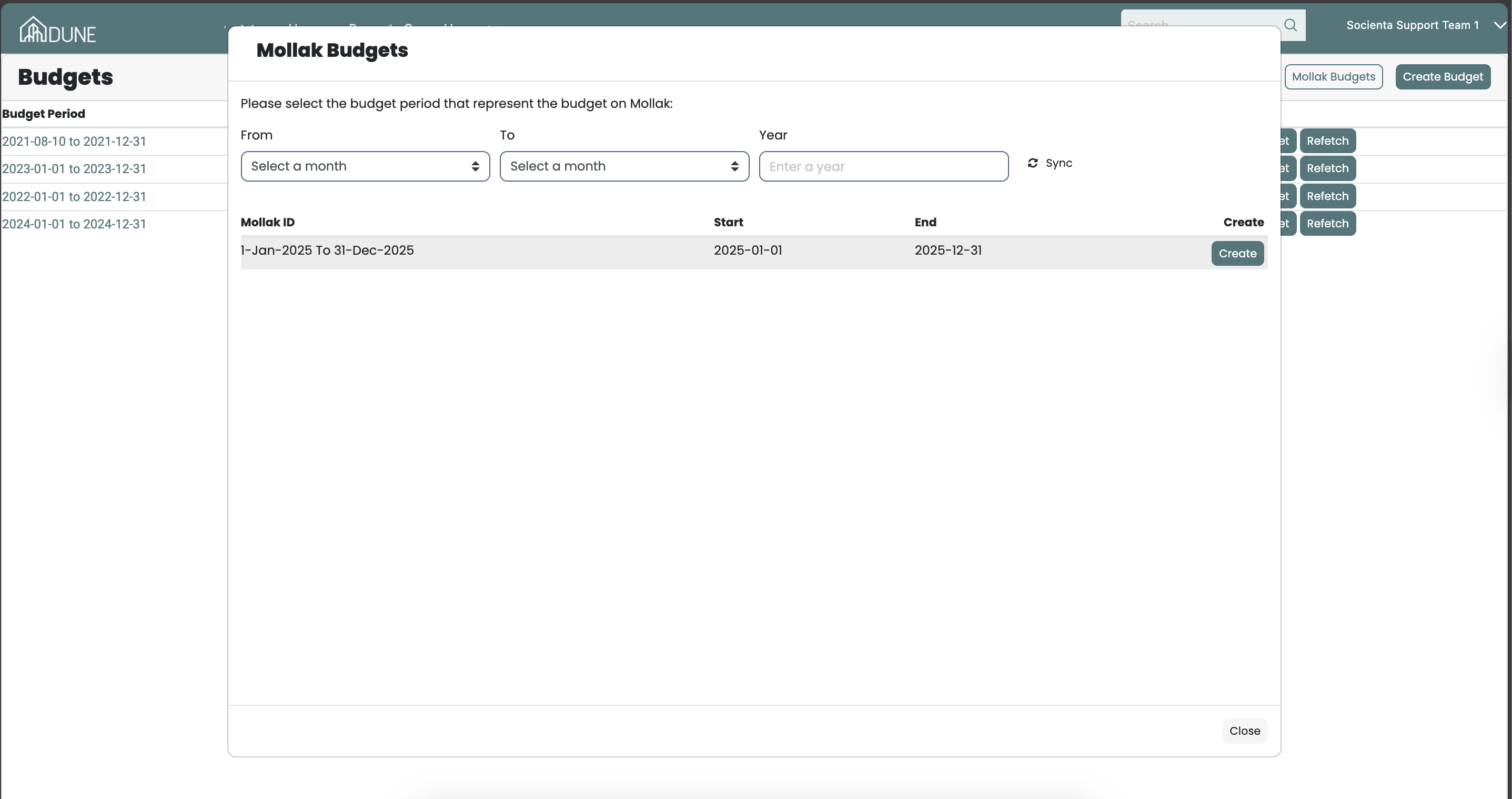
- Click Mollak Budget, set the filter date (from – to – year), and click Sync.
- The Mollak budget will appear in the list.
- Click Create to open the mapping pop-up screen.
3. Map the Budget Lines
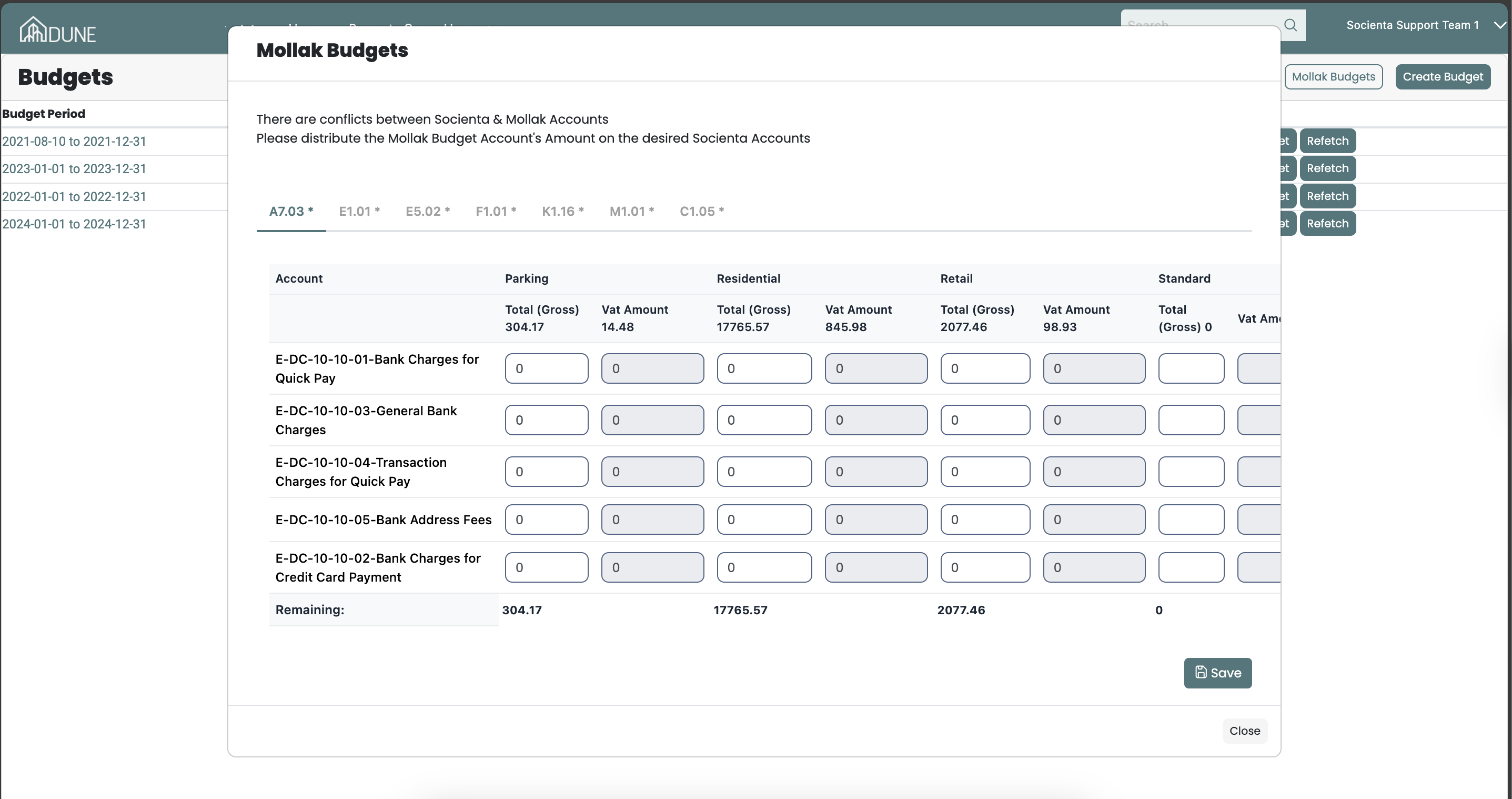
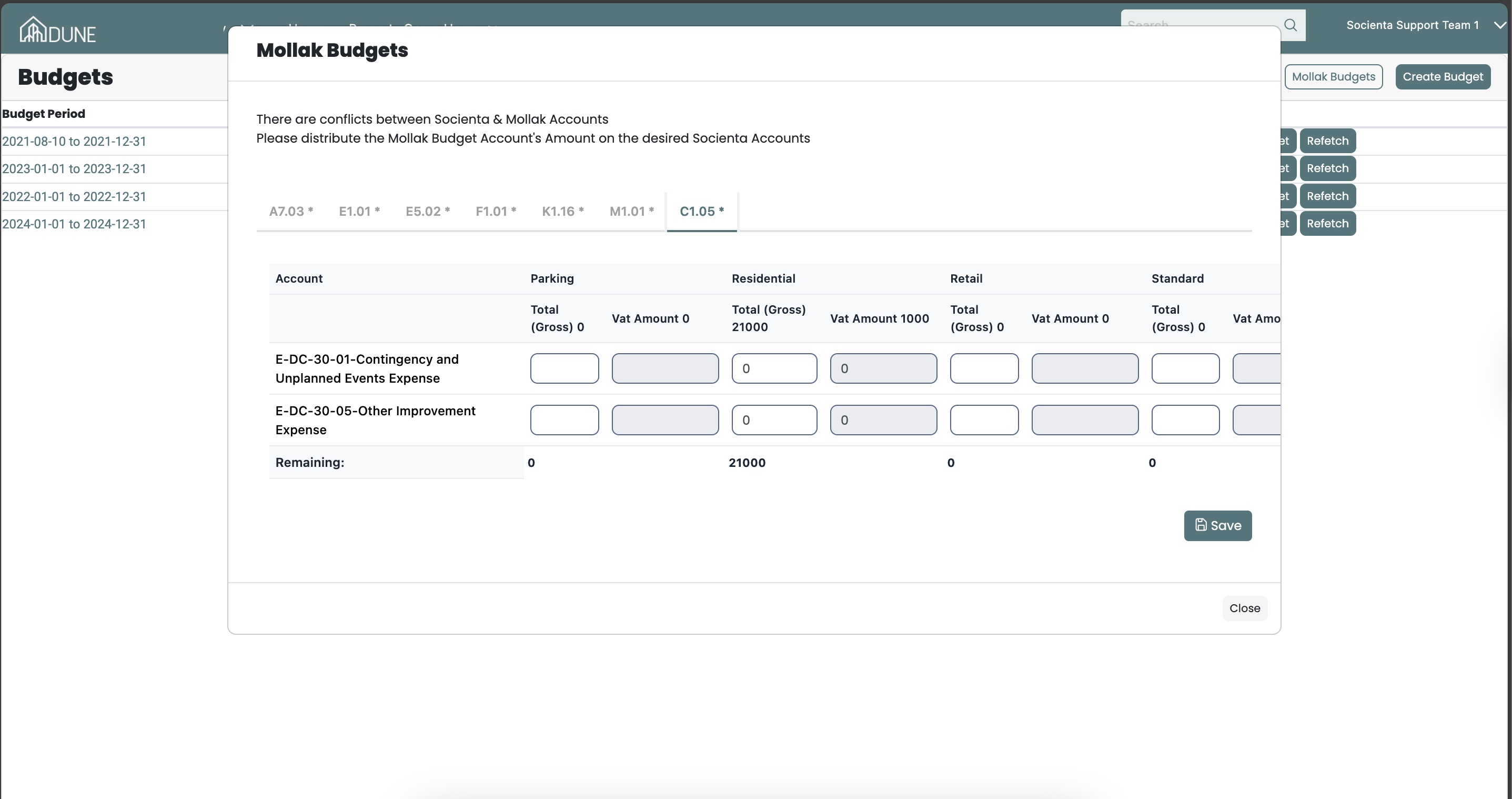
A pop-up will show the required budget codes and lines.
Download the original budget from Mollak if needed to check the budget lines.
For each budget line:
Enter the same amount displayed in Mollak.
Allocate it to the correct Cost Center(s).
If there are multiple accounts, repeat this step for each.
4. Finalize the Budget
Once all budget lines are mapped:
Click “Save”.
Your budget is now successfully created and defined in Socienta.
Tips and Tricks:
If the budget structure already exists, always use “Refetch” to re-sync and map.
Ensures the updates from Mollak (e.g. changes in codes or values) are reflected correctly.
Was this article helpful?
That’s Great!
Thank you for your feedback
Sorry! We couldn't be helpful
Thank you for your feedback
Feedback sent
We appreciate your effort and will try to fix the article