Overview
This article explains how an Accountant can create Batch Invoices with Budgets directly from the Accounting module in the property group. This feature allows generating invoices for multiple units while considering budget allocations.
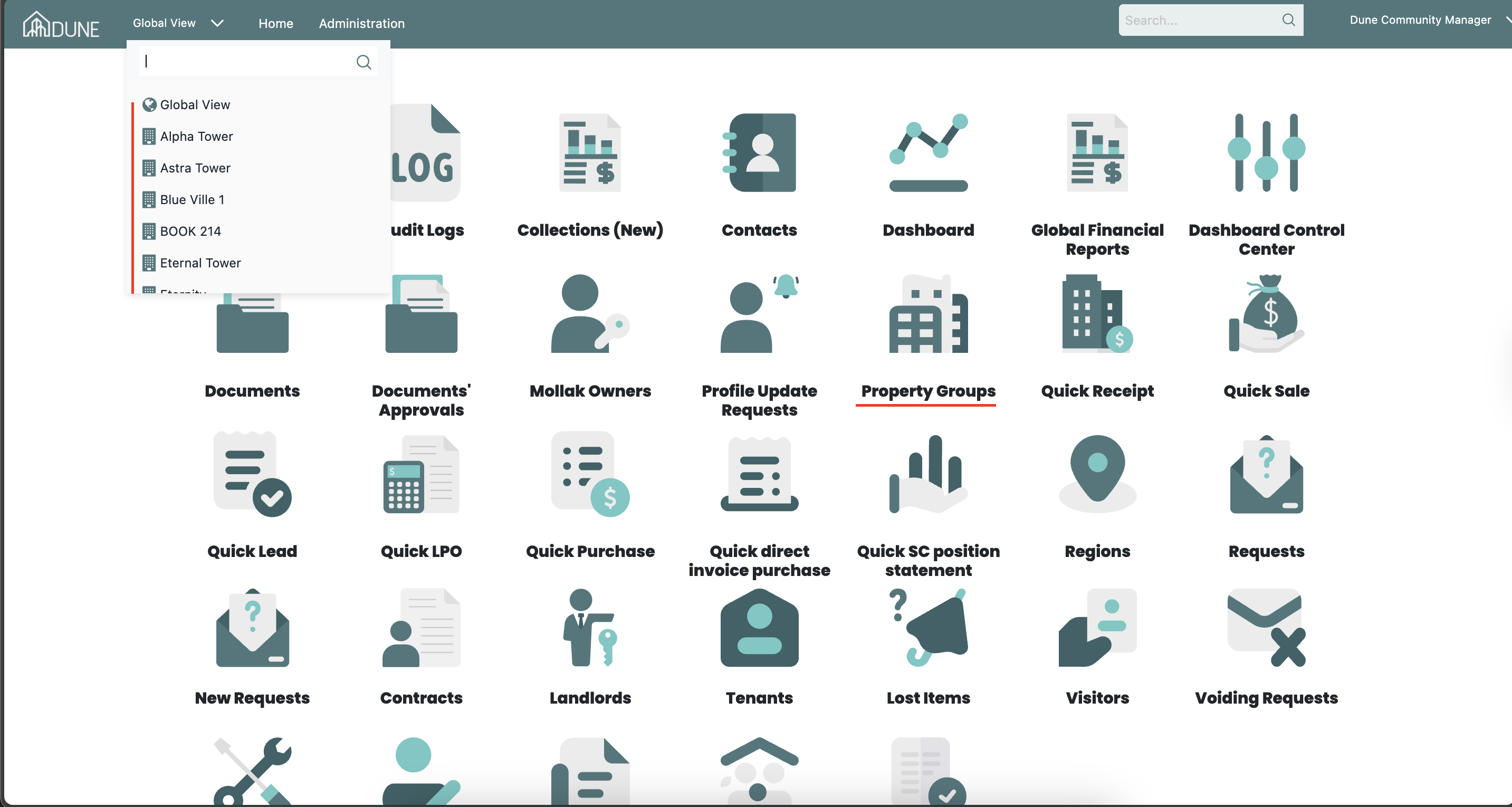
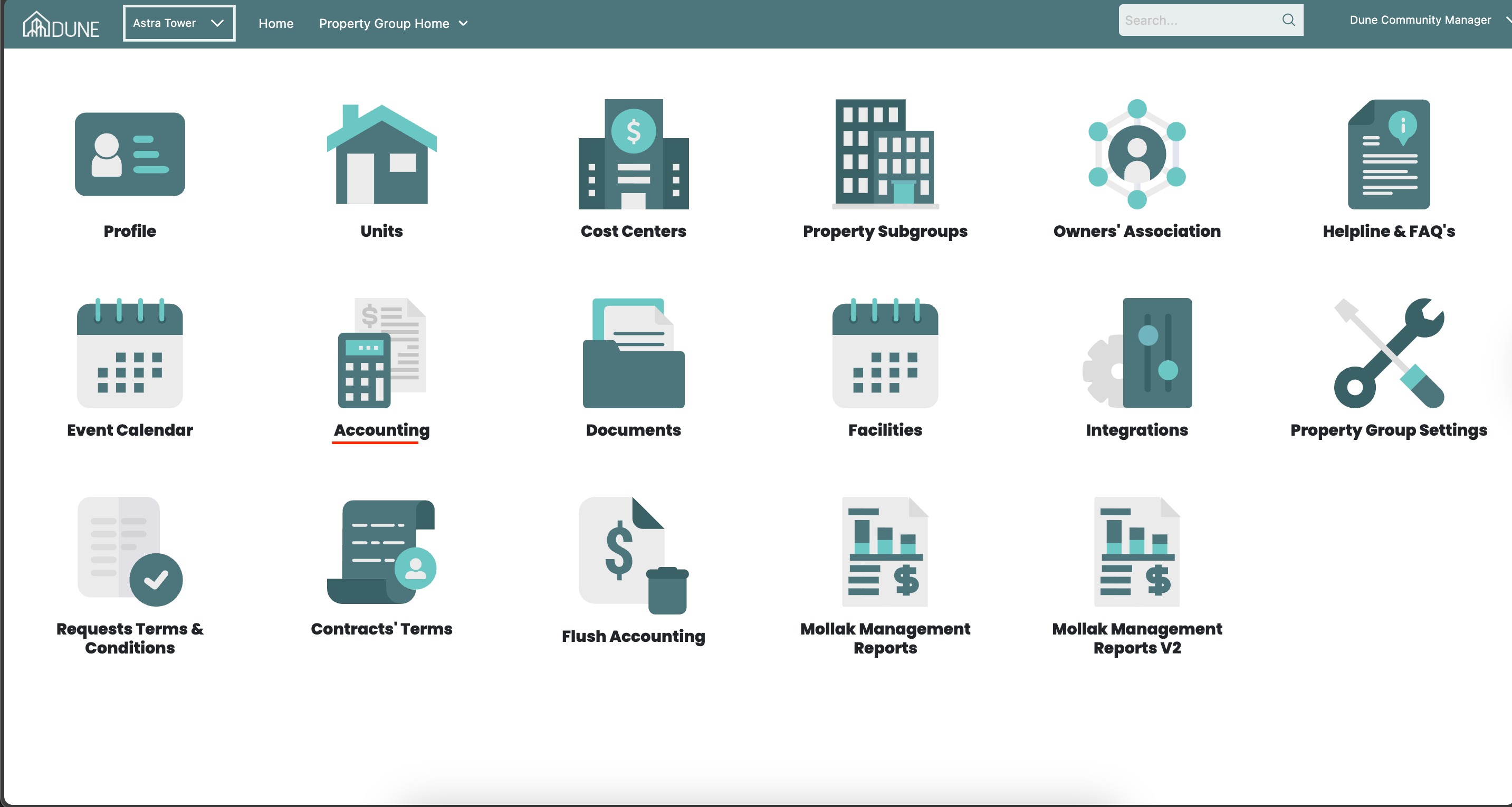
Access the Accounting Module
From the Global View, select the property group where you want to issue batch invoices.
- Click Accounting to enter the accounting module for the selected property group.
Navigate to Service Charges
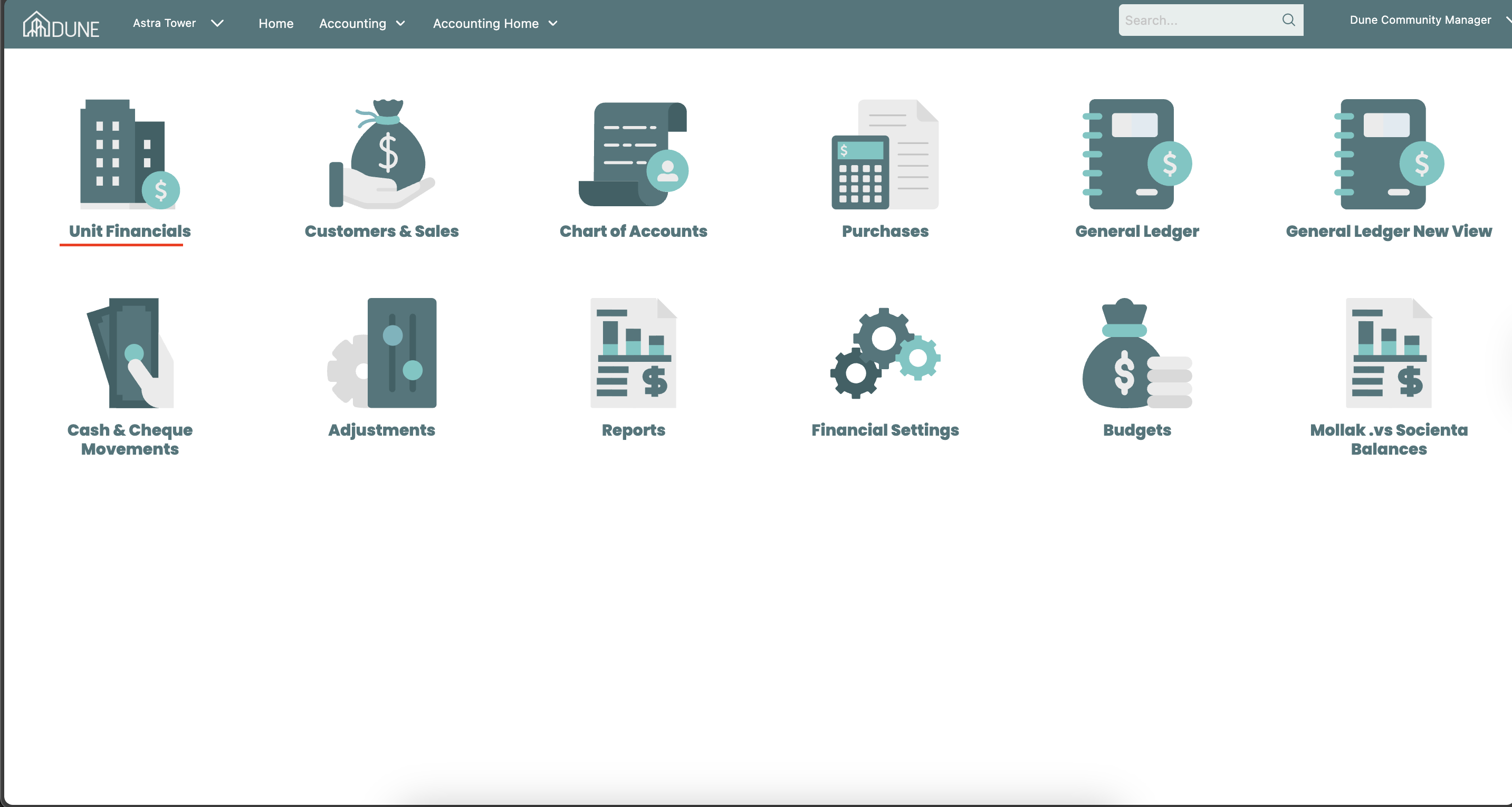
Within the accounting module, go to Units Financials.
Select Service Charges to view all units and their associated service charge details.
Create Batch Invoices With Budgets
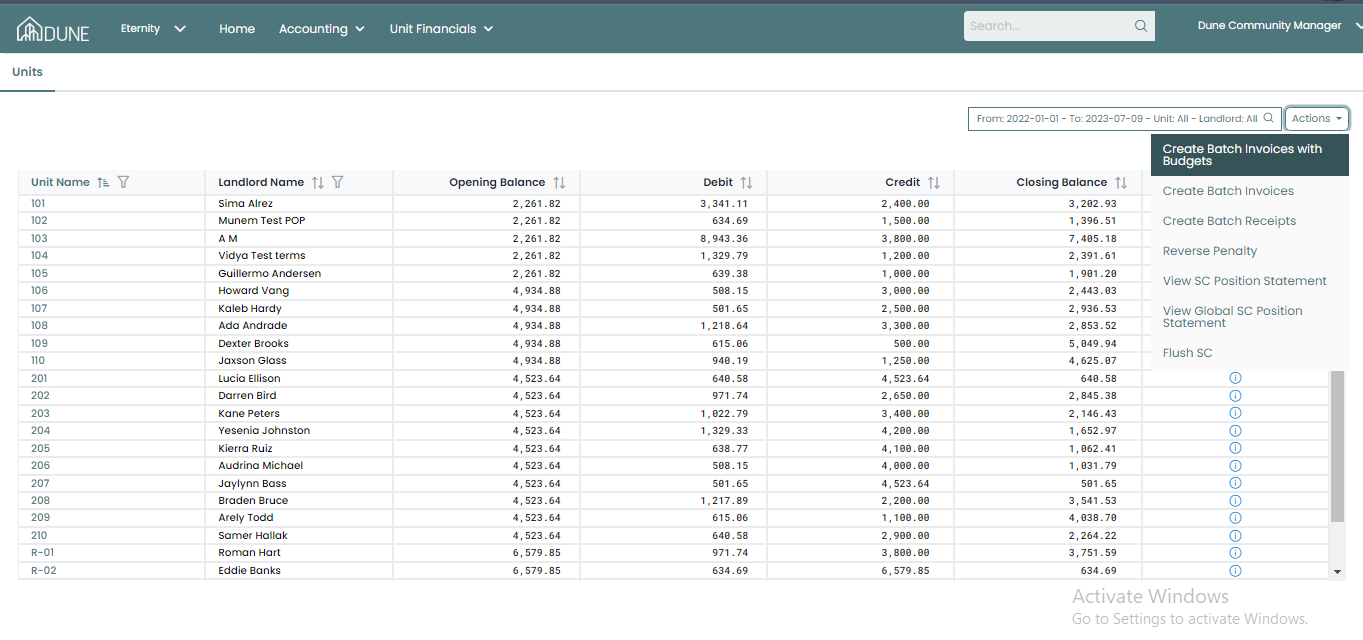
On the Service Charges screen, click Actions.
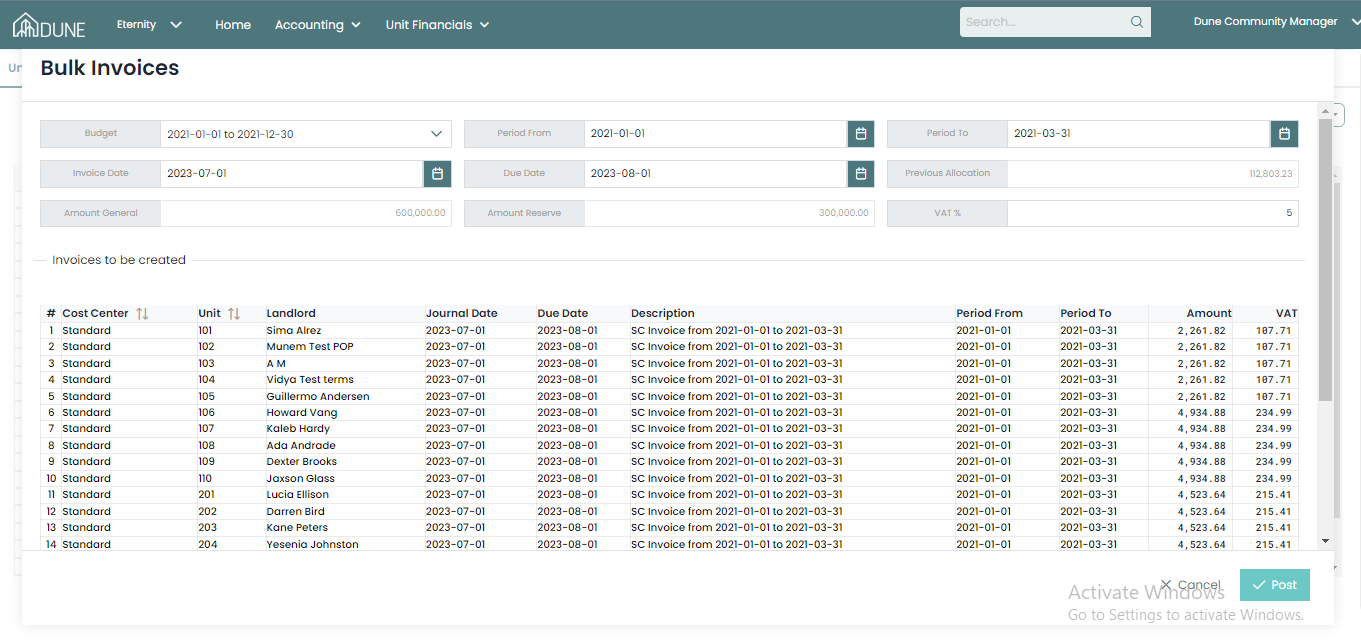
Select Batch Invoices With Budgets.
A new window will open where you can fill in the invoice details:
Budget allocations
Period from/to
Invoice date
VAT
Once all details are complete, click Post to generate and issue the batch invoices.
Verify the Invoices
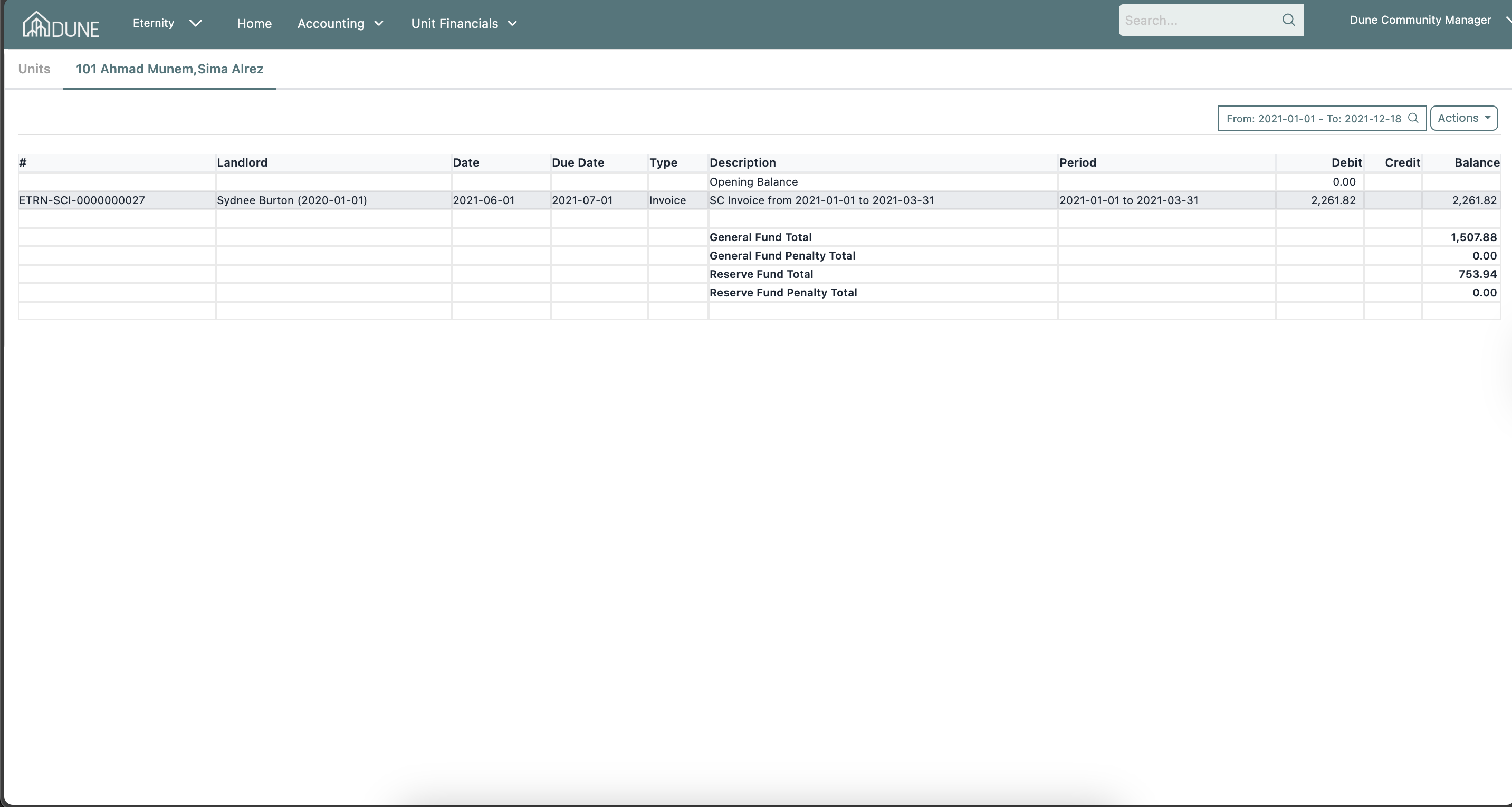
Open a unit from the service charges screen.
Check the posted invoices to confirm the batch invoice has been successfully created and allocated according to the budgets.
Tips & Best Practices
Ensure all info and budget details are correct before posting the batch invoices.
Batch invoices help save time when issuing invoices for multiple units with auto allocation from the budget.
Verify each invoice in the unit after posting to ensure proper amount allocation.
Was this article helpful?
That’s Great!
Thank you for your feedback
Sorry! We couldn't be helpful
Thank you for your feedback
Feedback sent
We appreciate your effort and will try to fix the article