Overview
The General & Request Settings in Socienta allow you to configure the core behaviour of a property group. The General Settings tab controls resident requests, move-in/move-out workflows, bookings, work permits, access, and integrations, while the Request Settings tab lets you enable/disable specific request types and define the documents required for each.
Prerequisites
Before accessing Property Group Settings, make sure you have the correct permissions. Contact your client admin to provide you with "edit access rights to Property Group Settings" in order to be able to edit and save any changes. Without this access, you will be able to view the settings but not make any modifications.
Access Property Group Settings
From the top navigation bar, click on the Global View dropdown and select your property group (e.g., Alpha Tower).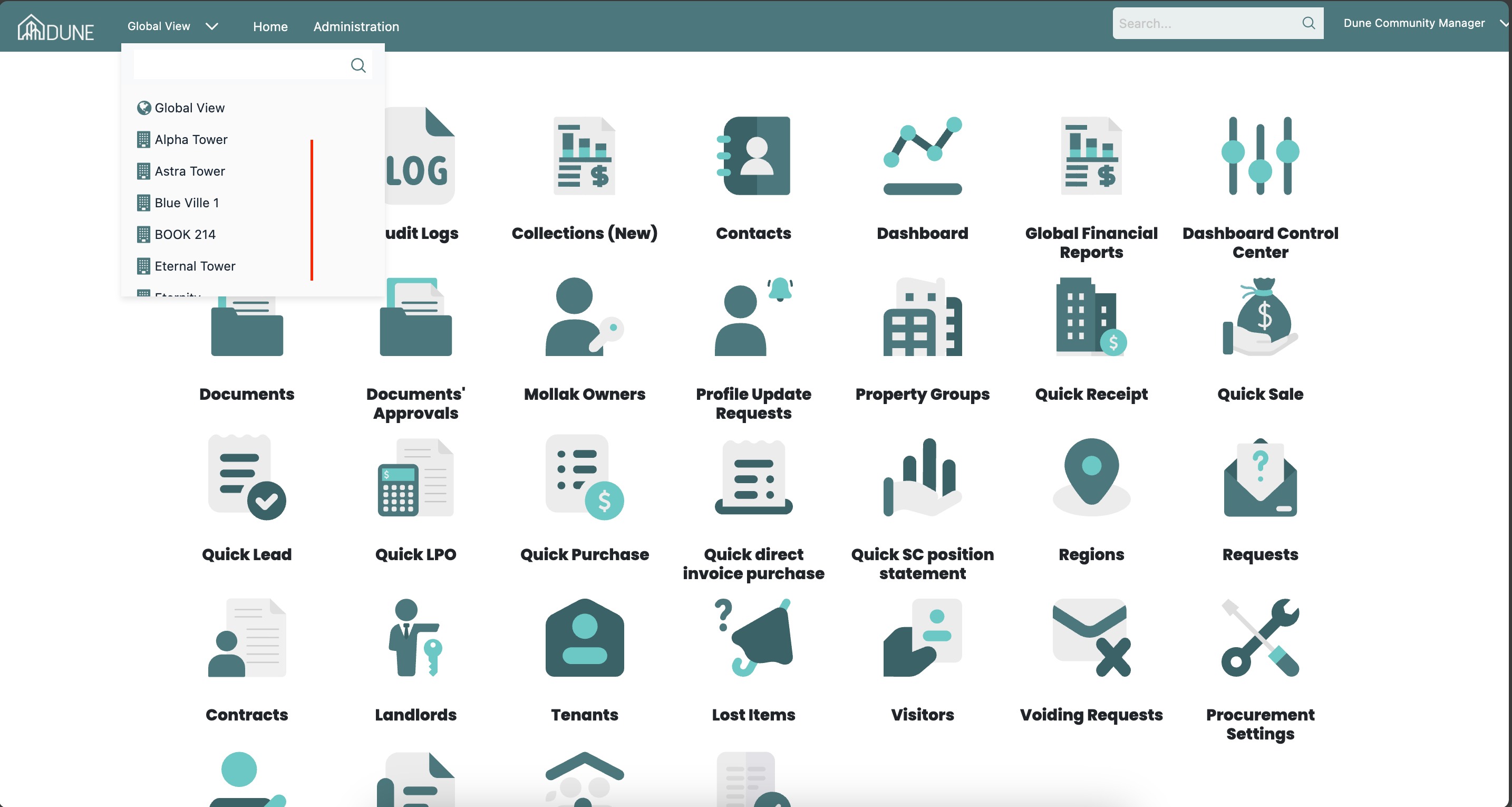
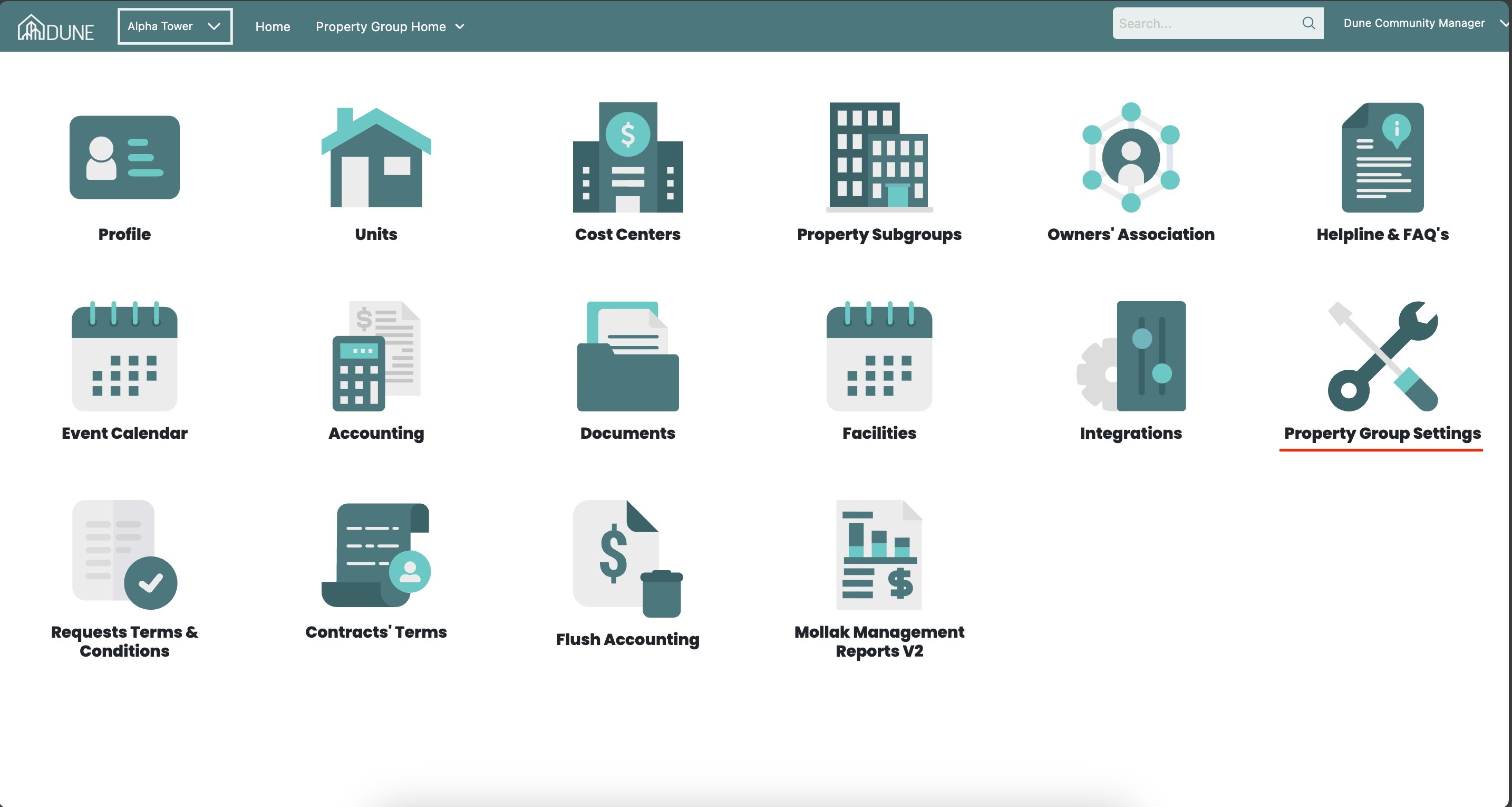
Once inside the property group, click on the Property Group Settings option.
You will land on the Property Group Settings page, where the General Settings and Request Settings tabs are available at the top.
Tab 1: General Settings
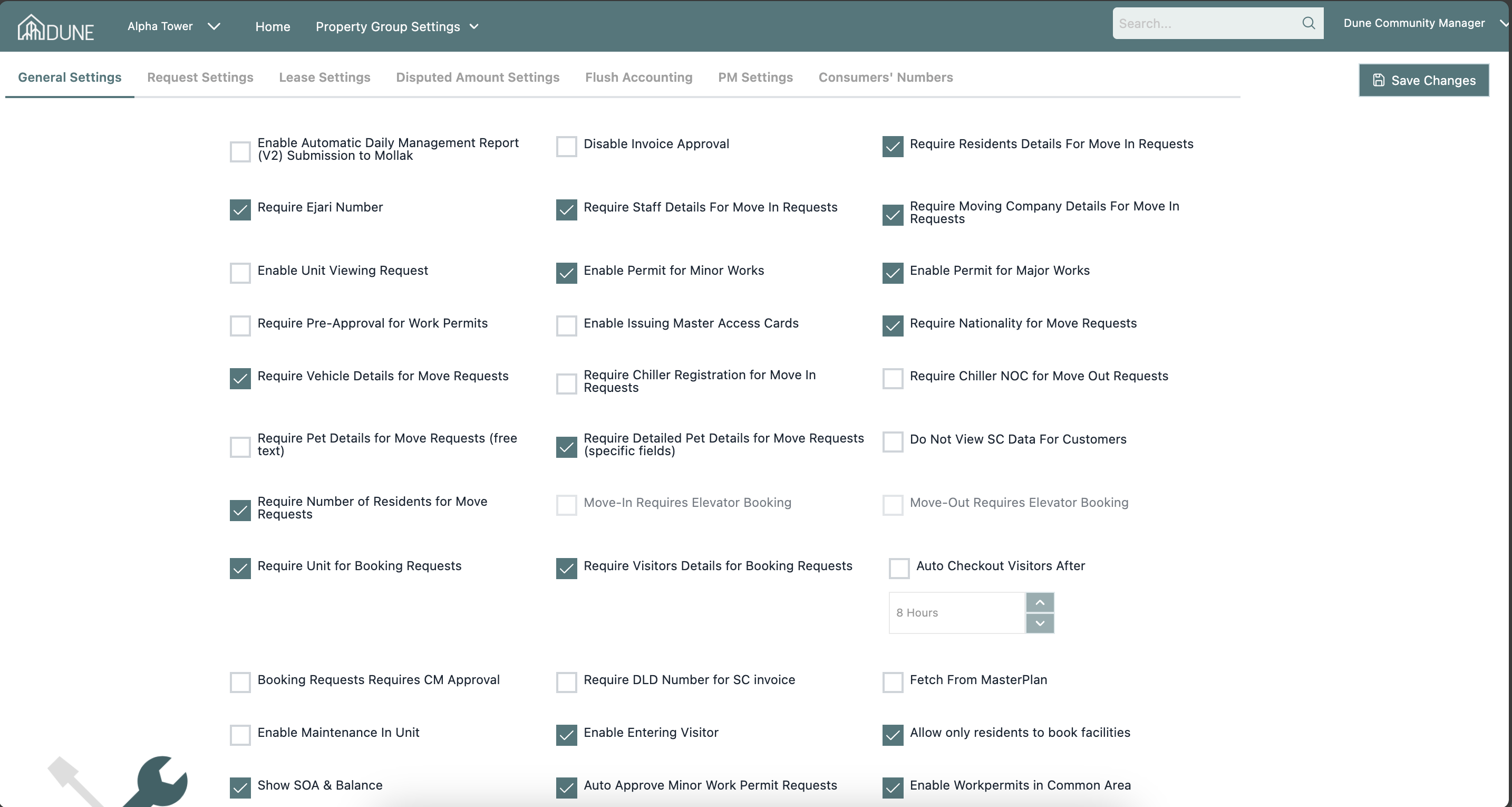
The General Settings tab contains a comprehensive list of toggles that control the behaviour of resident requests, move-in/move-out workflows, bookings, work permits, and integrations.
Mollak & Accounting Options
- Enable Automatic Daily Management Report (V2) Submission to Mollak: Automatically submits the daily management report to Mollak.
- Disable Invoice Approval: Disables the invoice approval step in the accounting workflow.
- Require DLD Number for SC Invoice: Makes the DLD number a required field when generating service charge invoices.
- Fetch From MasterPlan: Enables data fetching from MasterPlan integration.
- Activate manual sync and update of Mollak Owners (single & Bulk units): Allows manual syncing and updating of Mollak owner data for single or bulk units.
- Enable automatic owner update: Enables automatic updating of owner information.
Move-In & Move-Out Settings
- Require Residents' Details for Move-In Requests: Makes resident details mandatory when submitting a move-in request.
- Require Ejari Number: Makes the Ejari number a required field for move-in.
- Require Staff Details For Move-In Requests: Makes staff details mandatory during the move-in process.
- Require Moving Company Details For Move-In Requests: Requires moving company information when a move-in request is submitted.
- Require Nationality for Move Requests: Makes nationality a required field for all move requests.
- Require Vehicle Details for Move Requests: Requires vehicle information on move requests.
- Require Chiller Registration for Move-In Requests: Makes chiller registration a required step for move-in.
- Require Chiller NOC for Move Out Requests: Requires a Chiller NOC (No Objection Certificate) during move-out.
- Require Pet Details for Move Requests (free text): Prompts residents to enter pet details as free text.
- Require Detailed Pet Details for Move Requests (specific fields): Prompts residents to enter pet details using specific structured fields.
- Require Number of Residents for Move Requests: Requires the number of residents to be specified during move requests.
- Move-In Requires Elevator Booking: Makes an elevator booking mandatory before a move-in request can be completed. (Note: the elevator must first be created in the facilities.)
- Move-Out Requires Elevator Booking: Makes an elevator booking mandatory before a move-out request can be completed. (Note: the elevator must first be created in the facilities.)
- Move-In Owner Number Is Required: Requires the owner's number to be entered for move-in requests.
- Move-In Title Deed For Tenant Is Required: Requires the title deed to be provided by the tenant during move-in.
- Don't Show Community Rule to Customers While Applying to Move In: Hides the community rules from residents during the move-in application process.
Work Permit Settings
- Enable Permit for Minor Works: Activates the minor works permit request type.
- Enable Permit for Major Works: Activates the major works permit request type.
- Require Pre-Approval for Work Permits: Requires management pre-approval before a work permit can proceed.
- Auto Approve Minor Work Permit Requests: Automatically approves minor work permit requests without manual review.
- Enable Workpermits in Common Area: Allows work permit requests to be submitted for common areas.
- Require Budget: Makes a budget field required when submitting a work permit request.
- Work Permit Management – Has Pool Maintenance: Indicates that the property has pool maintenance activities.
- Work Permit Management – Has Garden/Landscape Maintenance: Indicates that the property has garden or landscape maintenance activities.
- Work Duration: Allows you to set maximum allowed durations (in Days, Hours, or Weeks) per work permit type (Minor, Major, or Minor & Major).
Booking & Visitor Settings
- Require Unit for Booking Requests: Makes the unit field mandatory when a booking request is submitted.
- Require Visitors Details for Booking Requests: Requires visitor information to be entered during a booking request.
- Auto Checkout Visitors After: Automatically checks out visitors after a specified number of hours (e.g., 8 Hours).
- Booking Requests Requires CM Approval: Requires Community Manager approval for booking requests.
- Require Confirmation for Booking Requests Before: Requires confirmation to be submitted a specified number of days before the booking (e.g., 2 Days).
- Enable Entering Visitor: Allows residents to register visitor entries through the portal.
- Allow only residents to book facilities: Restricts facility bookings to residents only.
Access & Document Settings
- Enable Issuing Master Access Cards: Enables the ability to issue master access cards through the system.
- Do not allow Access Card requests: Disables the access card request type for residents.
- Do not allow Barrier Remote requests: Disables the barrier remote request type for residents.
- Do not show any Predefined Documents: Hides predefined document templates and shows only custom documents configured in the Documents section.
- Do Not View SC Data For Customers: Hides service charge data from the customer-facing portal.
Other Settings
- Enable Unit Viewing Request: Activates the unit viewing request type for prospective tenants.
- Enable Maintenance In Unit: Allows residents to submit in-unit maintenance requests.
- Show SOA & Balance: Displays the Statement of Account and balance on the resident portal.
- Do not show Request Rating: Hides the request rating/feedback option after a request is completed.
- Enable Lost/Found Request: Activates the Lost & Found request type.
- Enable Proof of Payment Request: Activates the proof of payment request type.
- Unit Parking Management: Choose between two options — unit parking assignments entered only as a number, or managed by the system.
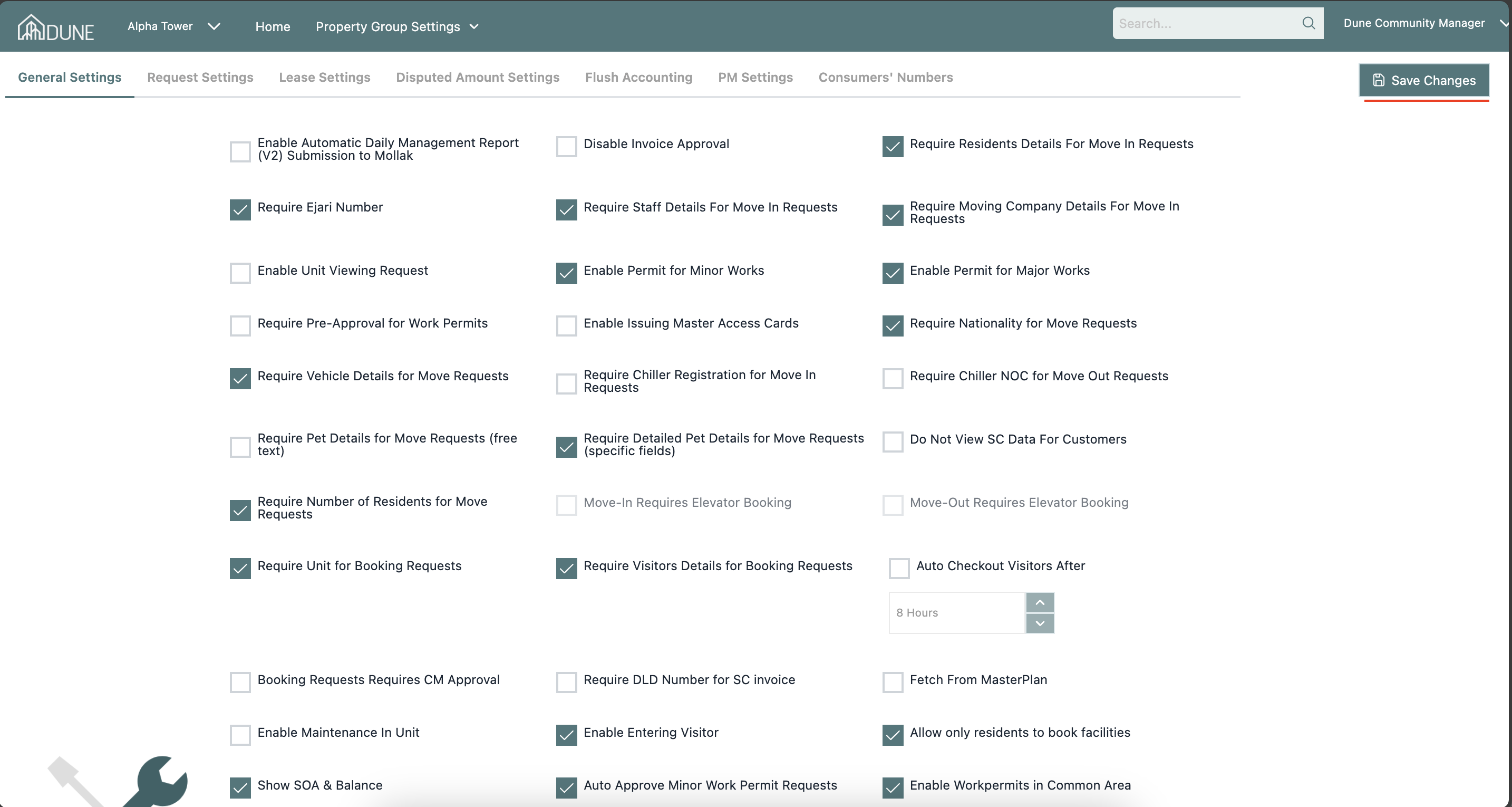
Once you have configured the desired options, click Save Changes to apply.
Tab 2: Request Settings
The Request Settings tab allows you to enable or disable specific request types and configure the documents required for each.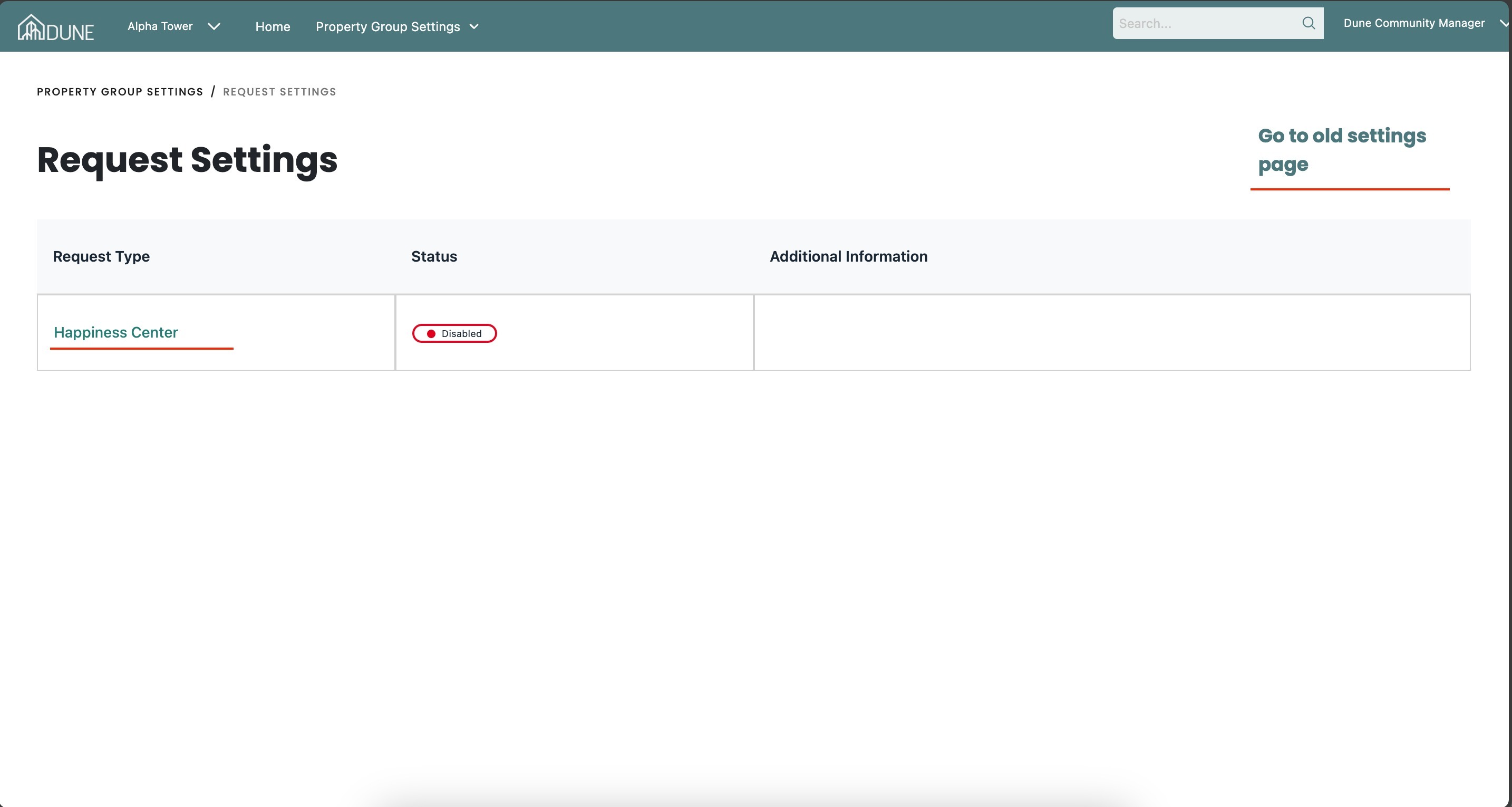
The page contains a table with the following:
- Request Type: The name of the request (e.g., Happiness Center).
- Status: Indicates whether the request type is Enabled or Disabled.
- Additional Information: Provides any extra notes or configuration details related to the request type.
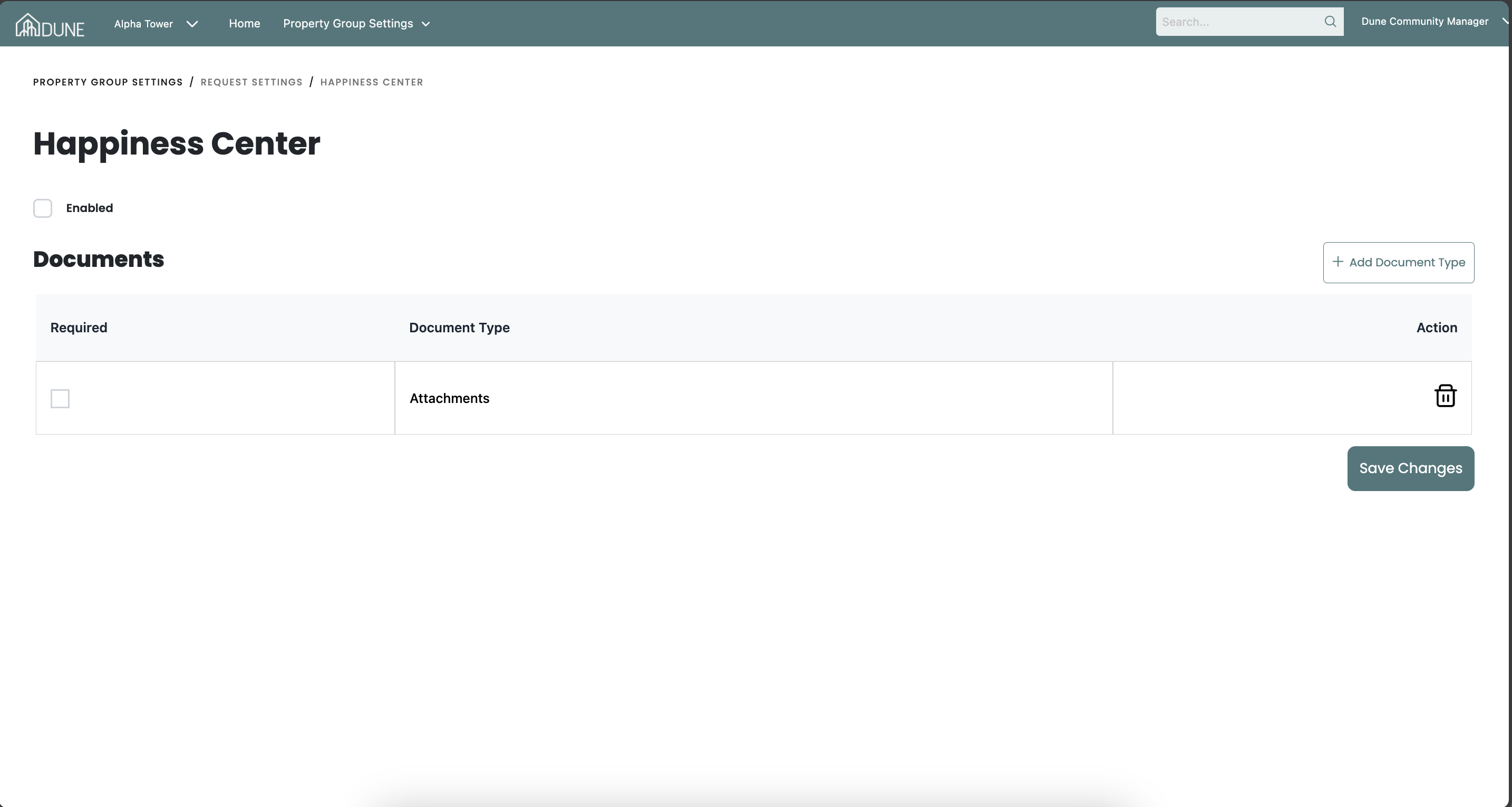
Click on the request type row to expand its settings and configure the documents required for that request.
Go to the old settings page
At the top right of the Request Settings page, there is an option labelled Go to old settings page. Clicking this takes you to the old request settings view, where you can configure required documents per request type in detail.
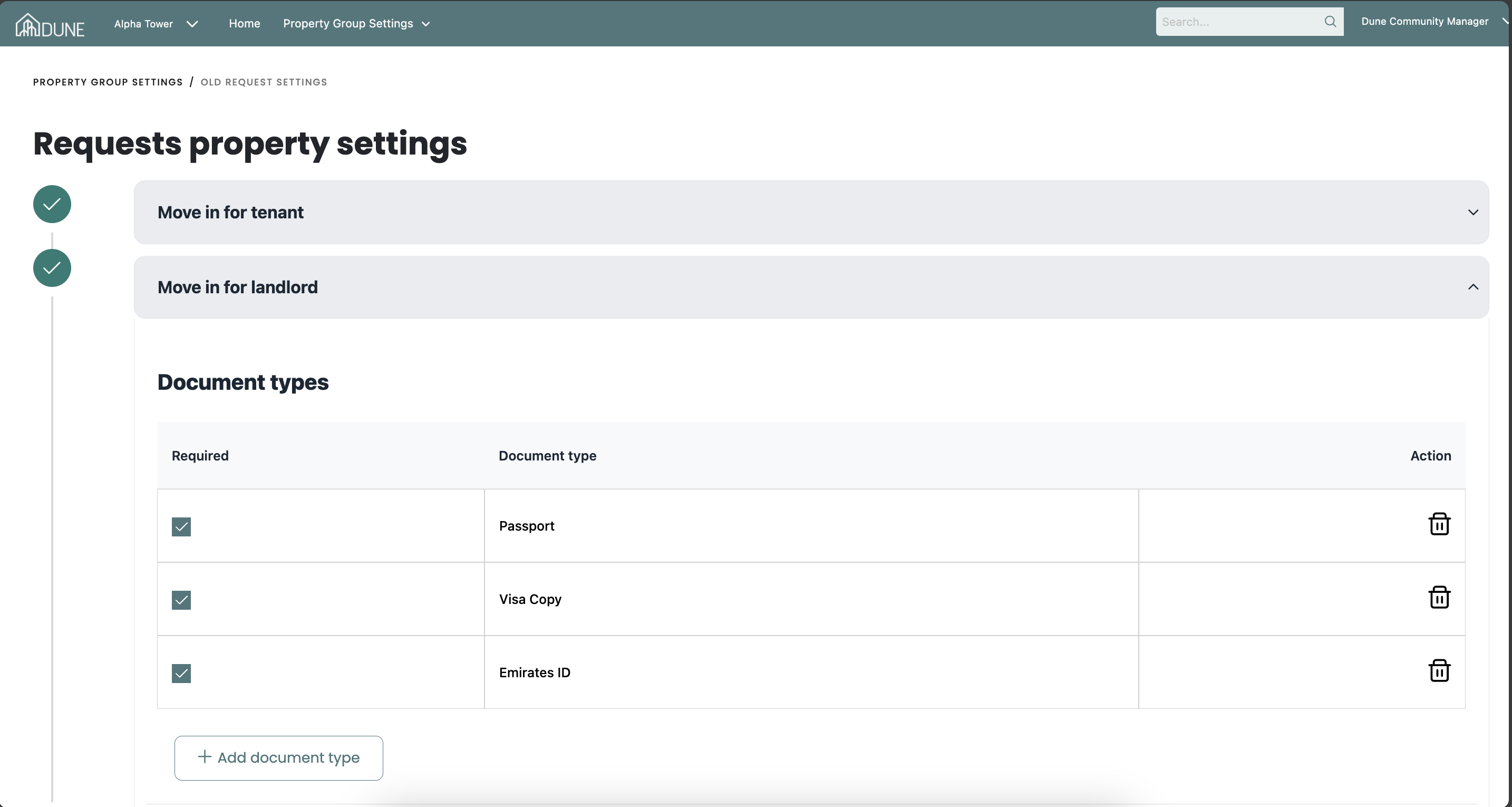
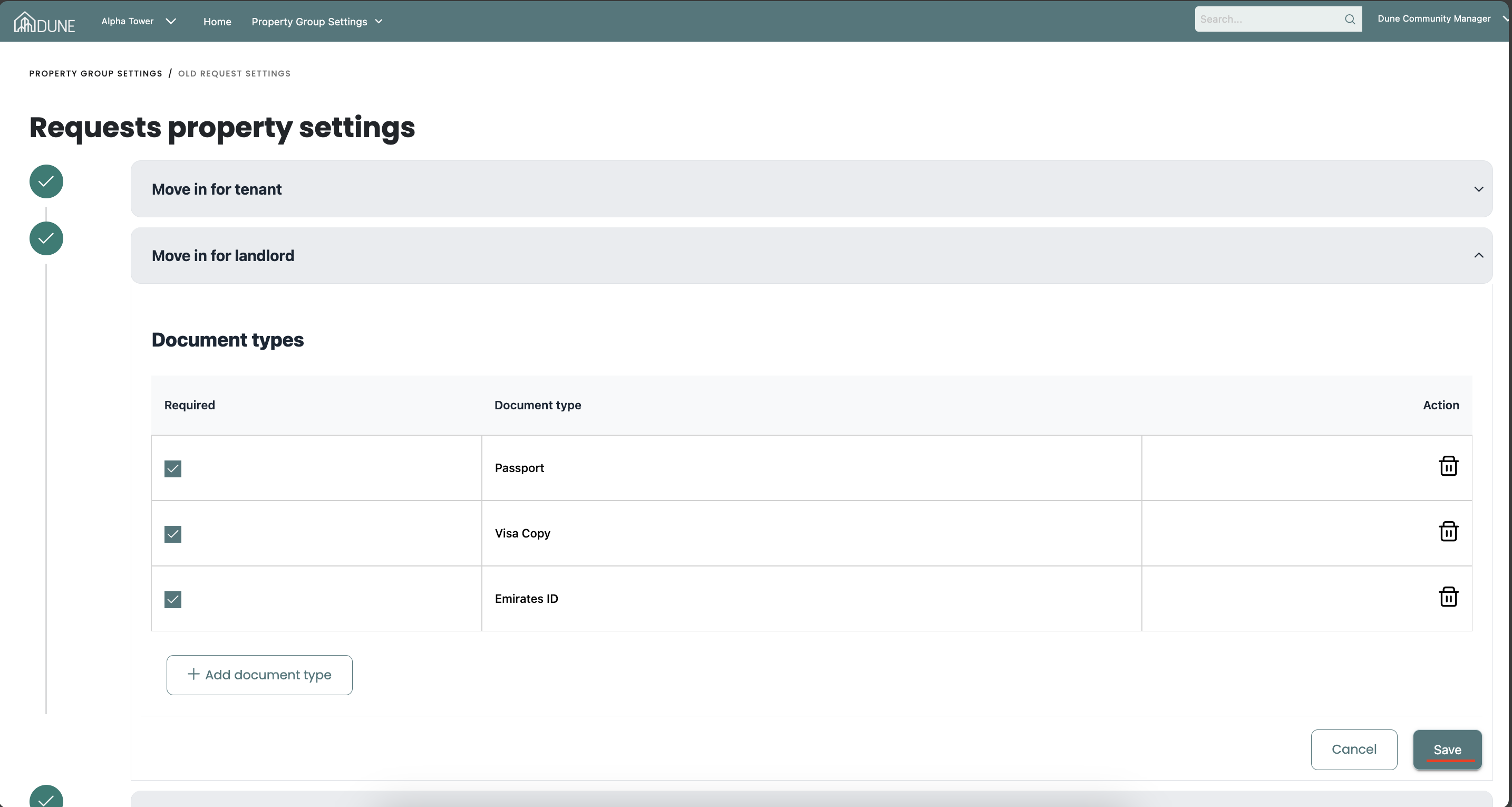
The old settings page organises document requirements by request type, for example:
- Move In for Tenant: Configure required documents such as Passport, Visa Copy, Emirates ID, Ejari Contract, Tenancy Contract, Title Deed, NOC, Gas registration, DEWA registration, Third Party Liability Insurance, and Moving Company Trade License.
- Move In for Landlord: Configure documents such as Passport, Visa Copy, and Emirates ID.
- Move In Short Terms: Configure documents such as Passport, Visa Copy, and Emirates ID.
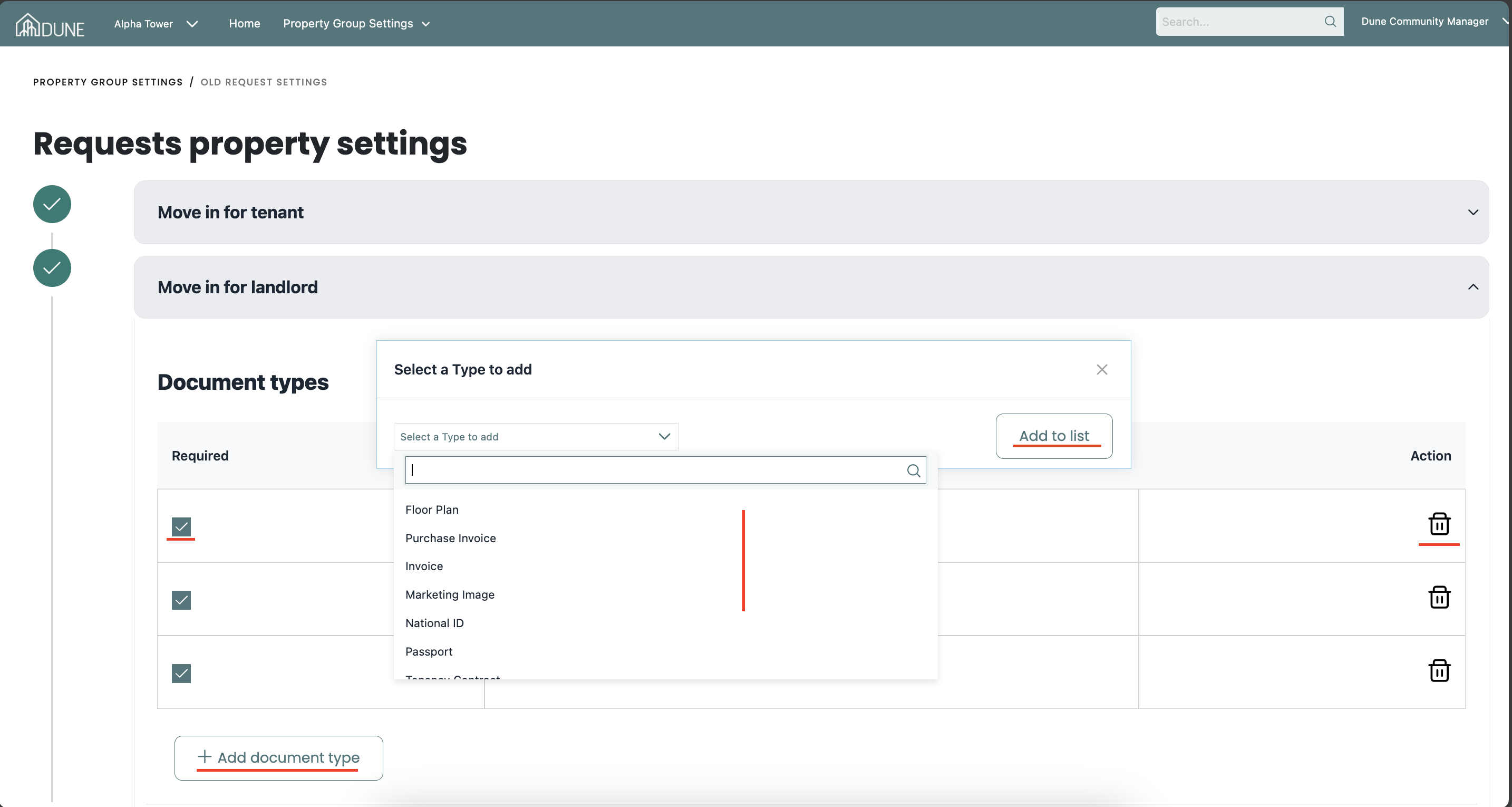
For each document type, you can mark it as Required or optional, and you can Add or Remove document types as needed. Click Save after making any changes in the collapsible section.
Tips & Best Practices
- Review the General Settings tab carefully when onboarding a new property group to ensure all move-in, work permit, and visitor settings are correctly configured.
- Always remember to click Save Changes whenever you make any changes in the settings, as unsaved changes will be lost.
- Use the Request Settings tab to enable only the Happnese center requests type relevant to your property, and configure the required documents to ensure compliance.
Was this article helpful?
That’s Great!
Thank you for your feedback
Sorry! We couldn't be helpful
Thank you for your feedback
Feedback sent
We appreciate your effort and will try to fix the article