Overview
The Flush Accounting settings in Socienta allow administrators to flush (clear/reset) specific accounting data within a property group when needed. This tab provides toggles that control whether sales and purchases data can be flushed from the accounting module. Because these options directly affect financial records, they must be used with caution and only by authorised personnel.
⚠️ CRITICAL WARNING: This action is IRREVERSIBLE. Flushing accounting data permanently deletes records from the system — this cannot be undone. Once data is flushed, it is gone forever and cannot be recovered. Please be absolutely certain before enabling or using any flush option. Always consult your senior management and accounting team before proceeding. Do NOT use this feature unless you fully understand the consequences and have received explicit authorisation.
Prerequisites
Before accessing Property Group Settings, make sure you have the correct permissions. Contact your client admin to provide you with "edit access rights to Property Group Settings" in order to be able to edit and save any changes. Without this access, you will be able to view the settings but not make any modifications.
Access Property Group Settings
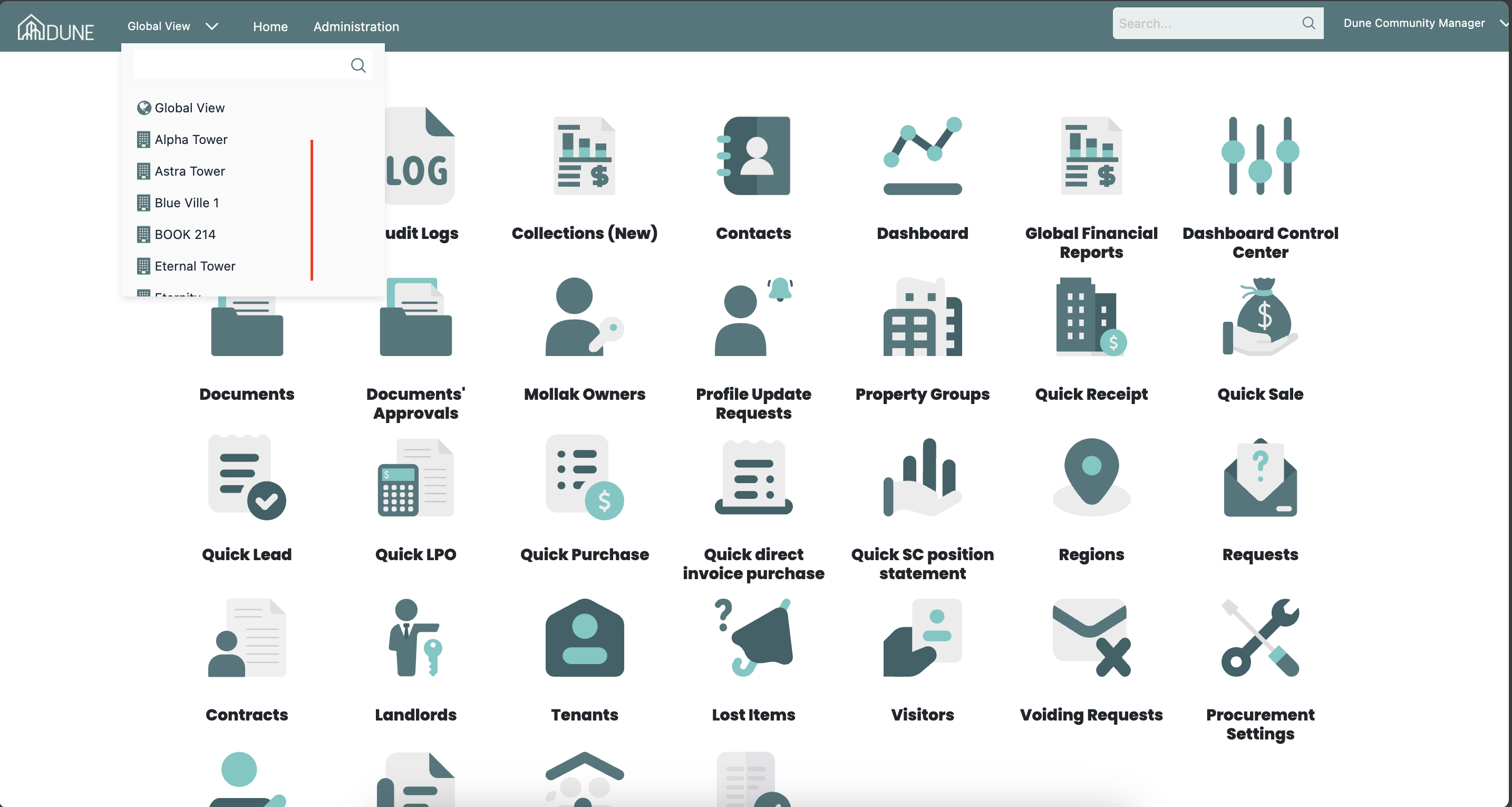
From the top navigation bar, click on the Global View dropdown and select your property group (e.g., Alpha Tower).
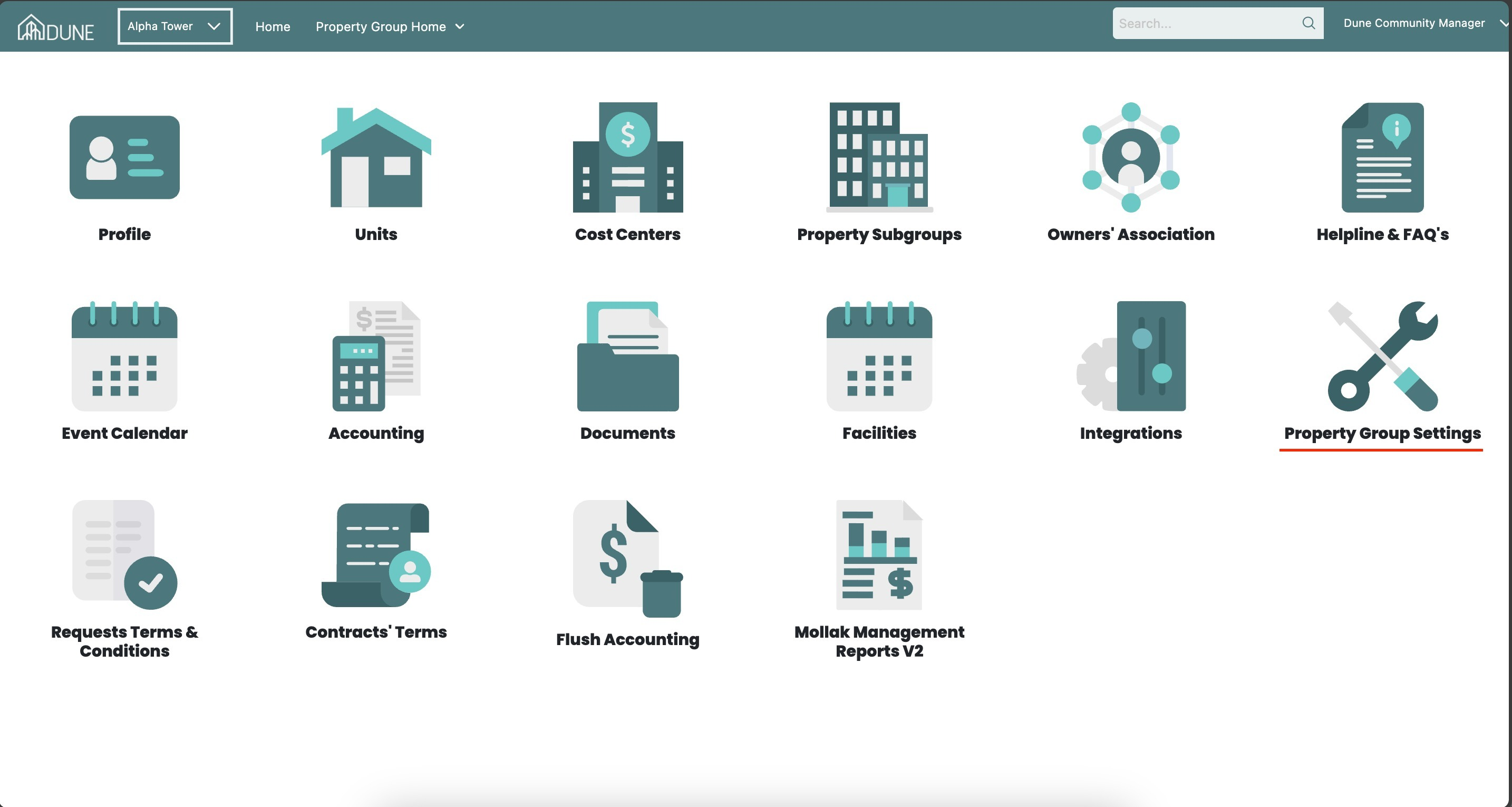
Once inside the property group, click on the Property Group Settings option, then open the Flush Accounting tab at the top of the page.
Flush Accounting
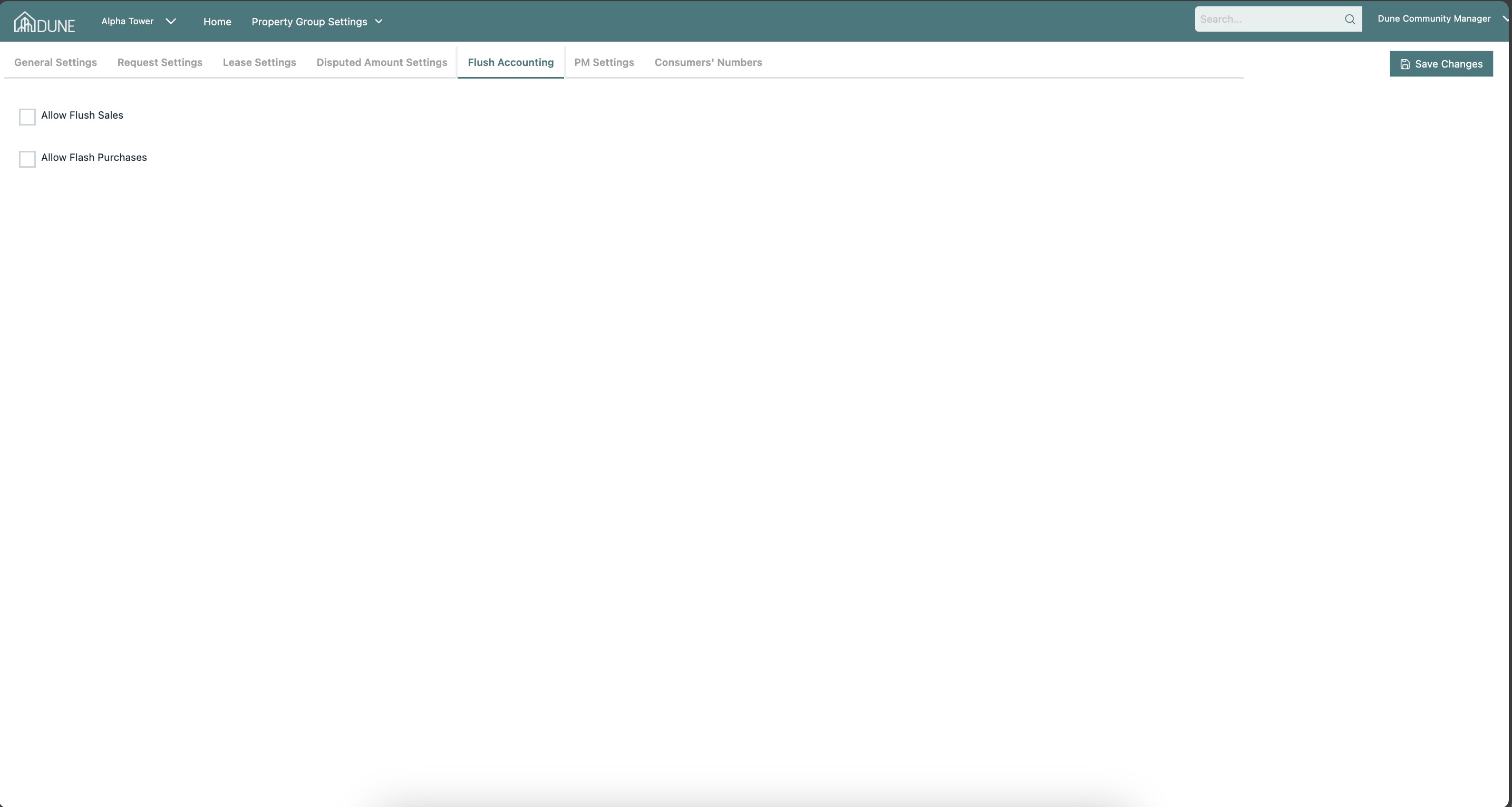
The Flush Accounting tab provides options that allow flushing (clearing/resetting) of accounting data when needed. The available toggles are:
- Allow Flush Sales: Enables the ability to flush (reset) sales accounting data for the property group.
- Allow Flush Purchases: Enables the ability to flush (reset) purchases accounting data for the property group.
Click Save Changes after configuring these options.
Tips & Best Practices
- The Flush Accounting options should only be used by administrators with full accounting access, as they affect financial records permanently.
- Always review the impact on financial reports before enabling a flush option.
- Coordinate with your accounting team before performing any flush operation to avoid unintended data loss.
- Always click Save Changes after updating any setting — unsaved changes will be lost.
Was this article helpful?
That’s Great!
Thank you for your feedback
Sorry! We couldn't be helpful
Thank you for your feedback
Feedback sent
We appreciate your effort and will try to fix the article