You can View the SC Statement for a Unit from the accounting screen in the property group itself:
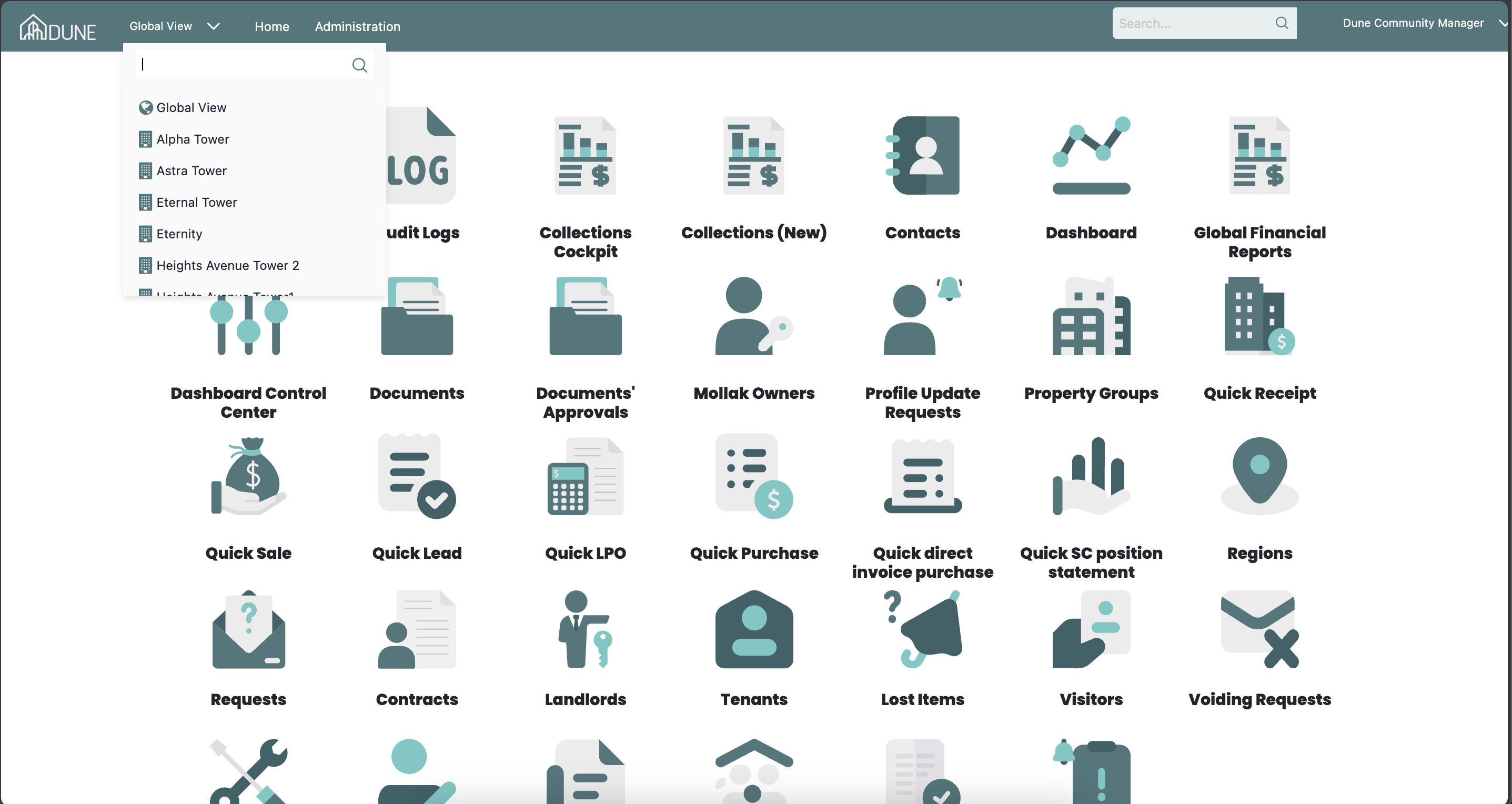
From the Global View, choose the property group where you want to view the SC Statement.
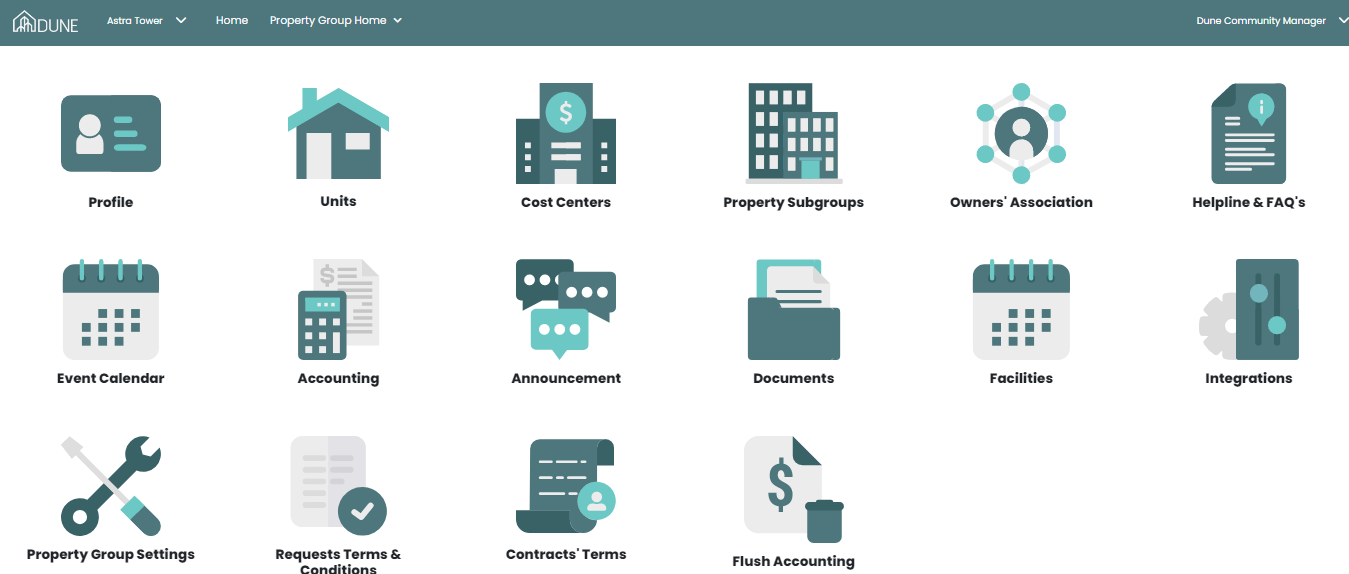
Access the Accounting Module
Click on Accounting to enter the accounting section of the selected property group.
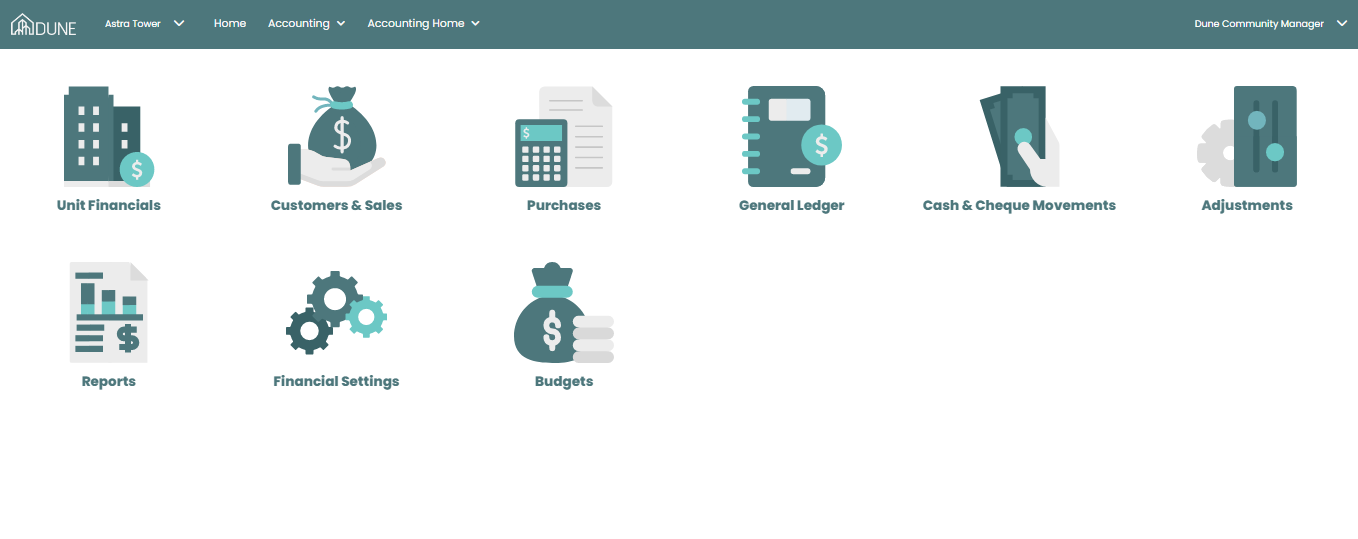
Navigate to Units Financials
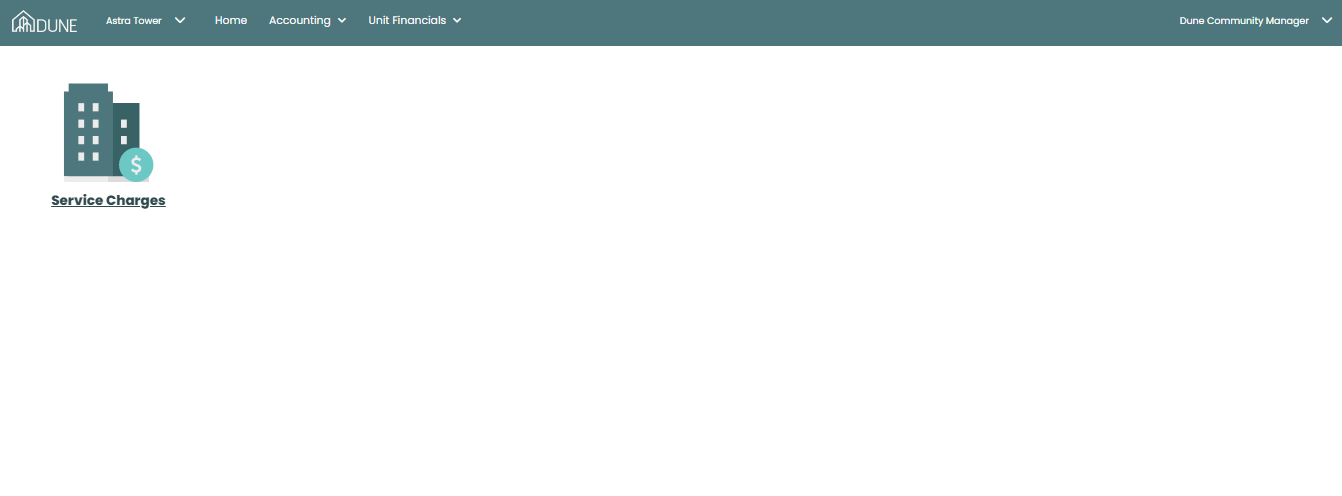
Choose Service Charges under Units Financials.
Access the Unit Ledger
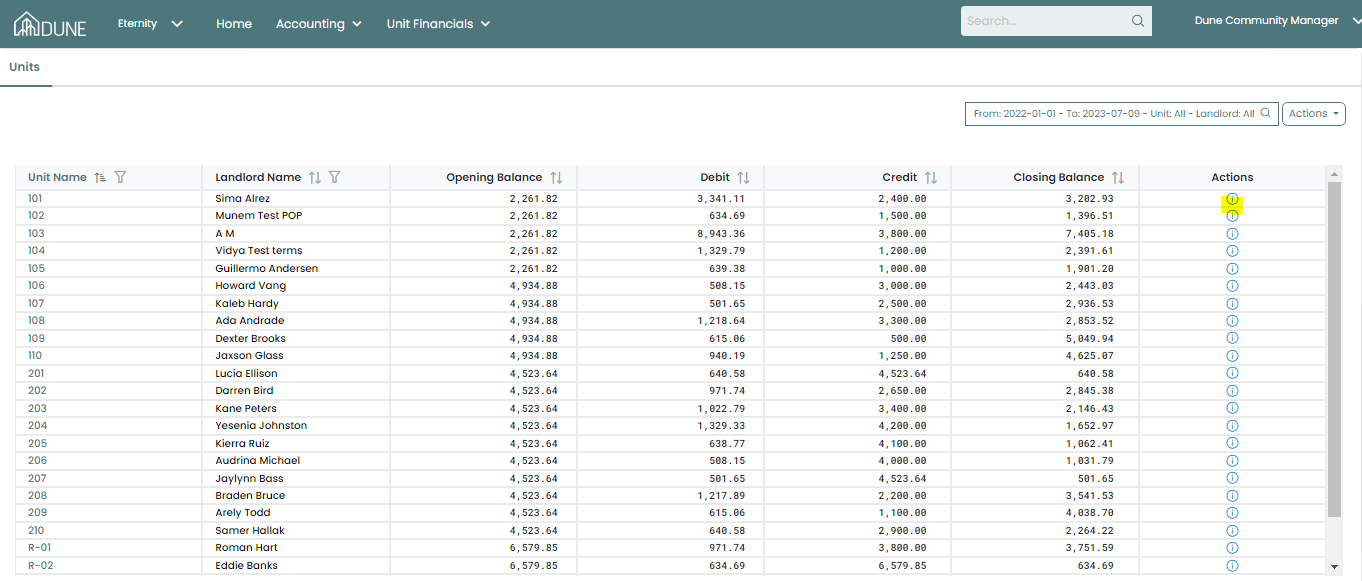
On the Service Charges screen, click the information icon under the Action column for the relevant unit.
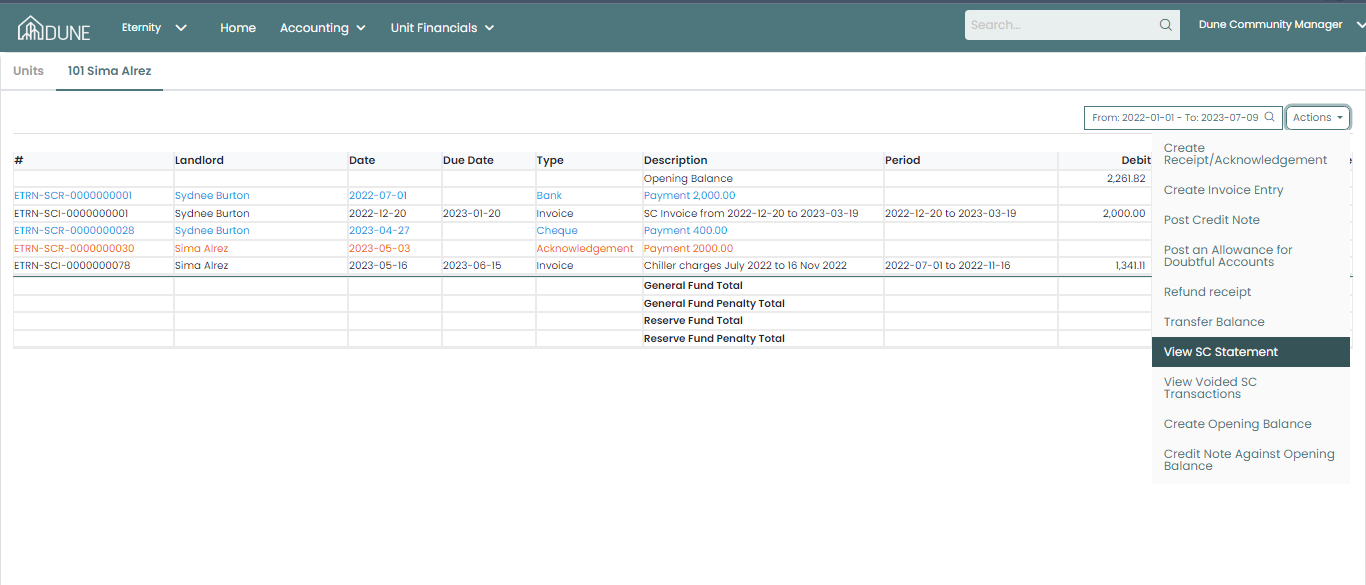
This will open the Unit Ledger for the selected unit.
View SC Statement
- Click the Actions button again and select View SC Statement.
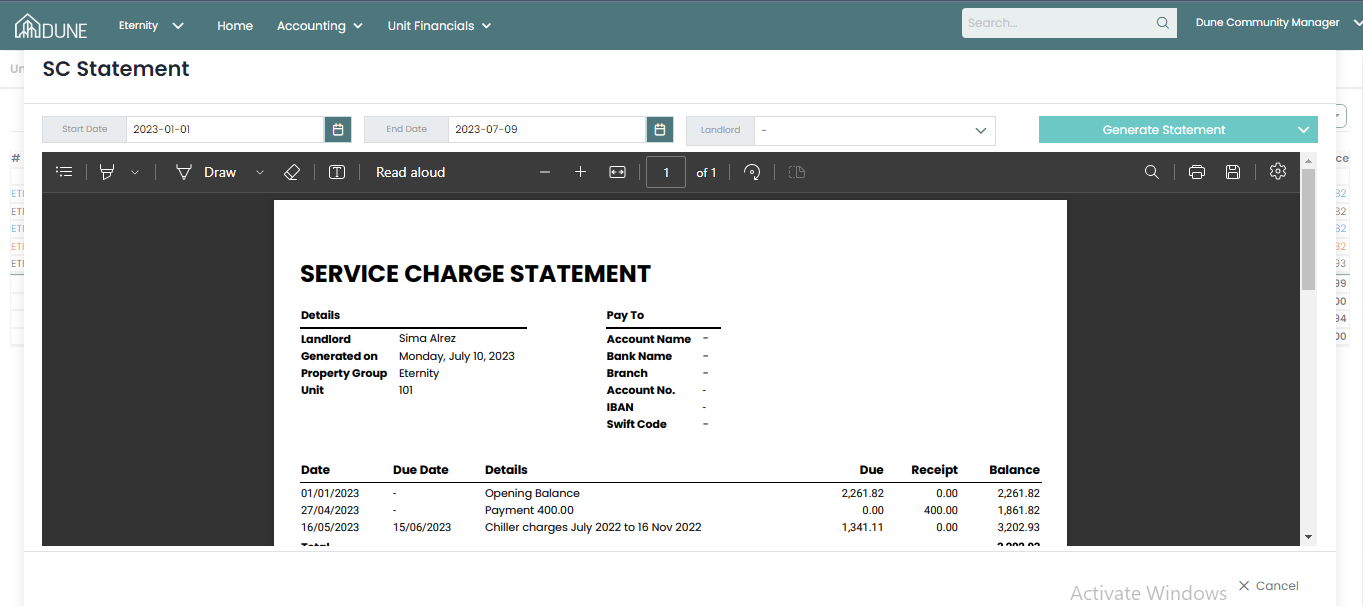
- A new screen will appear where you can generate and download the SC Statement.
- Click Generate Statement to complete the process.
Was this article helpful?
That’s Great!
Thank you for your feedback
Sorry! We couldn't be helpful
Thank you for your feedback
Feedback sent
We appreciate your effort and will try to fix the article