Overview:
This article explains how to view and download the Service Charge (SC) Position Statement or the Global Position Statement directly from the Accounting module.
Both statements can be generated and downloaded instantly from the system.
Access the Accounting Module:
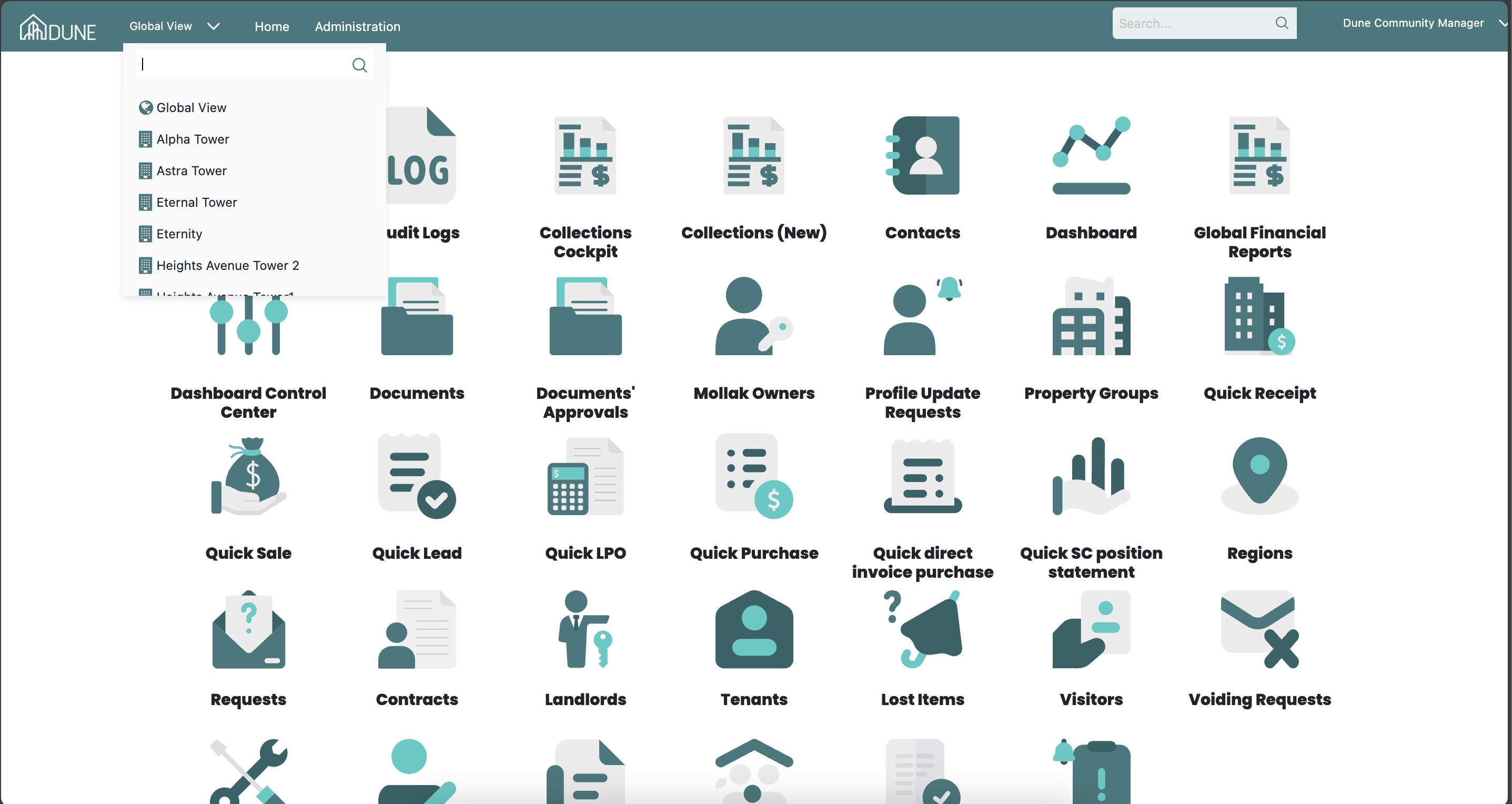
From the Global View, select the property group where you want to view the SC Position Statement.
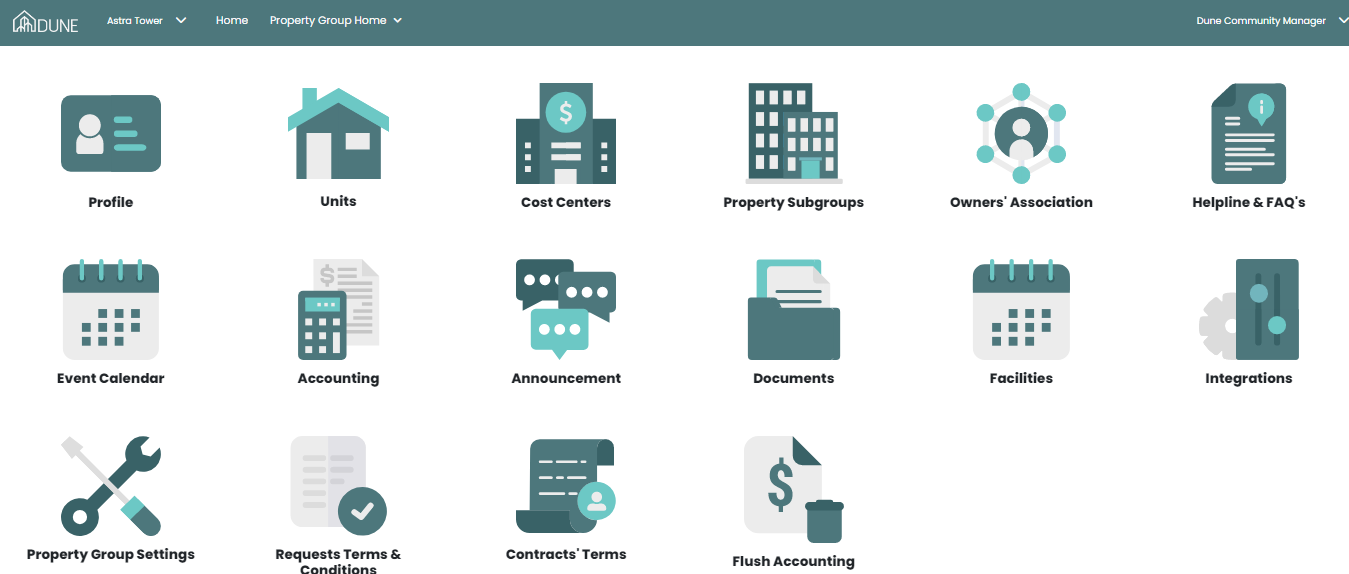
Click Accounting to enter the accounting module for the selected property group.
Navigate to Units Financials
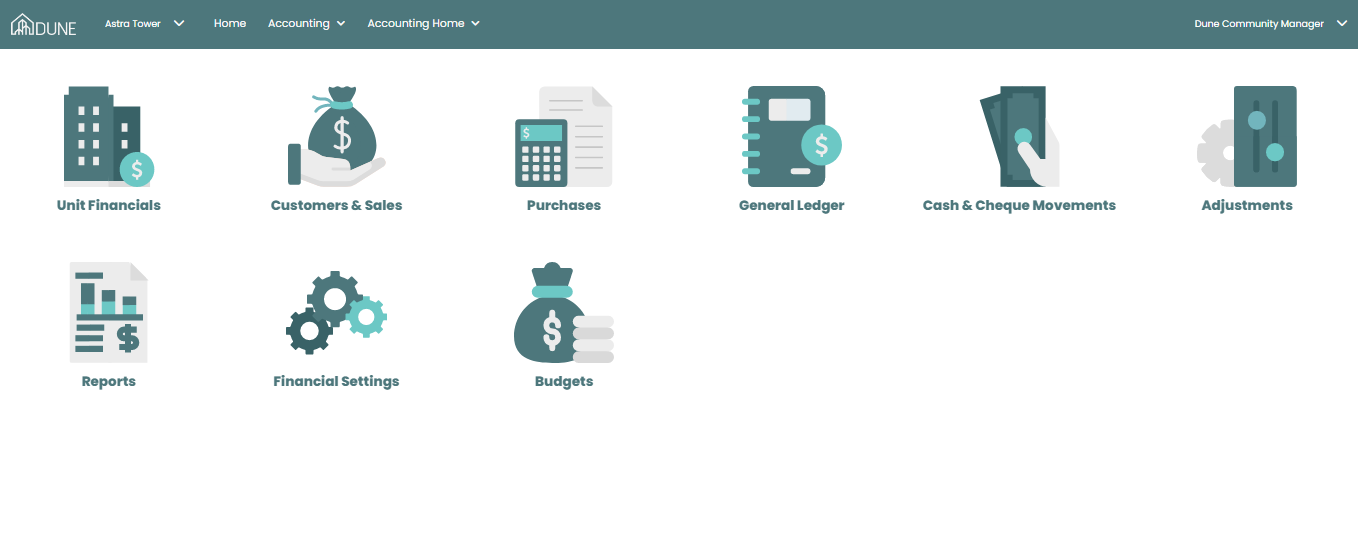
Inside the Accounting module, go to Units Financials.
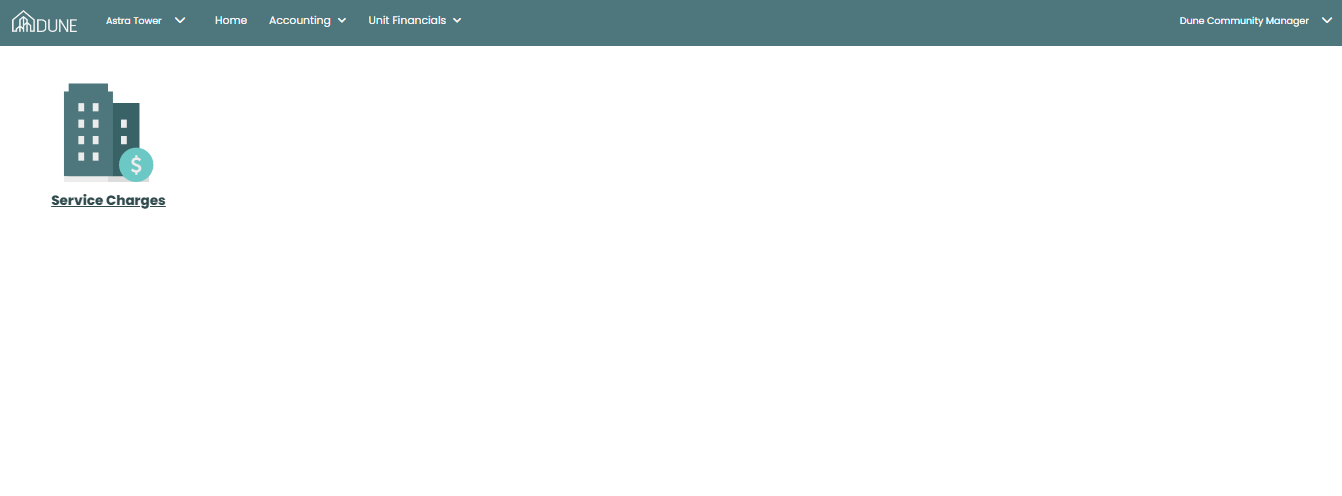
Select Service Charges to view service charge details for all units.
Generate the SC / Global Position Statement
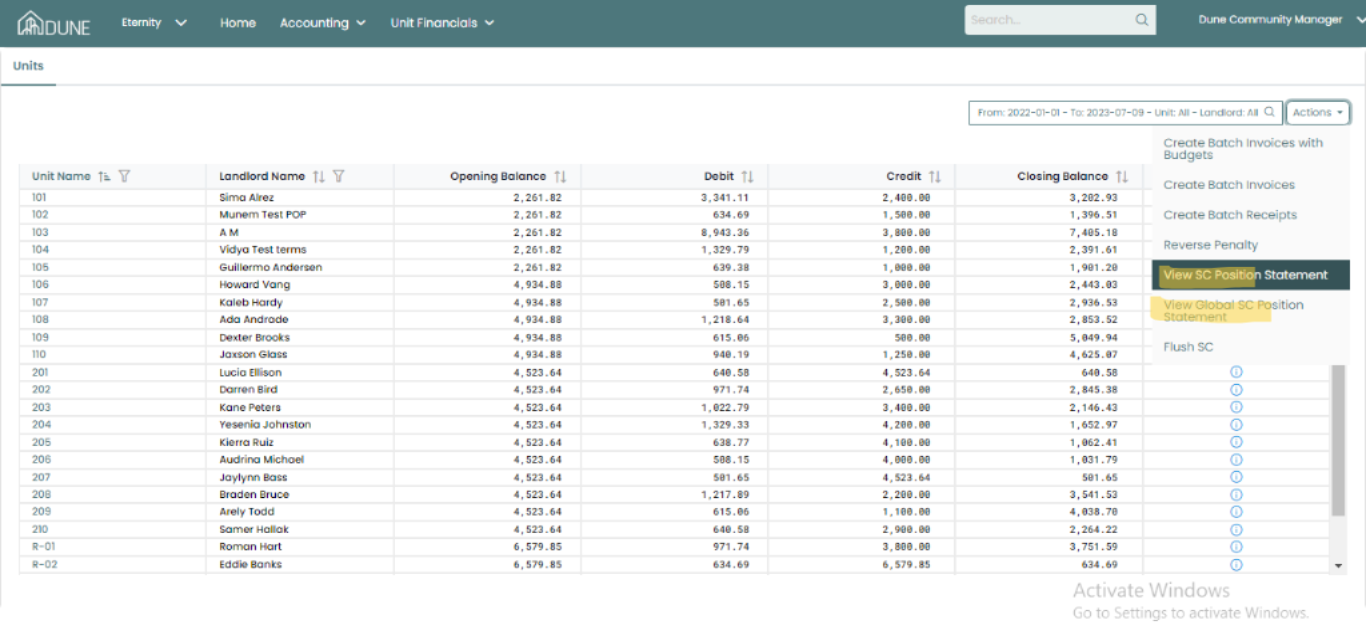
On the Service Charges screen, click Actions.
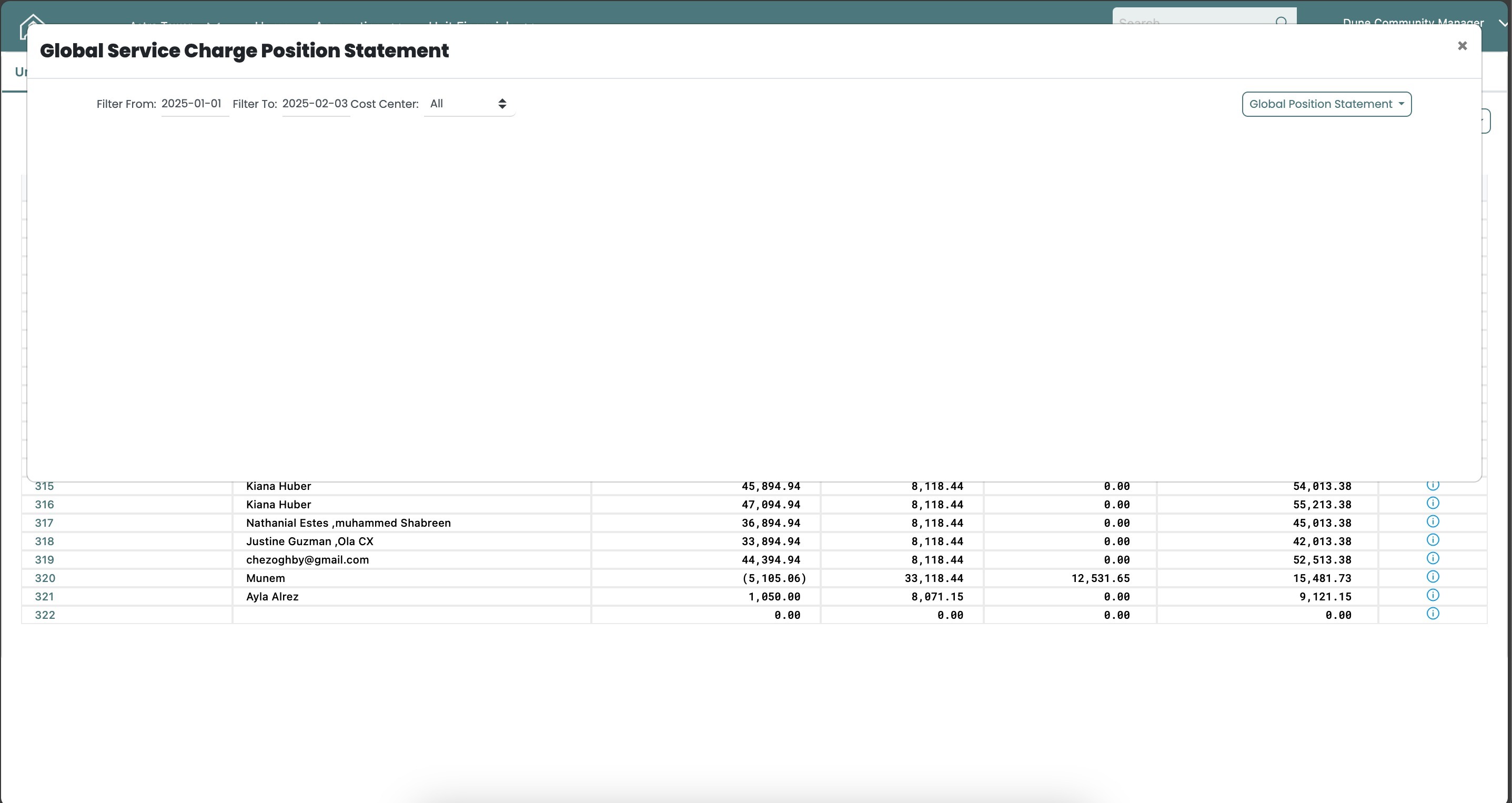
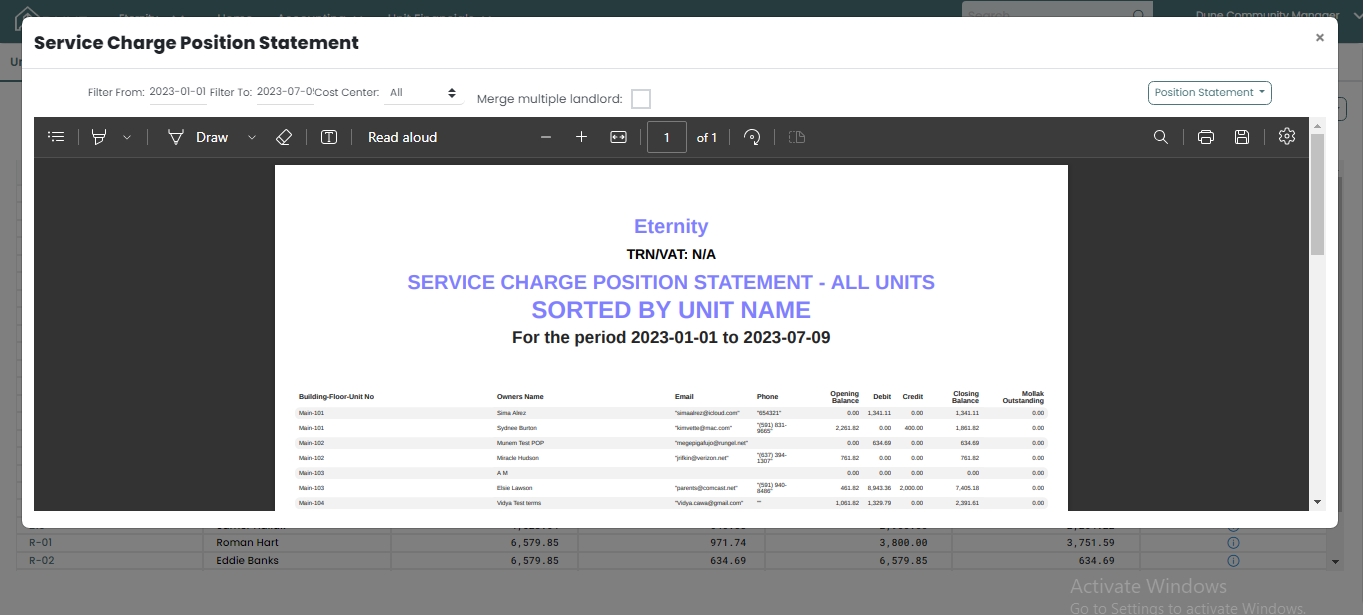
Select SC / Global Position Statement from the menu.
A new screen will open, allowing you to download the SC or Global Position Statement immediately.
Verify the Statement
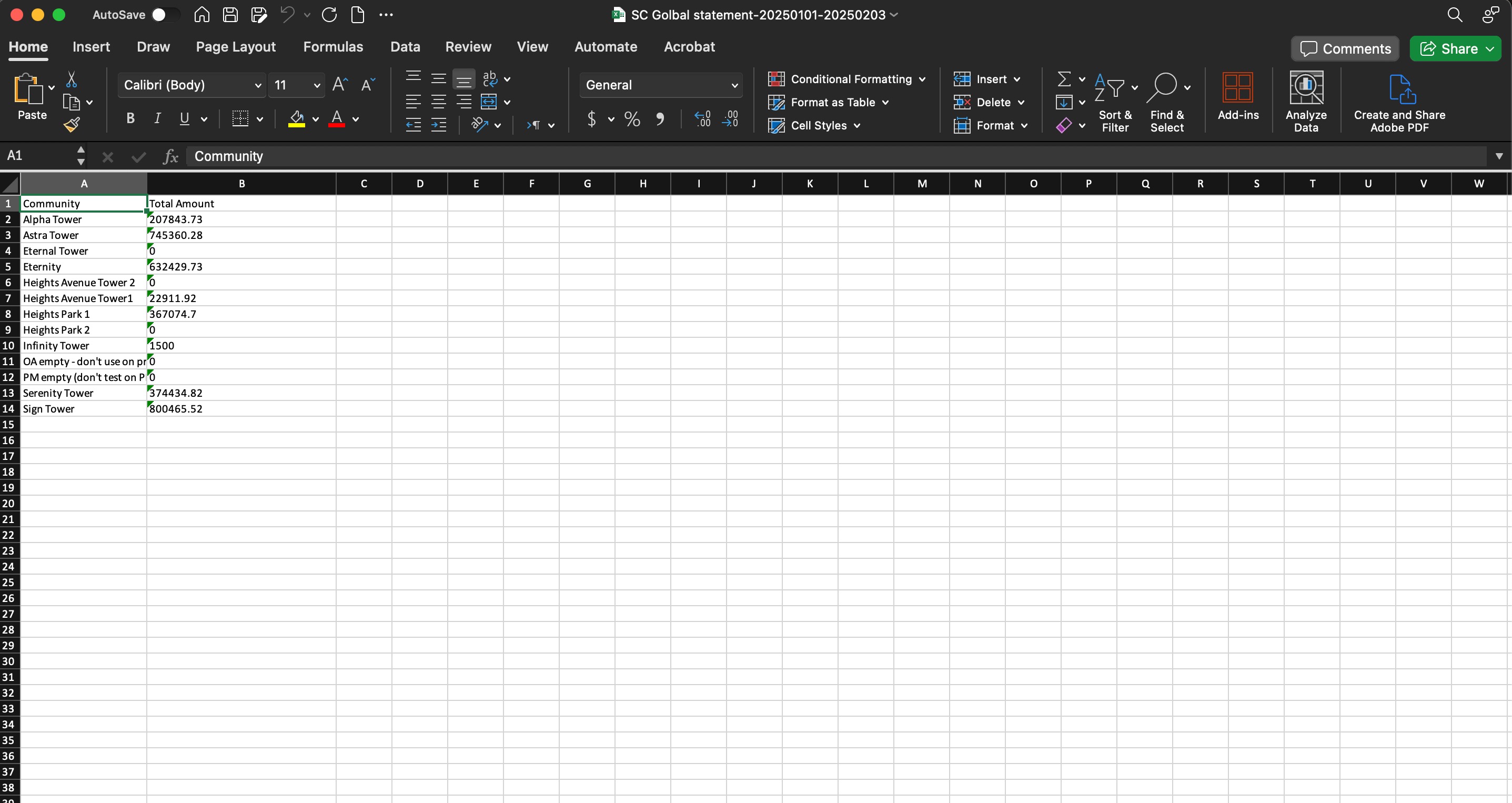
Open the downloaded file.
Review the service charge details to ensure the data is correct:
For the SC Position Statement, verify charges for the selected property group.
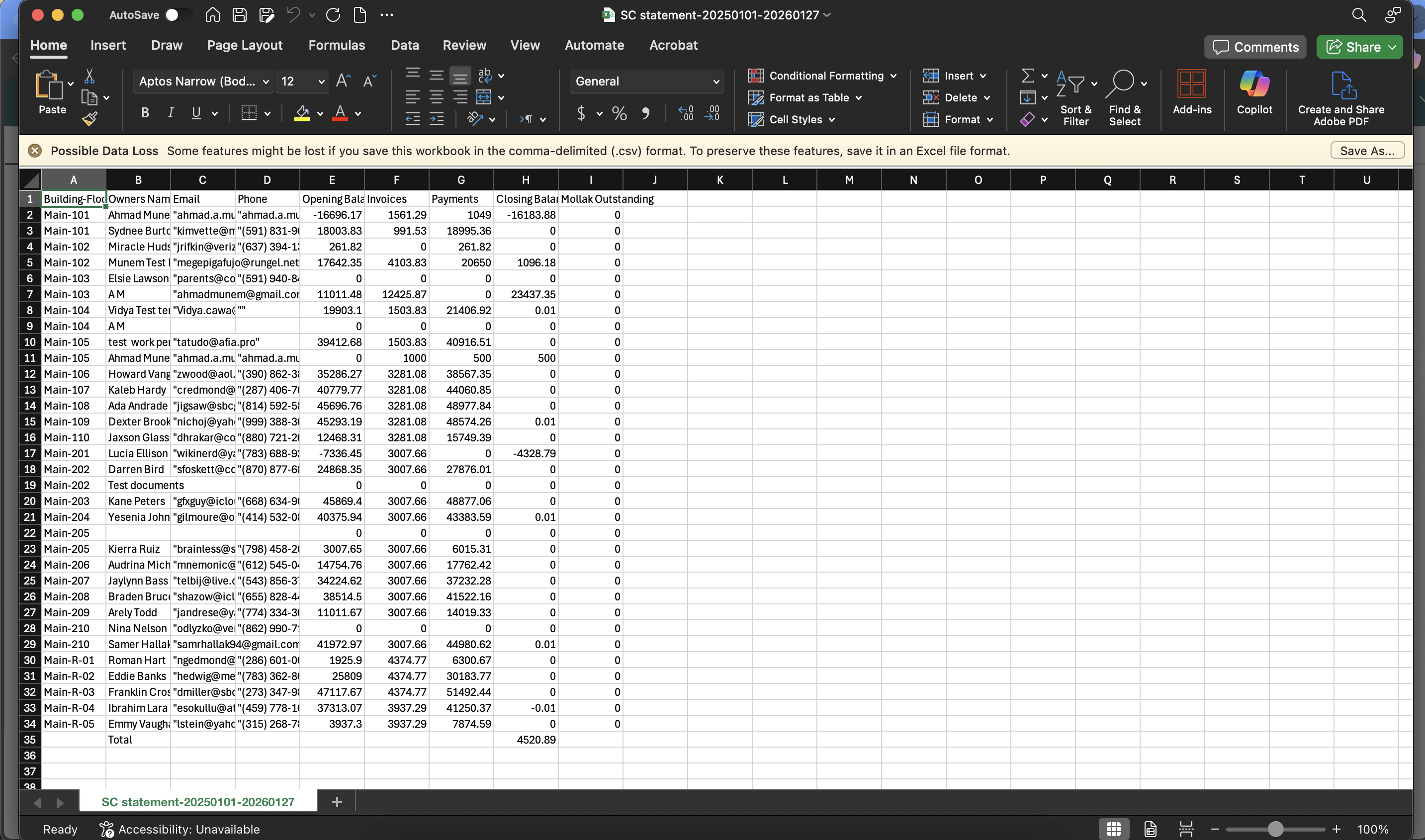
For the Global Position Statement, verify totals across all property groups.
Tips & Best Practices
Ensure you are in the correct property group before generating the SC Position Statement.
Download the statement regularly for reporting purposes.
Was this article helpful?
That’s Great!
Thank you for your feedback
Sorry! We couldn't be helpful
Thank you for your feedback
Feedback sent
We appreciate your effort and will try to fix the article