Overview
This article explains how to flush the Service Charge (SC) Ledger from the Accounting module within a property group. Flushing the SC Ledger permanently removes all service charge transactions up to the selected flush date.
Important Note
Flushing the Service Charge Ledger is an irreversible action.
All service charge transactions up to the selected date will be permanently removed.
This function is restricted to users with specific access rights.
Please ensure you have the required permissions before proceeding.
Access the Accounting Module
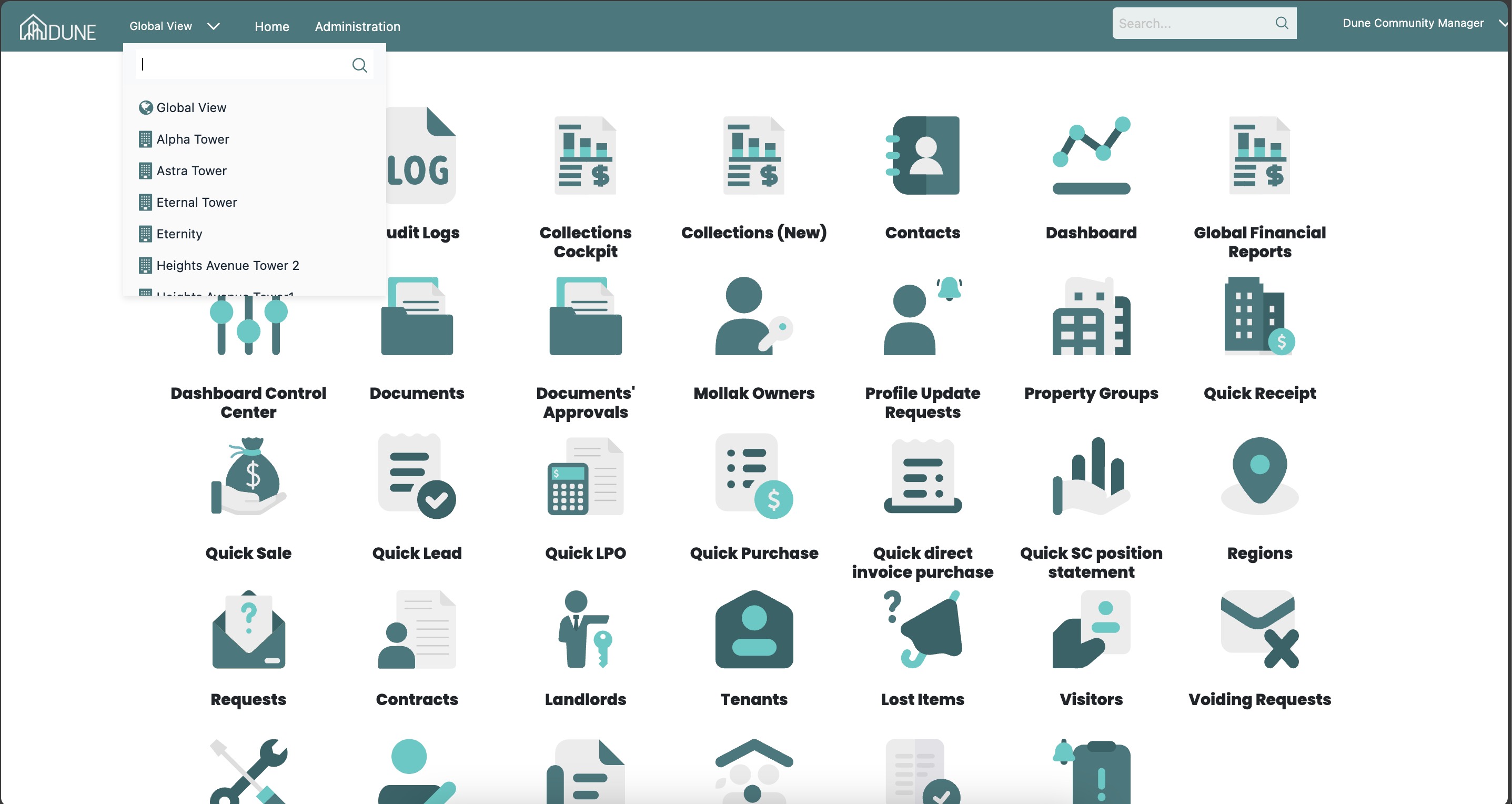
From the Global View, select the property group where you want to flush the Service Charge Ledger.
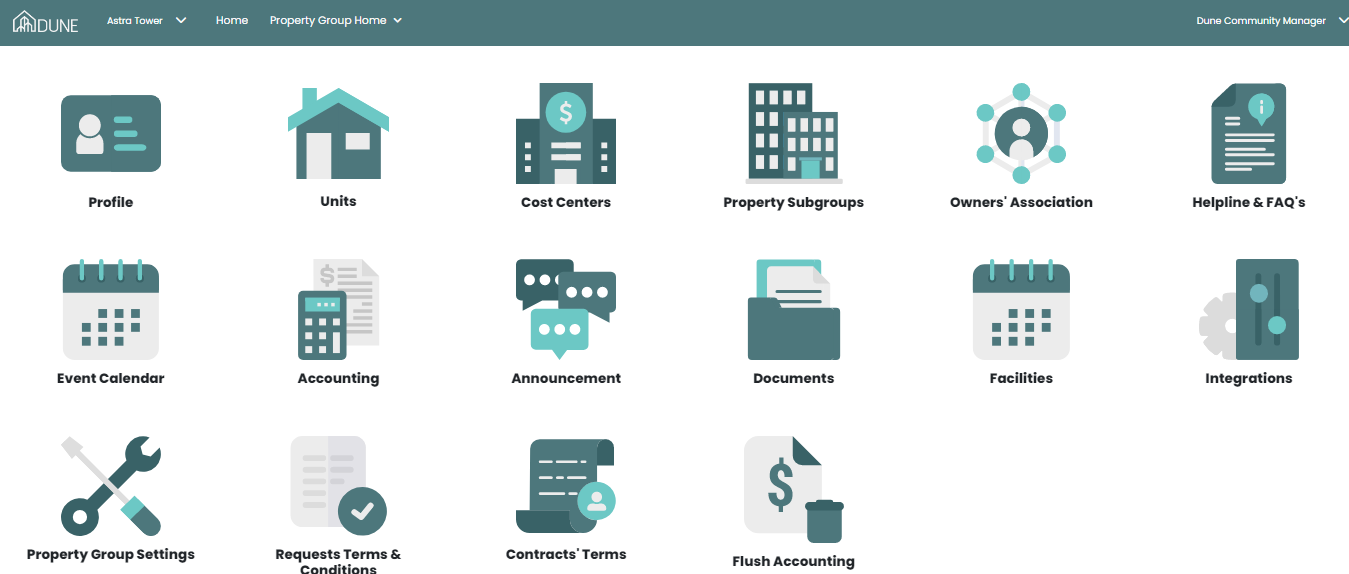
Click Accounting to access the accounting module for the selected property group.
Navigate to Units Financials
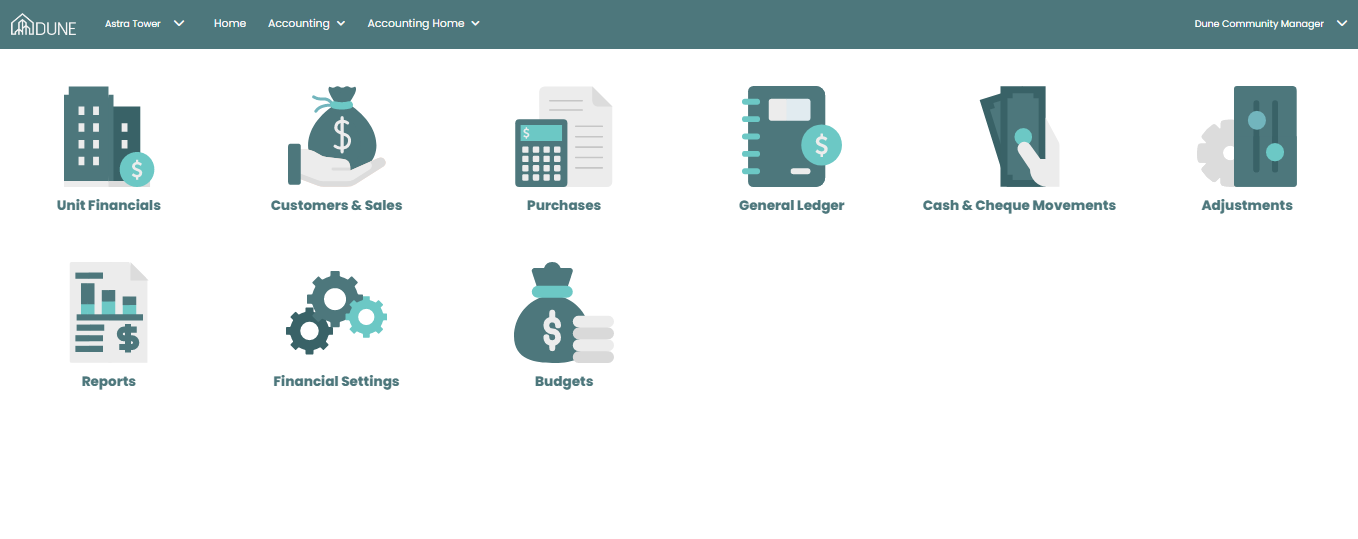
Within the Accounting module, go to Units Financials.
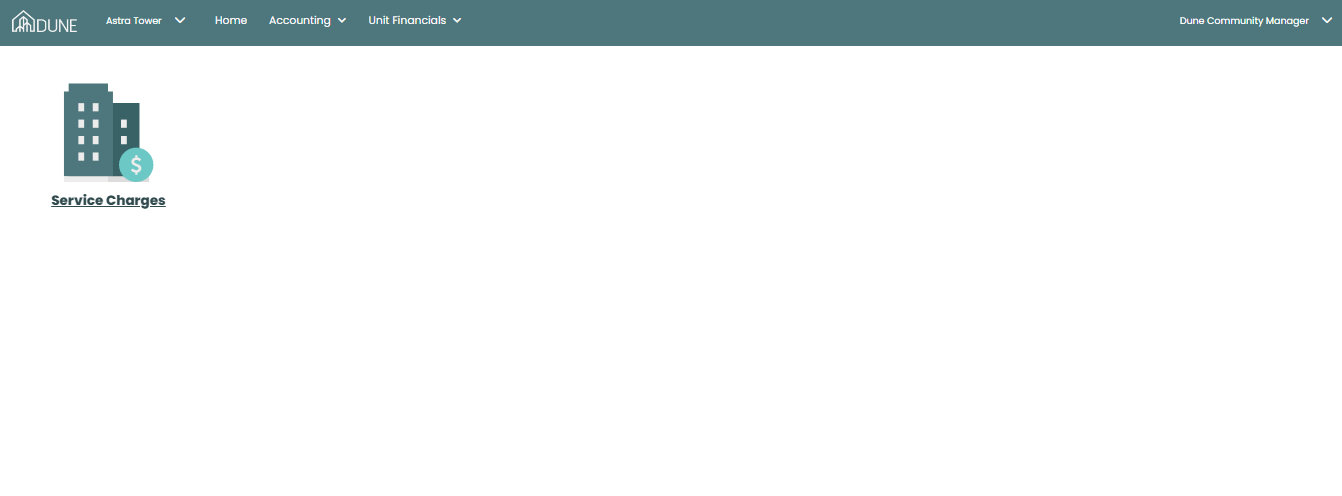
Select Service Charges to view the service charge ledger.
Flush the Service Charge Ledger
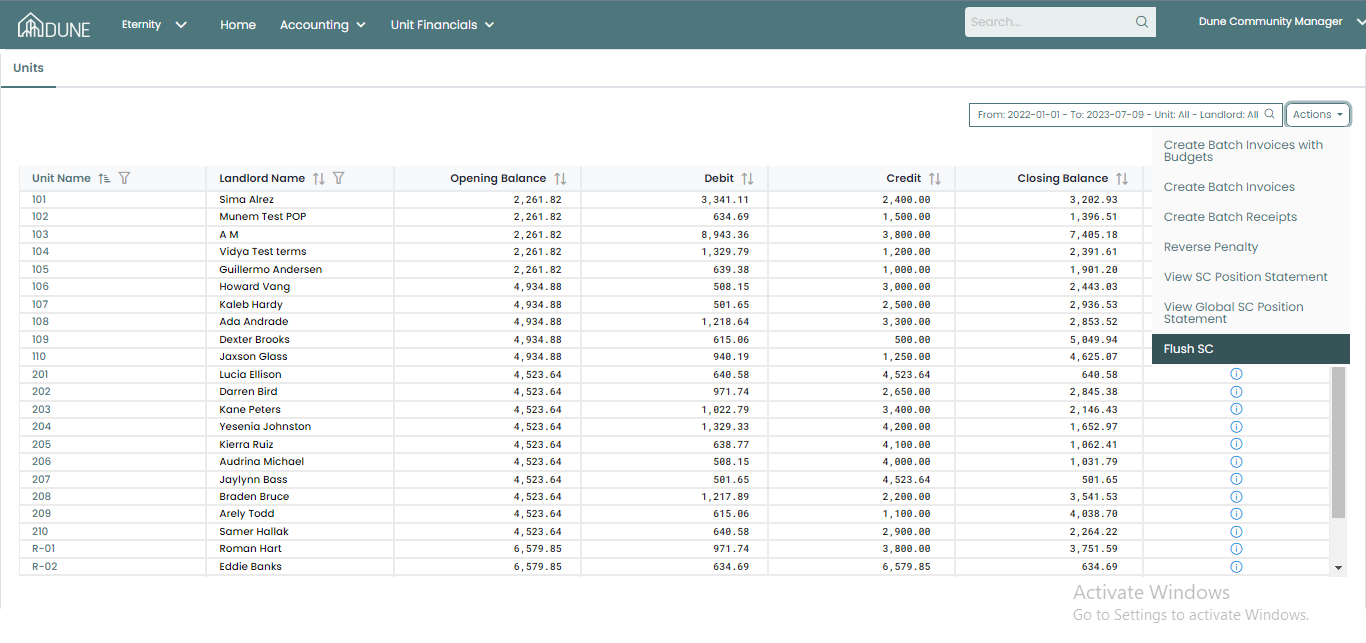
On the Service Charges screen, click Actions.
Select Flush SC from the menu.
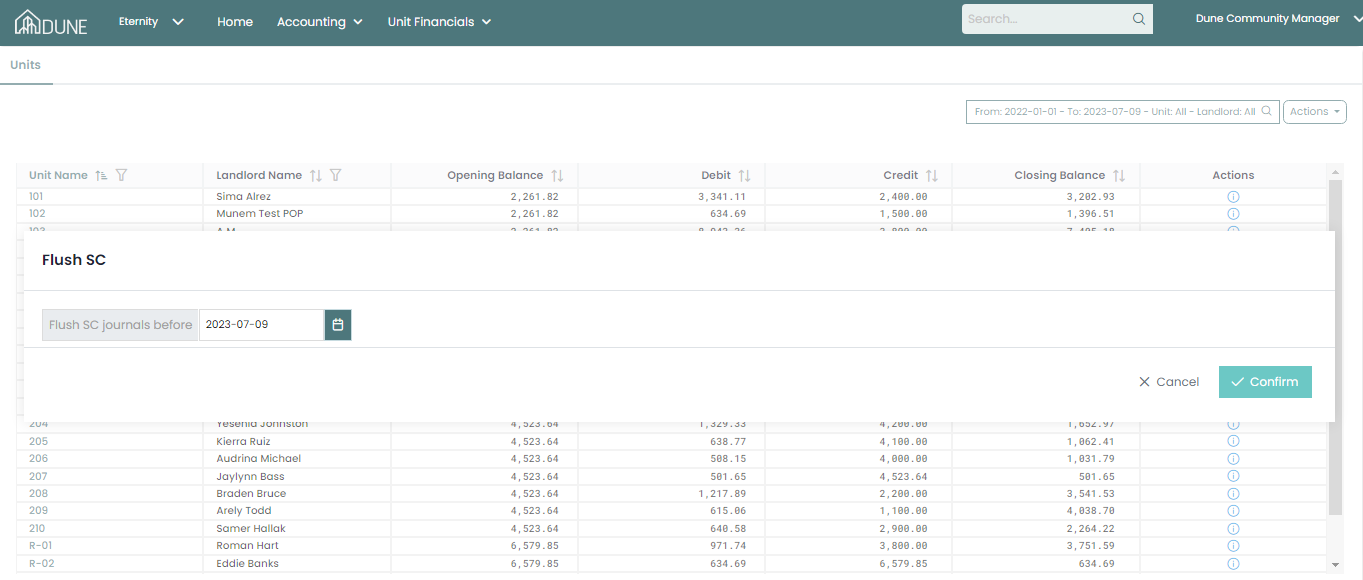
A new screen will appear, allowing you to select the flush date.
Click Confirm to complete the process.
Tips & Best Practices
Carefully review the selected flush date before confirming.
It is recommended to download or back up reports before performing the flush action.
After flushing, verify the ledger to confirm the expected transactions have been removed.
Was this article helpful?
That’s Great!
Thank you for your feedback
Sorry! We couldn't be helpful
Thank you for your feedback
Feedback sent
We appreciate your effort and will try to fix the article