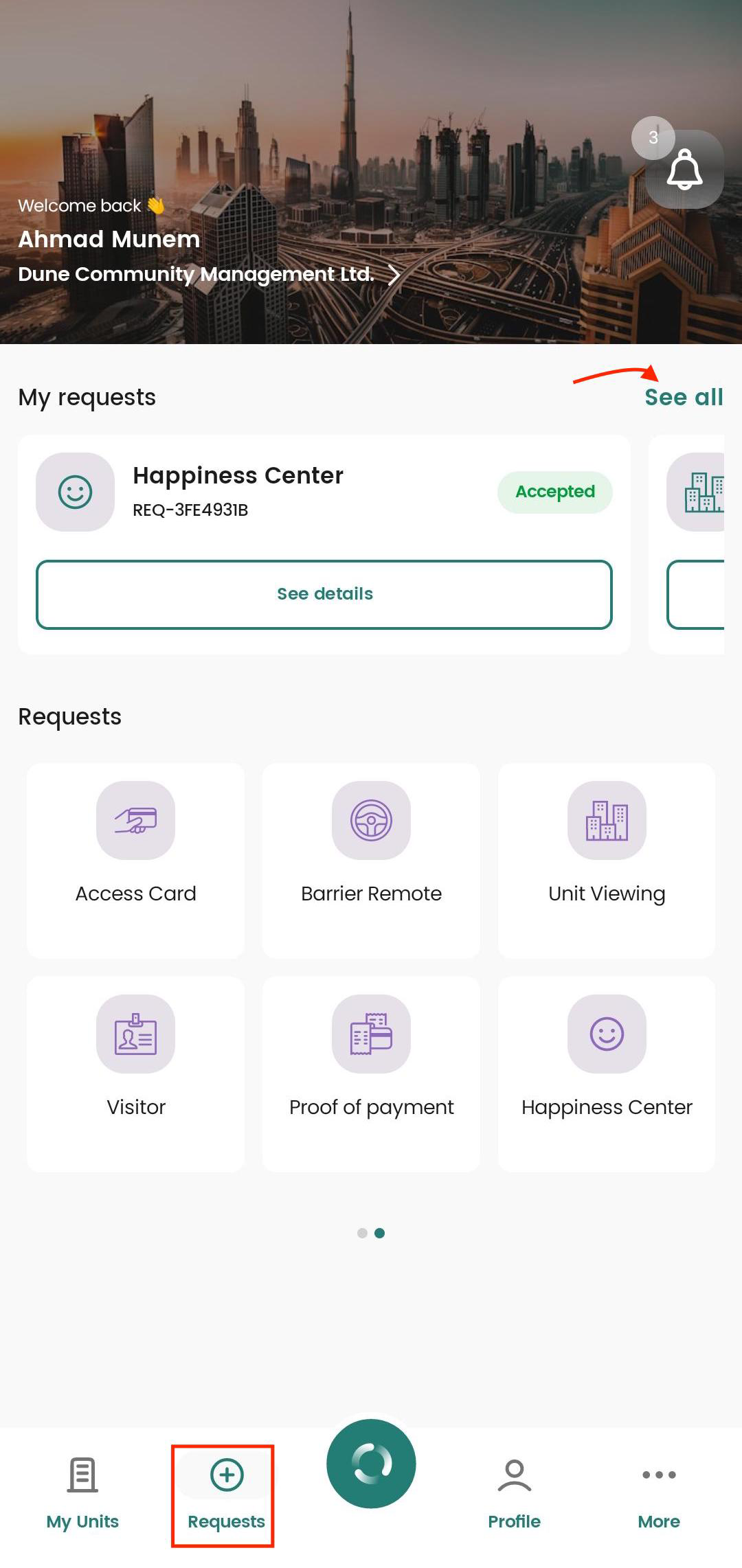
To create a Happiness Center request, first open the Socienta app. After logging in to your account, tap the Requests button on the home screen, then swipe left to find Happiness Center.
1. Access the Requests Section
On the home screen of the app, tap the Requests button at the bottom.
Swipe left to browse the request types.
Select Happiness Center to open the request form.
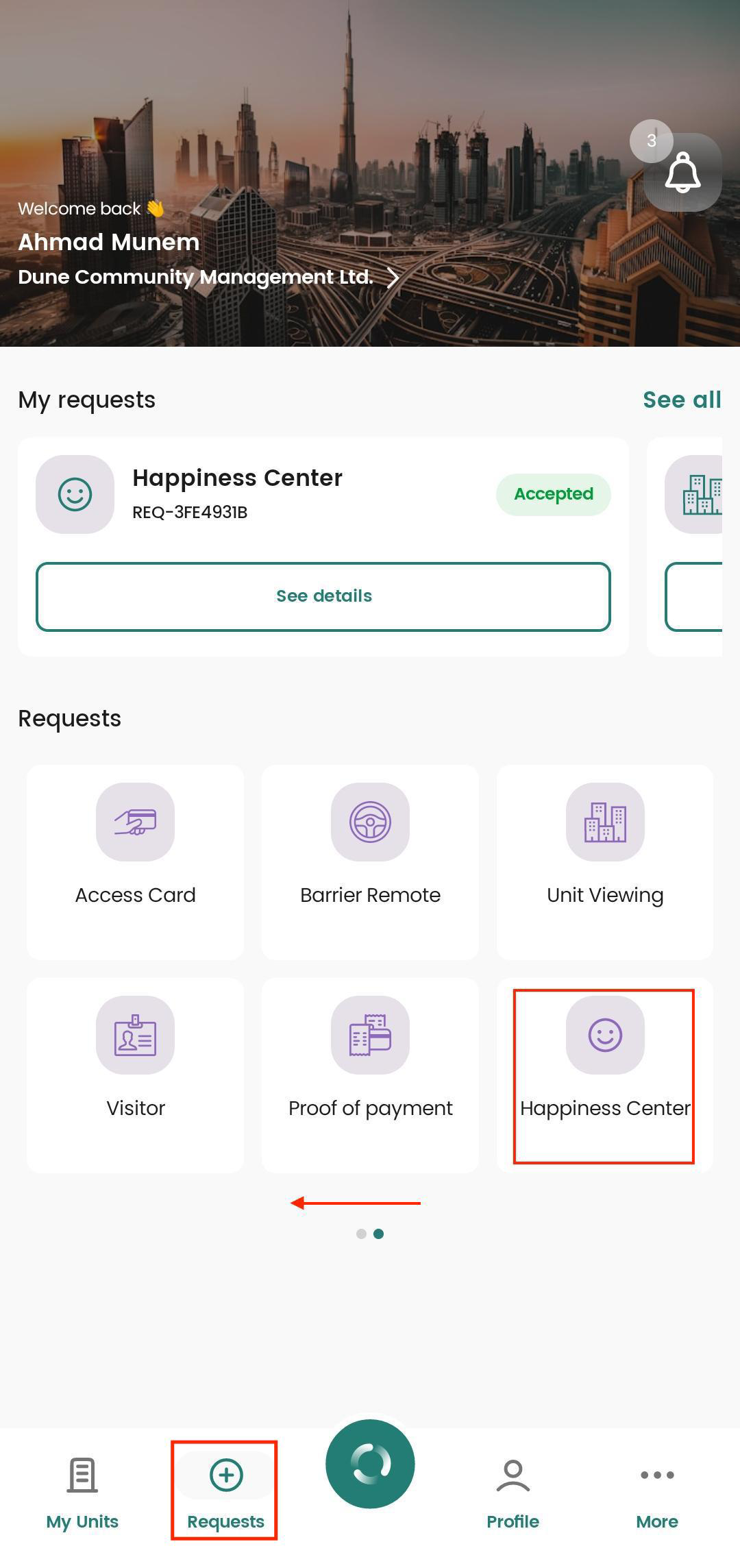
2. Fill in the Happiness Center Form
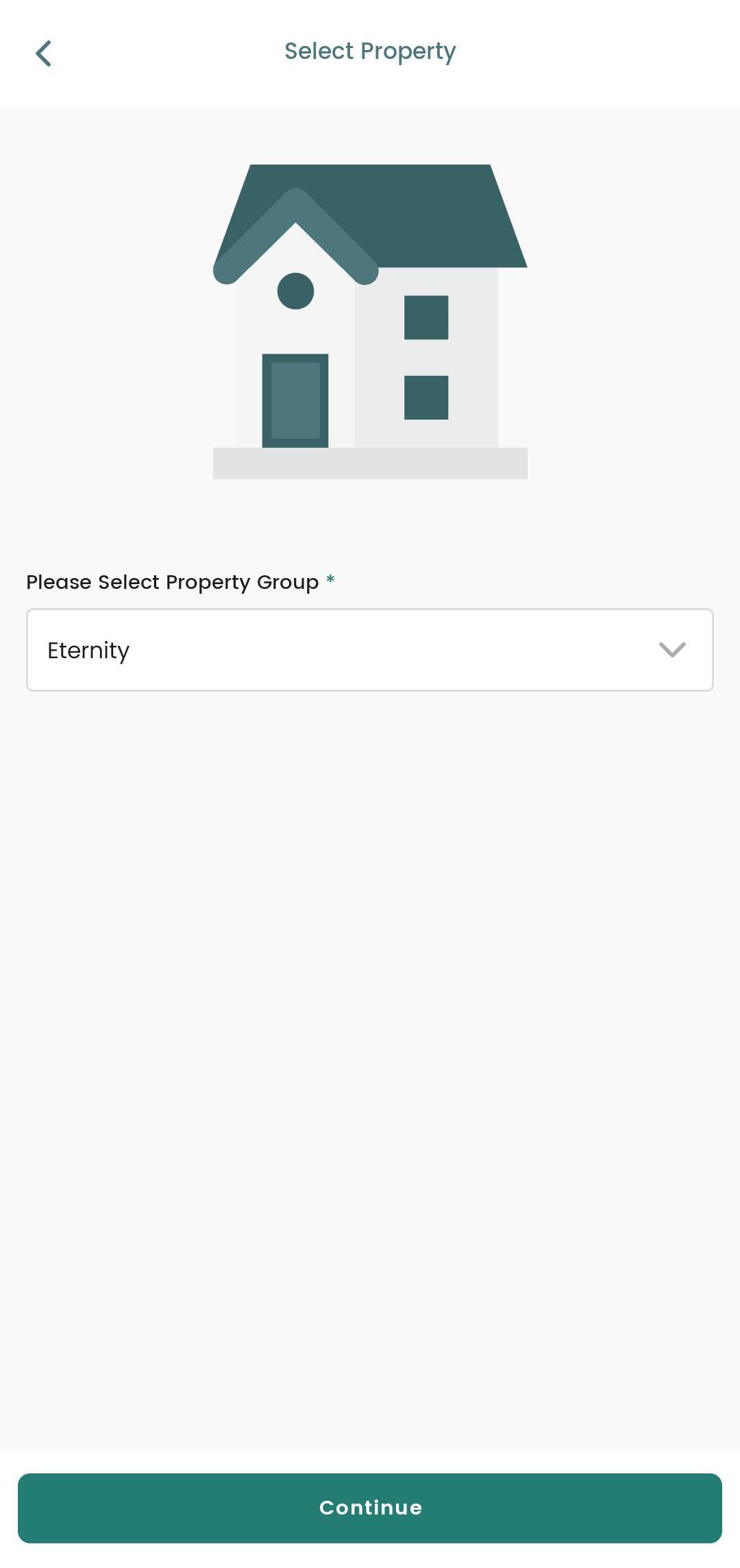
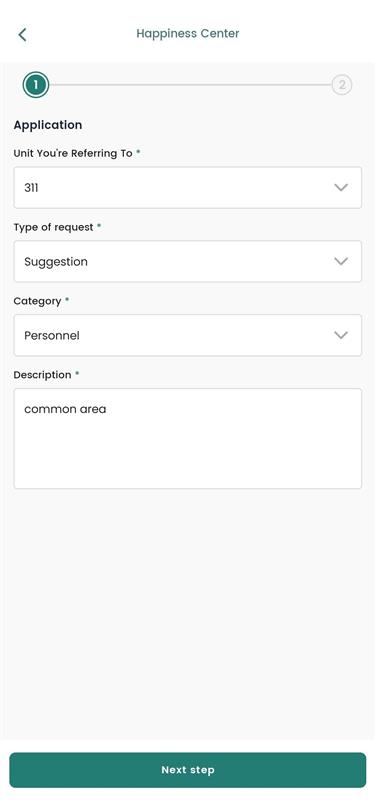
After opening the Happiness Center form, first select the property group. Once the property group is selected, complete the remaining 2 steps:
Select Unit, Type, Category, and Add Description: Choose the unit, the type of request, the category, and provide a description of your request.
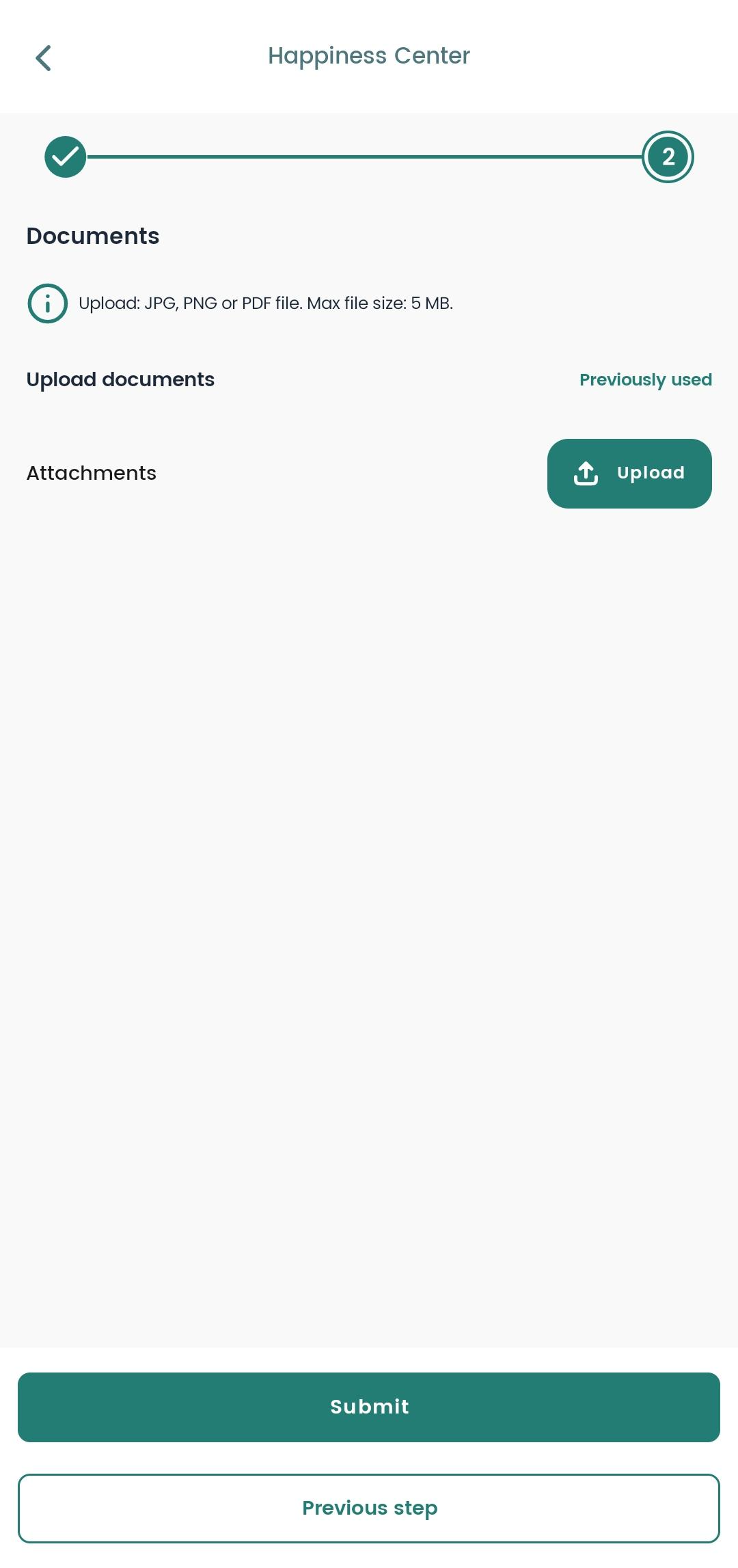
Upload Documents (if required): Add any mandatory or relevant documents.
Once all fields are completed, tap Submit to send your request.
3. Track Your Request Status
After your Happenies Center request is successfully submitted, you will be able to track your recently submitted request under My Requests.
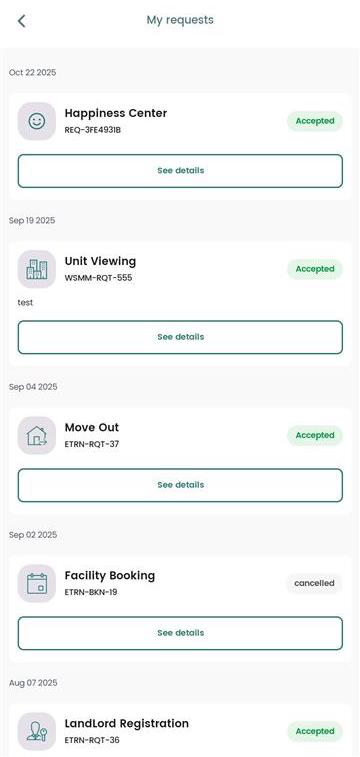
Alternatively, you can:
Click See All in the Requests section.
View the list of all submitted requests with their current status (Pending, Accepted, or Declined).
You’ll also receive a notification once your request is approved or declined.
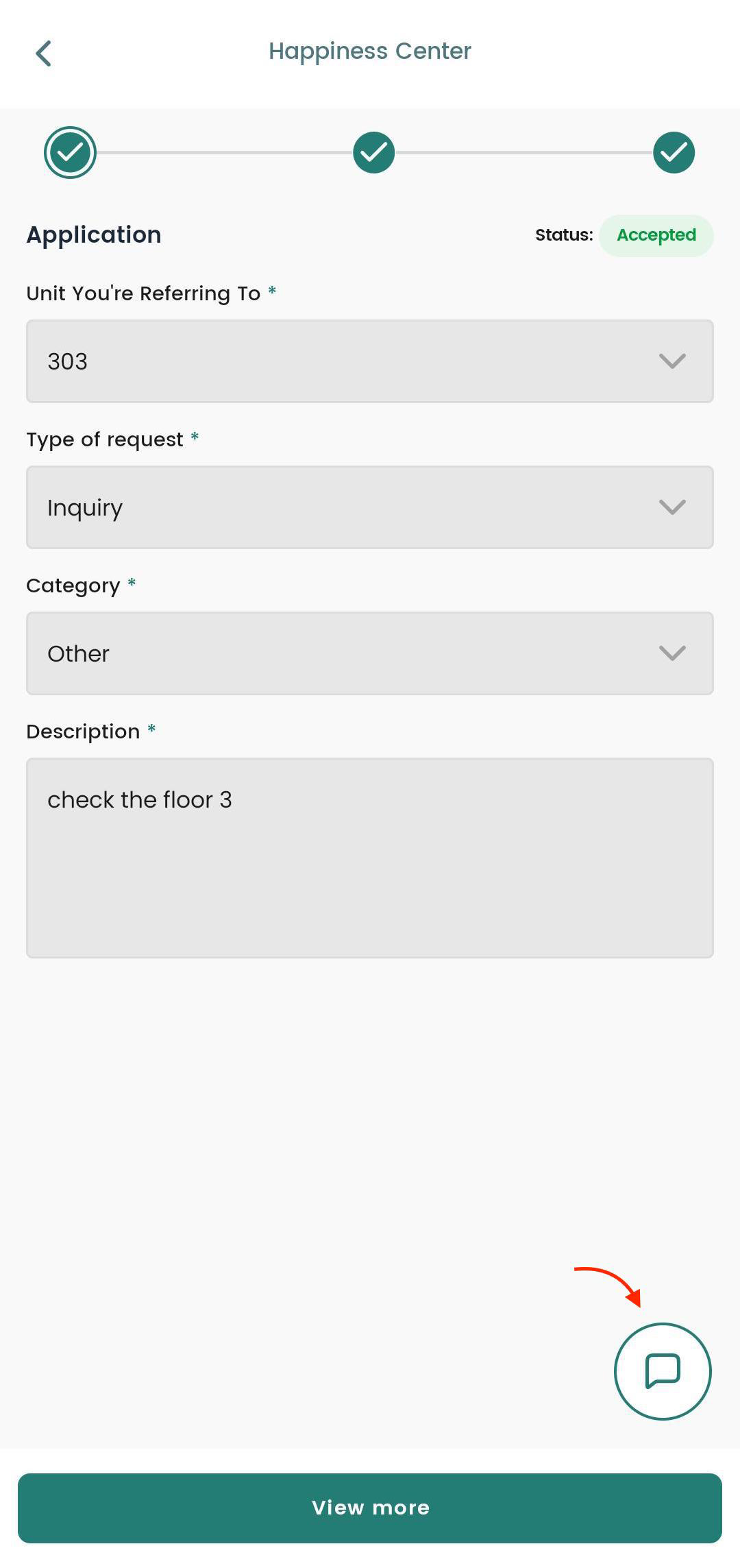
4. Chat with Your Community Manager or Company Representative
To follow up on your request or clarify any details:
Tap See Details from the list of requests.
Tap the chat icon in the bottom-right corner.
Start a conversation with your Community Manager or Company Representative.
Was this article helpful?
That’s Great!
Thank you for your feedback
Sorry! We couldn't be helpful
Thank you for your feedback
Feedback sent
We appreciate your effort and will try to fix the article