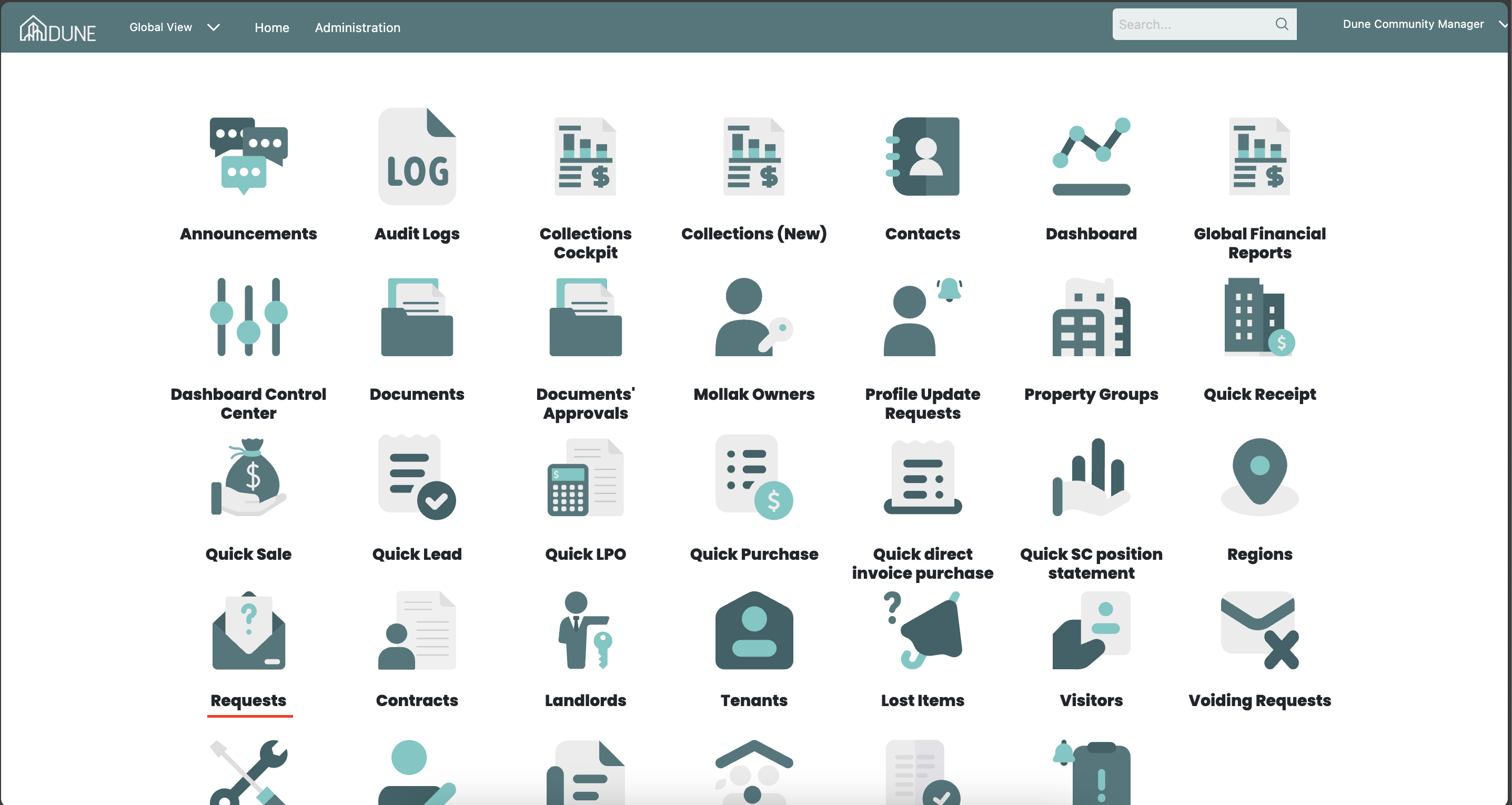
To navigate requests, go to the global view and click on Requests to view and approve any type of new requests.
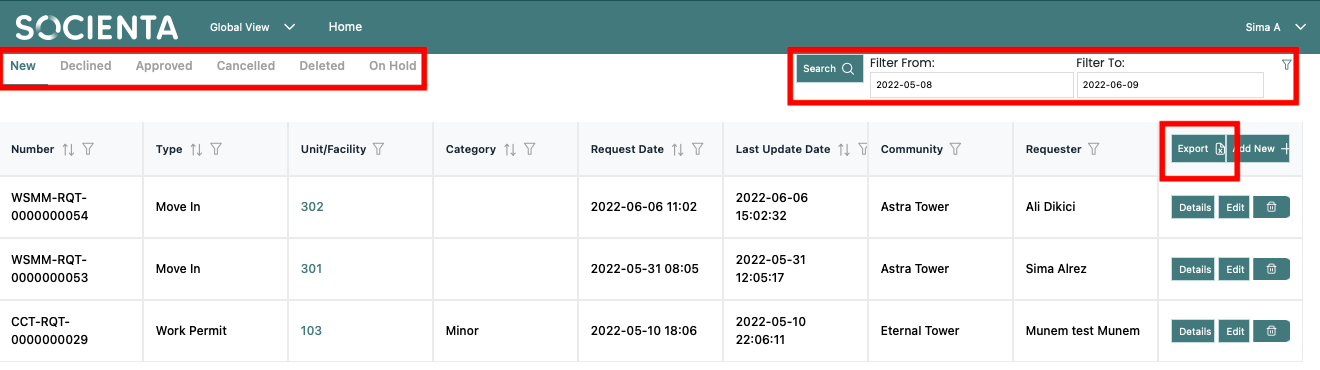
Filter and Search (Optional):
- Use the dashboard to filter requests by type, property group, and status (New, Declined, Approved, Canceled, Deleted, On Hold).
- You can also search for specific requests and export request data if needed.
Note: If you want to create a request on behalf of a resident, you can use the Create a New Request option
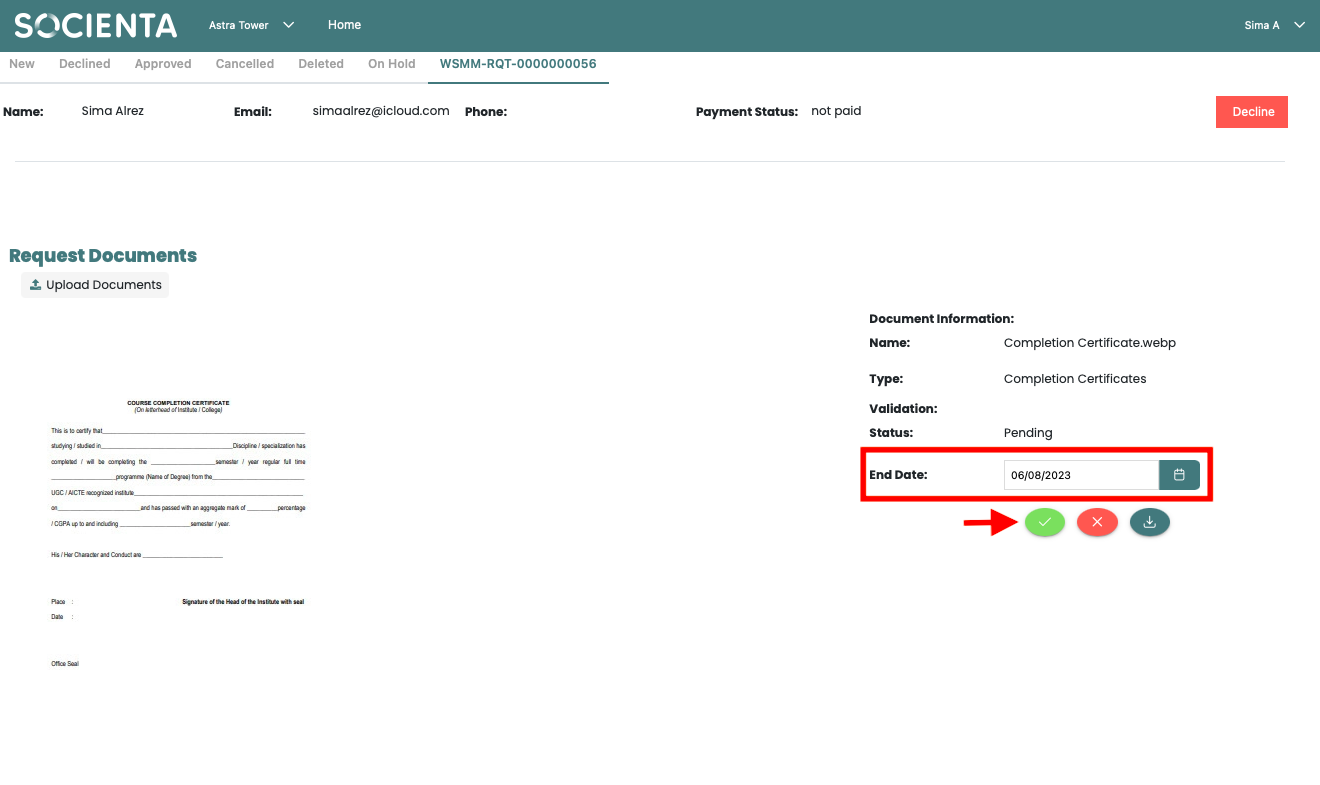
Select and Review the Request:
Click on Details after selecting the request you want to approve.
Review the details of the request and the requester.
To approve the request, you must add the expiration date and approve each document the requester has submitted.
If you've already authorized the documents, Socienta will remember that and you won't have to do it again.
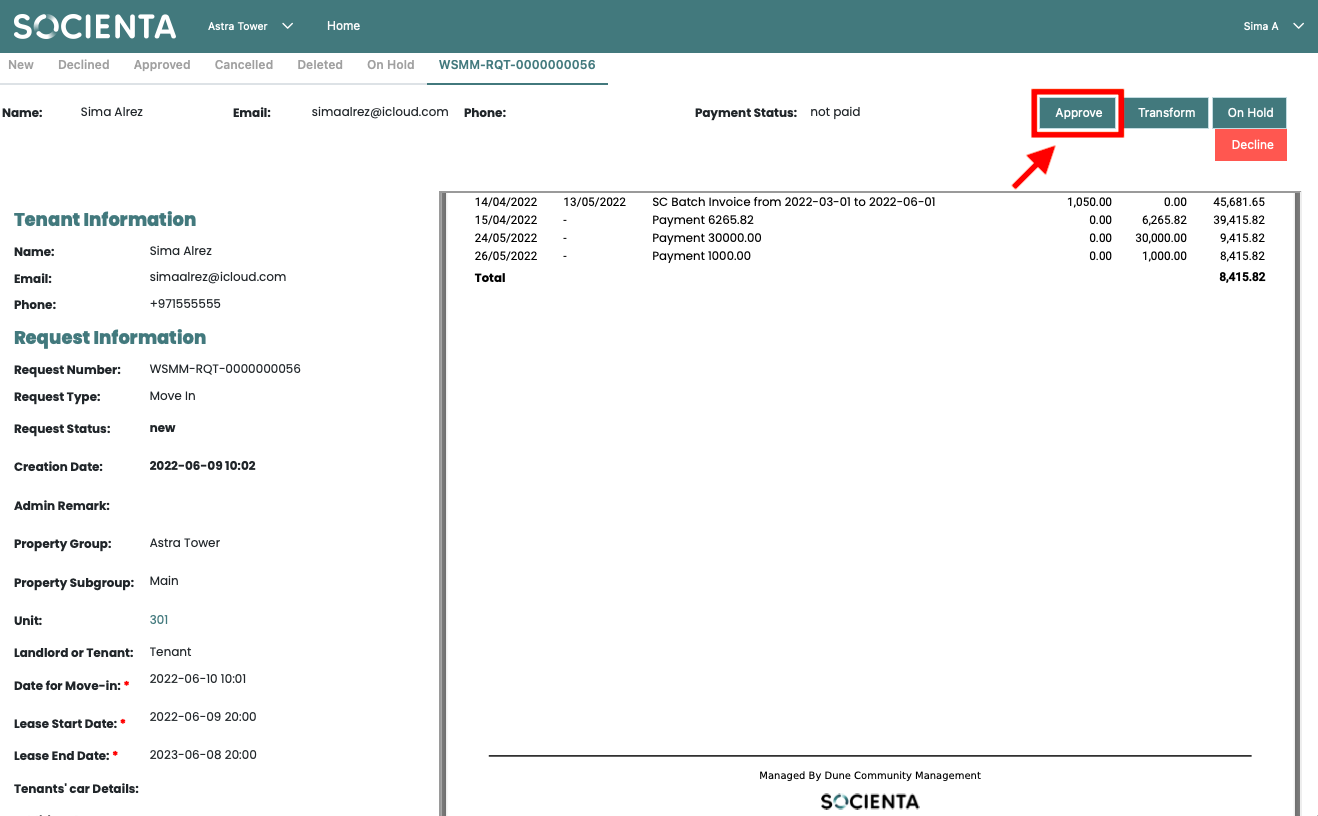
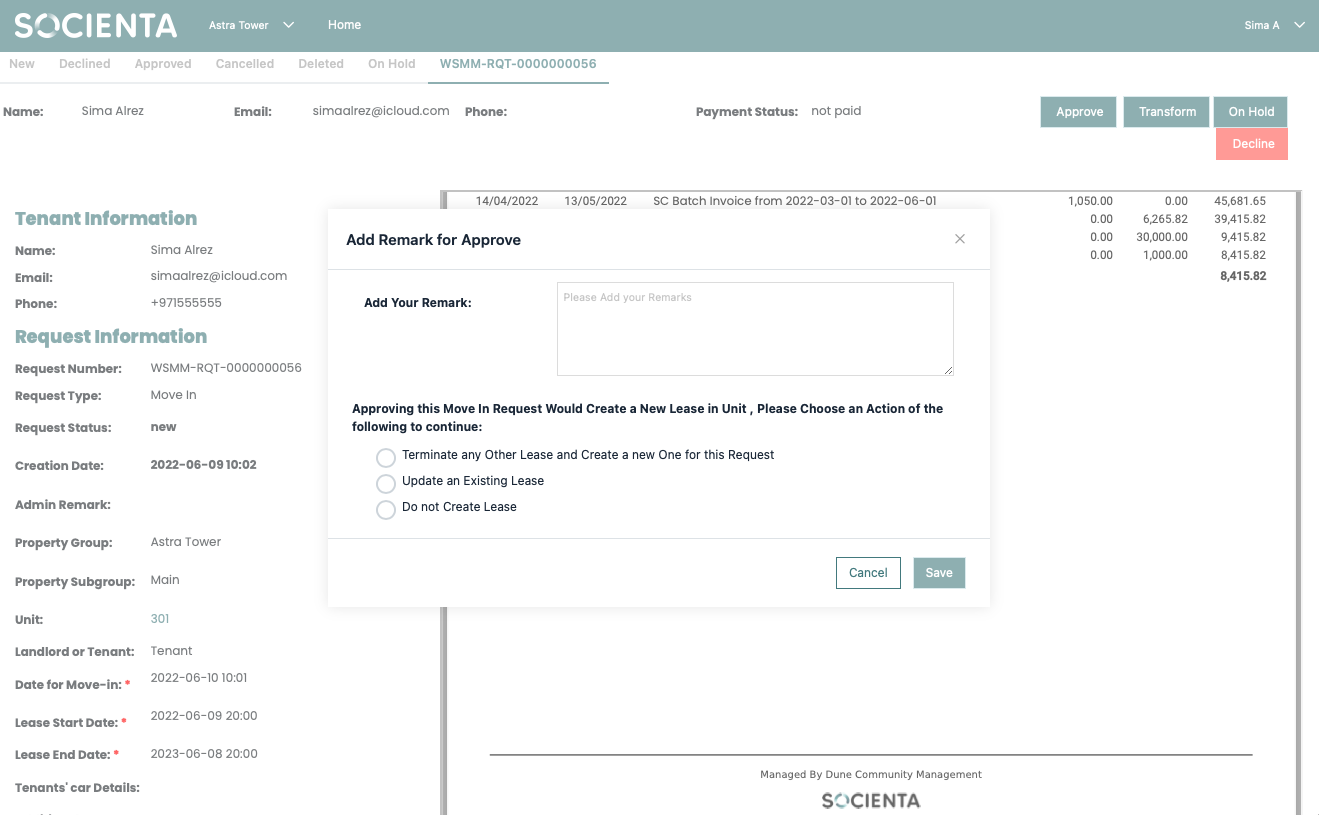
For Example move-in request for a tenant:
After approving all documents, click the Approve button.
Choose one of the following actions:
Cancel any existing lease and create a new one.
Update an existing lease.
Approve without creating a new lease.
Once confirmed, the request will move to the Approved Requests list, and a notification will be sent to the resident.
Important Note:
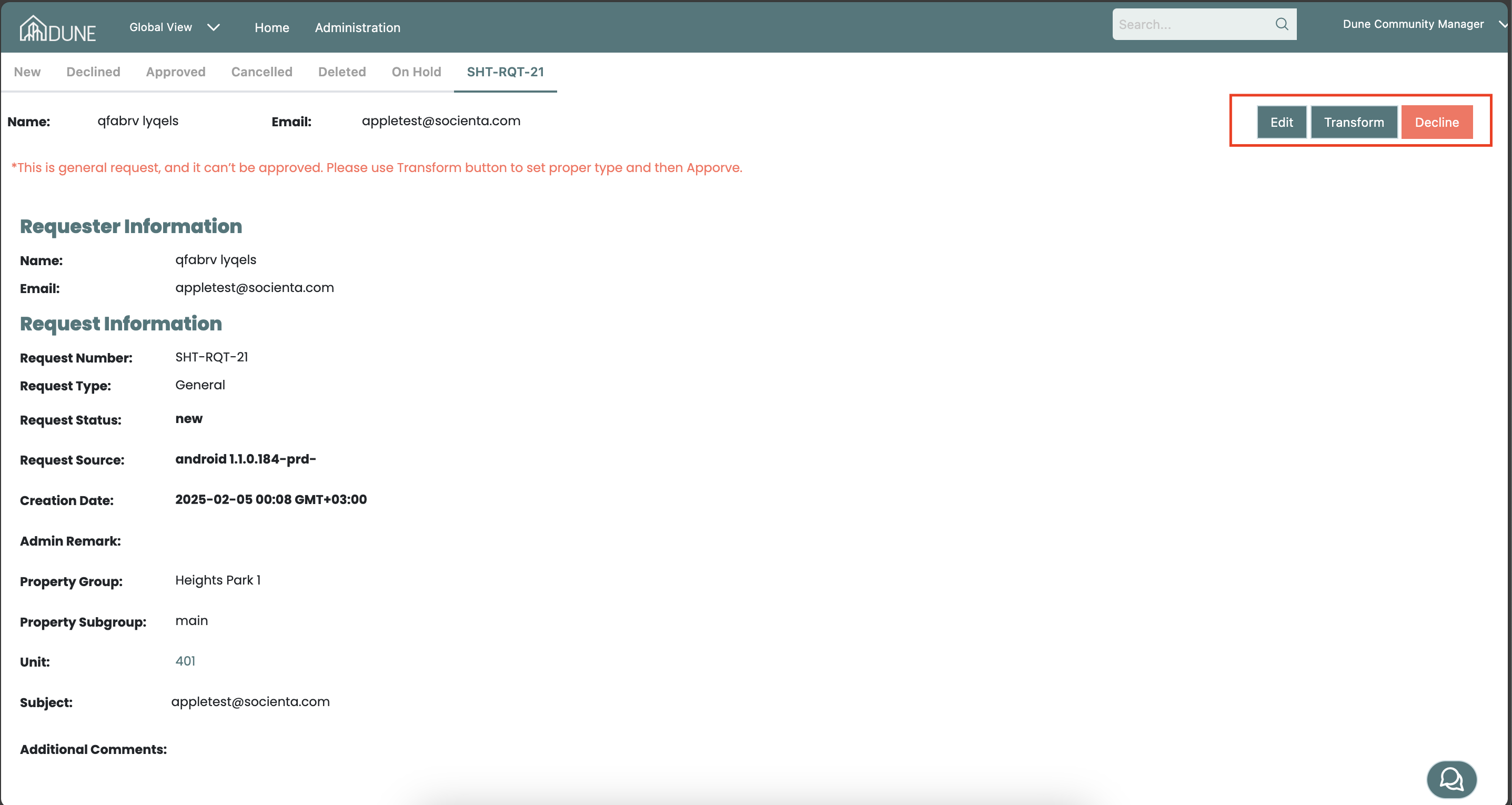
For General Requests, you cannot approve them directly. Instead, you must:
Edit the request to update the details.
Decline the request if it is not valid.
Transform it into the appropriate request type before proceeding with the approval process.
Communicating with Residents via Live Chat:
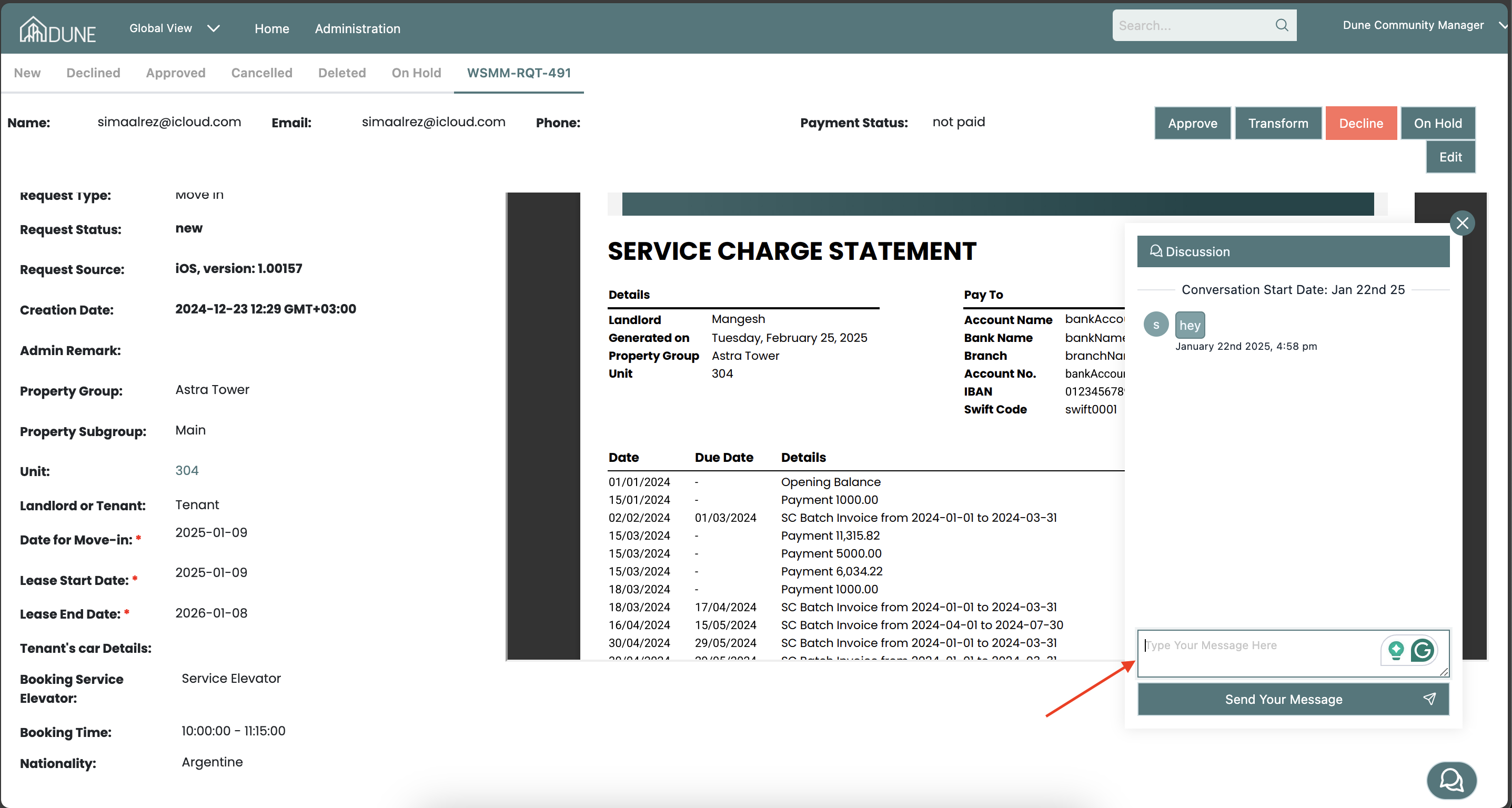
- If you need additional information or clarification from the resident, you can use the chat feature within the request.
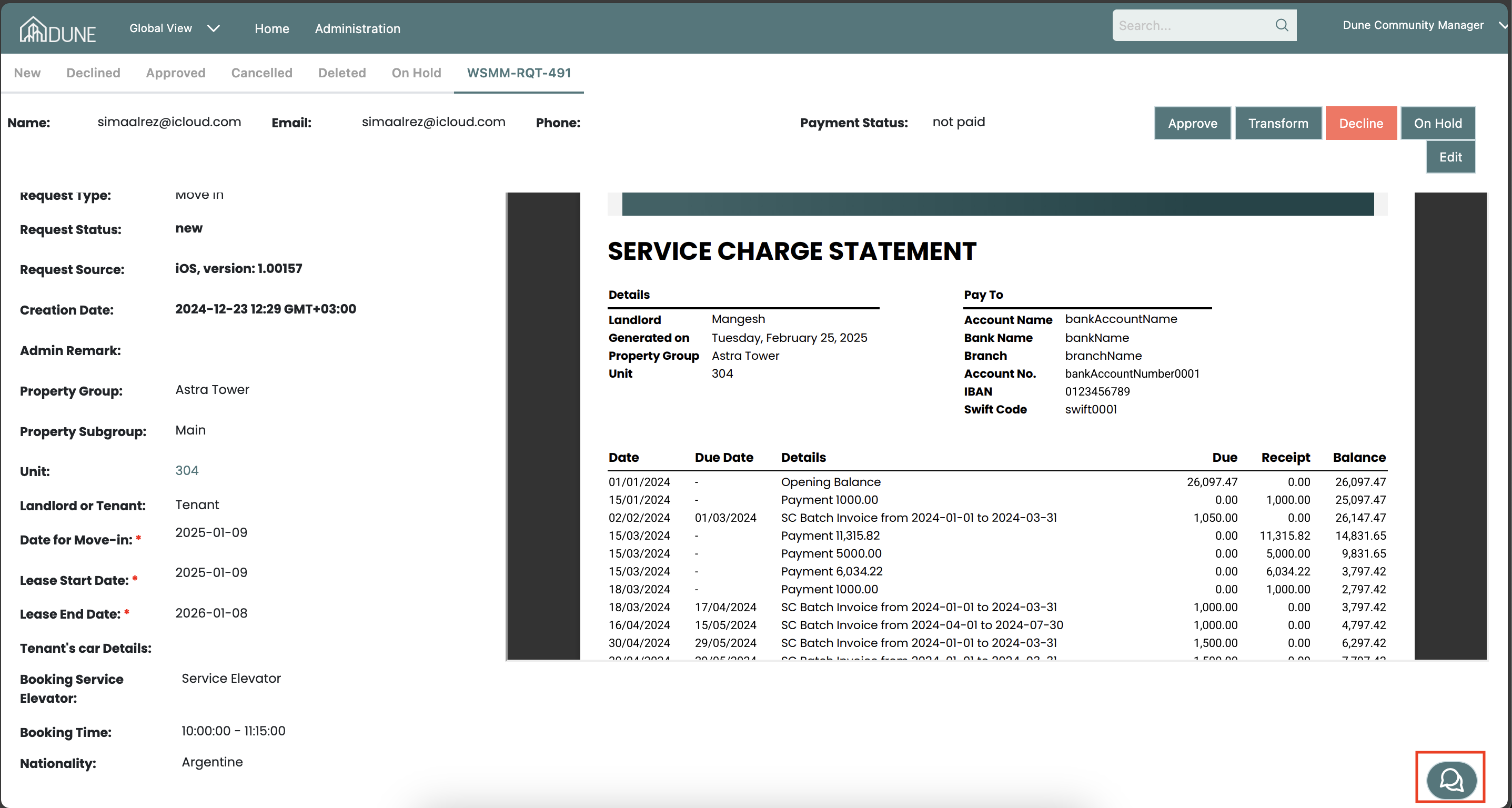
- Click the Chat button at the corner of the page to start a live chat.
- The resident will receive notifications in the app and via email about the chat.
Was this article helpful?
That’s Great!
Thank you for your feedback
Sorry! We couldn't be helpful
Thank you for your feedback
Feedback sent
We appreciate your effort and will try to fix the article