In order to apply approval flow to Purchase Orders and Requests (PO/PR) follow the steps
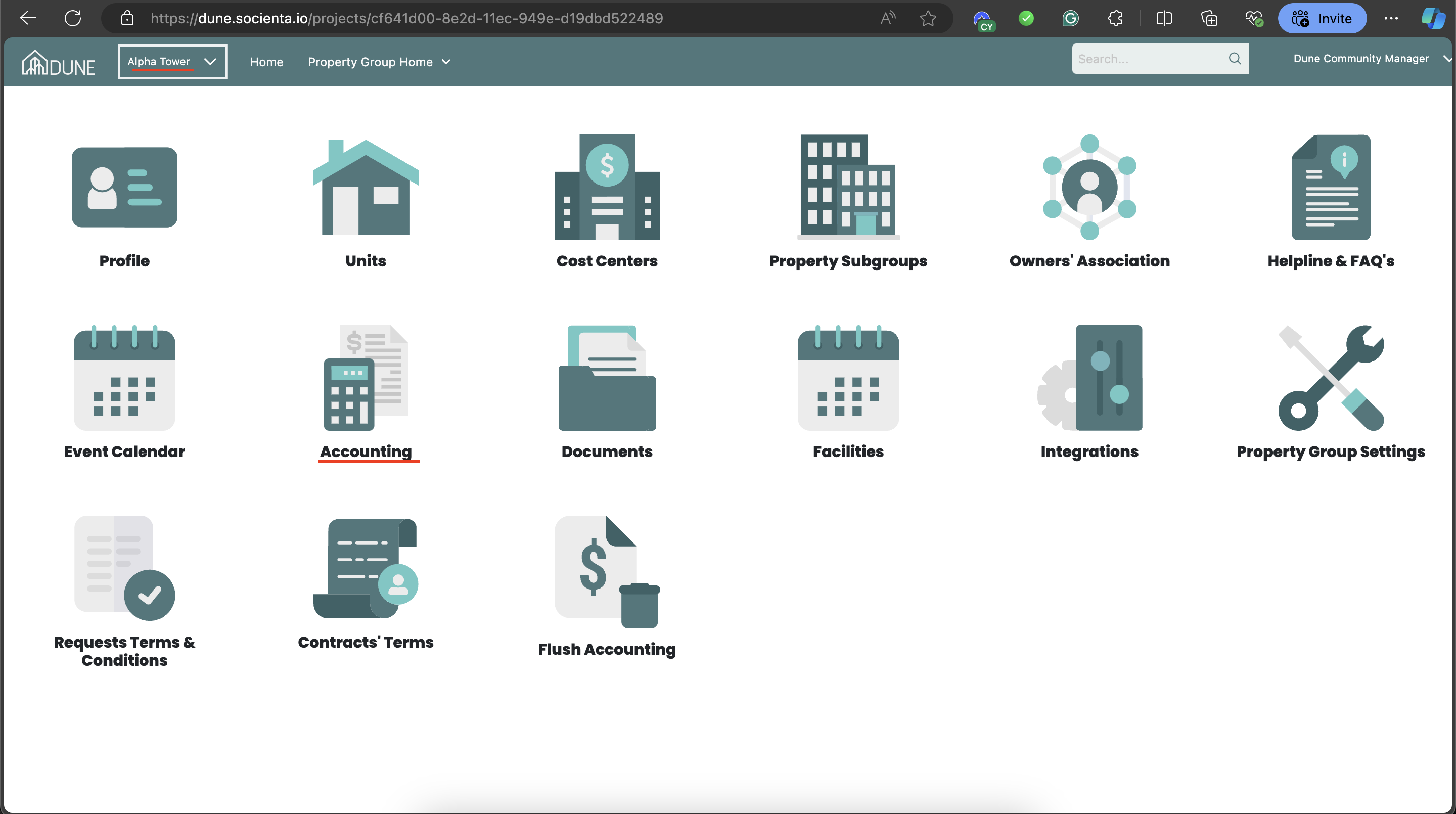
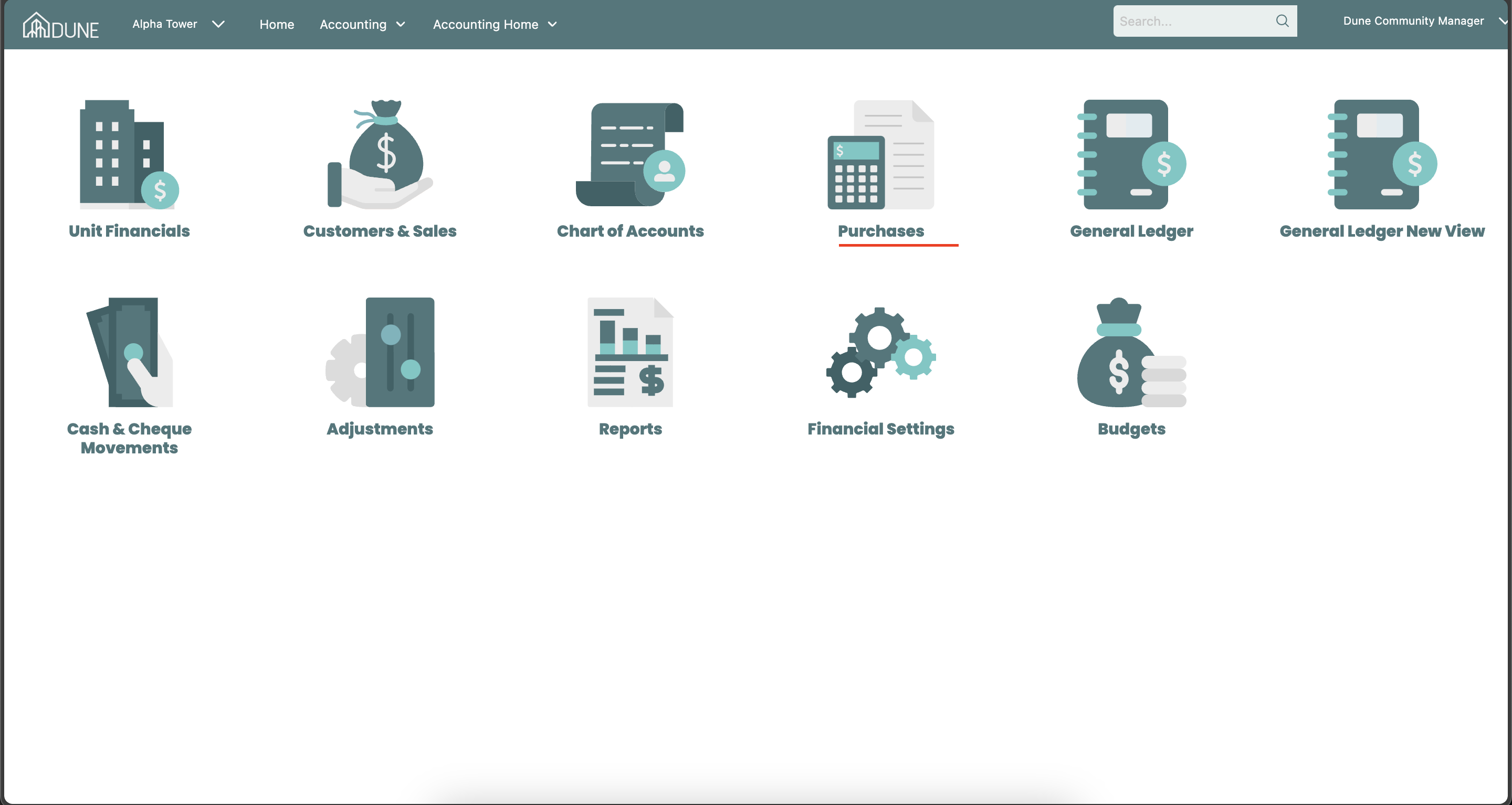
Navigate to Purchases:
- From the homepage, select the property group from the drop-down list, then go to "Accounting" and choose "Purchases."
Access Purchase Settings:
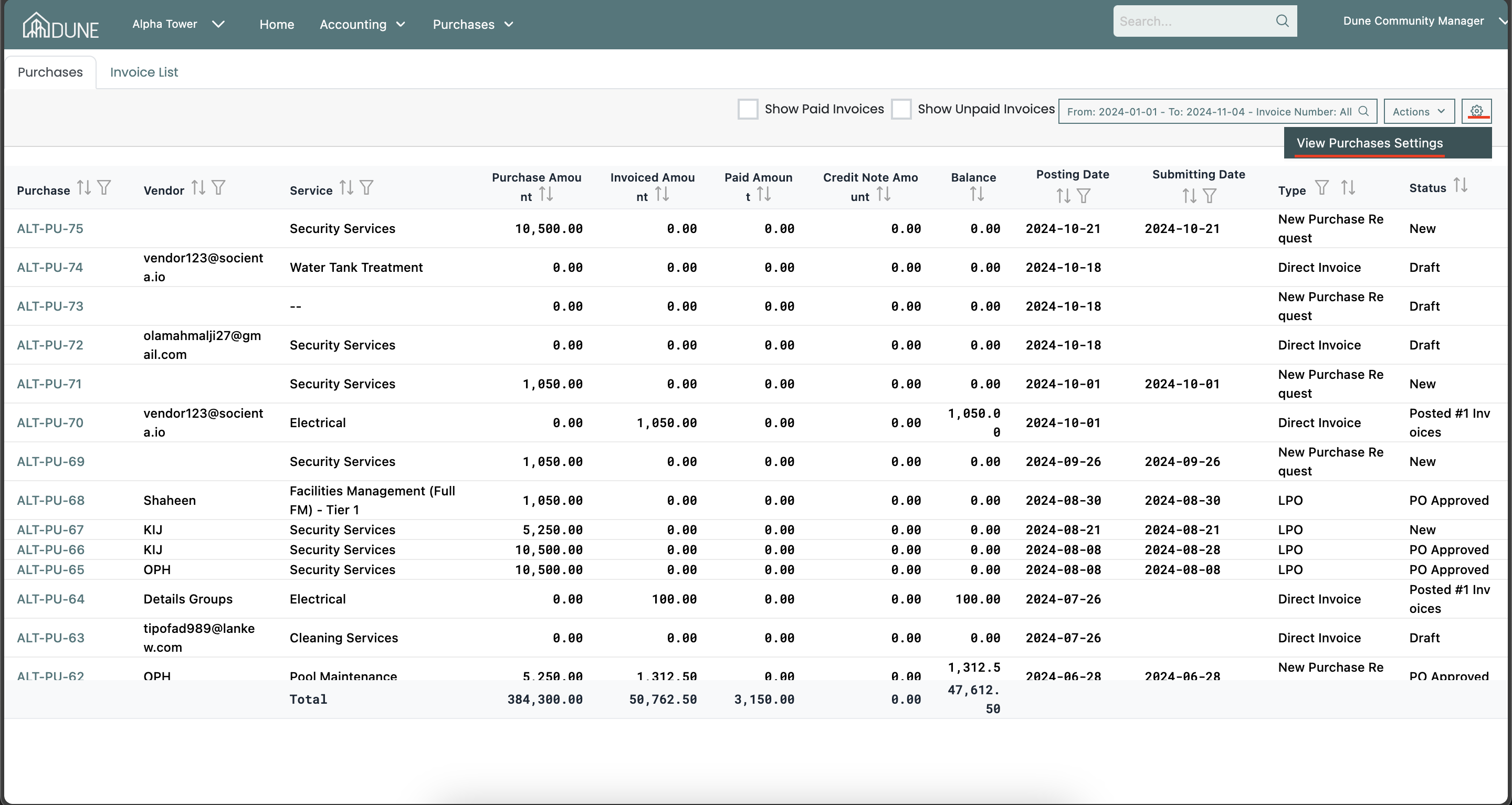
On the Purchases homepage, navigate to the settings icon to view purchase settings and click on it.
Enable Purchase Request for LPO or Purchase Order Approval Flow:
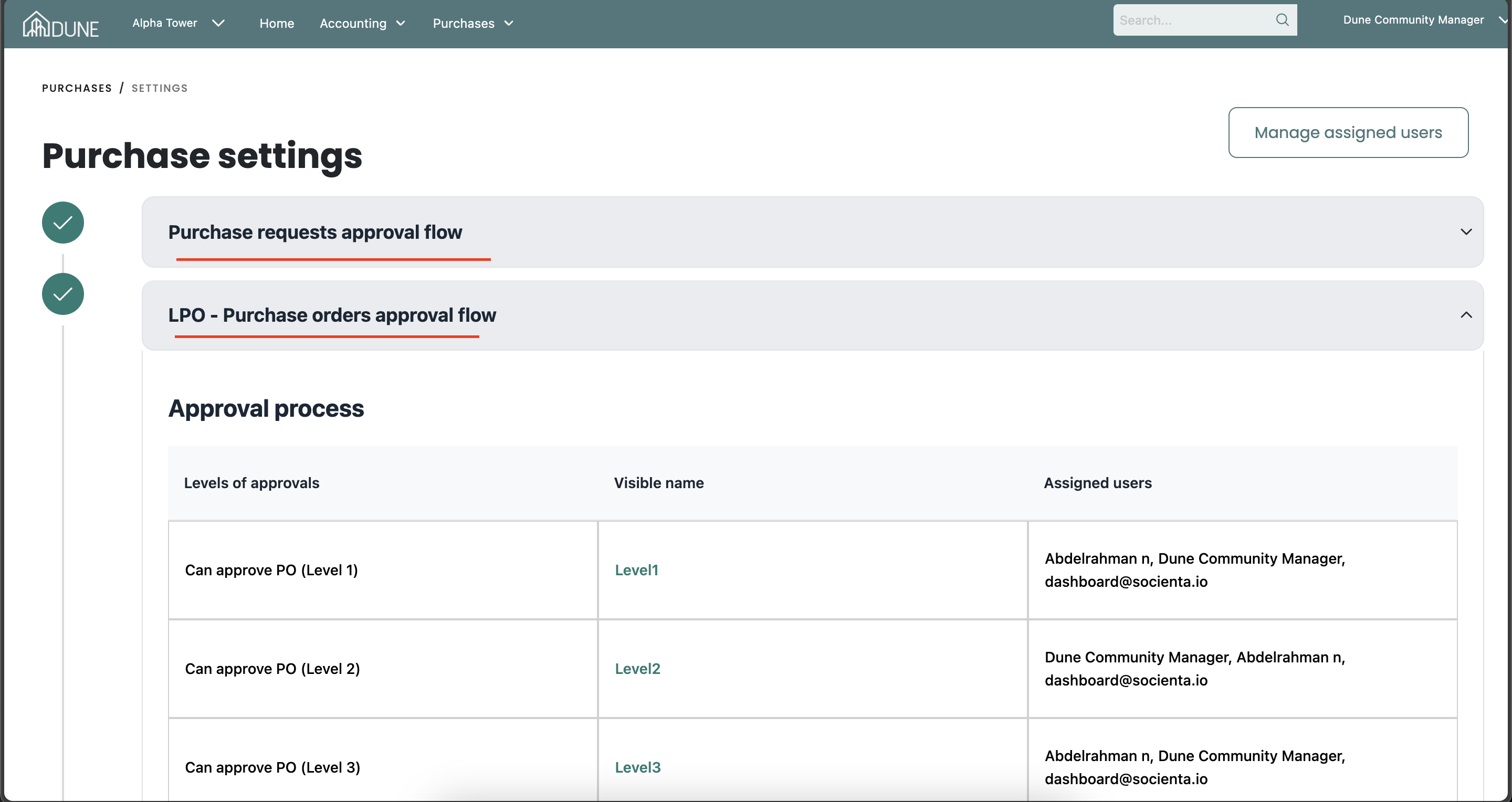
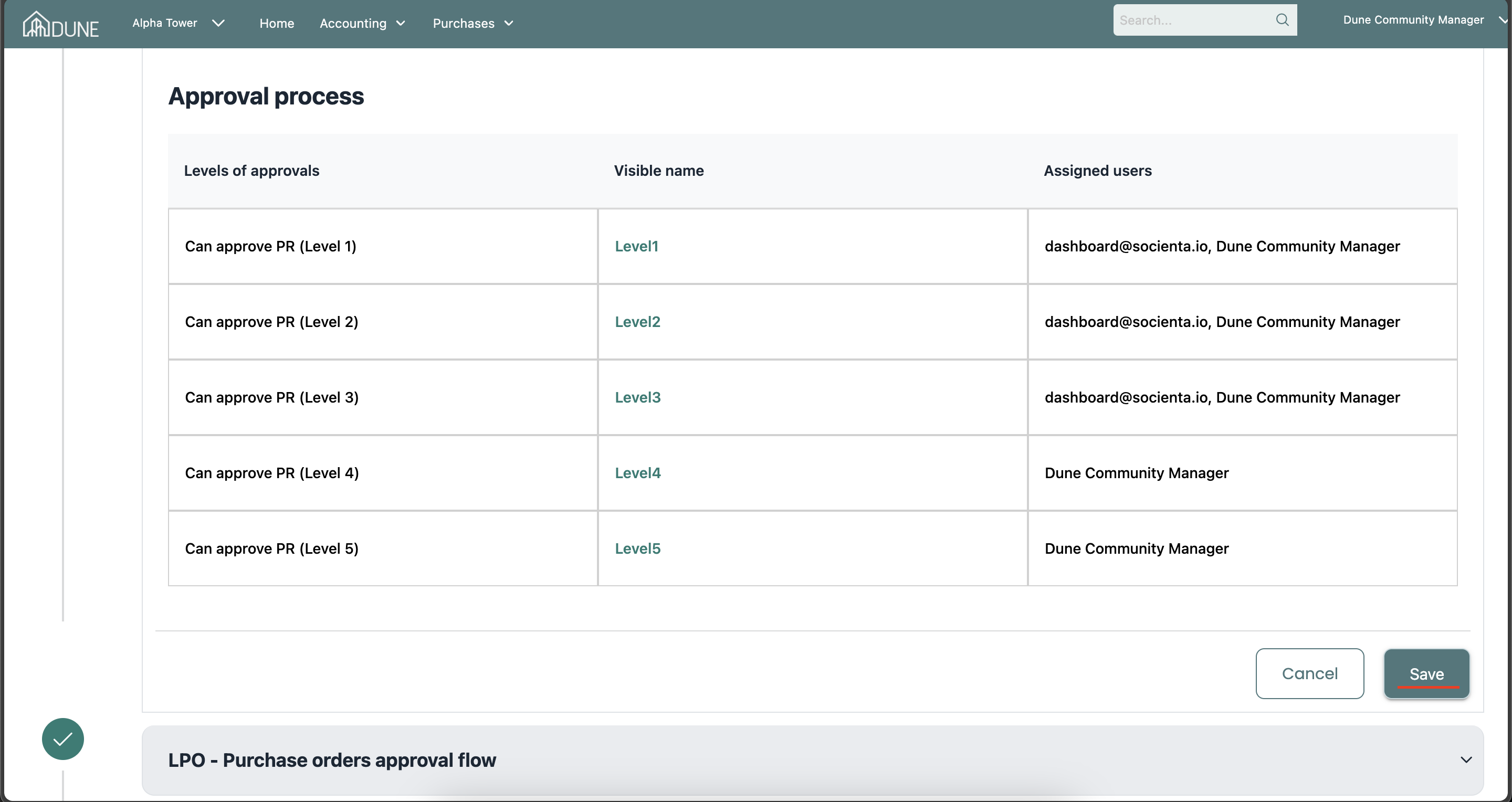
In the purchase settings, navigate the "Purchase requests approval flow" or "LPO - Purchase orders approval flow" section
Set Up Approval Levels:
- In the approval levels, specify the number of approval levels, assign users to each level, and customize each level’s name.
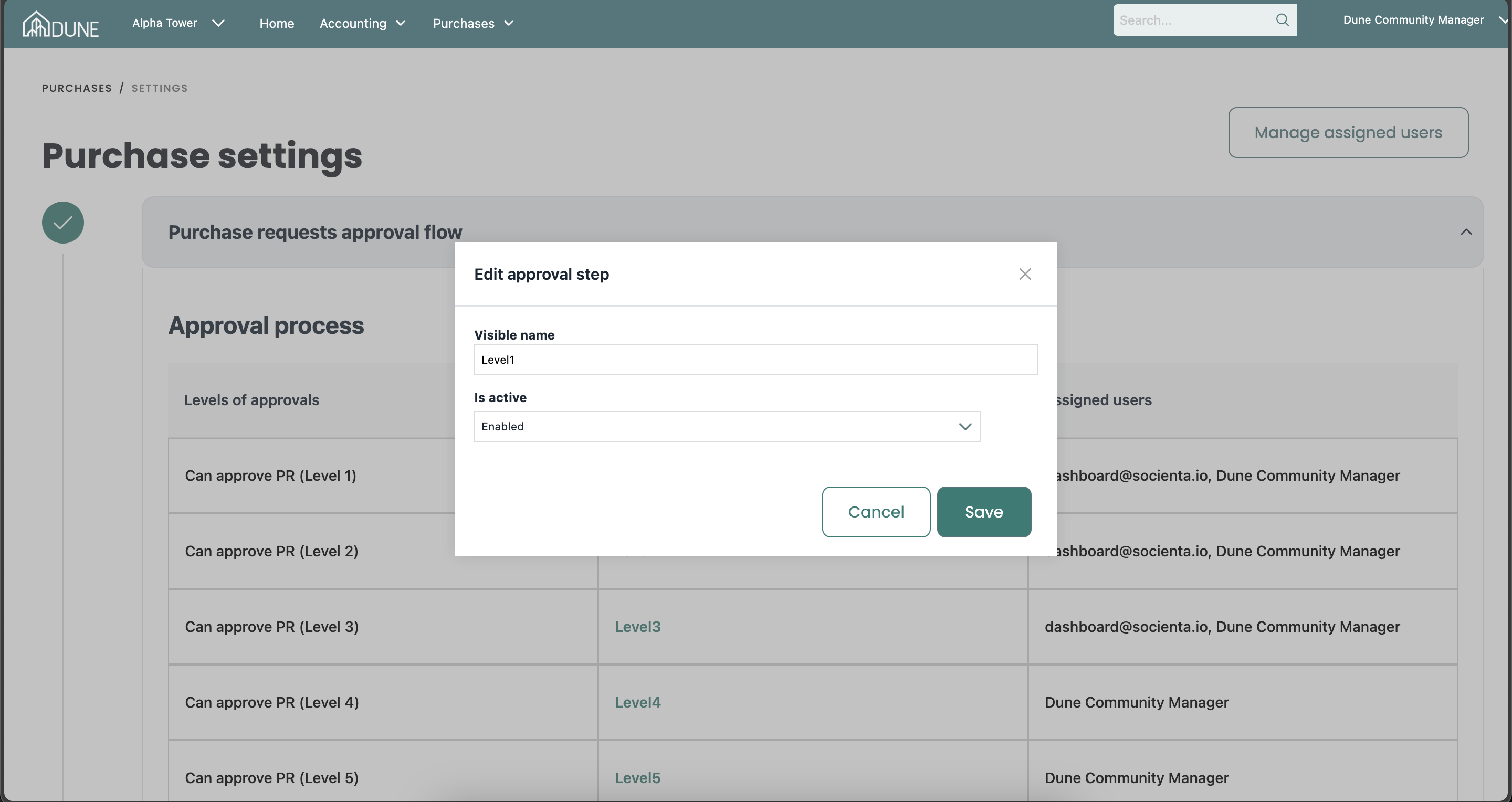
- Click on the level name to open a pop-up screen where you can edit the name and enable or disable the level
(Note: The approval levels should follow a sequence. For example, you may choose to disable the last 3 levels and enable the first 2 levels as per your workflow.)
Assign Users to Approval Levels:
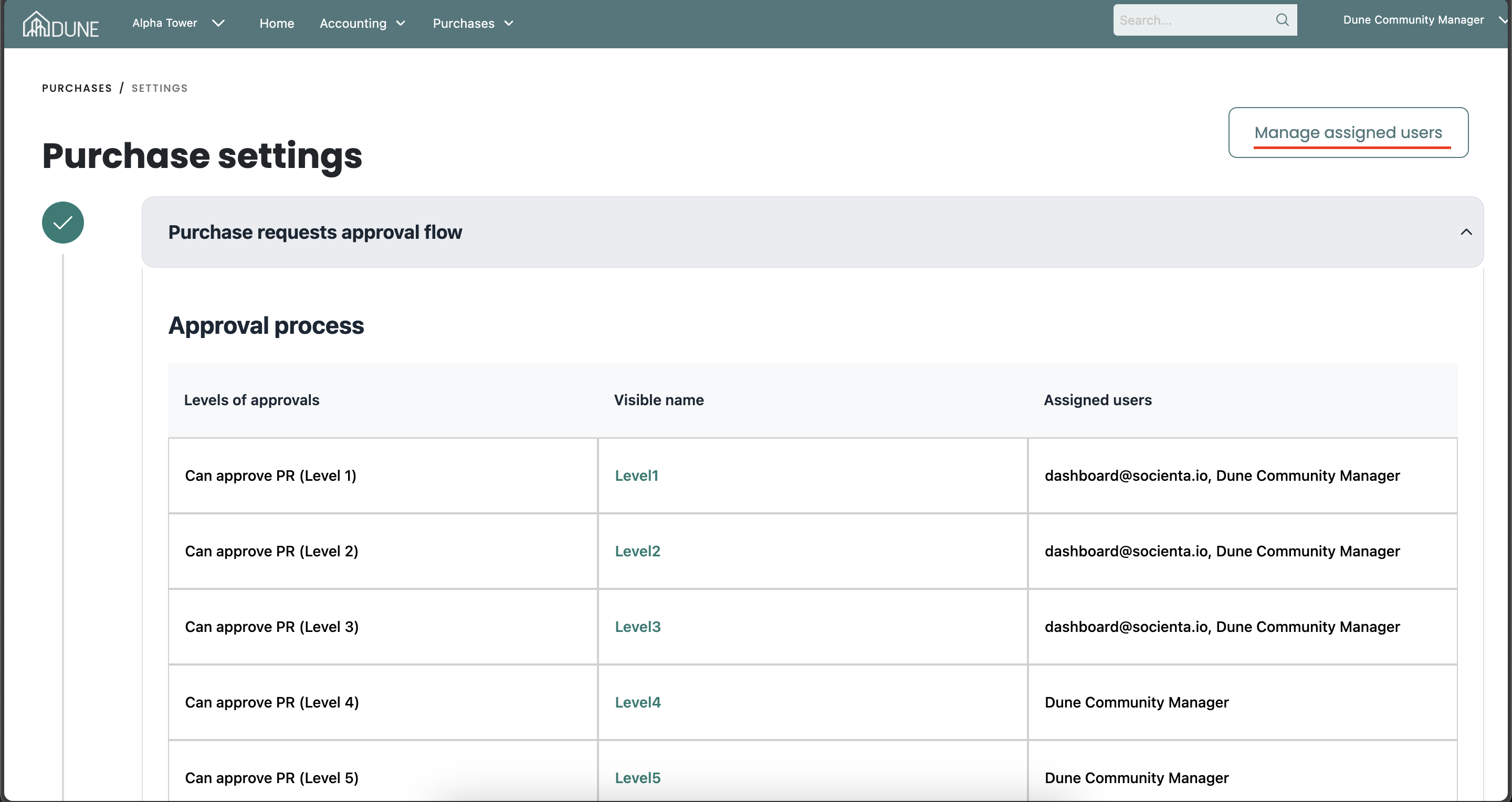
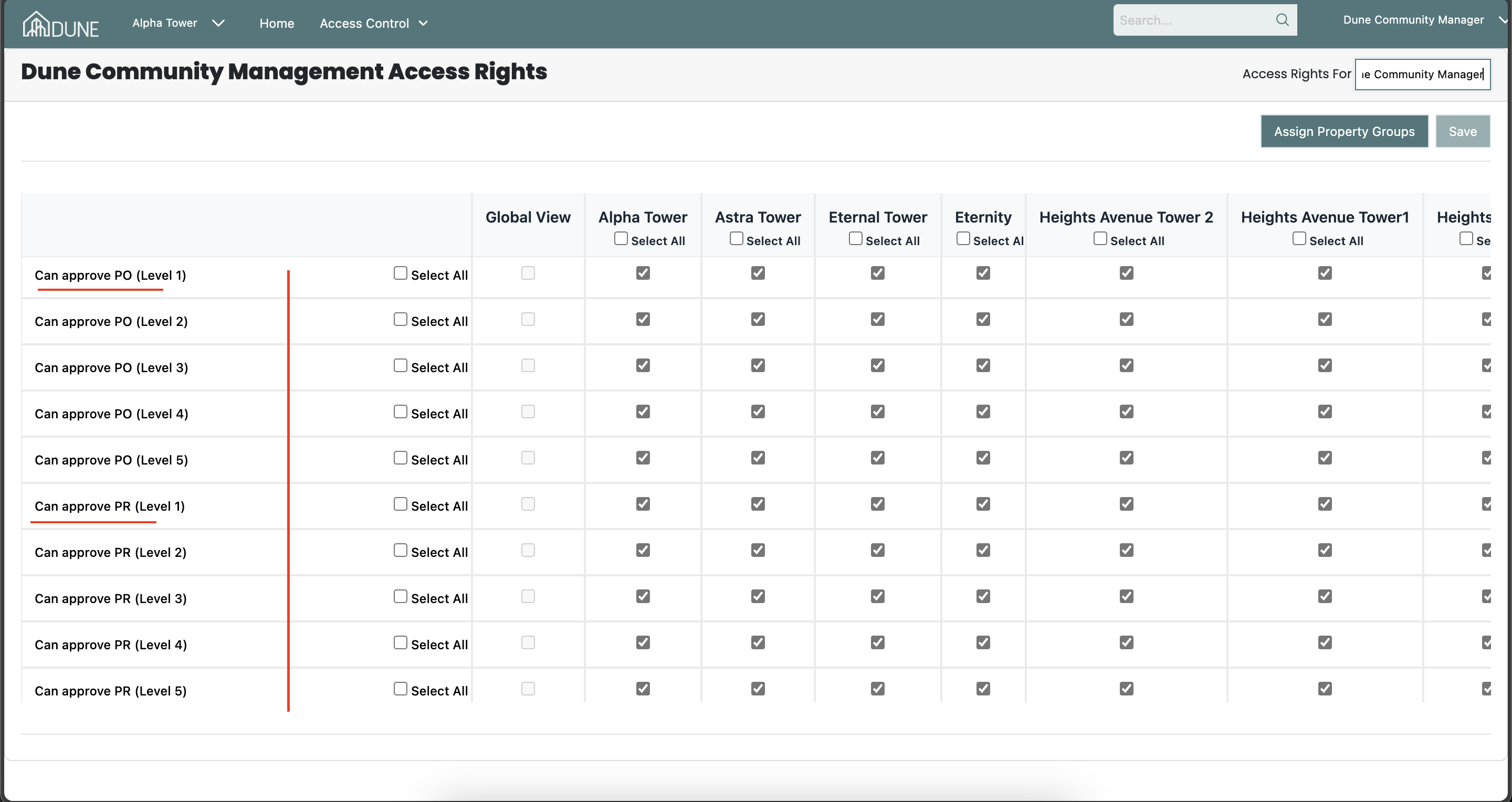
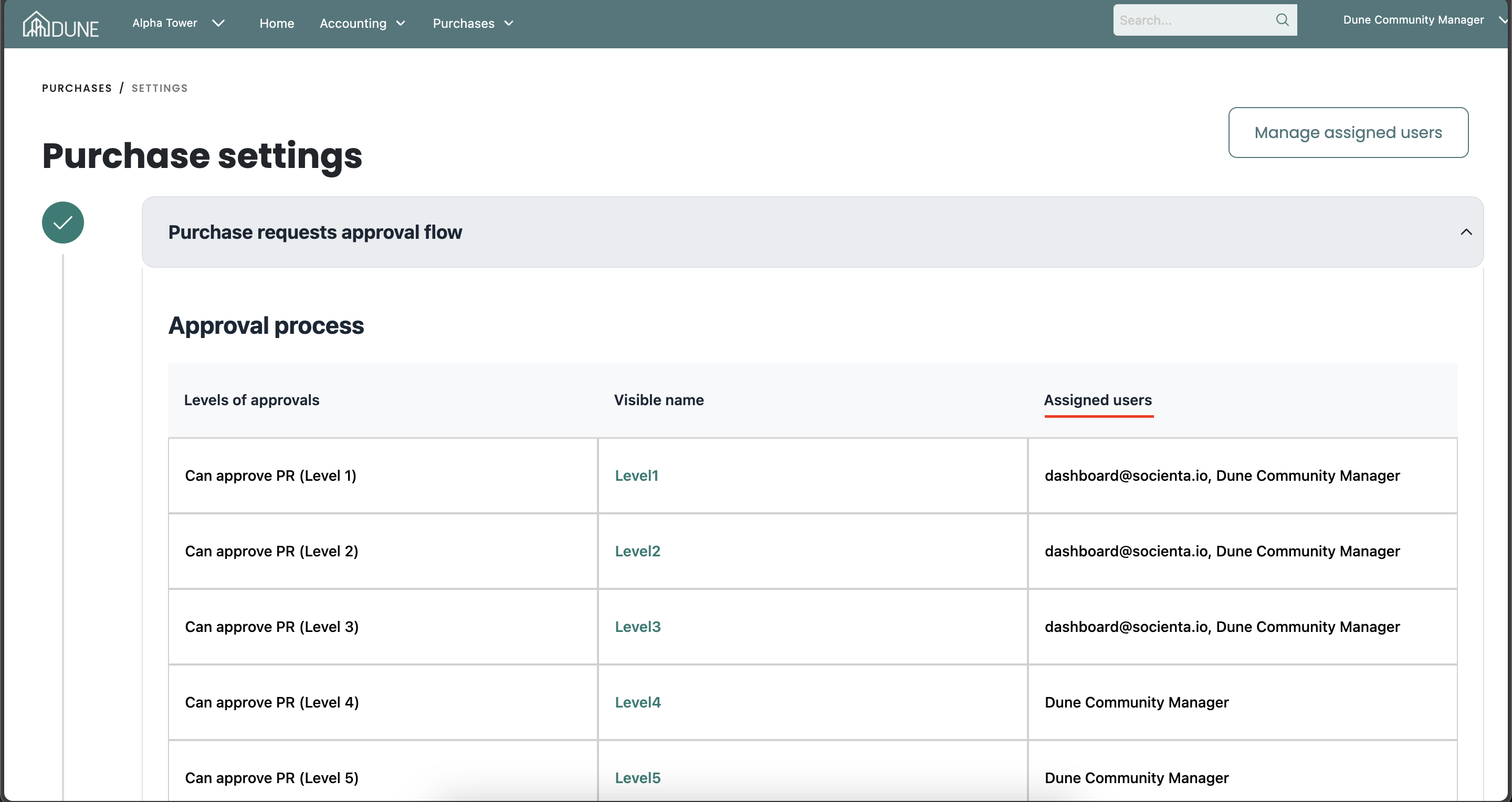
Click on the "Manage Assigned Users" button to open the access rights page. Enter the user’s name, select the desired approval level, and save to see the assigned user reflected in the settings under the Assigned Users column.
Save Changes:
Make sure to click on the Save button once you complete your work to apply any changes.
Create a Purchase and Apply Approval Flow:
Once the approval flow is configured:
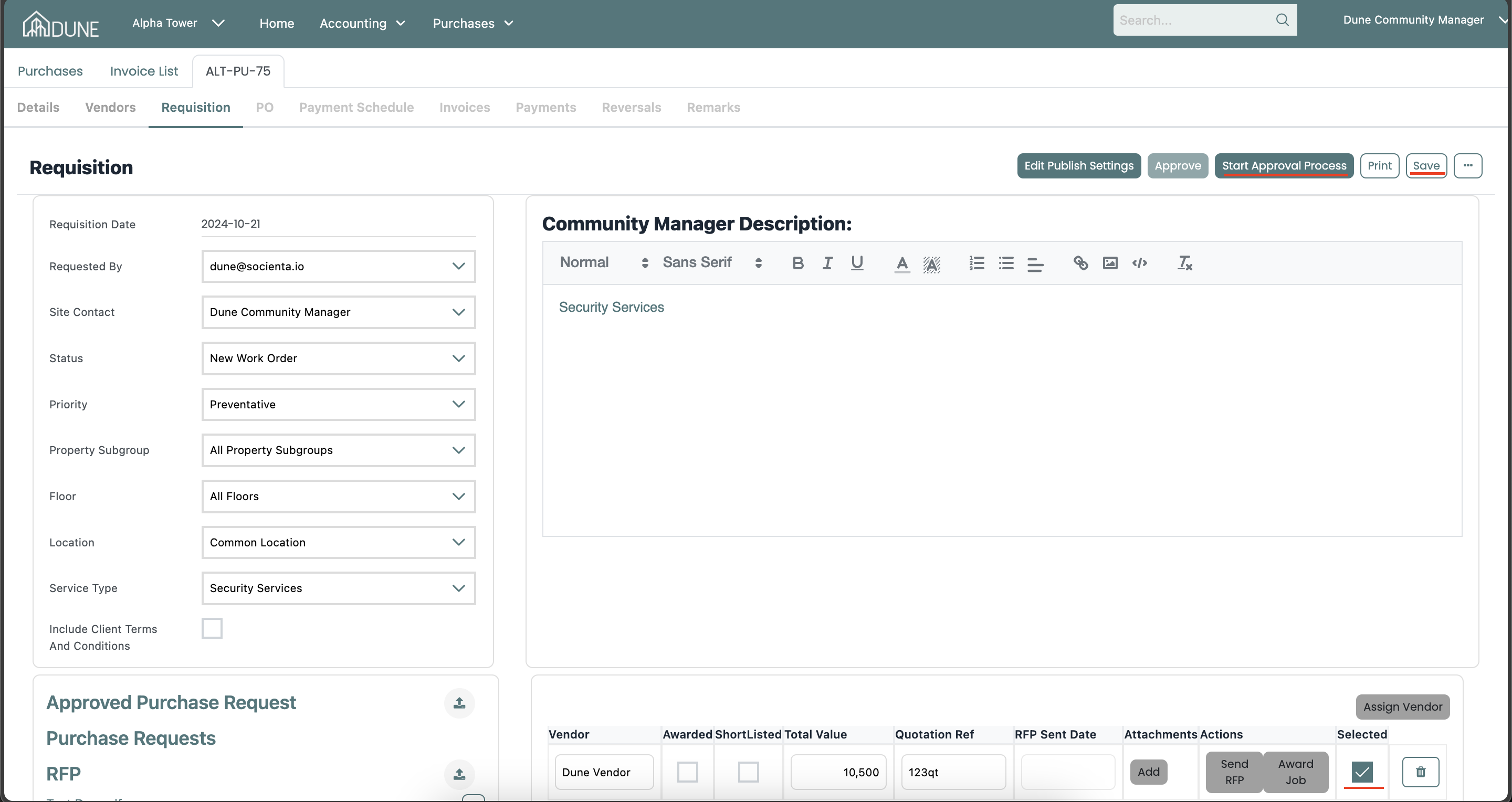
- Create a purchase.
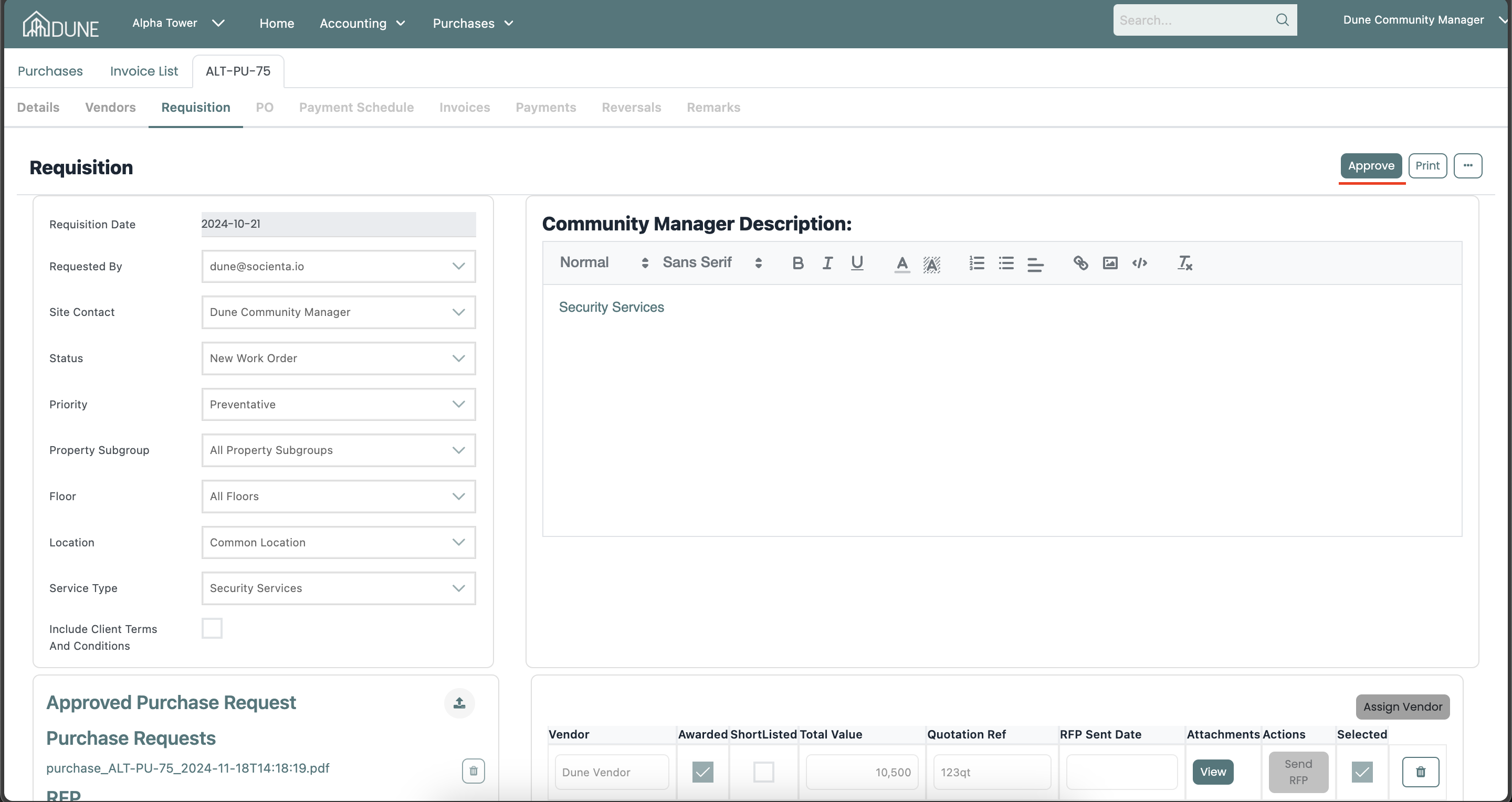
- Go to the "Requisition" tab and fill in all required information.
- When you reach the assigned vendor, checkmark the "Selected" option to activate the button to start the approval process.
- Click Save and then Start Approval Level.
Approval Process:
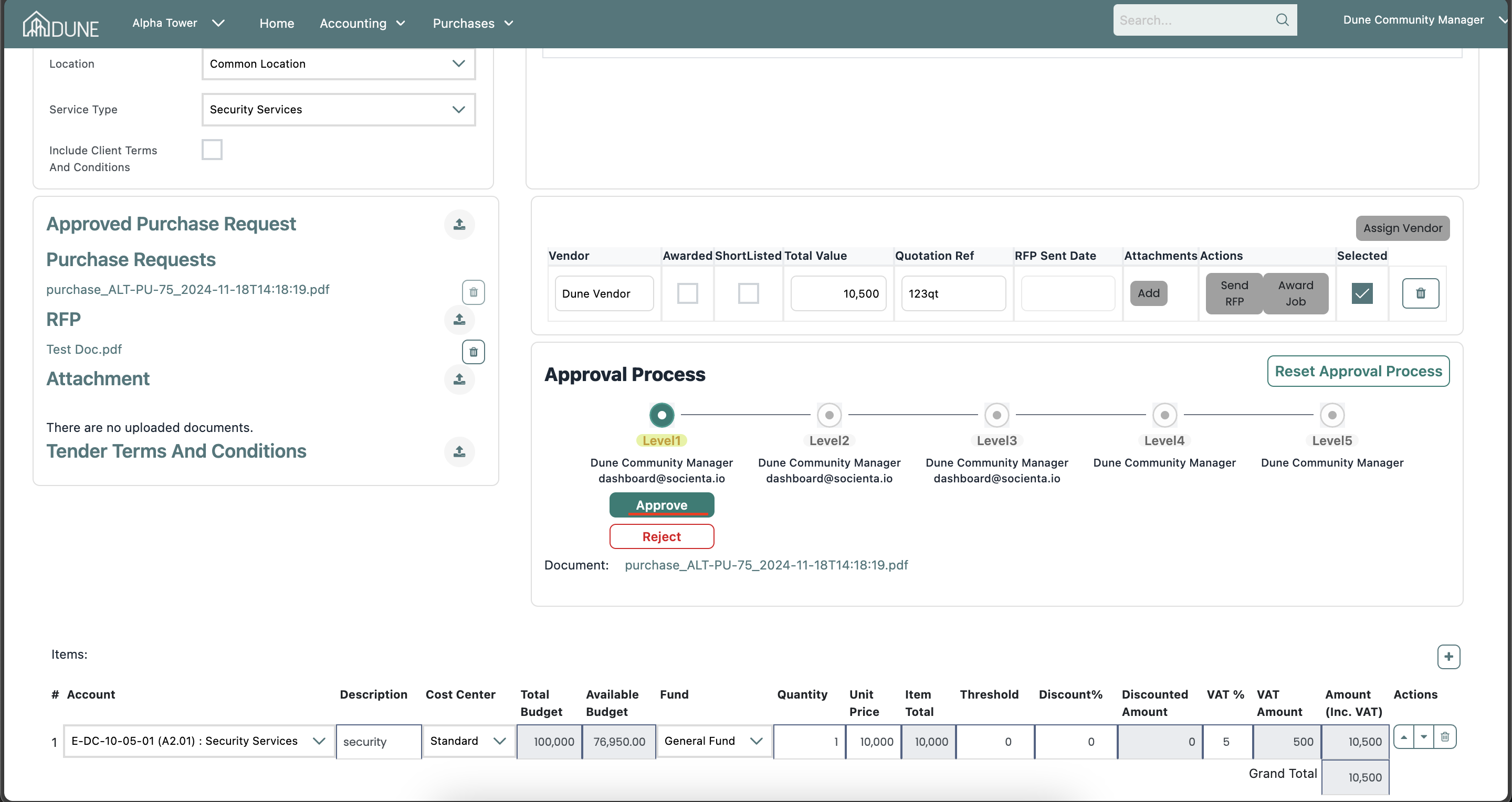
The approval process will begin, allowing you to approve or reject. You can also download the document, and reset the approval process in case of a rejection or a mistake.
Award Vendor and Approve the Requisition:
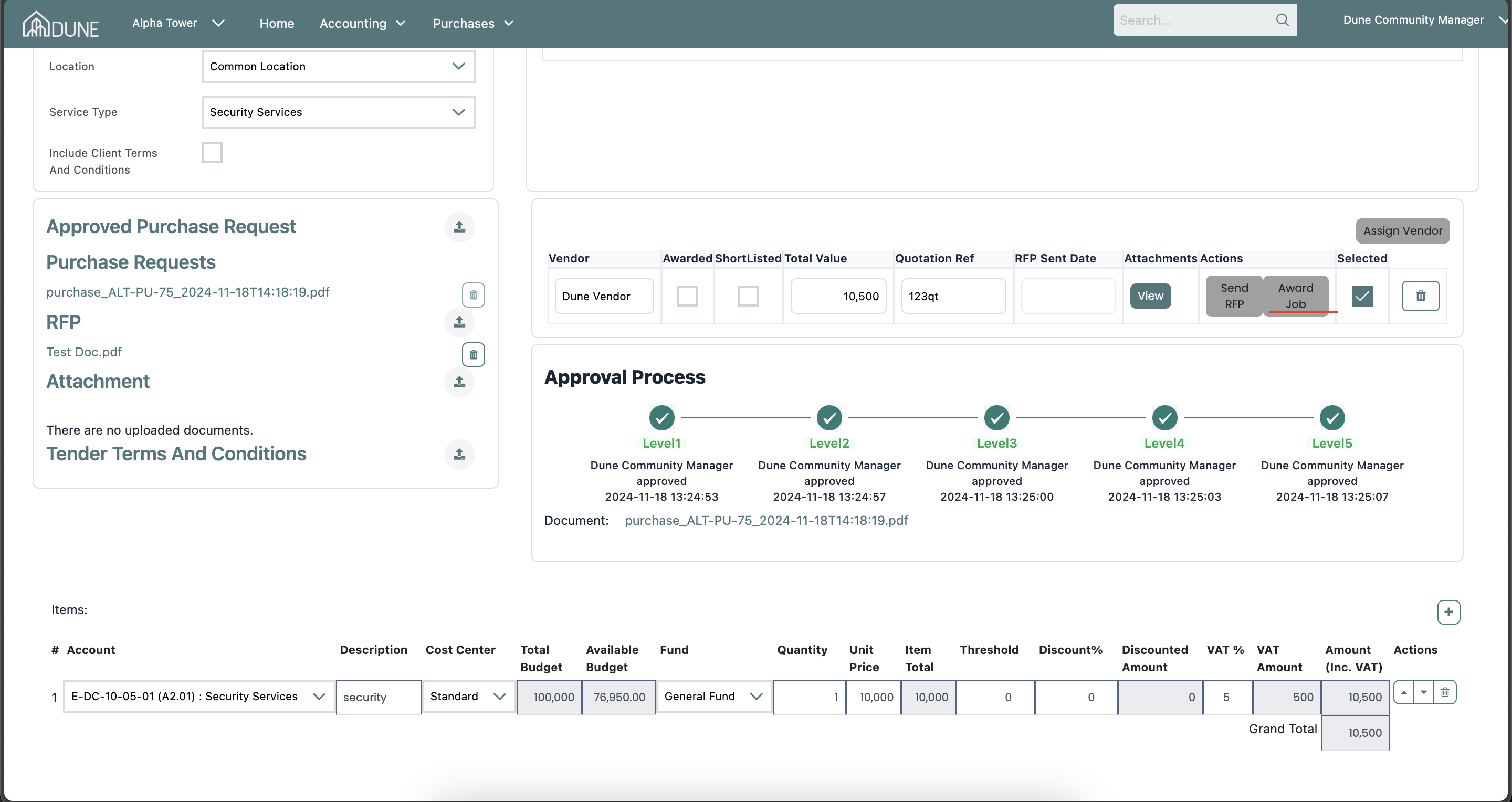
After all approval levels are complete:
- Award the job to the vendor.
- The Approve button on the requisition will become clickable.
- Proceed to the next step for the tender, enabling other teams to continue the job.
Was this article helpful?
That’s Great!
Thank you for your feedback
Sorry! We couldn't be helpful
Thank you for your feedback
Feedback sent
We appreciate your effort and will try to fix the article