Prerequisite:
Ensure you have access to Document Control. If not, please contact your client admin user to grant you access.
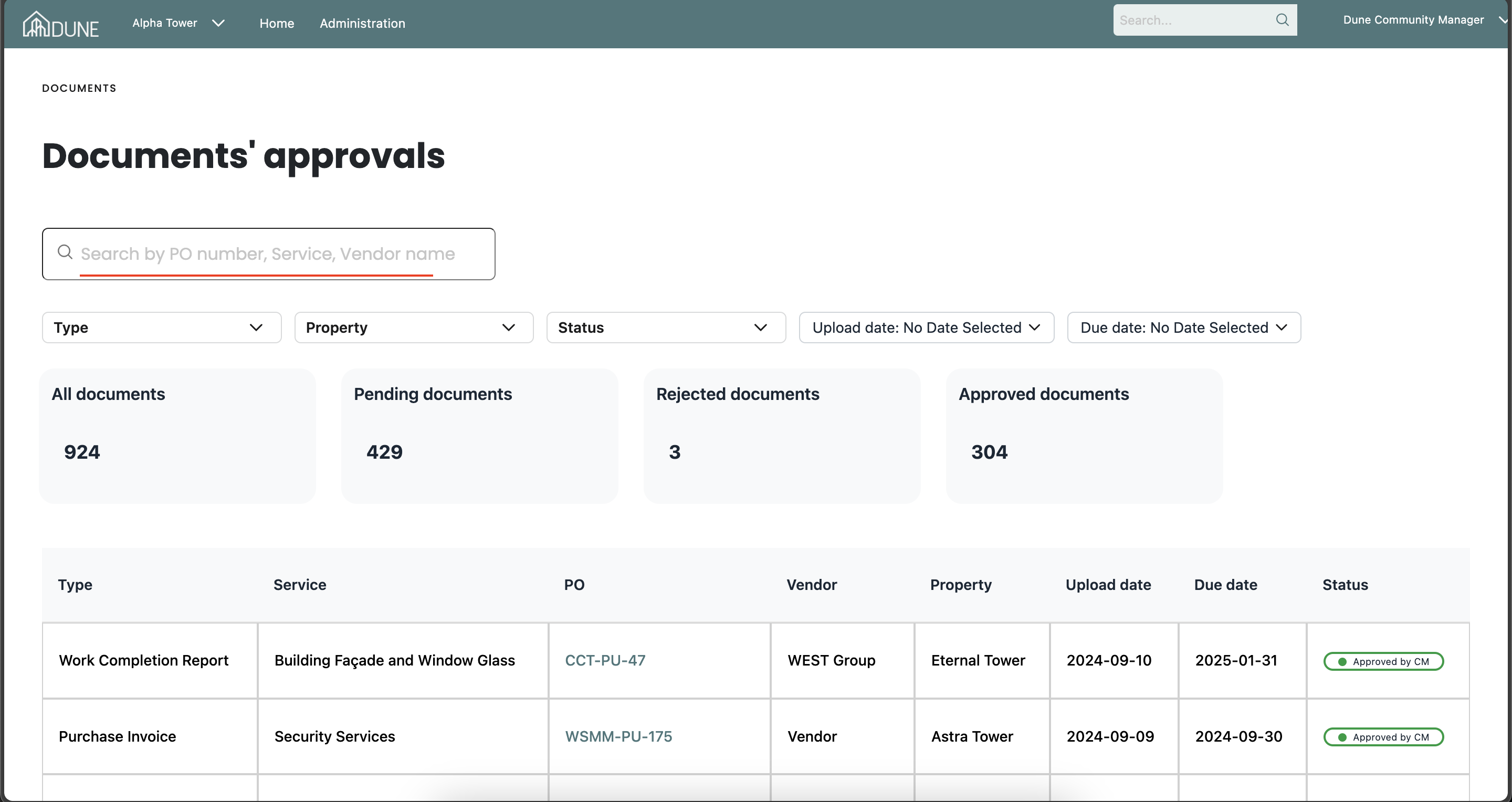
Follow these steps to view and approve vendor documents:
Navigate to the Documents' Approvals Page:
From the system homepage, go to the Documents' Approvals page.
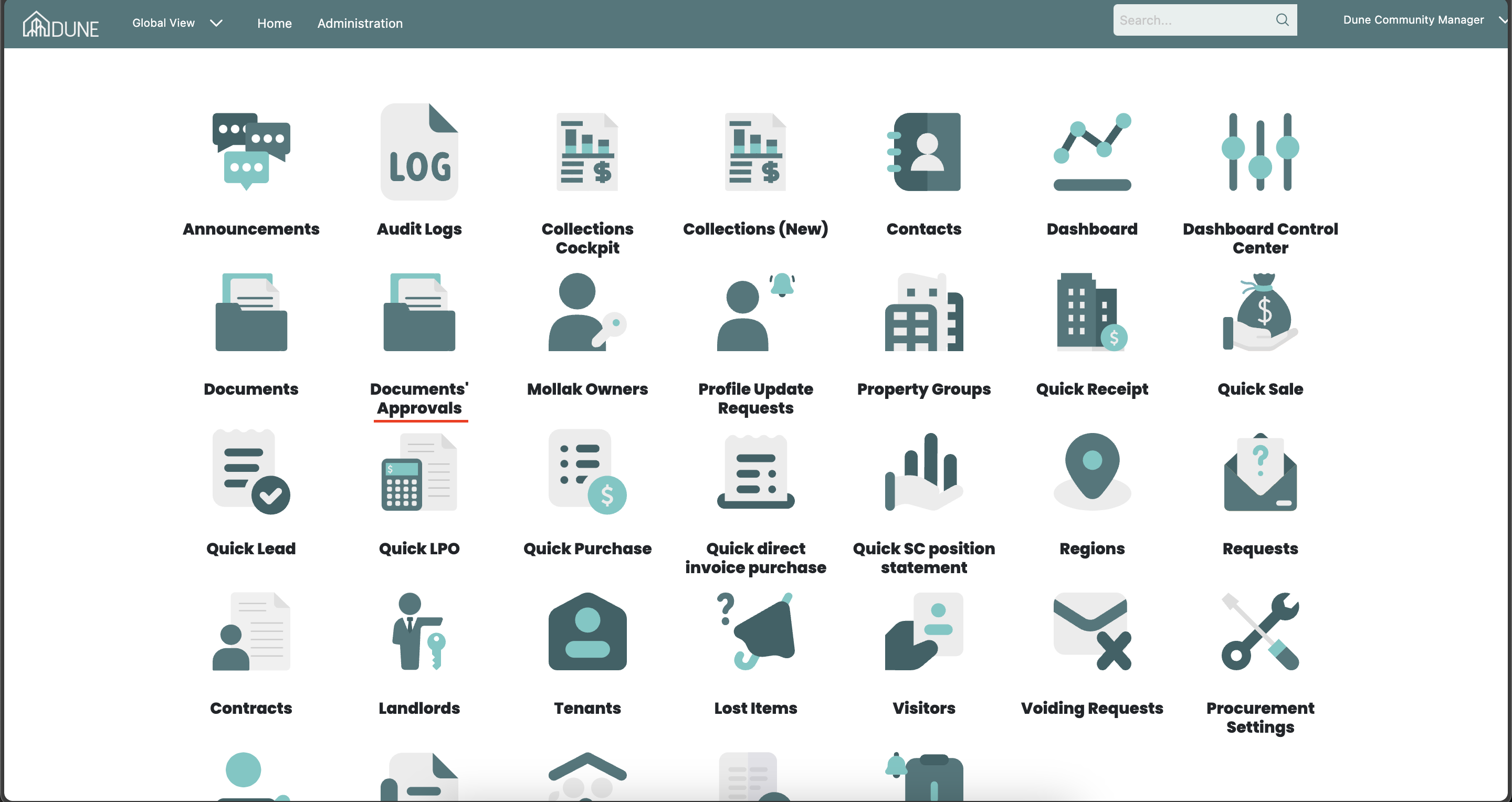
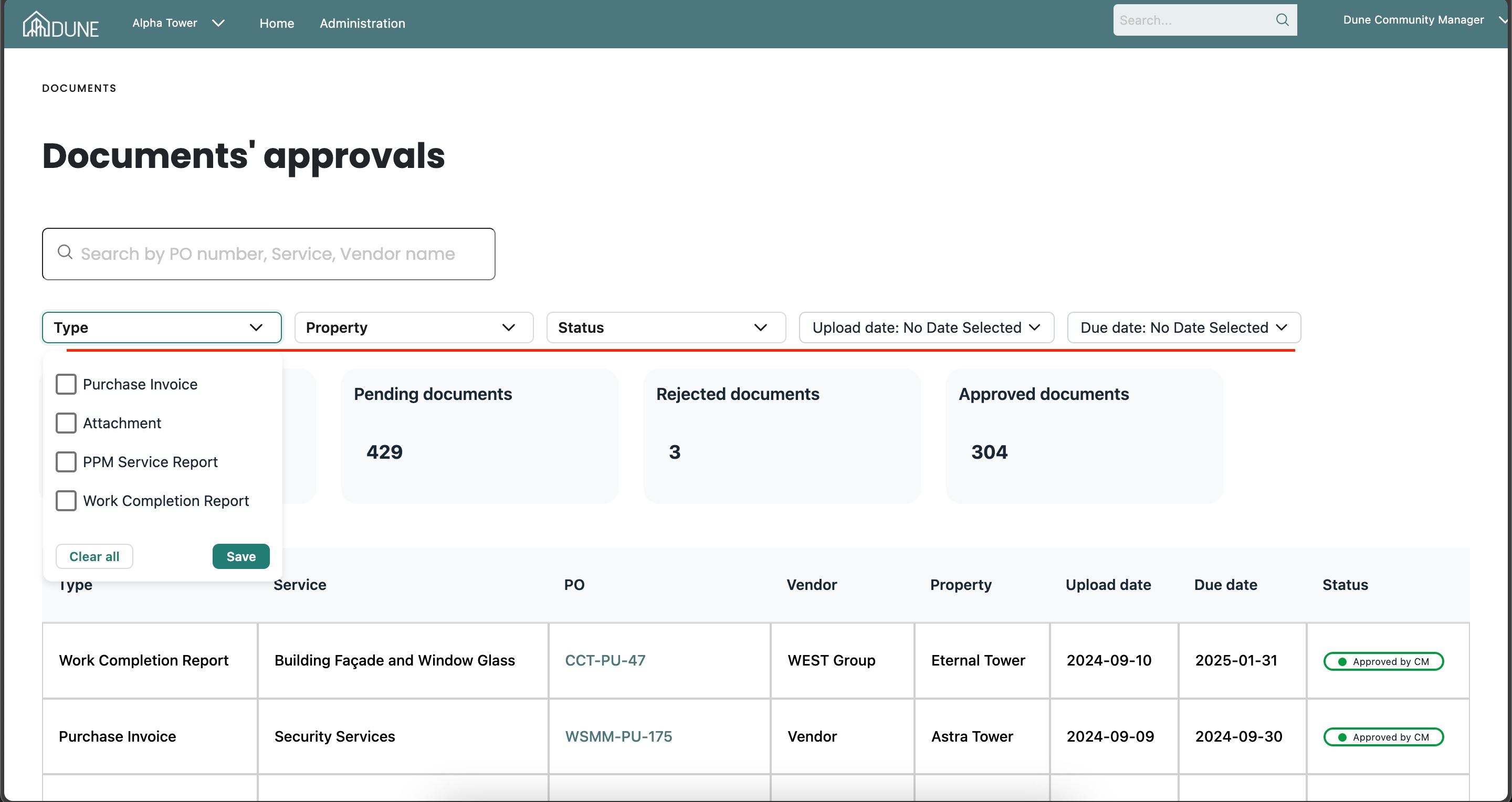
Filter Your Preferences:
You can customize your view to quickly find the documents by selecting filters such as:
- Document Type
- Property Group
- Approval Status
- Uploaded Date
- Due Date
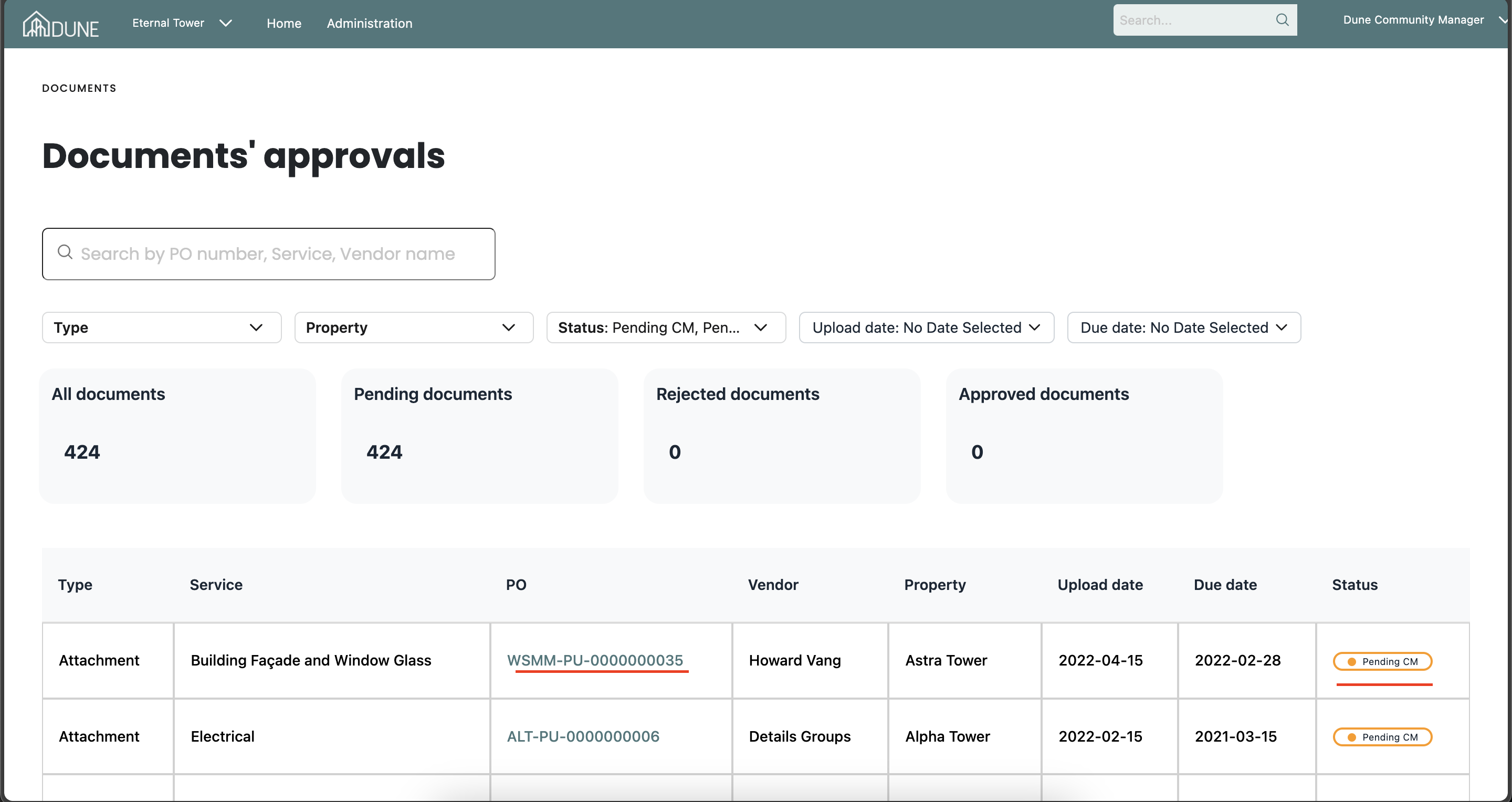
In the Status column, track which documents need your approval by filtering for "Pending CM" or "Pending Accounting."
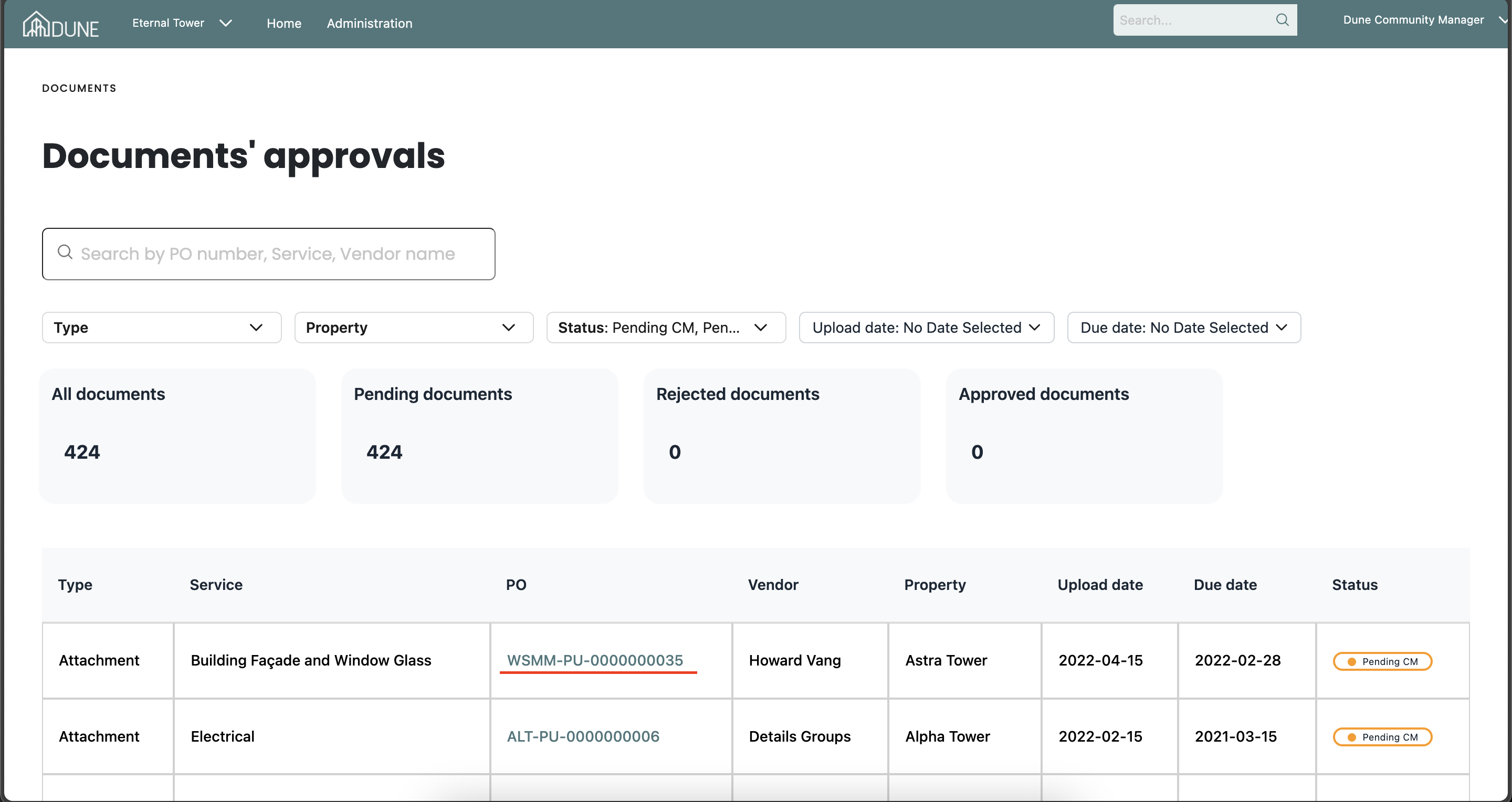
Access and Review Documents:
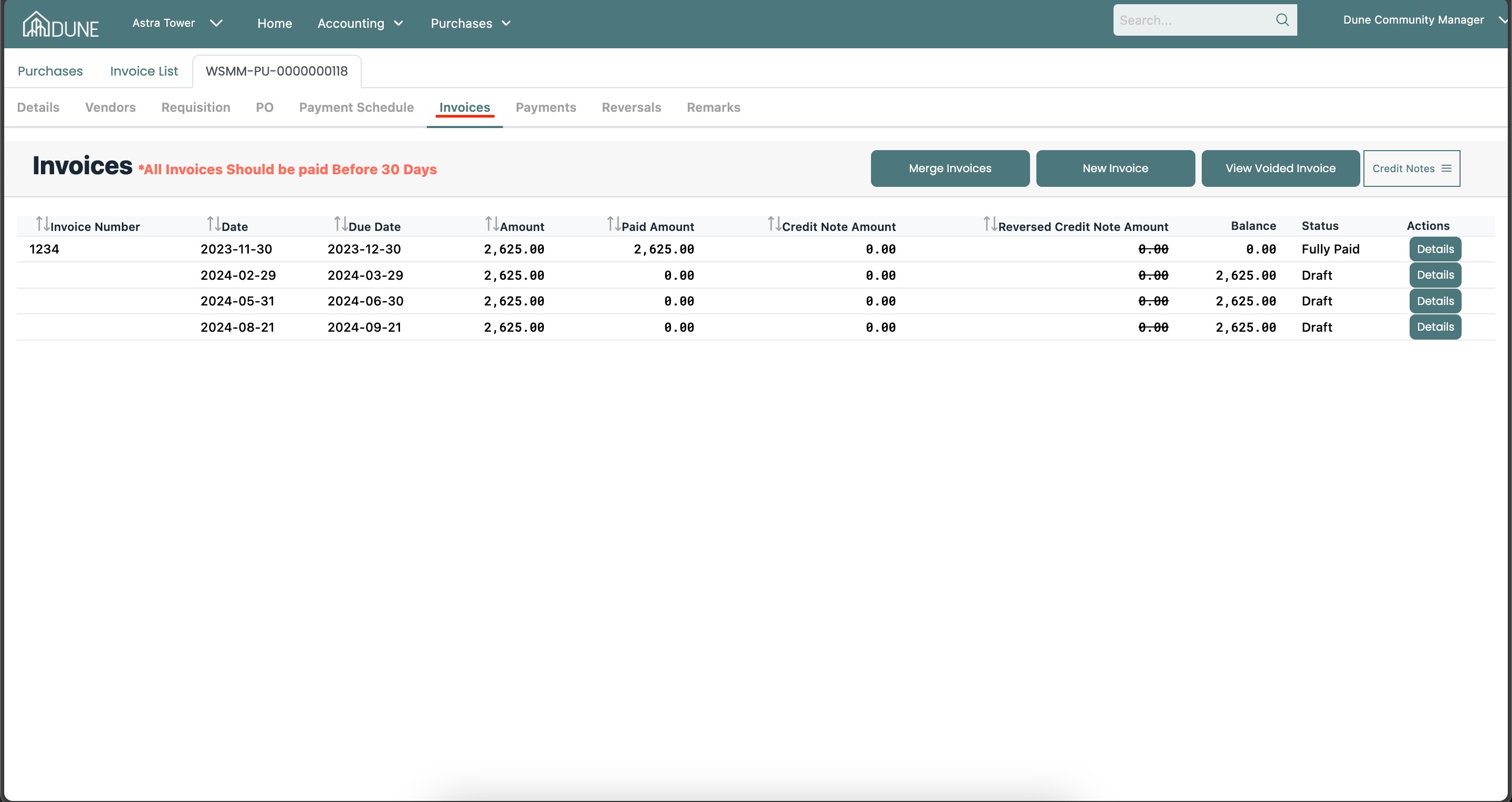
Click on the purchase name under the PO column. Then, go to the Invoices tab and select the invoice you need to review.
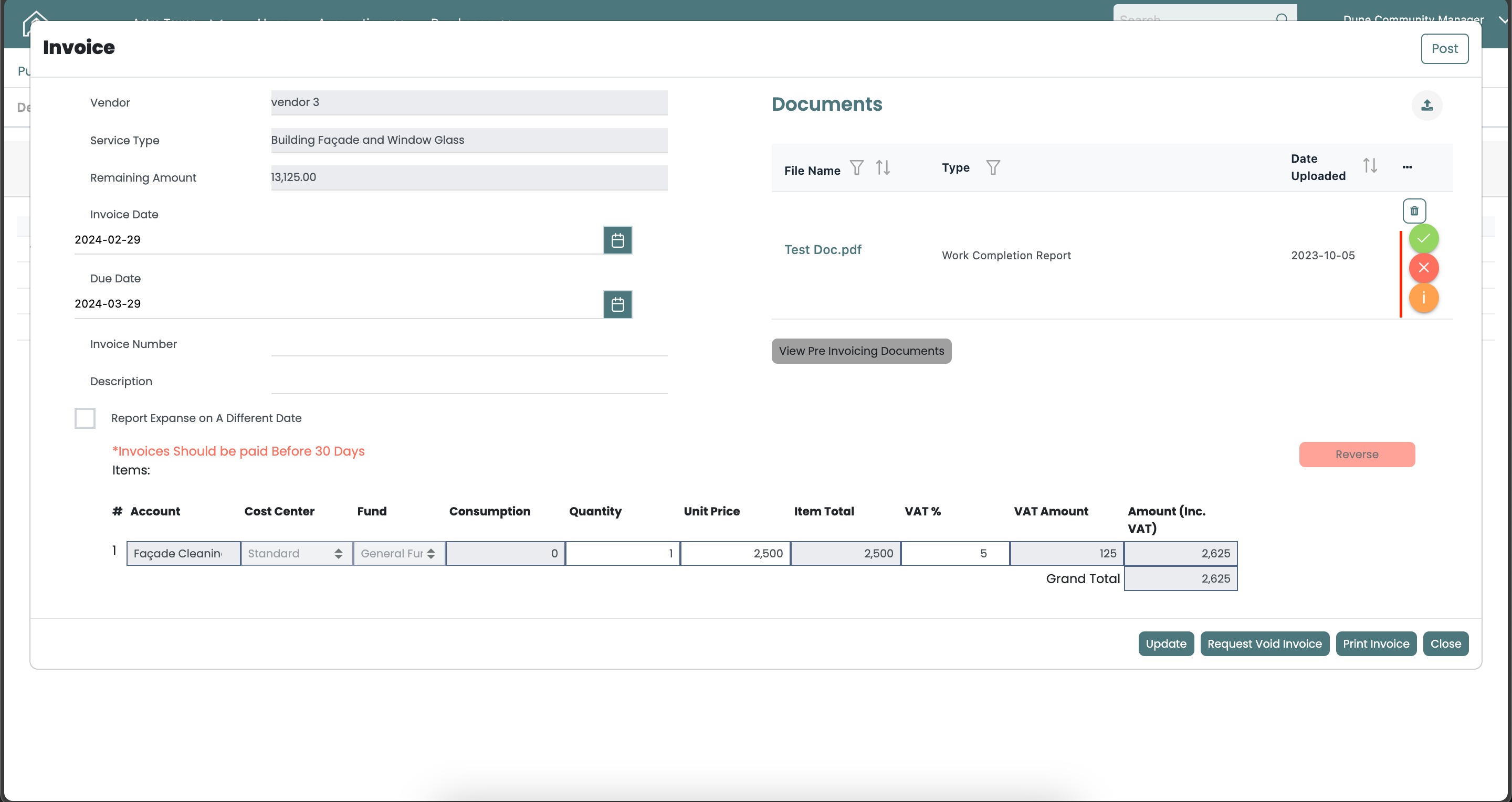
- Check the document inside the invoice.
- Approve or reject the document by specifying the reason for rejection.
Tips and Tricks:
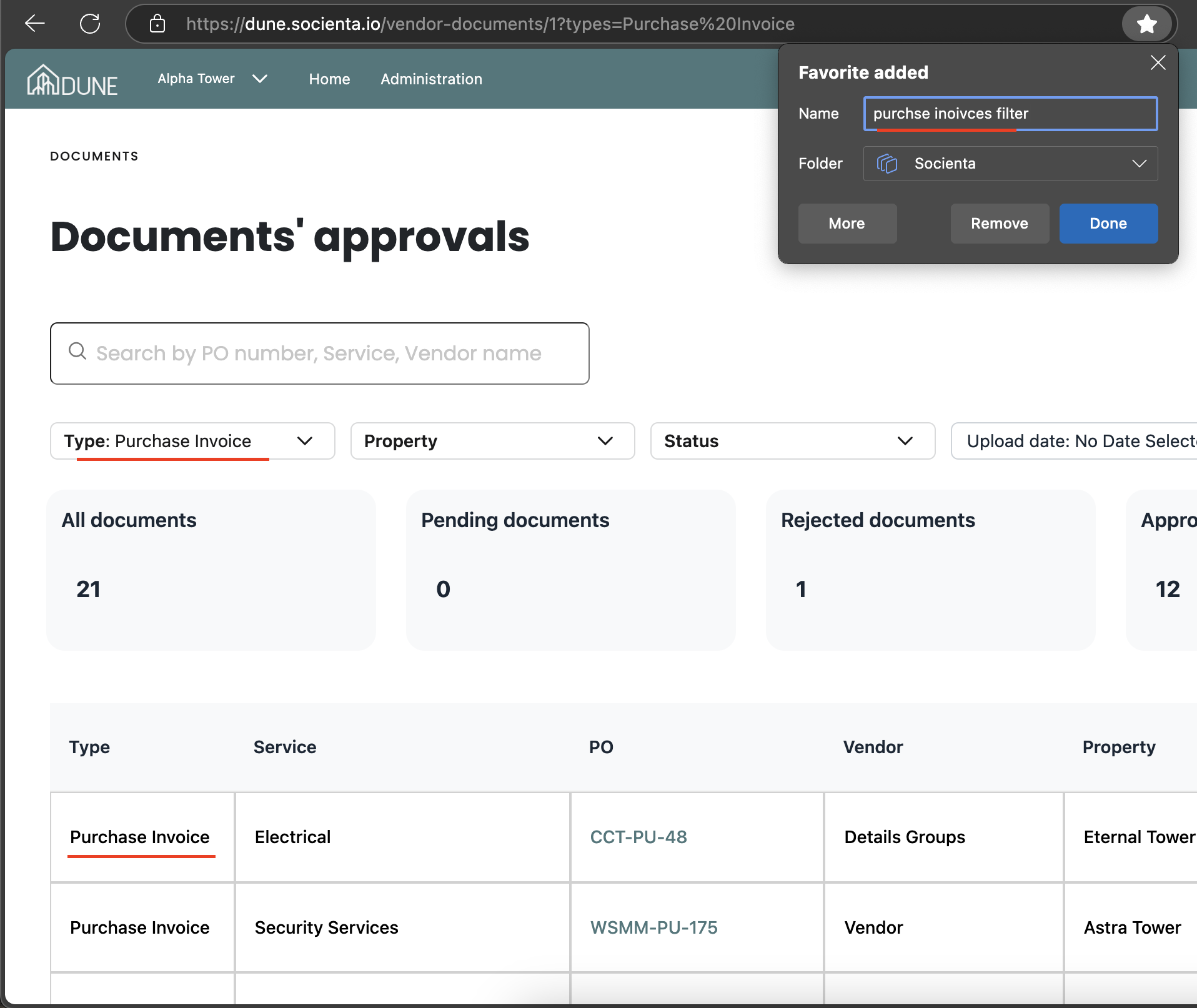
- After customizing your filters, you can bookmark the link or share it with others, allowing them to access the same filters directly.
- You can save multiple customized filters in your bookmarks to help organize your work more efficiently.
Additionally, use the Search option to quickly find vendor names or purchase names for easier access to documents.
Was this article helpful?
That’s Great!
Thank you for your feedback
Sorry! We couldn't be helpful
Thank you for your feedback
Feedback sent
We appreciate your effort and will try to fix the article