You may access the Procurement Settings through the Global View as seen in the screen below:
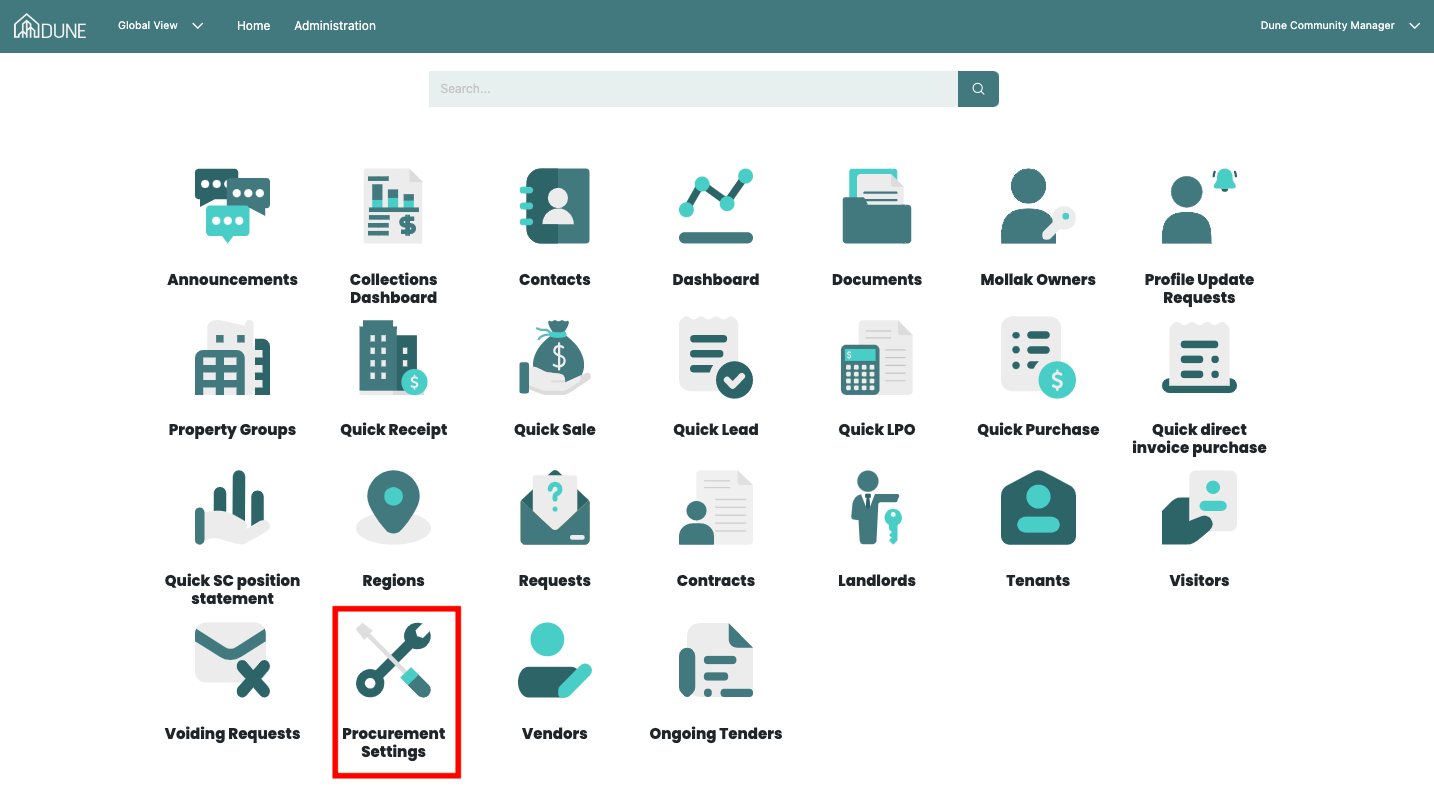
Under the Procurement Settings, You have 4 tabs: (Documents - Email Templates - Client Terms & Conditions - Client Registration Fee):
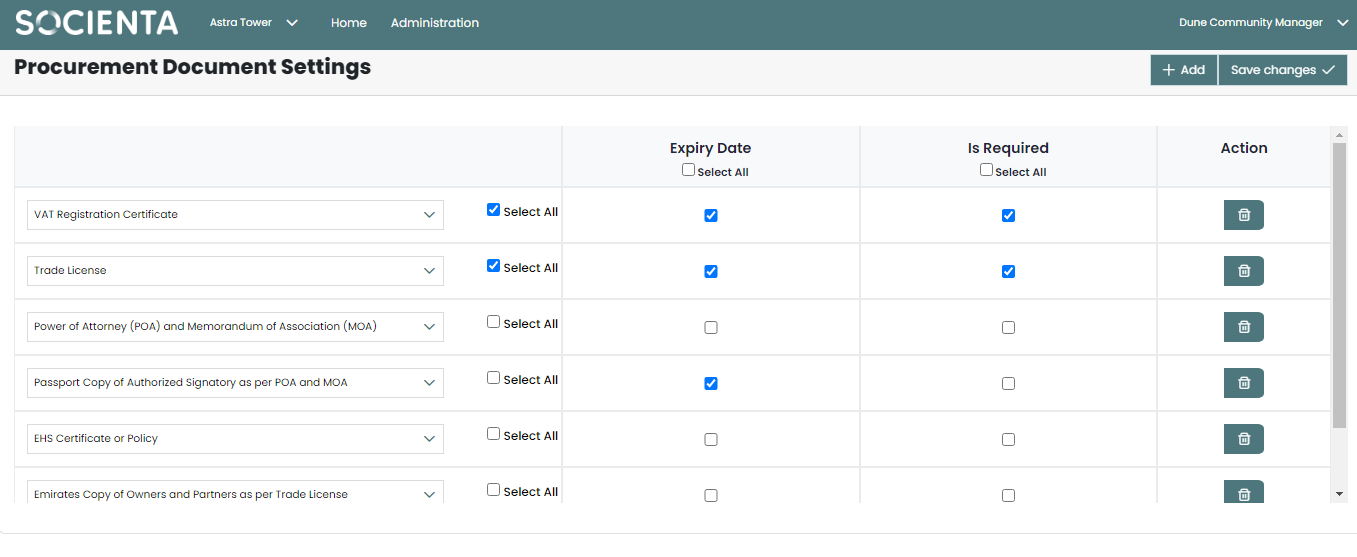
1. Documents:
You can select the kind of documents that you require vendors to upload when they register with your company through this screen. You can also specify whether certain documents are required or optional. You can also add as many documents as you'd like to display for vendors.
Once you've completed this step, click "Save".
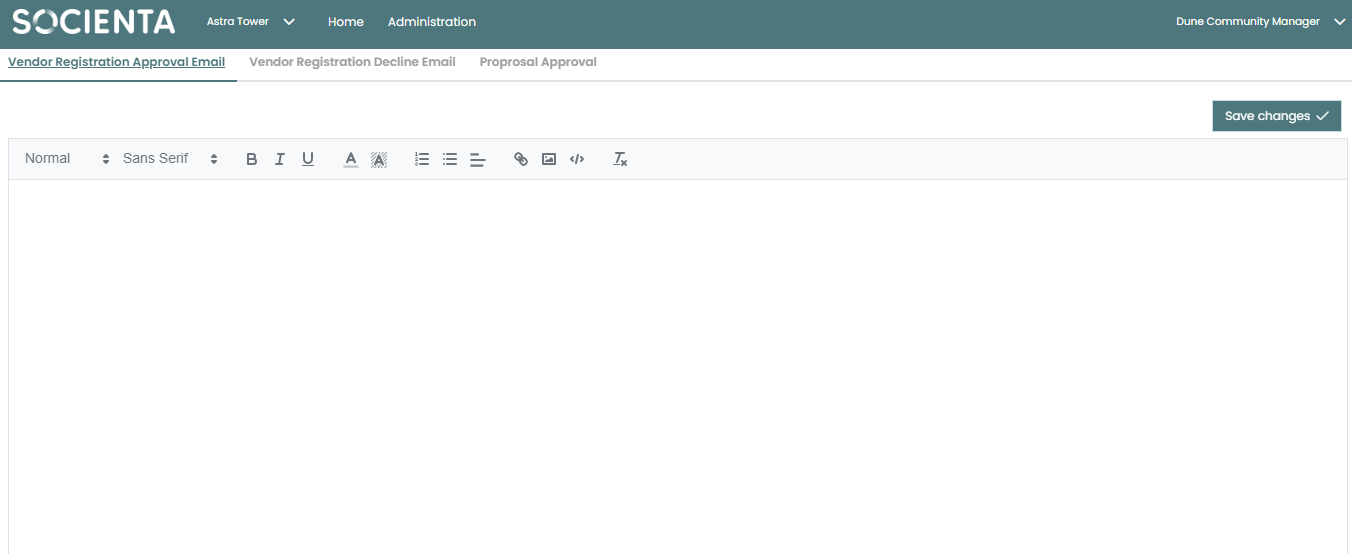
2. Email Templates:
You can configure automatic replies to be sent to your vendors after approval of registration, declining of registration, and proposal approval by using the tabs in the page below. .
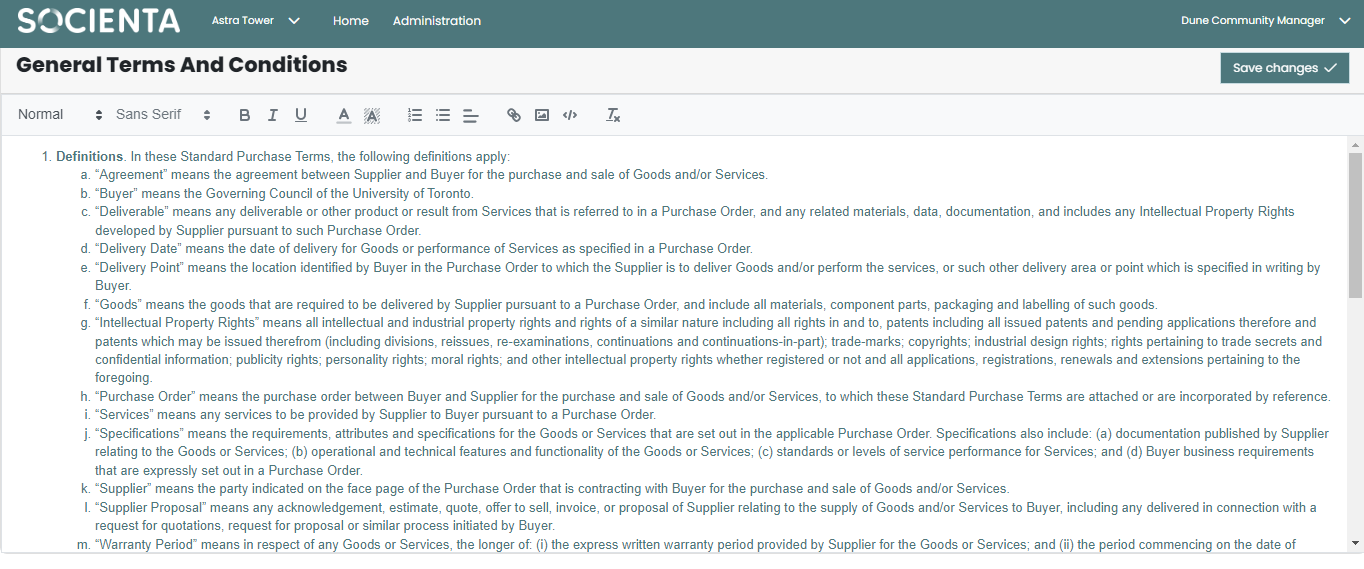
3. Client Terms & Conditions:
You can set the terms and conditions that will apply to your vendors once they complete the client registration procedure using this tab.
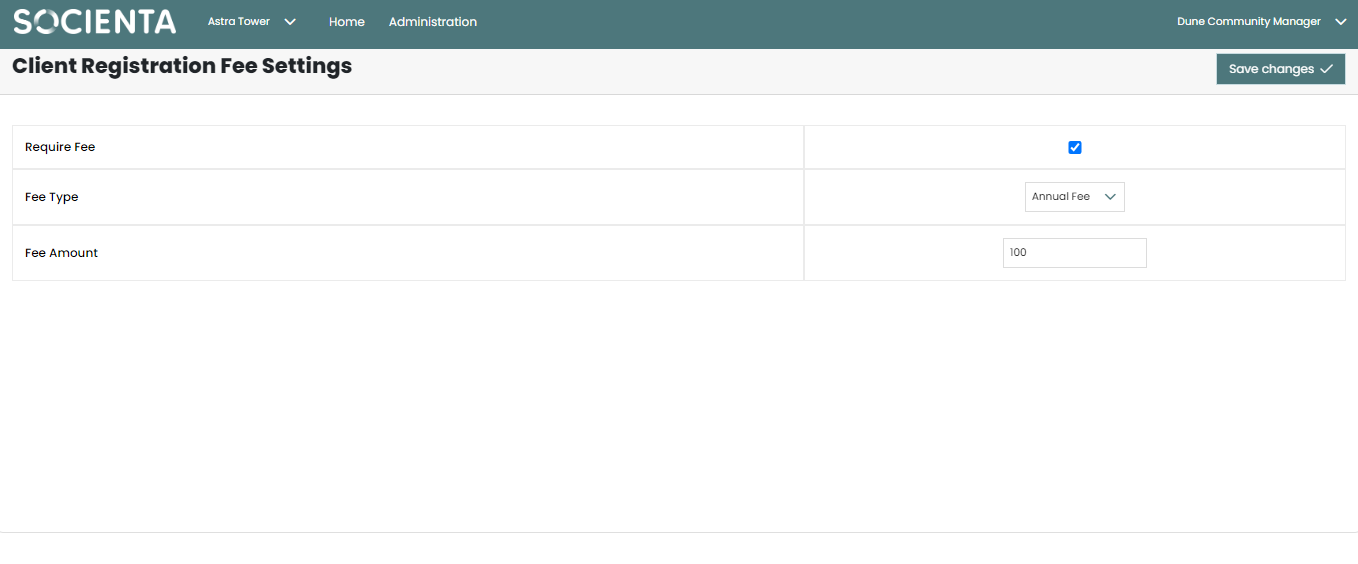
4. Client Registration Fee:
The fee for the registration procedure can be set using this screen. You can choose the fee type (Annual - Monthly - Daily - Once Time Charge) and decide whether it is required or not.
Was this article helpful?
That’s Great!
Thank you for your feedback
Sorry! We couldn't be helpful
Thank you for your feedback
Feedback sent
We appreciate your effort and will try to fix the article